Close the receipt
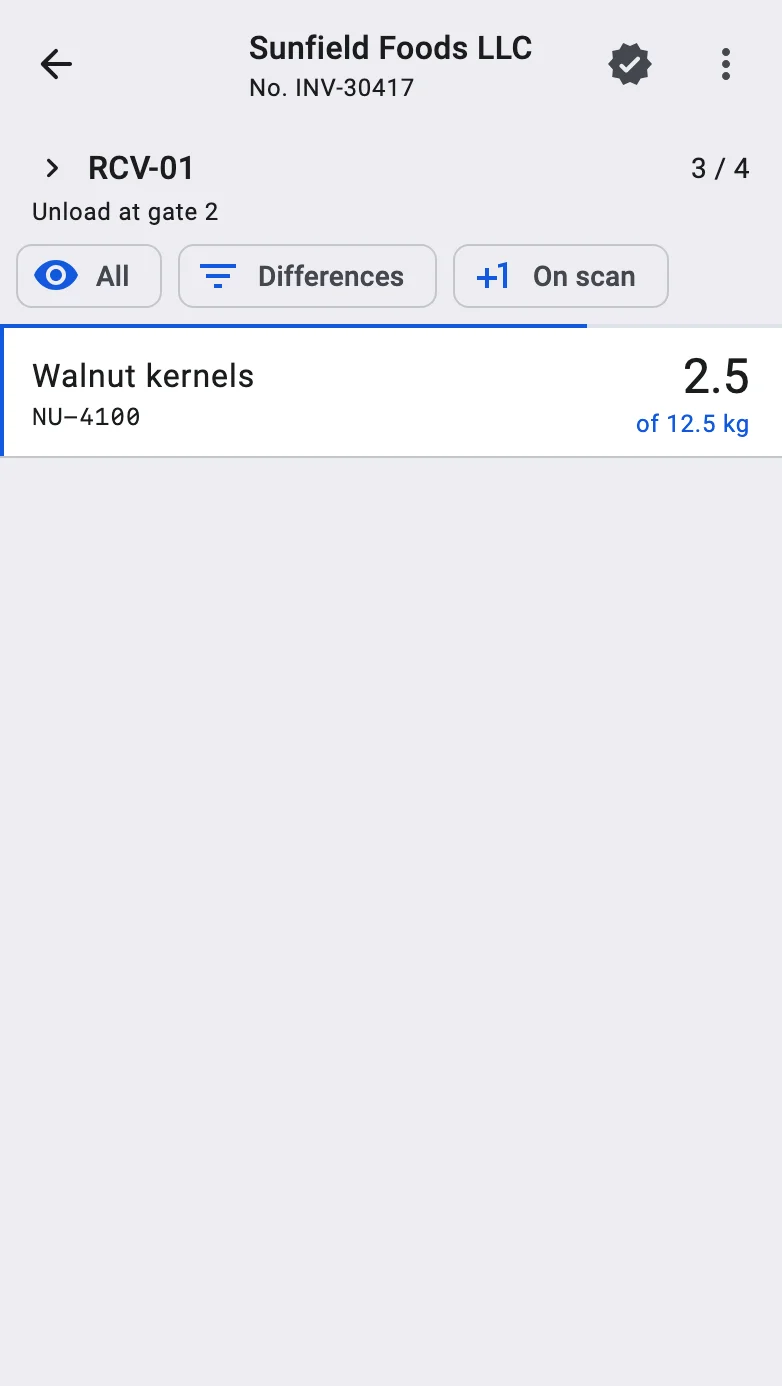
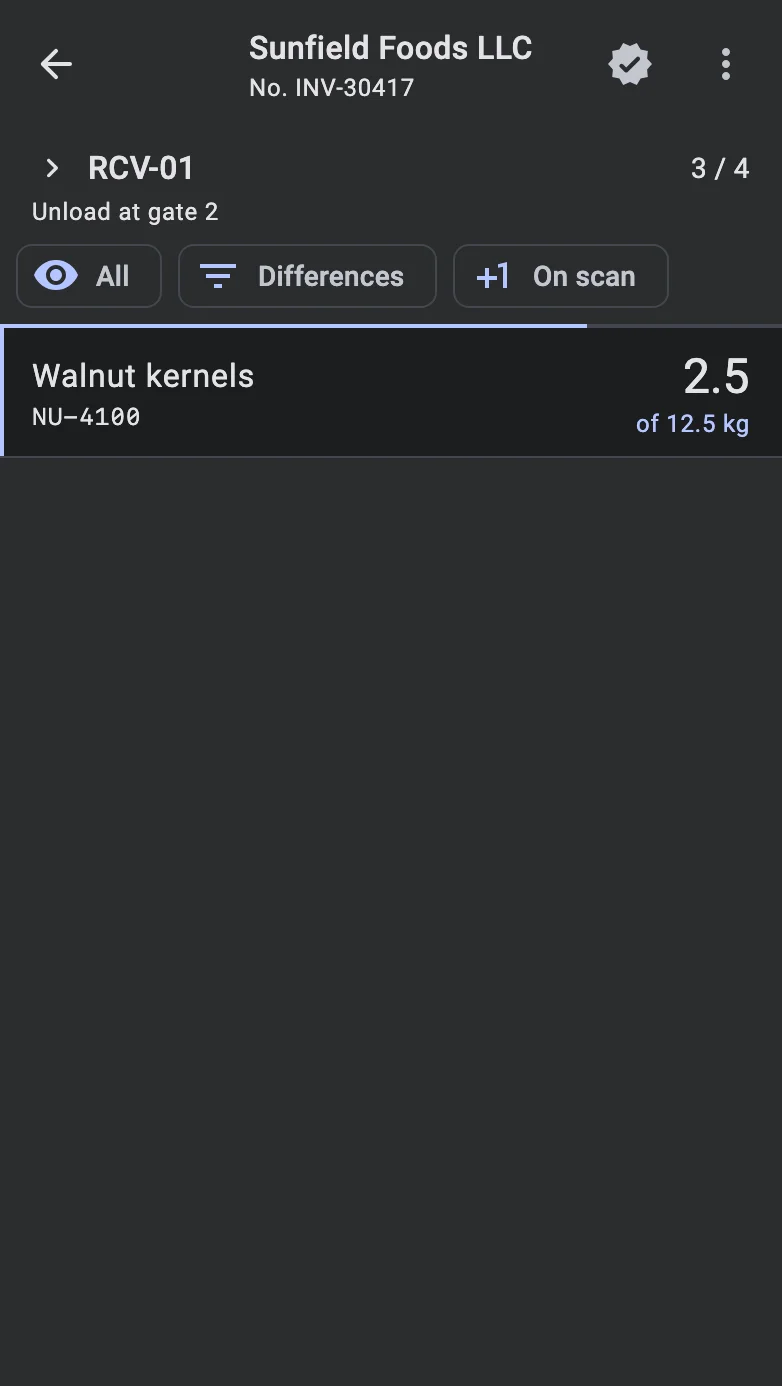
When every line has been processed — or the operator decides to finish early — they tap the Finish icon in the top bar of the receipt's line list, and the document moves to Received. The icon has no caption on screen; "Finish" is only its accessibility description. It is shown only to operators who have the right to post receipts.
:::note Offline The Finish icon works without a connection too: the completion goes to the queue and the terminal leaves the document with Saved. It will reach the server automatically instead of Receipt is confirmed. A receipt with nothing received yet is refused offline just as online. More in Working offline. :::
What happens next depends on how much has been received:
- Everything is received — every line has reached its planned quantity and no container is left to accept. The receipt is completed at once, with no questions.
- Something is still missing — see the first dialog below.
- Nothing has been received yet — see the second dialog below.
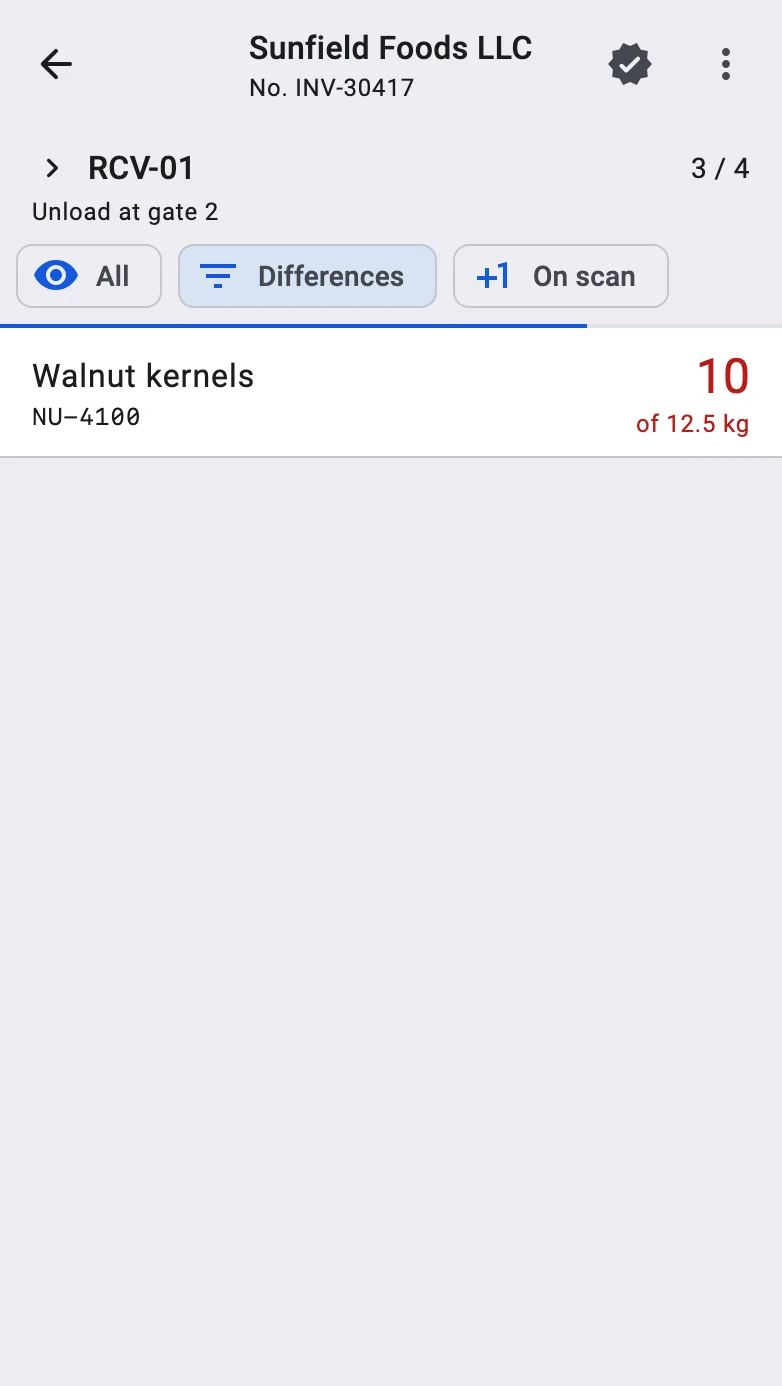
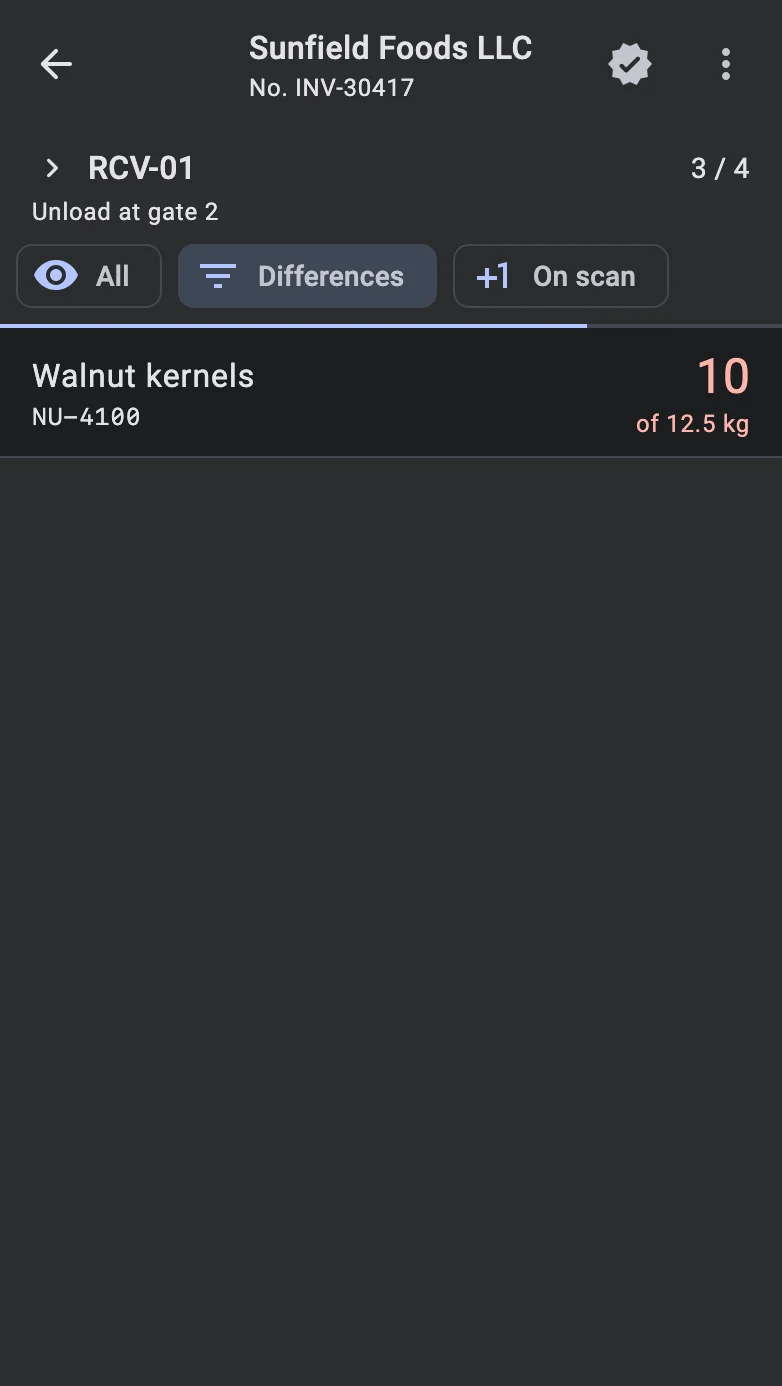
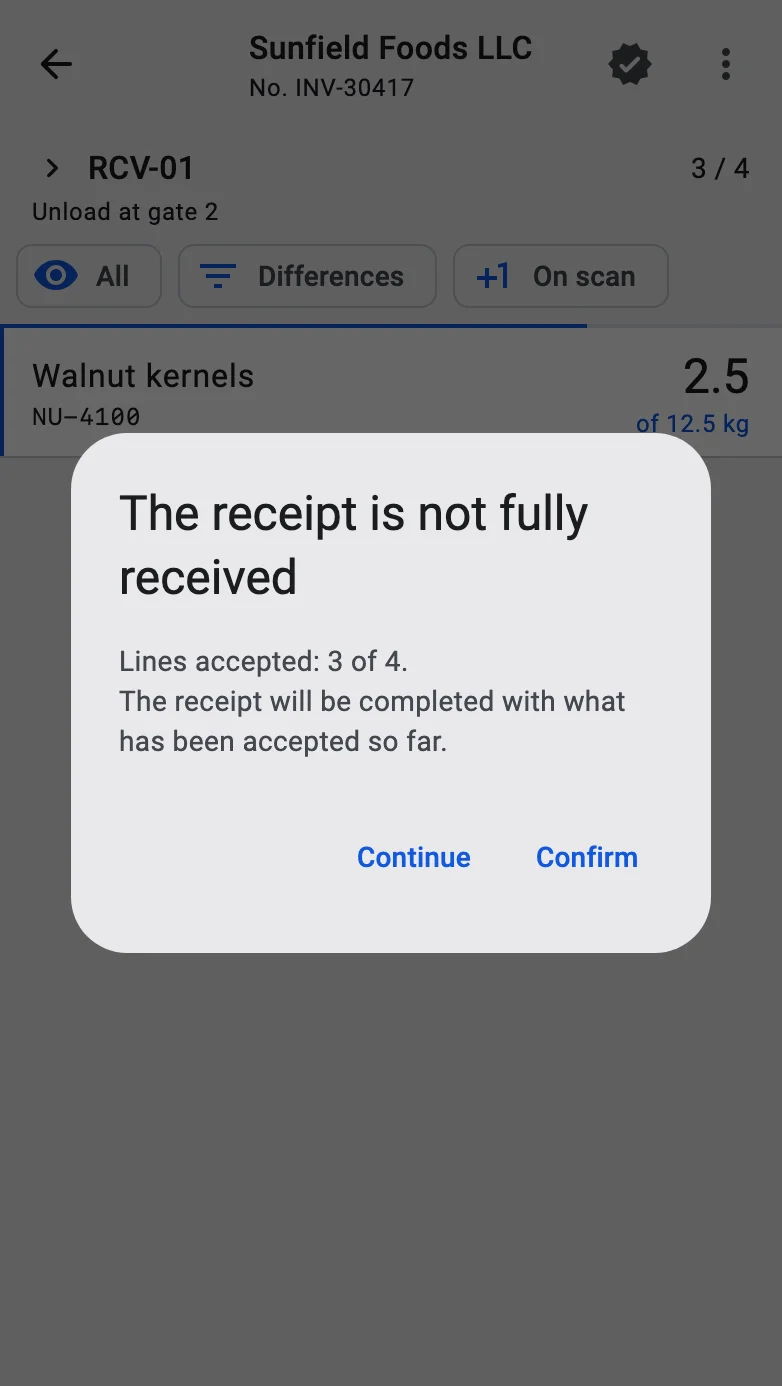
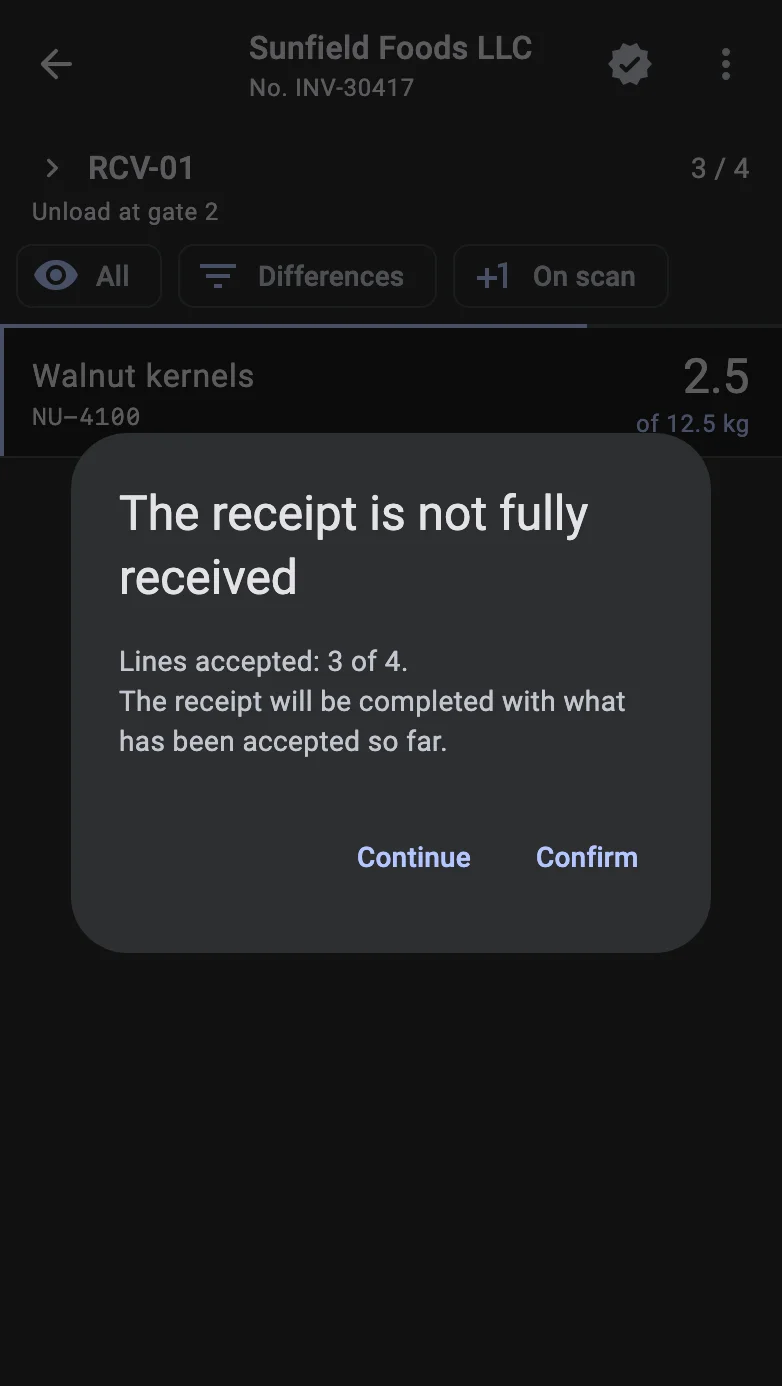
The receipt is not fully received
When some lines or containers are still not received, a dialog titled The receipt is not fully received appears. It shows how many lines (and containers, if the receipt has them) have been accepted out of the total, and says that the receipt will be completed with what has been accepted so far.
- Confirm completes the receipt as it is.
- Continue closes the dialog and returns to the line list so the operator can scan the rest.
Completing a partially received receipt does not remove anything: what completion does is described under Received, and the shortfall is handled afterwards as a discrepancy in the client app. No separate shortage records are created on the terminal.
The receipt is still empty
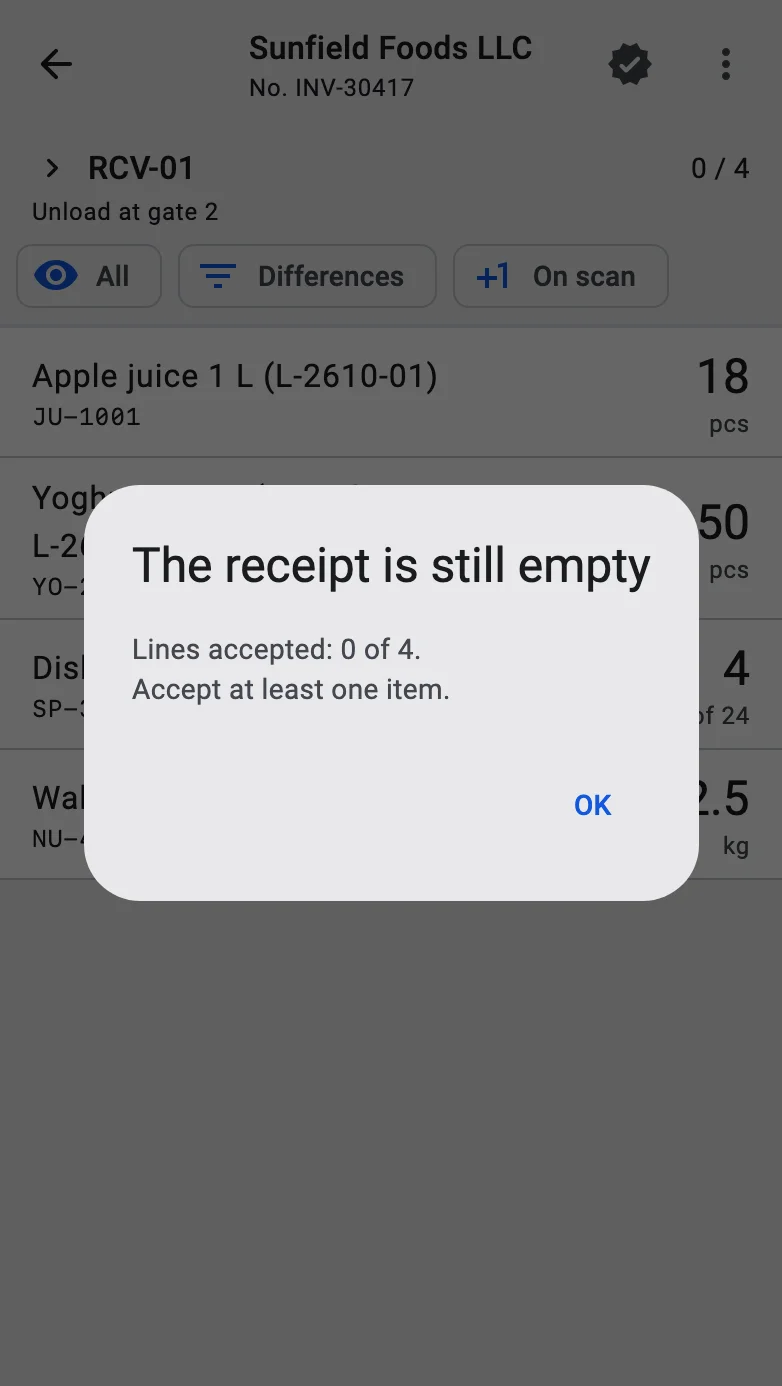
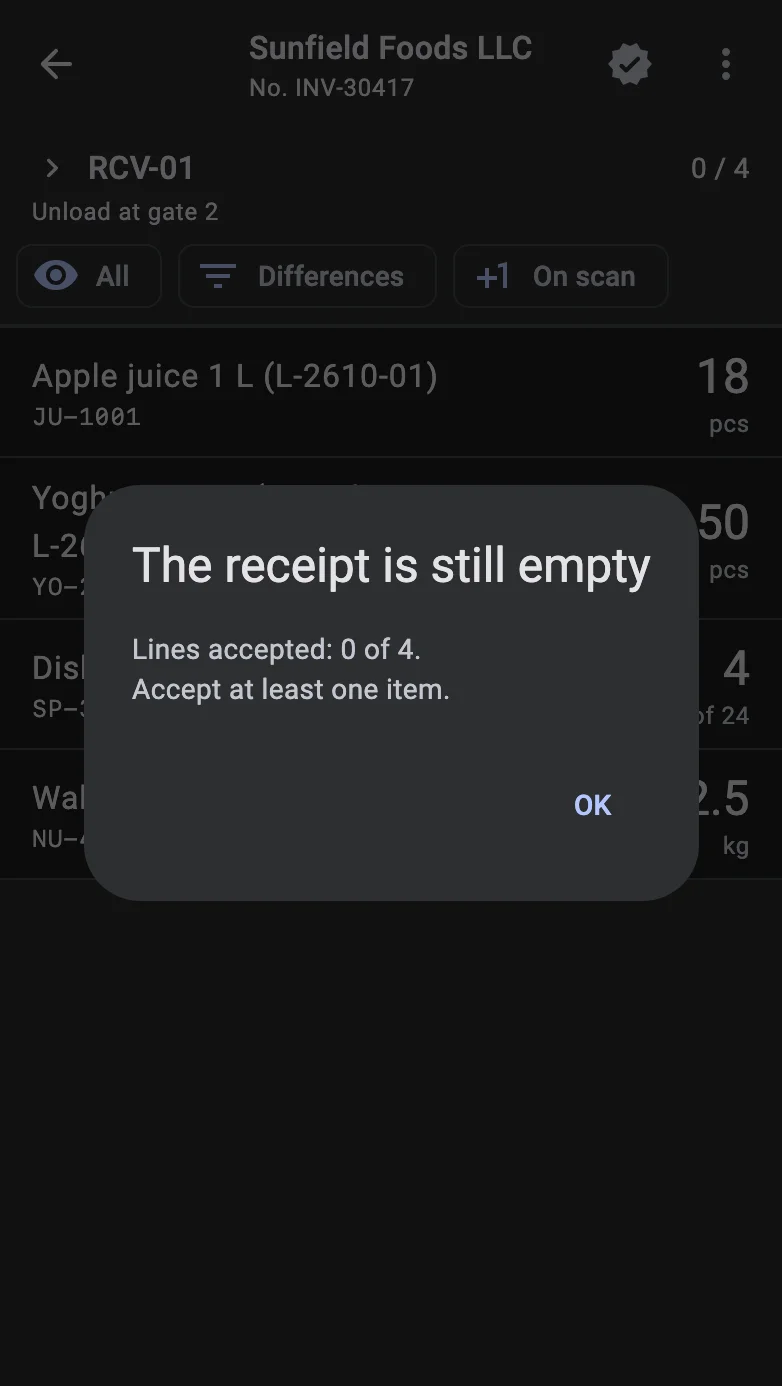
If no goods and no containers have been accepted yet, the receipt cannot be completed. A dialog titled The receipt is still empty shows the accepted counts and asks the operator to accept at least one item, one container, or either, depending on what the receipt contains. OK closes it.
What completion does to the receiving containers is described in Containers on closing.
Automatic confirmation
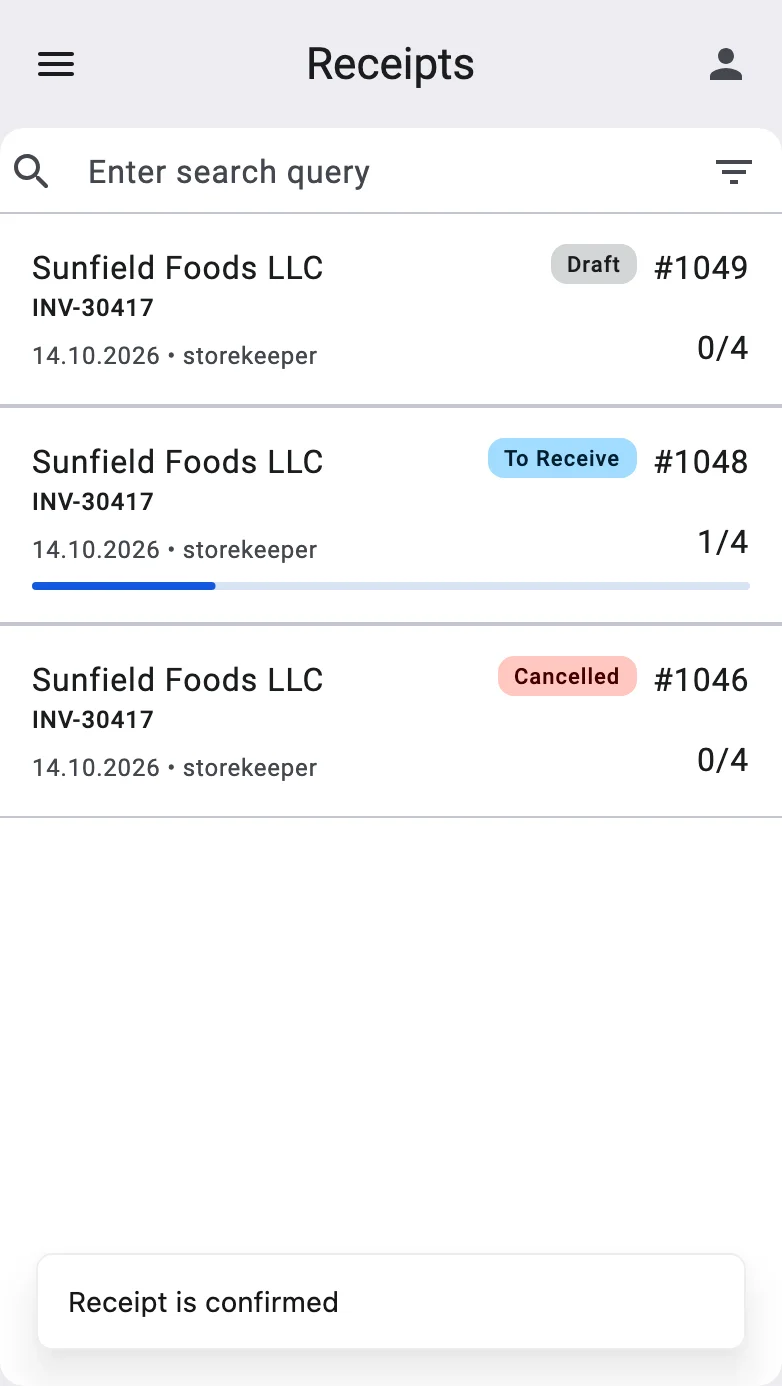
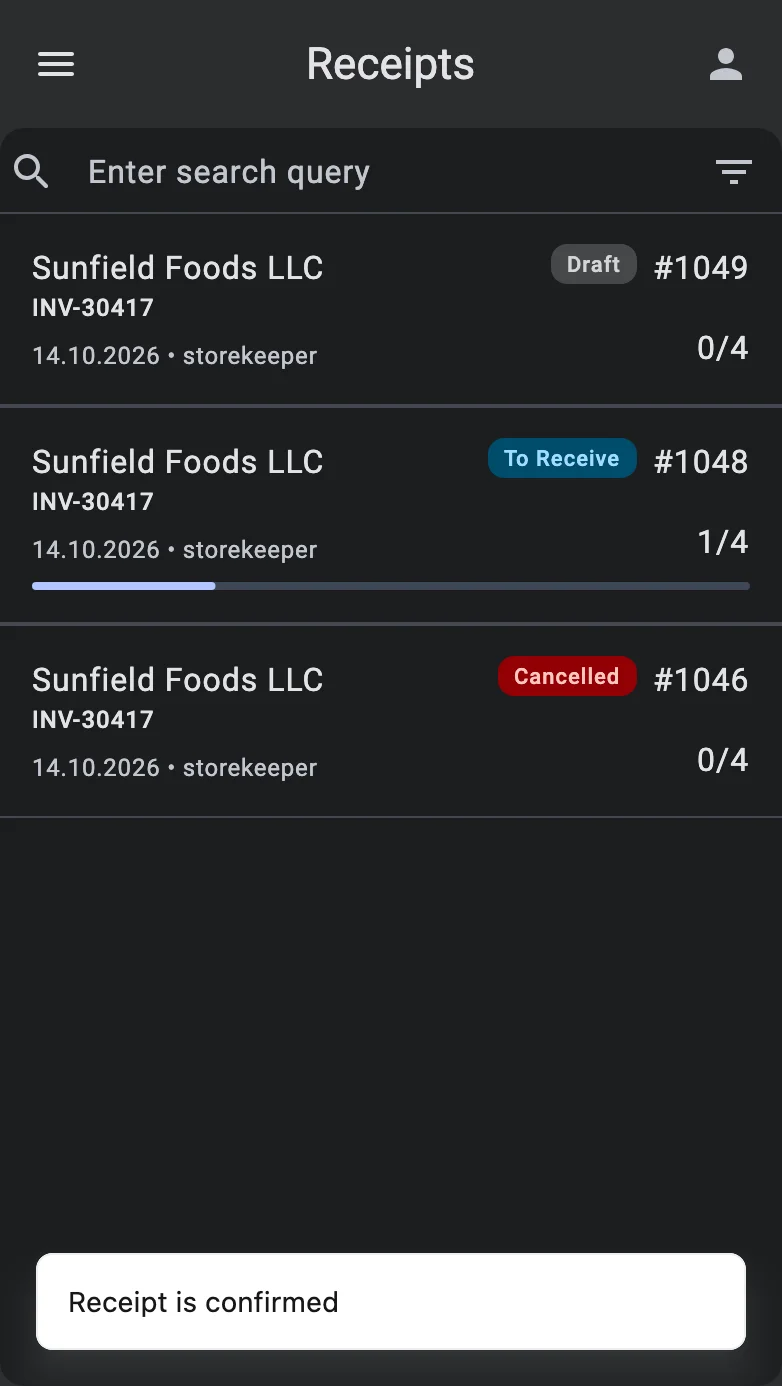
If the receipt has automatic confirmation switched on, the operator does not need the Finish icon when everything matches the plan. The moment a saved fact or an accepted container makes every line equal to its planned quantity, the receipt is completed by itself and the terminal leaves the document with the message Receipt is confirmed. The exact conditions are in Automatic confirmation. If the plan is not matched, the receipt simply waits for the operator to finish it.
After closure, downstream work — quality control (when enabled for the product category), discrepancy resolution, handoff to putaway — happens off the PDT. The PDT operator hands the document on and can pick up the next one.