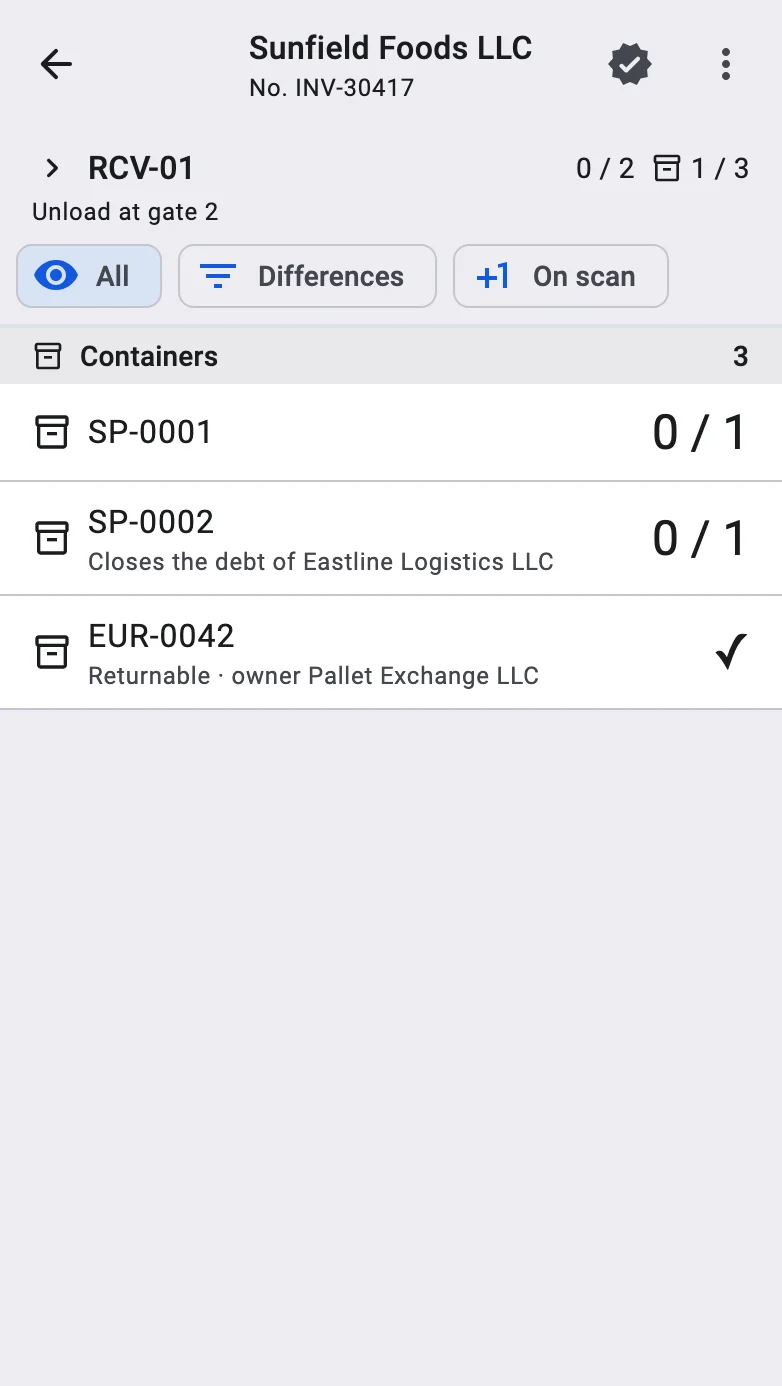
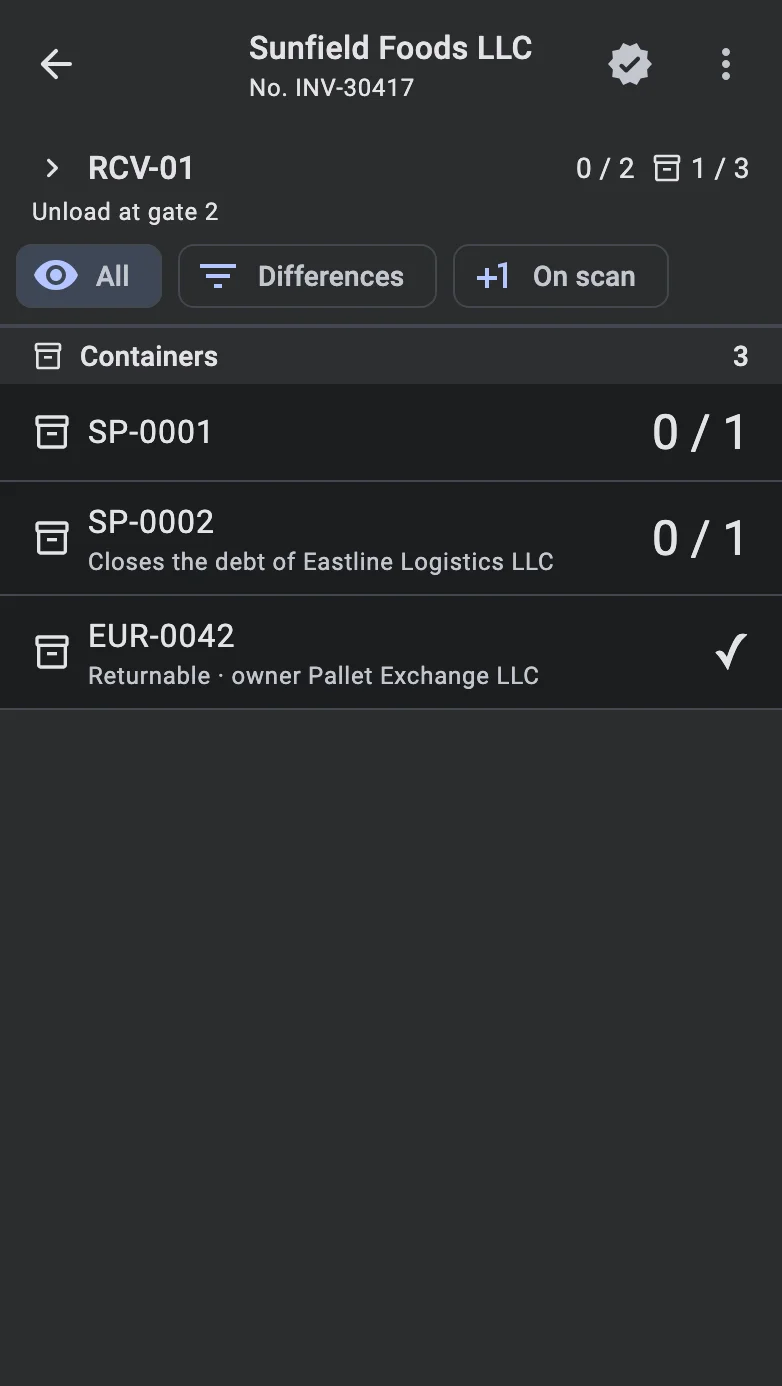
Pick the receiving target
Before scanning lines, the operator has to tell the system where they land: directly into a cell of the receiving zone, into a supplier container, into a warehouse container, or into a temporary container. Without this step the next scans cannot be recorded — the system would not know which physical carrier to attach the goods to. Whether the step is needed, and which containers it takes, follows the two container settings of the receipt: the receiving container requirement first, then the sender container handling mode.
:::note Offline Accepting a supplier container works without a connection: the acceptance goes to the queue and the terminal says Saved. It will reach the server automatically. The container is checked against the data already on the terminal, and a container it cannot find there is refused. More in Working offline. :::
Receiving container requirement
None — receiving without a container
In this mode there is no target to pick: every line lands in a cell of the receiving zone. Scanning a container as a receiving target is refused with a message that the receipt does not use containers.
Optional (Sender Only) — into the sender container if present
In this mode the operator can receive into a supplier pallet when one is on the truck, or directly into a cell when there is no pallet. When the pallet is there and the sender mode accepts it, the operator scans its barcode and it becomes the target of the next line scans. When there is no pallet, or the sender mode does not accept it, the system skips this step and every line lands in a designated cell of the receiving zone. Choosing a warehouse or temporary container manually is not allowed in this mode.
Required — always into a container
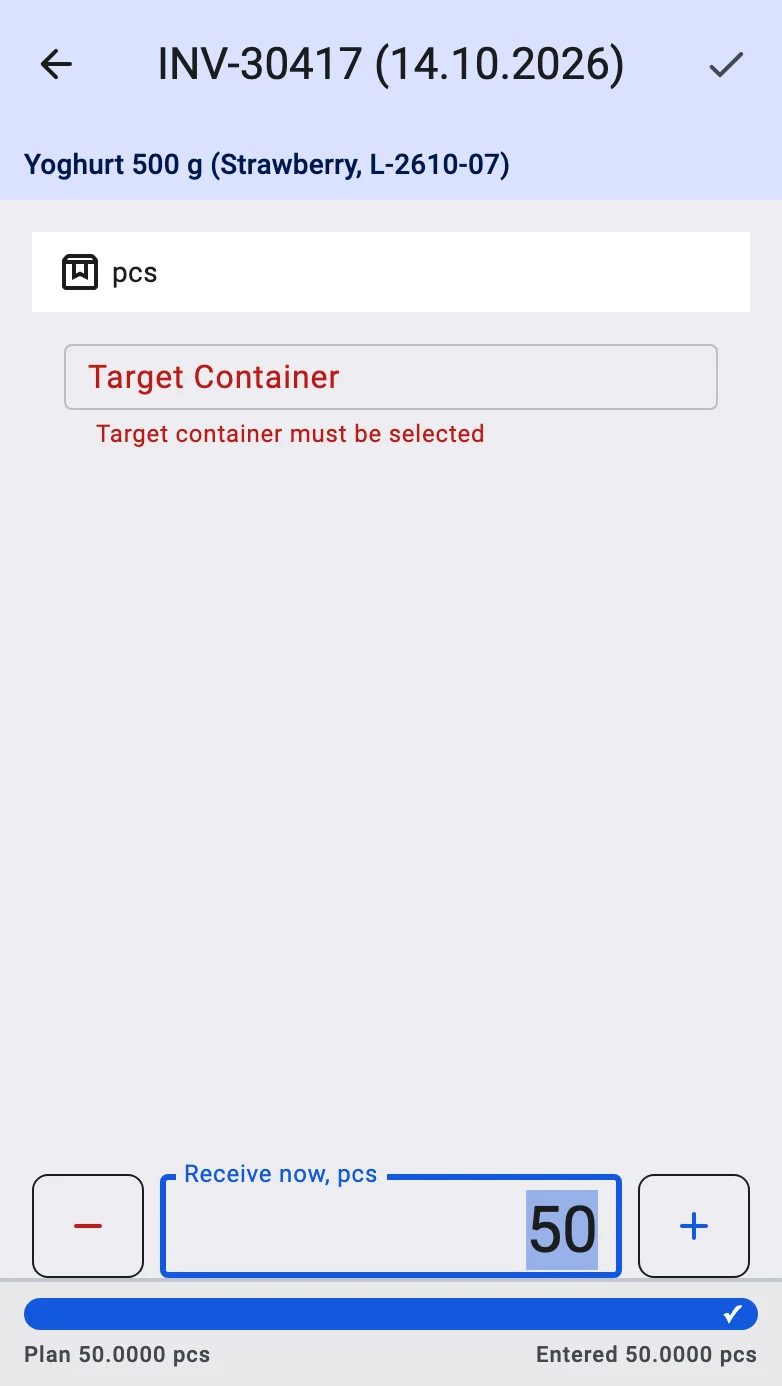
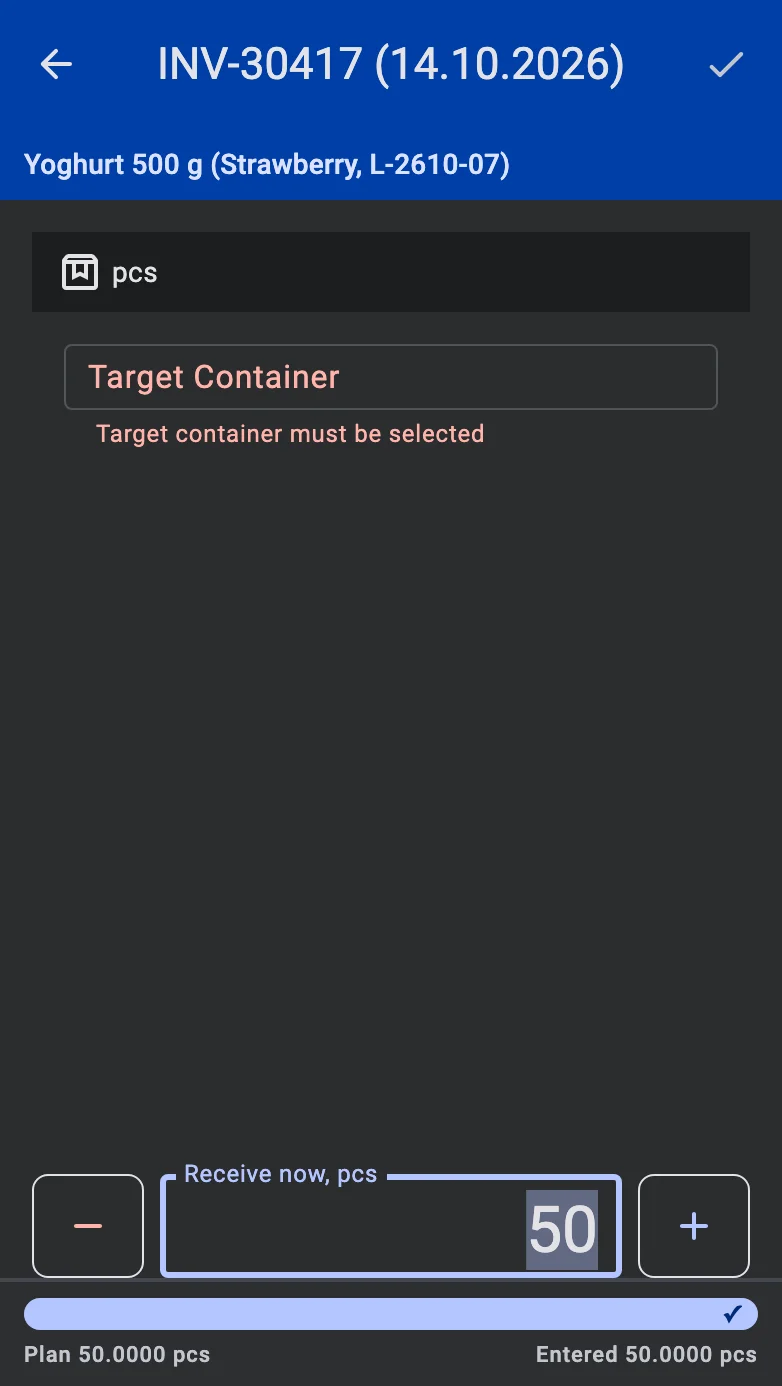
In this mode line scans are not recorded without a target: the operator must specify the container goods are being received into. The options on the PDT are:
- scan the barcode of a supplier pallet, when the sender mode accepts it;
- scan the barcode of an empty warehouse pallet prepared in advance for this delivery;
- scan a fresh code that creates a temporary container.
Once a target is picked, its number is shown at the top of the screen — so the operator can see which container the current batch of lines is being written into.
Sender container handling
Sender containers accepted for storage
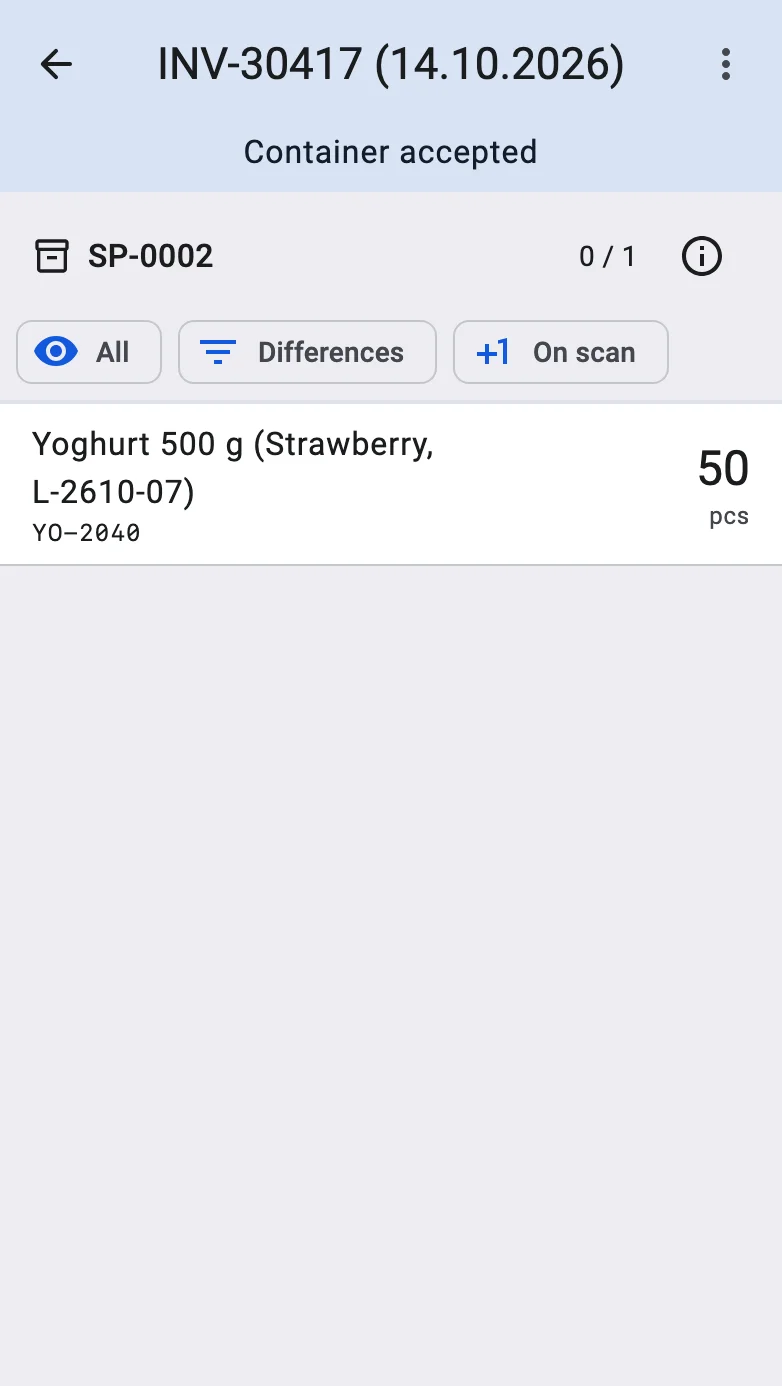
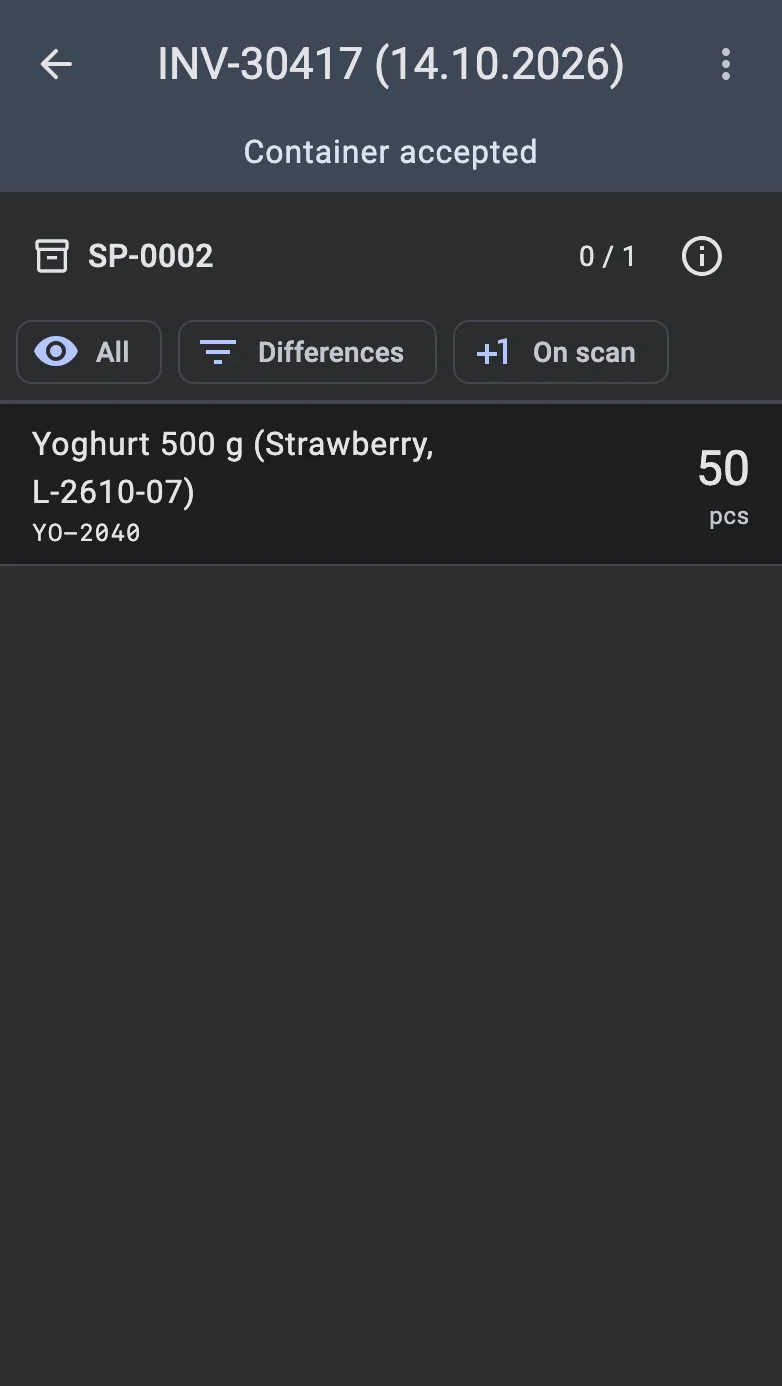
Scanning a supplier pallet opens its lines. The check icon in the top bar accepts the pallet as it stands: what is left of its lines is received into it, and the pallet is registered on the warehouse balance as a storage container. Once it is accepted, the top bar changes colour and reads Container accepted, and the check icon is no longer offered for that pallet.
Sender containers accepted for putaway
Scanning a supplier pallet opens its lines. The check icon in the top bar accepts the pallet as it stands: what is left of its lines is received into it, and the pallet is registered on the balance as the carrier that takes the goods into the storage zone. Once it is accepted, the top bar changes colour and reads Container accepted, and the check icon is no longer offered for that pallet.
Sender containers for tracking only
When supplier containers are used only to find and group lines, scanning a pallet opens the lines it holds. The pallet itself is not taken onto the balance as the sender's: the check icon receives what is left of its lines into a cell of the receiving zone. Lines received one by one follow the receiving container requirement, as for loose goods.
Sender containers not used
When the supplier does not use containers, this step does not offer to scan a supplier pallet — only a warehouse or temporary container, when the receiving requirement calls for one.
Which containers are accepted
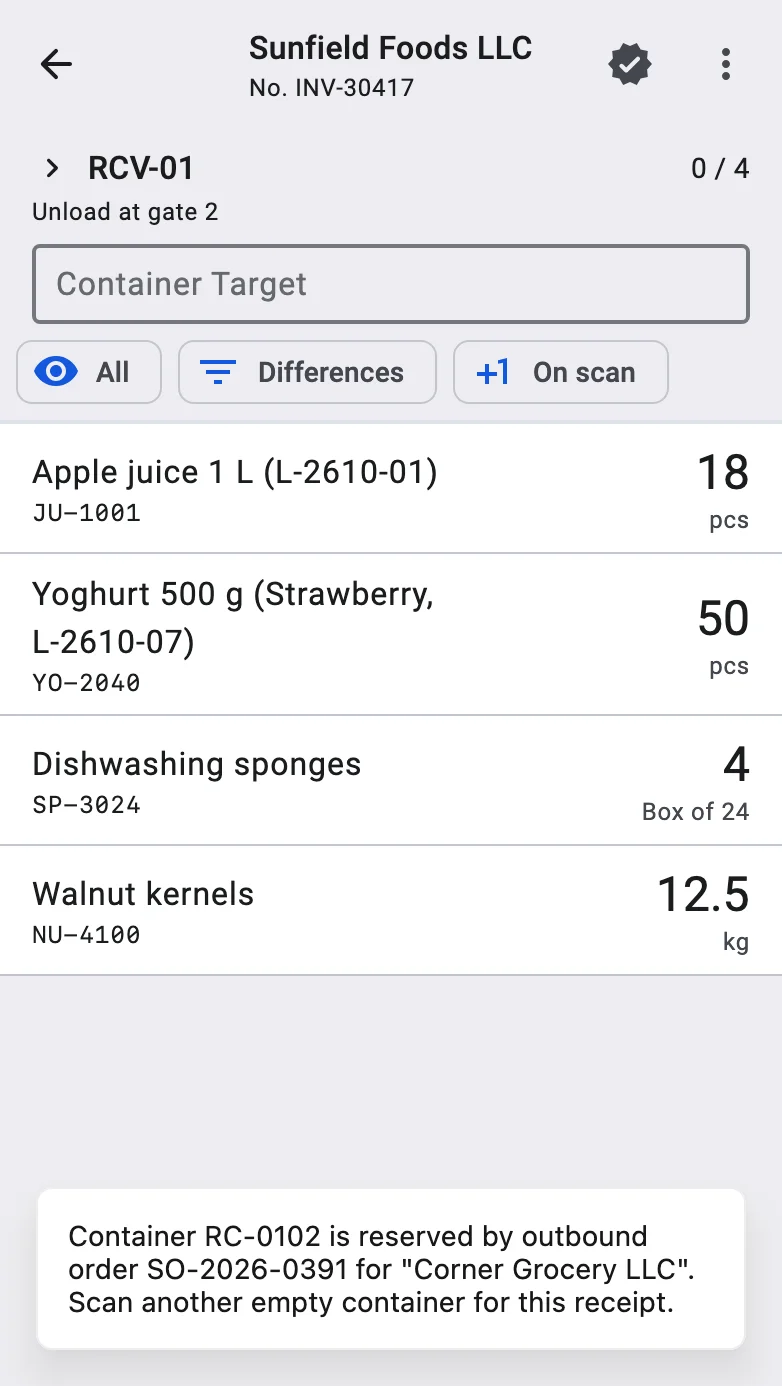
Every container the operator scans — as a receiving target or as a supplier pallet to accept — is checked first. A container is refused, and the message names the reason, when it:
- has been taken out of circulation;
- is held by another document that is still in progress, for example another receipt that is still receiving — the message names that document;
- already holds goods;
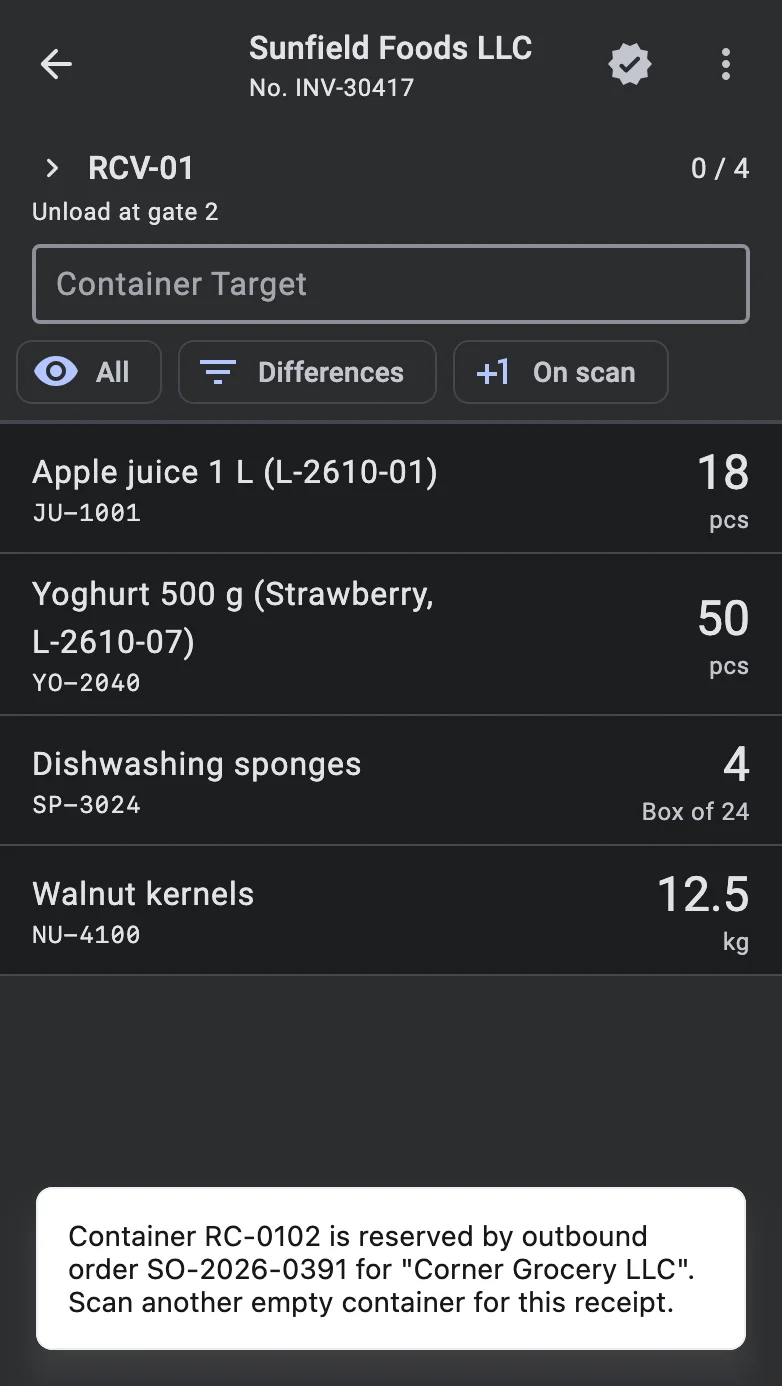
- is reserved by an outbound order for a customer — checked when it is scanned as a receiving target; the message names the order and the customer.
Each message ends with what to do next: for a receiving target, scan another empty container for this receipt; for a supplier pallet, receive its goods line by line without accepting the pallet itself.
A few more things hold for every container a receipt takes in:
- A container that was shipped earlier can come back. Shipping it out does not hold it, so it can be scanned again on a later receipt.
- It moves to this receipt's warehouse. Wherever it stood before, the container is placed into the receipt's receiving zone in the receipt's warehouse.
- The receipt right is enough. Registering and accepting containers needs only the right to edit receipts; no separate rights on containers are required.
- Completion settles them. What happens to the receipt's containers when the receipt is completed is described under Received.
Temporary containers
A temporary container is created on the spot, the first time its code is scanned as a receiving target. Two settings make this possible:
- in the Container types dictionary, the container type is marked Temporary and has a Code Pattern — a scanned code that matches the pattern creates a container of that type (a temporary type cannot be returnable);
- in the warehouse settings, on the Receiving tab, Temporary containers enabled is switched on.
Whether the new container holds the stock or only carries it to putaway follows its type. If the scanned code matches the patterns of several temporary types, the terminal asks to Choose a container type and lists them; the container is created with the type the operator picks.
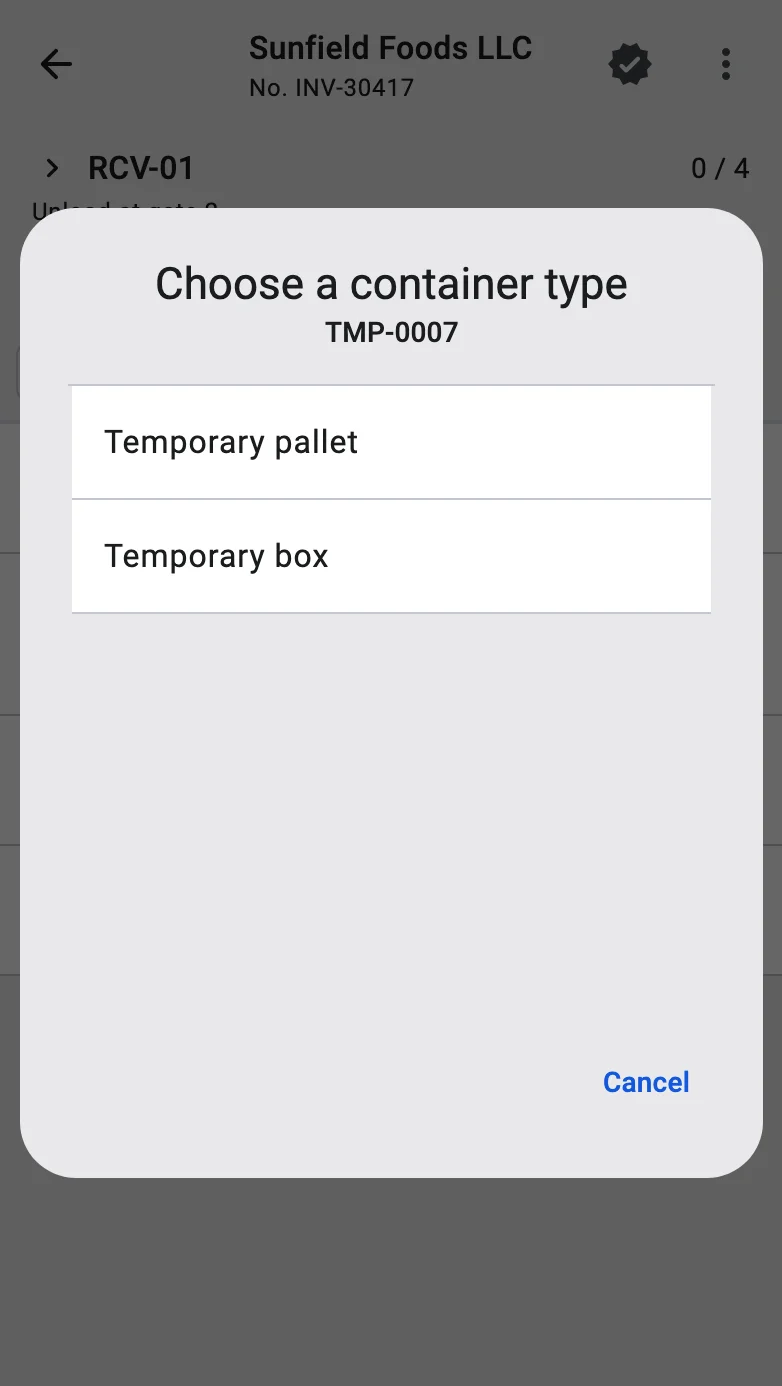
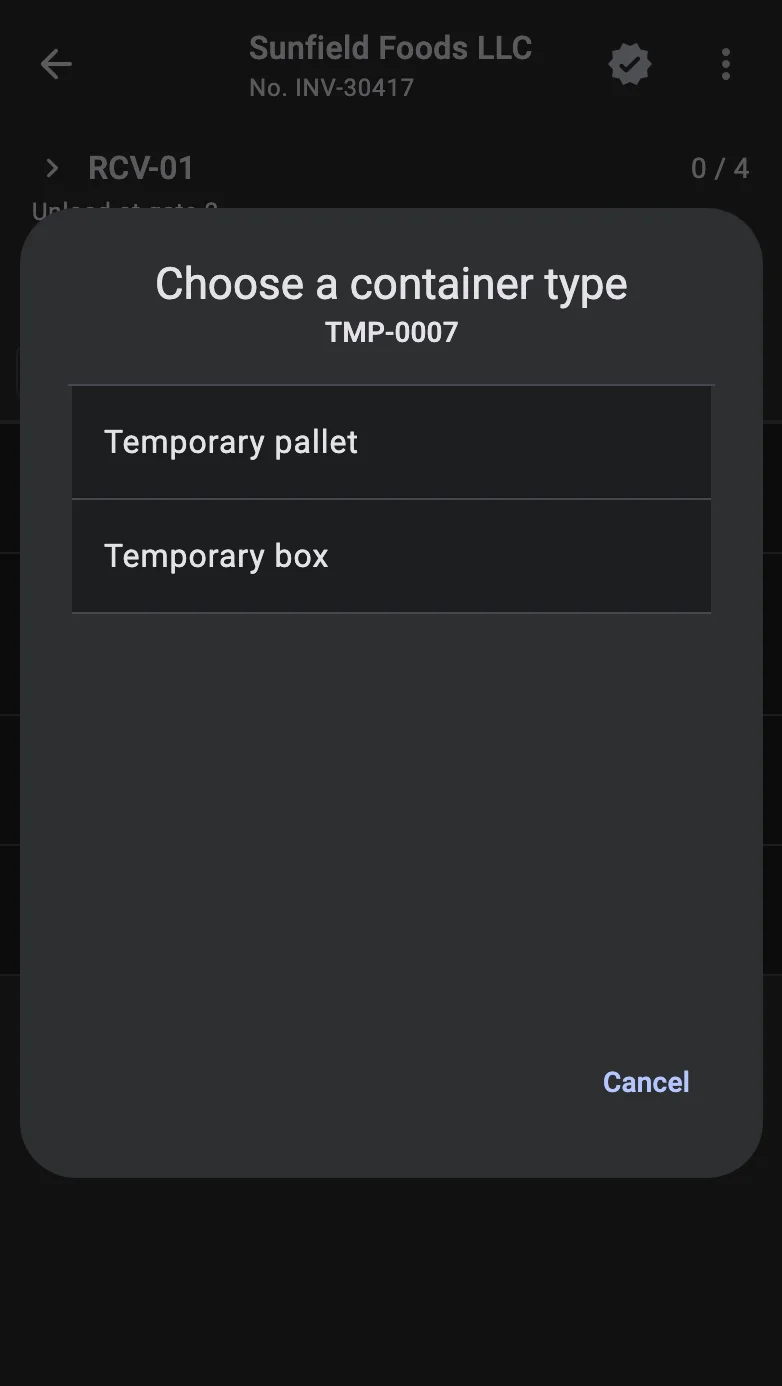
The same Receiving tab also has Putaway buffer container type: the type of container that putaway creates when goods received without a container are put onto a carrier. It matters later, at the putaway handoff.
Container information
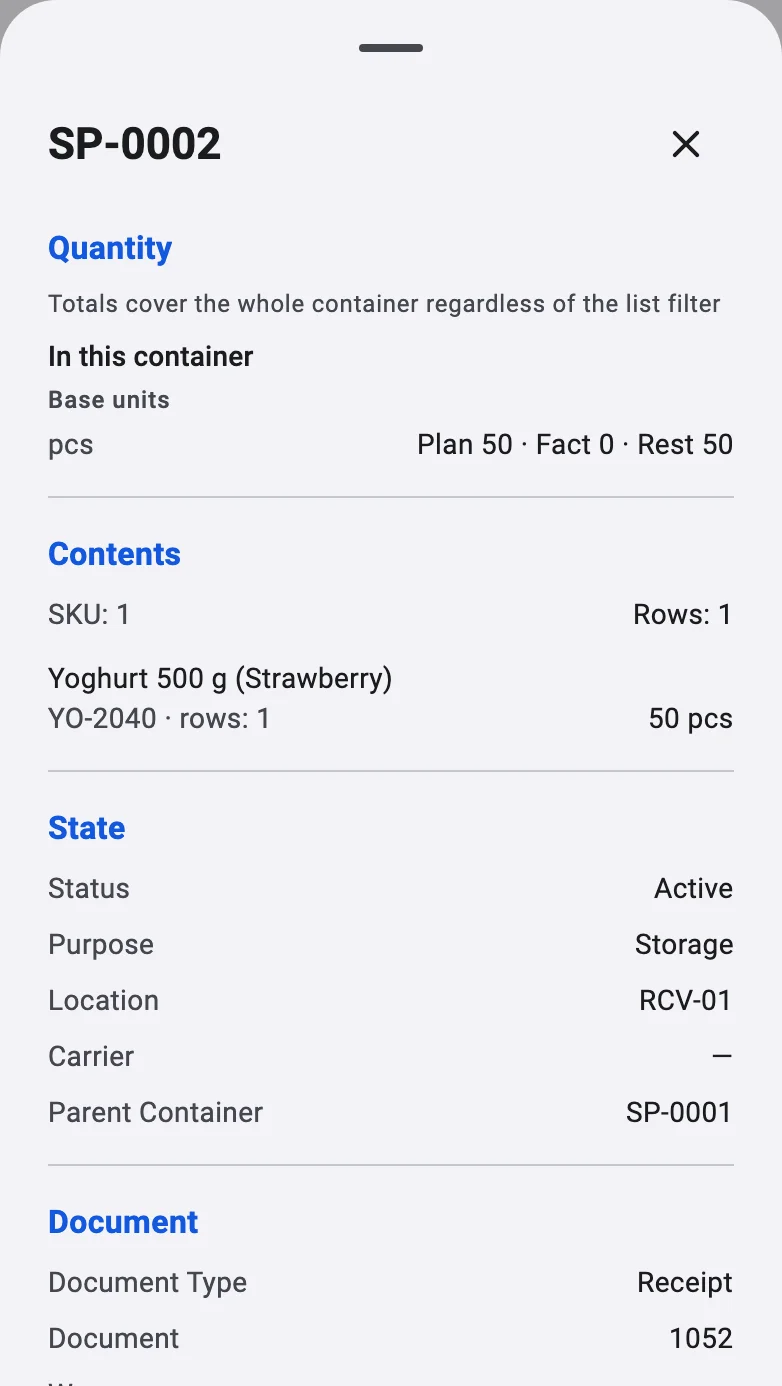
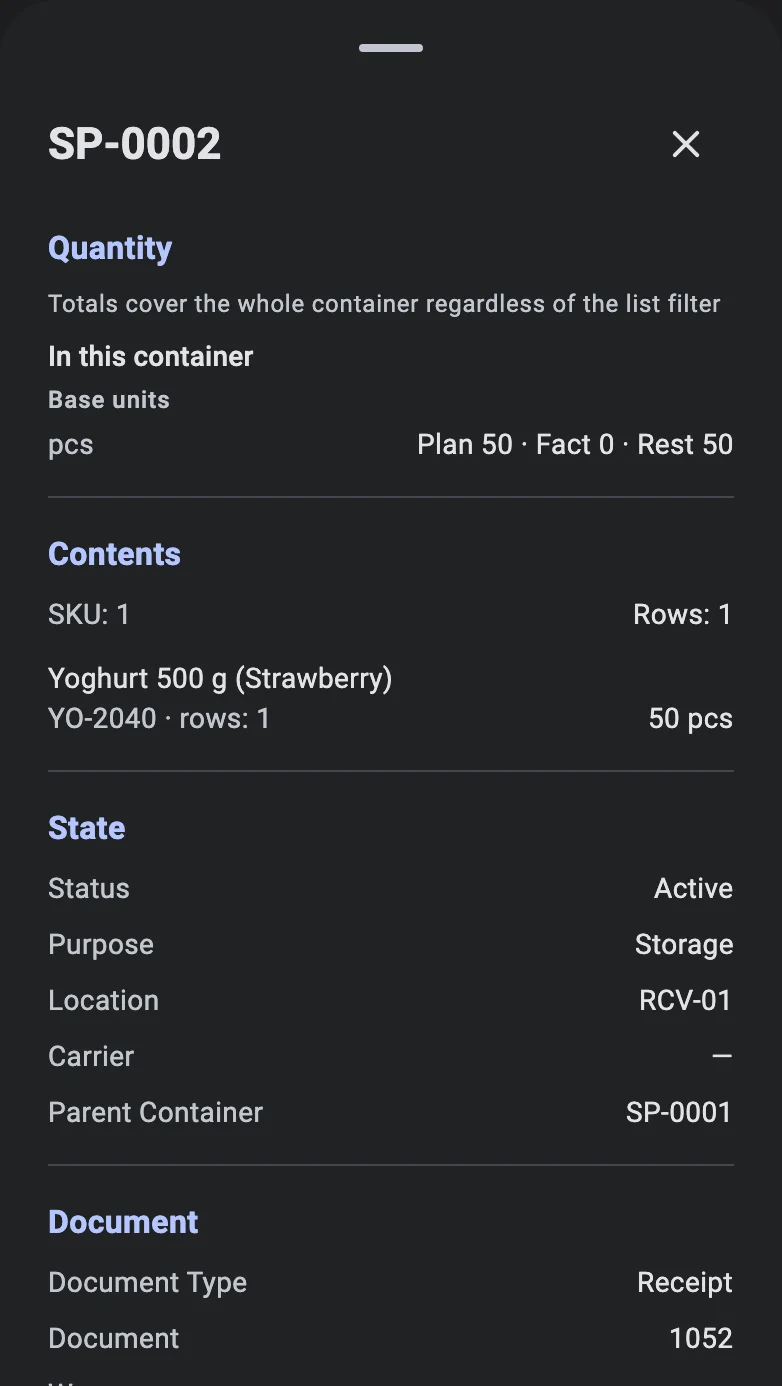
On a container's screen, the info icon next to the container code opens its card: Quantity (in this container and including nested containers, in base units and packs, with the rest still to receive), Contents (how many SKUs and rows), State (the container's status, purpose, location, carrier and parent container) and, further down, Hierarchy (the parent container and the nested ones). The totals cover the whole container, whatever filter the list has.
Returnable containers on the terminal
When your company works with returnable containers, accepting a container also records what it means for the container debt. Right after the acceptance a short message shows the result — Returnable · owner … or Closes the debt of … — and the same line stays under the container in the list. An acceptance made by mistake is reversed with Reverse acceptance in the menu of the container's screen. The rules for both — who ends up owing whom, and when a reversal is possible — are in Returnable containers: acceptance and debt.