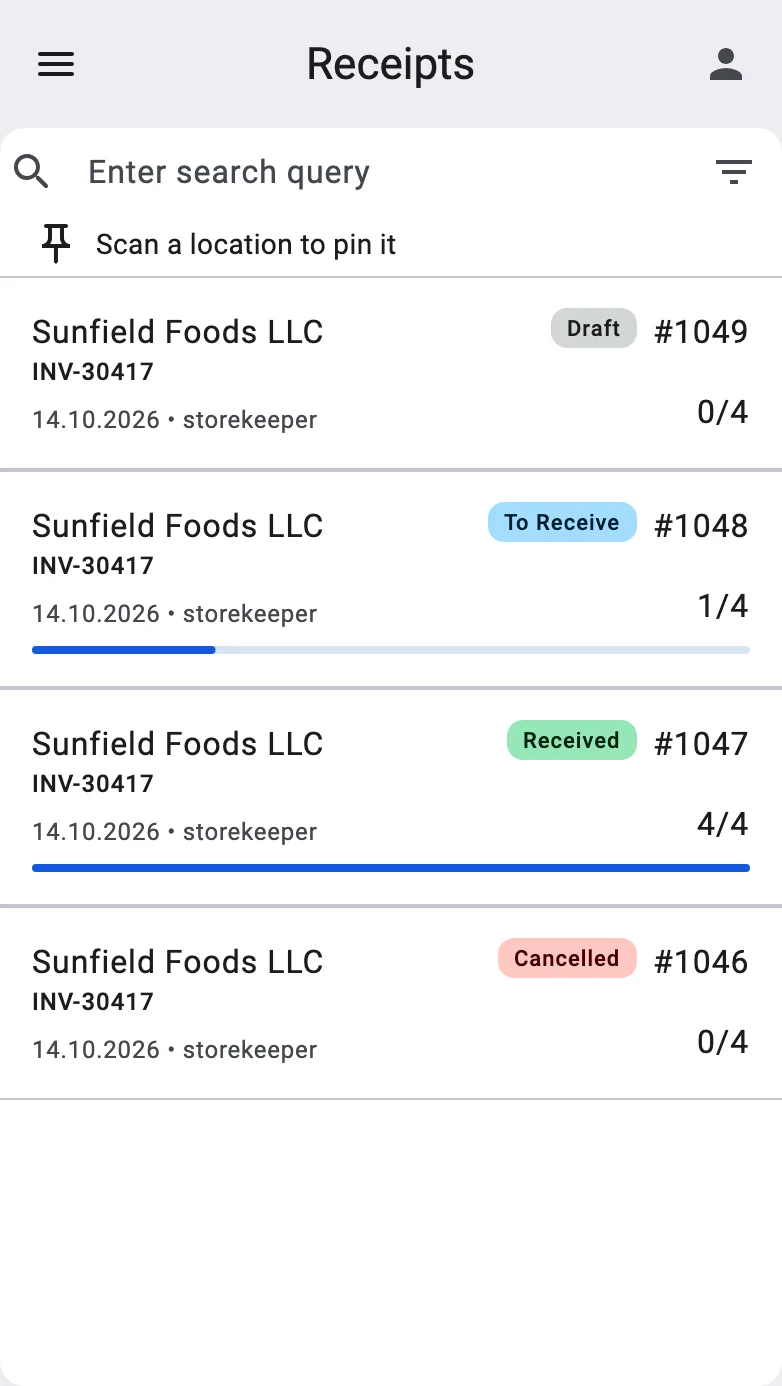
Open the receipt
When the operator picks up the PDT, they do not create the receipt — it already exists in the system (the shift supervisor created it on the workstation, either from an inbound order or as a standalone document).
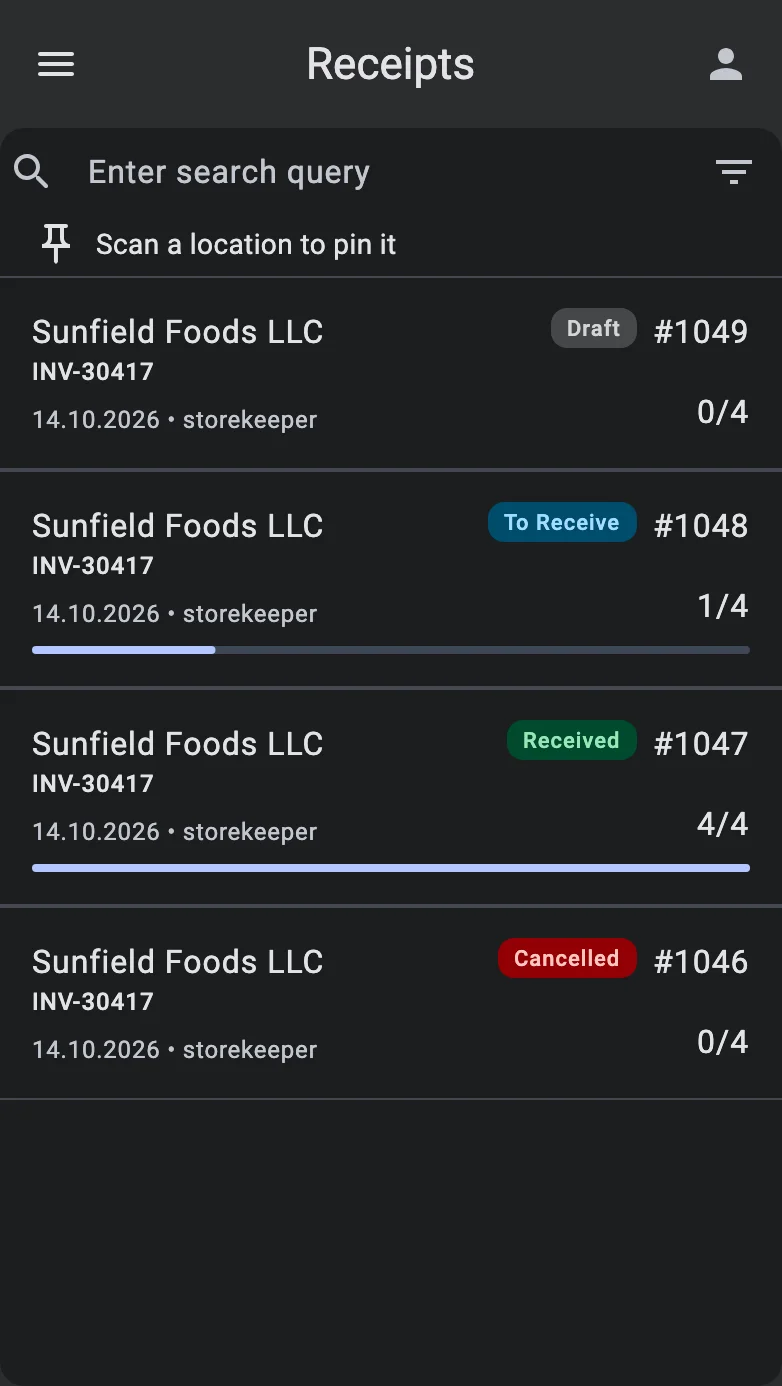
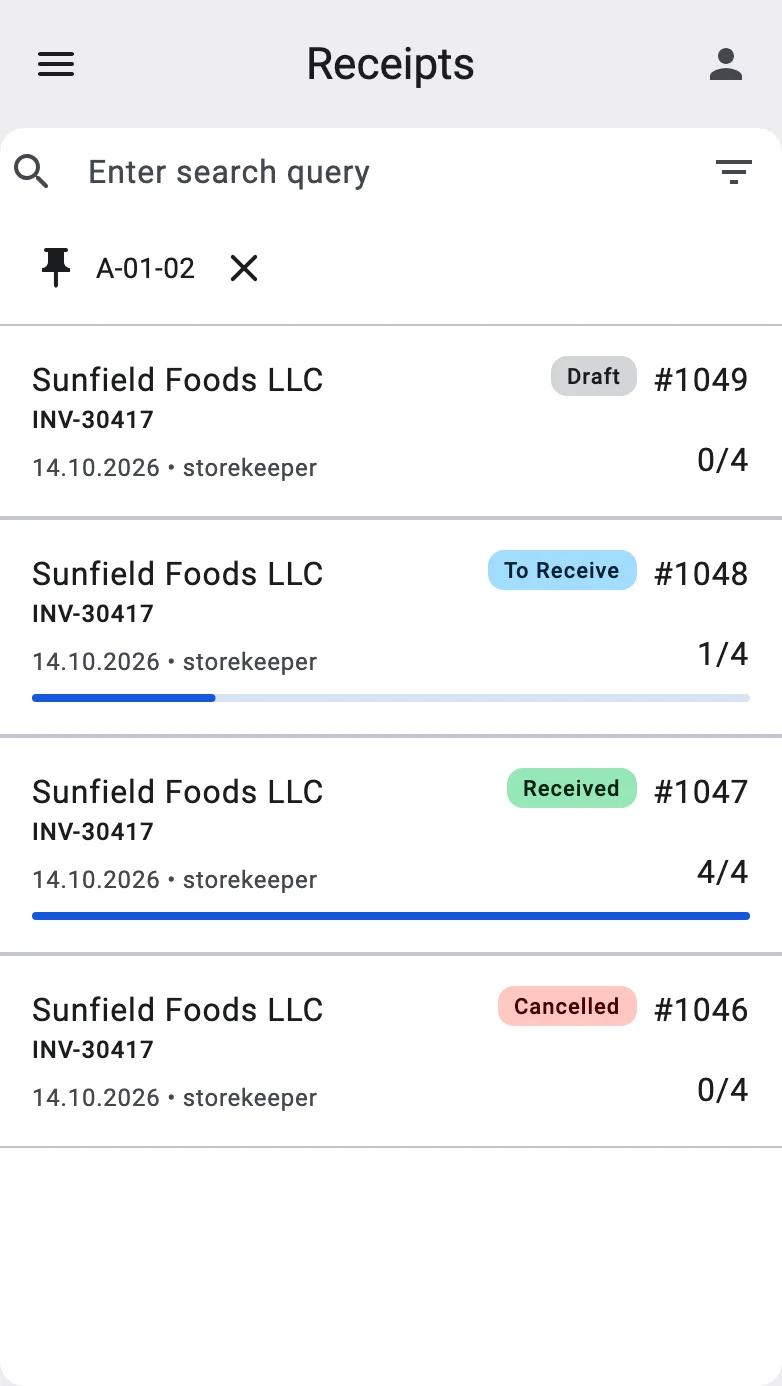
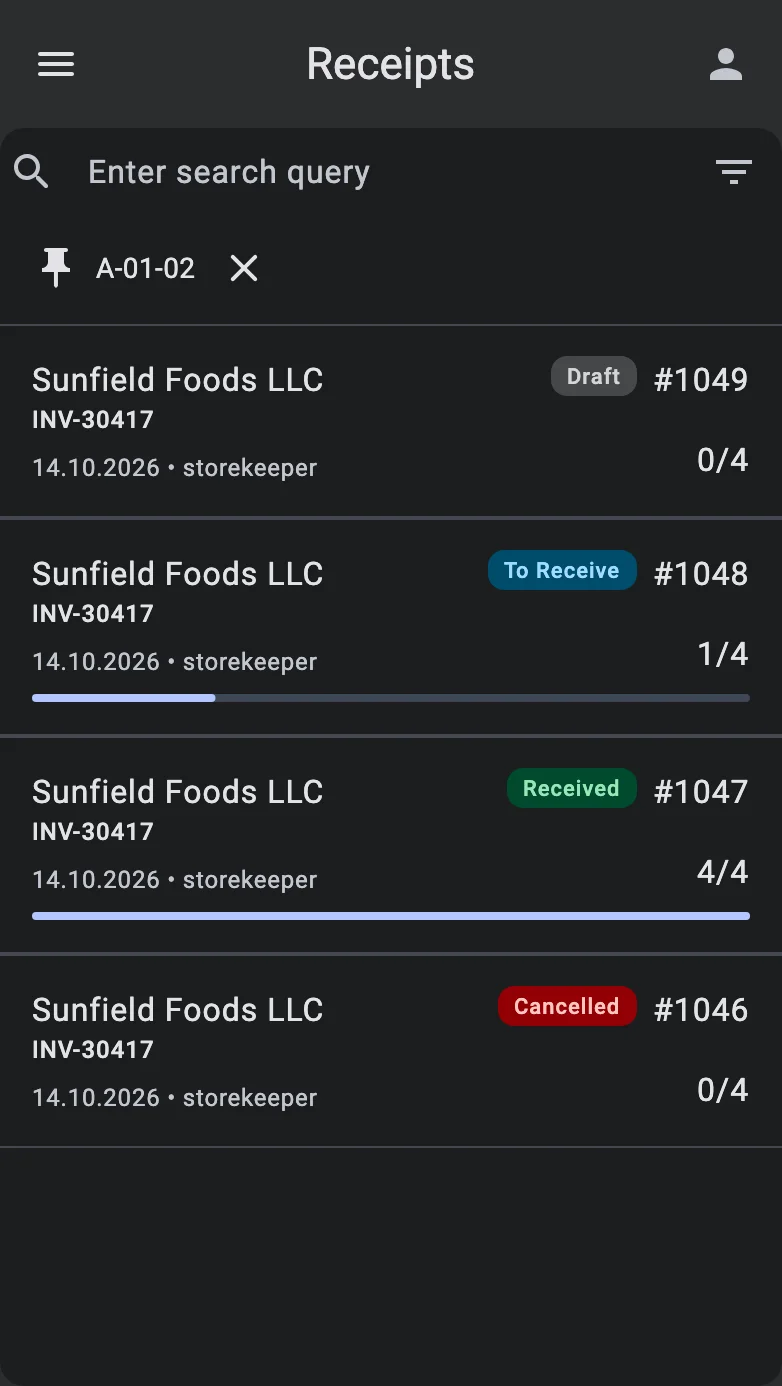
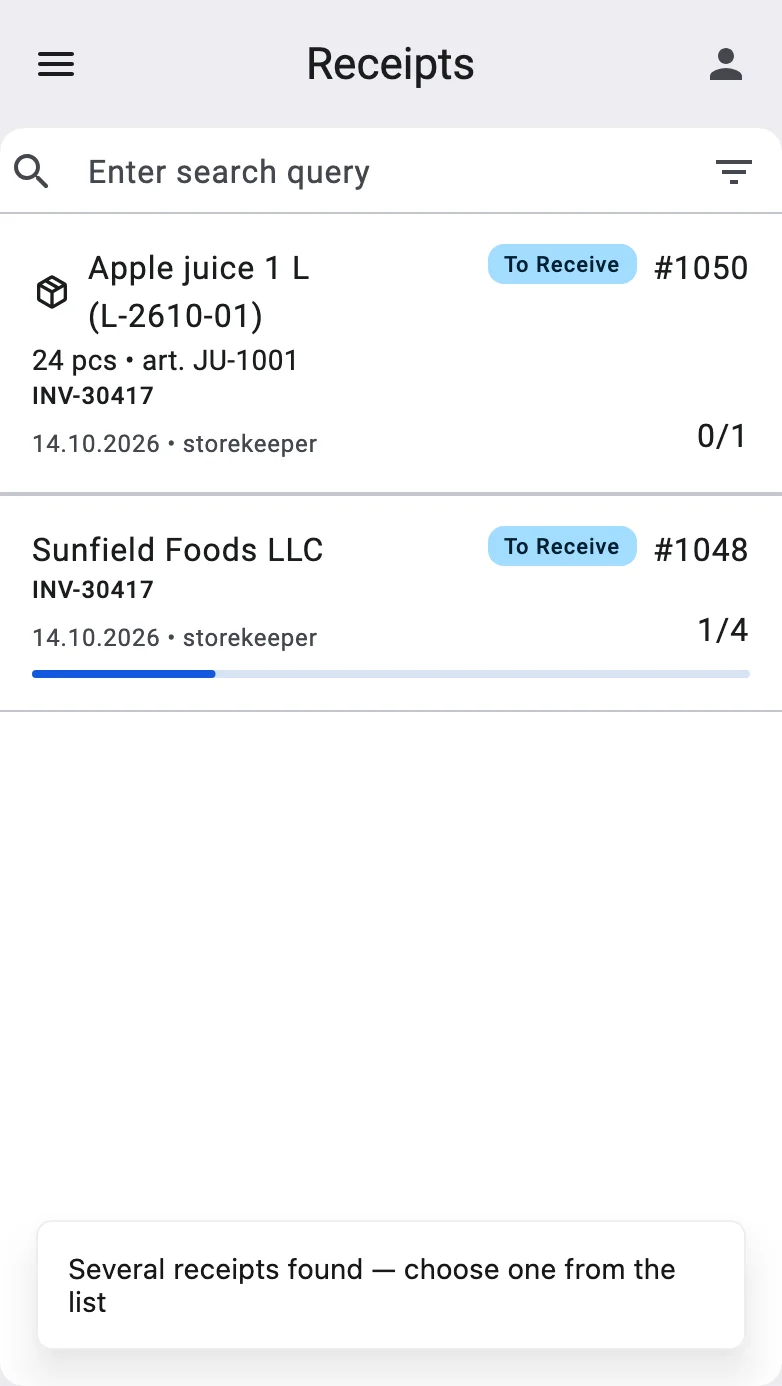
The PDT home screen shows the list of receipts available to the operator's shift. Only documents in To receive reach that list; a receipt still in Draft is moved on by the shift supervisor in the client app. Each row shows the sender, the external number, the document number, the date, who the work is assigned to, and progress as received lines out of the total. The operator taps a row and the receipt opens as a list of lines to receive.
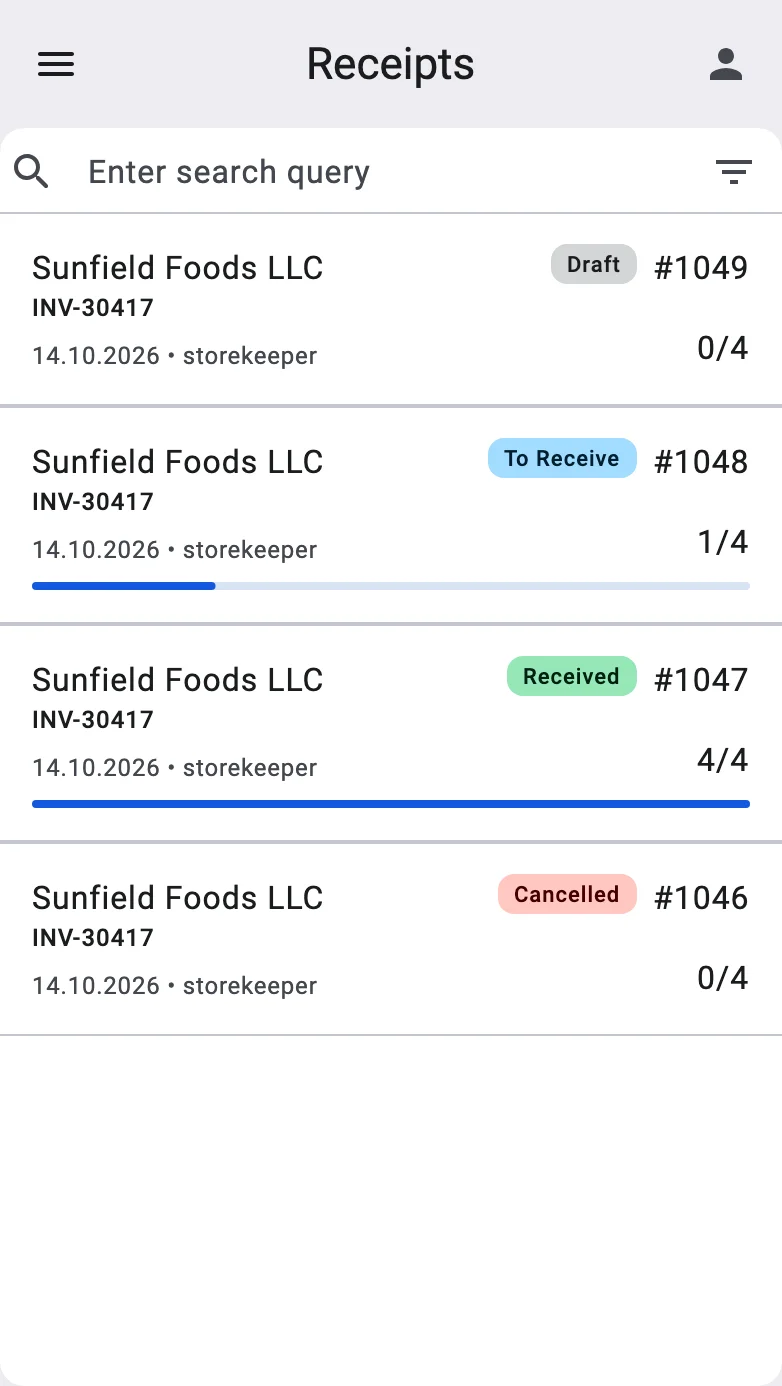
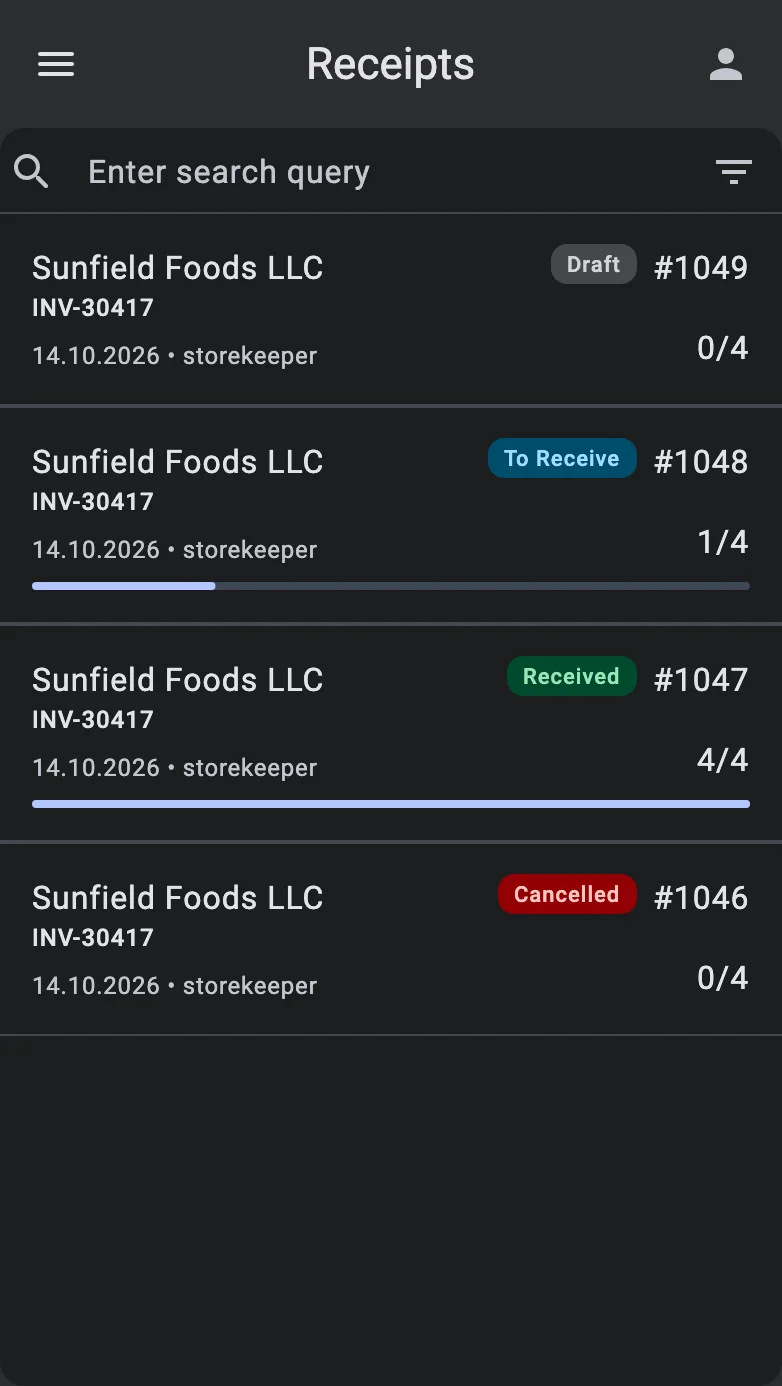
If the receipt the operator is looking for is not in the list, they contact the shift supervisor — creating a receipt on the PDT is not supported.
Single-line rows
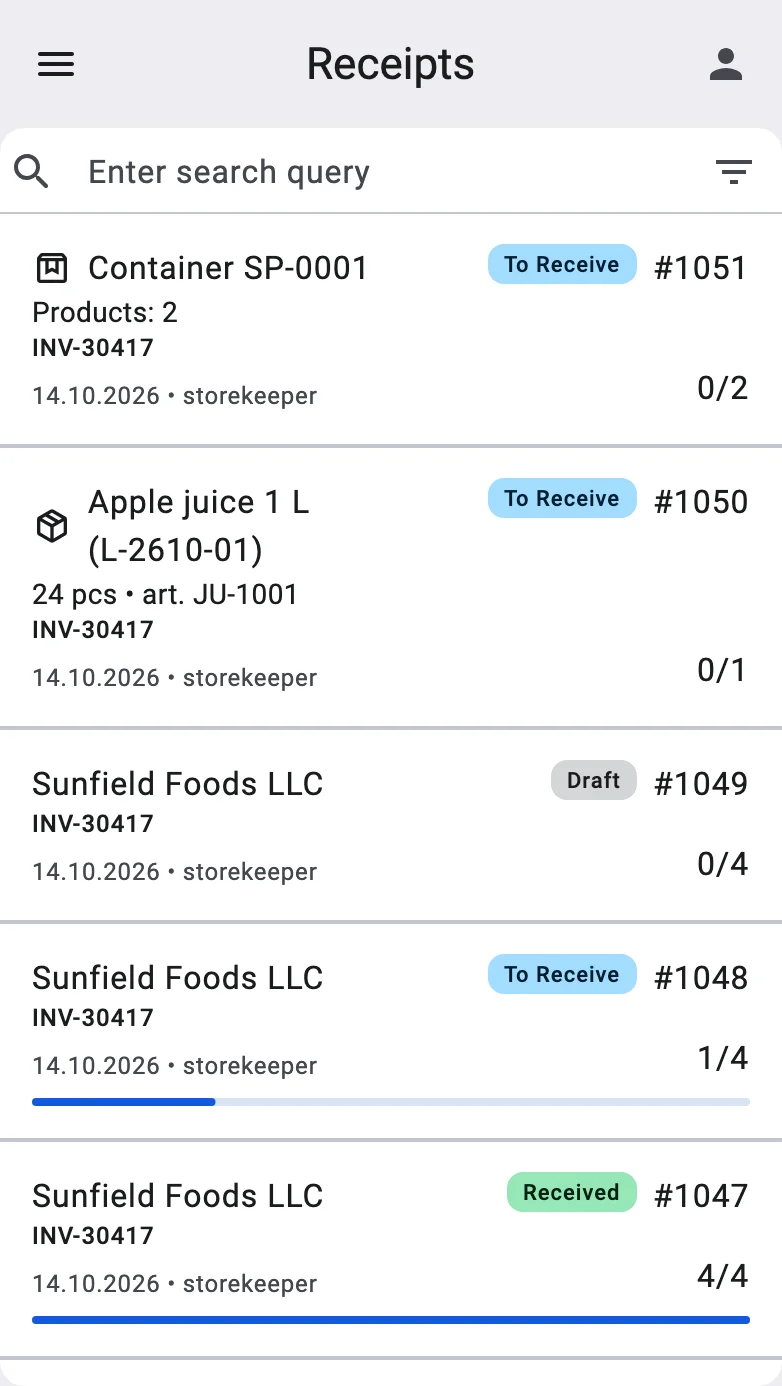
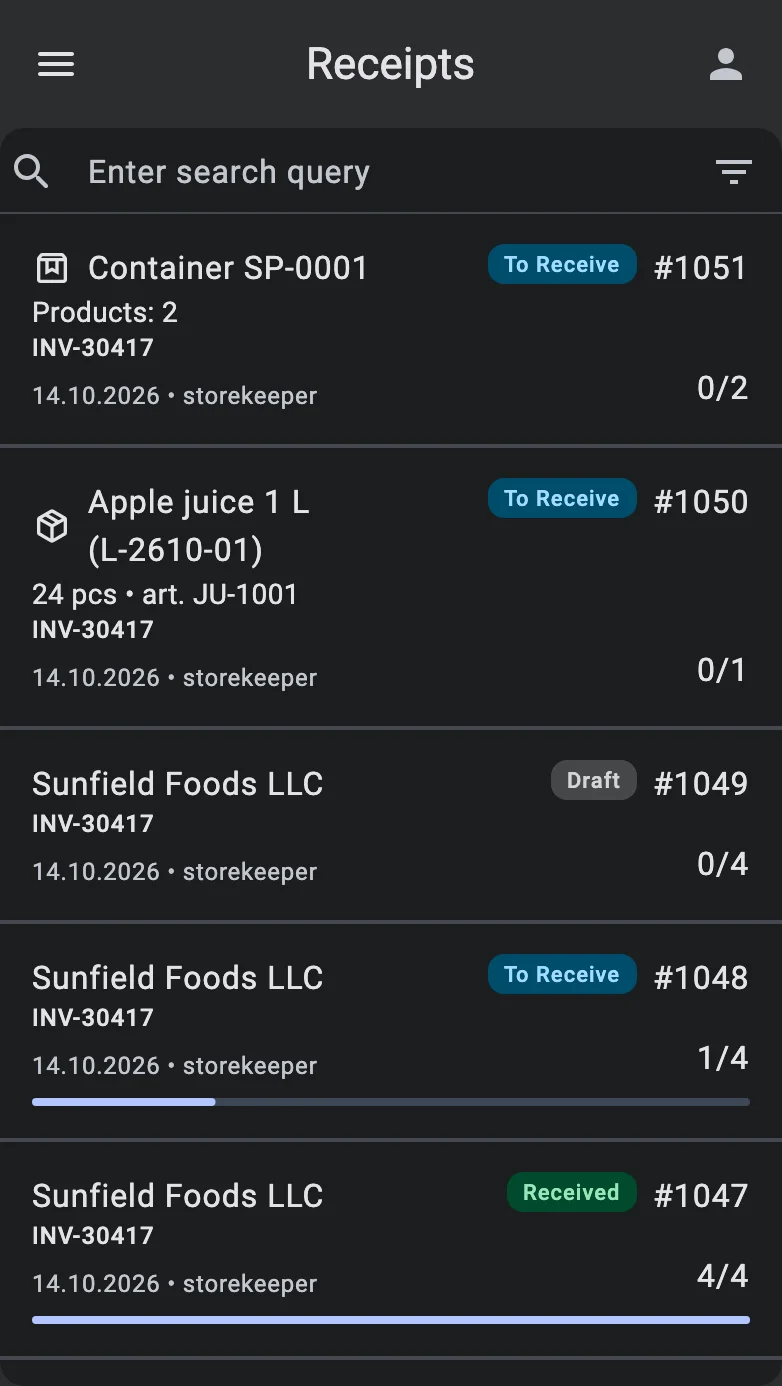
A single-line receipt is about exactly one thing, so its row says what that thing is in place of the sender, on one line:
- a product — the product name with the quantity and the article;
- a container — Container and its code, with Products: and how many there are.
Tapping such a row does not stop at the list of lines. It goes straight to the one thing the document is about: the registration form for the product line, or the acceptance of the container (what the terminal accepts and refuses is in Which containers are accepted). This happens only the first time the document is opened in that visit. A container that is already accepted, or has nothing left to receive, opens the usual list of lines instead.
Finding the receipt by scanning
The operator does not have to look for the receipt in the list: a scan on the list screen finds it. The terminal looks only among receipts that are ready to receive in the warehouse the operator works in, and a scanned code matches a receipt when it is:
- the barcode of the receipt itself, for example on the package or the delivery label;
- the barcode of the product of a single-line product receipt (a barcode tied to a feature or a lot matches only a receipt planning that feature or lot);
- the code of the container of a single-line container receipt.
What happens next depends on how many receipts match:
- One — the receipt opens. A single-line receipt goes straight to its product or its container, exactly as after tapping its row; any other receipt opens as the list of lines.
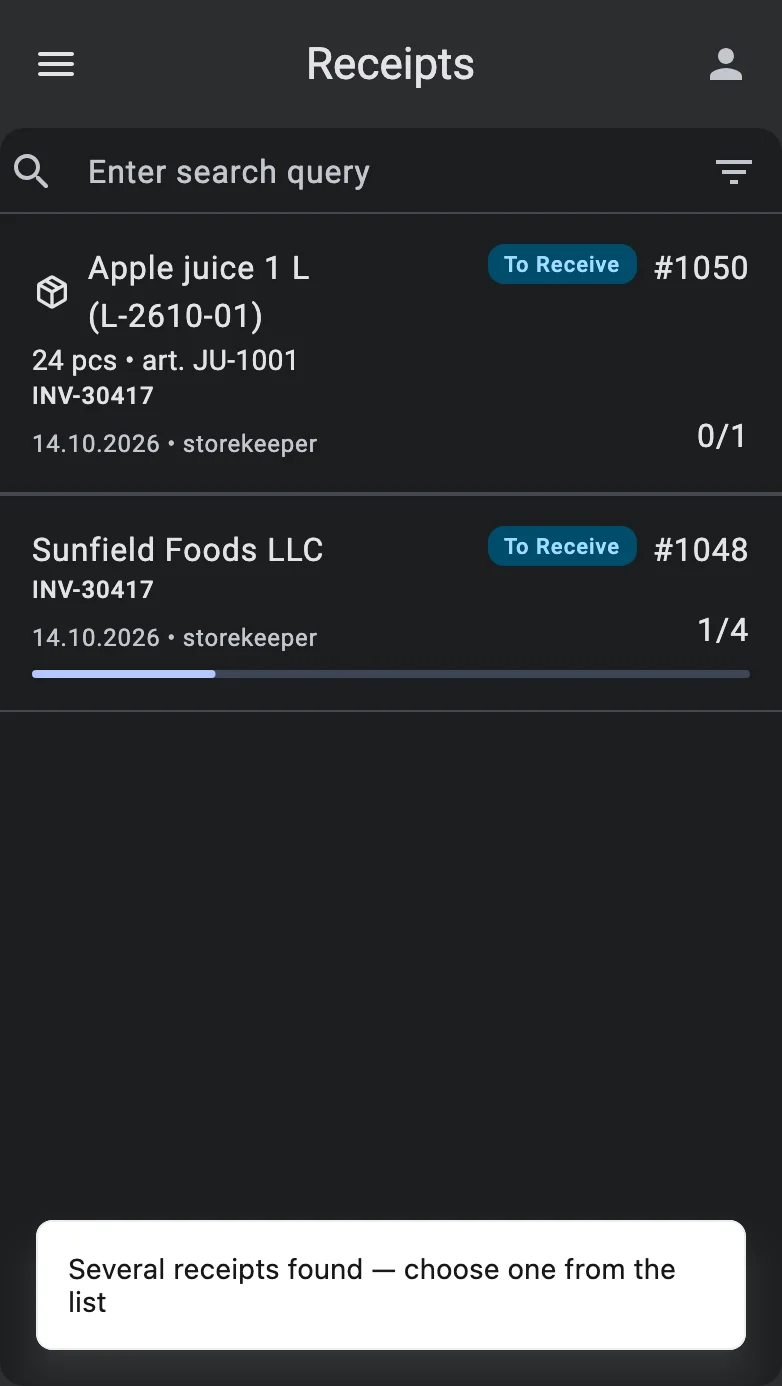
- Several — the list narrows to just those receipts and the terminal says Several receipts found — choose one from the list. The same code can match more than one receipt because the warehouse does not require barcodes to be unique. The operator taps the right row.
- None — when the warehouse puts goods away on receiving, the code is tried as a location (see the next section). Otherwise, or if it is not a location either, the terminal says Nothing found for barcode [code] and the operator keeps scanning.
Pinned putaway location
When the warehouse puts goods away while receiving (the Putaway on receiving setting), the list screen also shows a Pinned location line under the search bar. It lets the operator fix, once, the location where this shift's goods go, instead of choosing it on every registration.
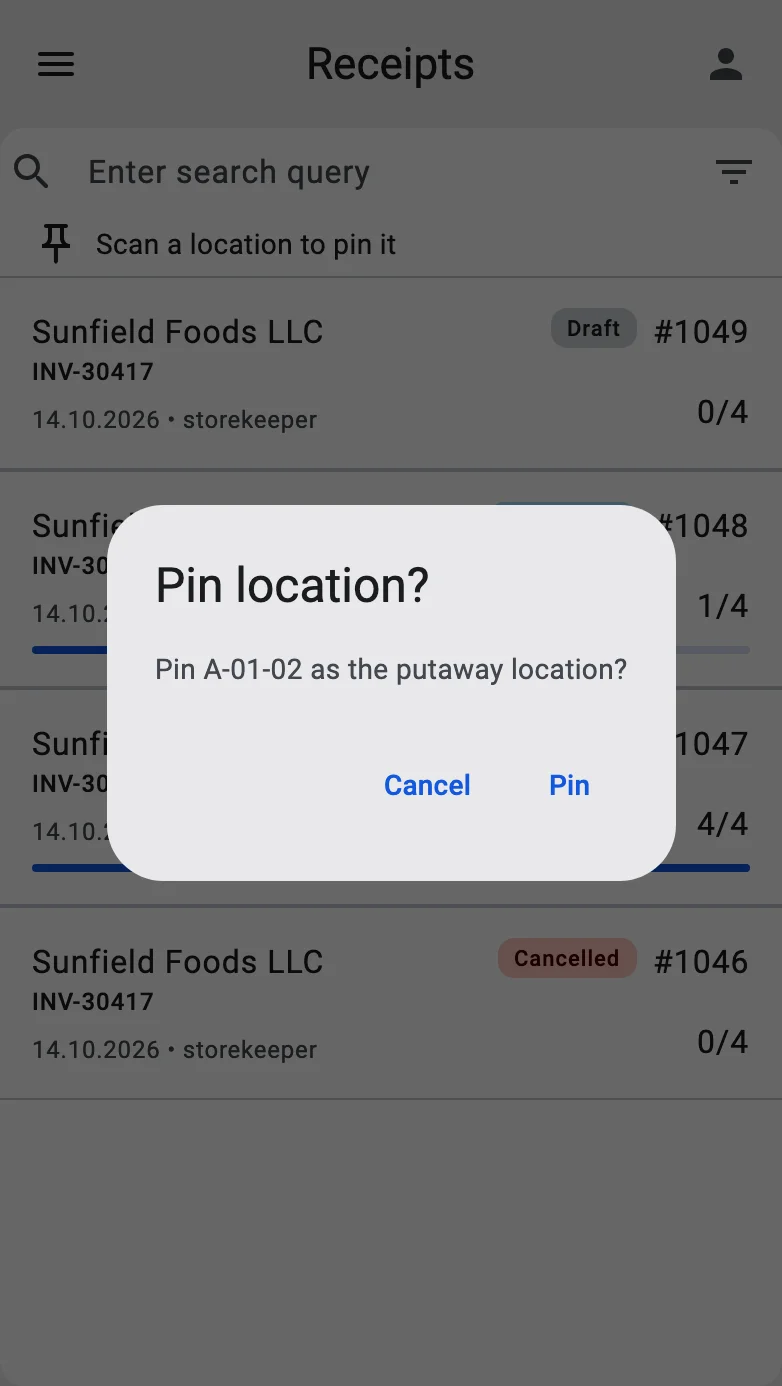
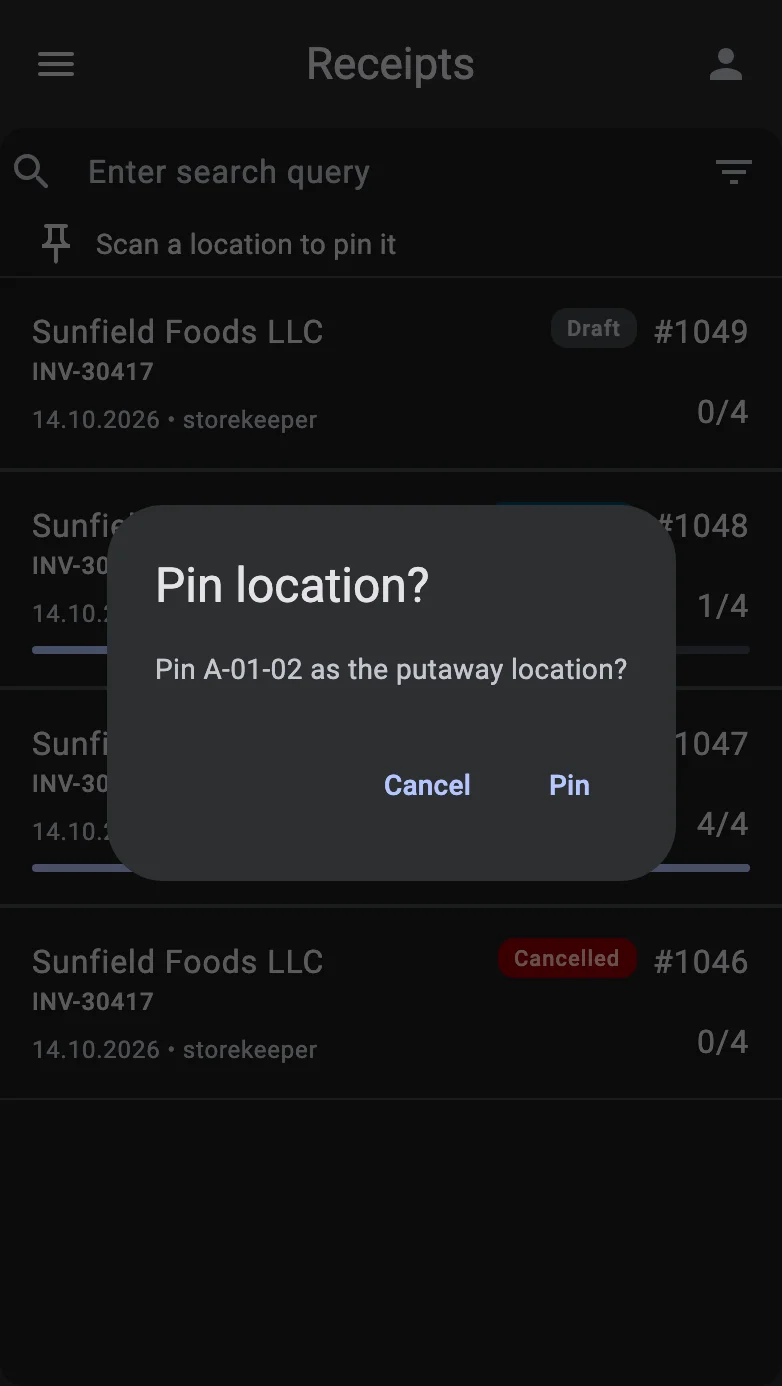
- With nothing pinned the line reads Scan a location to pin it. The operator scans a location code and the terminal asks Pin location? — Pin [location] as the putaway location? Pin makes it the pinned location; Cancel leaves things as they were.
- A location of a type that cannot take goods on receiving is refused with This location type cannot be pinned. Storage, picking and receiving locations can be pinned.
- With a location pinned, the line shows its code and a cross; the cross (Unpin) clears it.
- Every new registration form then opens with the pinned location already in the location field. The operator can also pin or unpin from the registration form itself, with the pin button next to the location field.
The pin lives only for the current session: it is dropped when the operator changes warehouse or signs out, and it is not kept when the terminal app is closed. Without the Putaway on receiving setting there is no pinned location, and new registrations use the receiving zone of the receipt.