Record the fact
This is the core loop of the operator's work on the terminal. For each line of the receipt the operator identifies the product, sets the quantity and saves the fact. The loop repeats until no unreceived lines remain.
:::note Offline Without a connection the loop works the same: a saved fact goes to the queue on the terminal and the message Saved. It will reach the server automatically appears. For a lot with too little remaining shelf life offline, see Lots with a short remaining shelf life. A new lot cannot be created offline. More in Working offline. :::
The line list
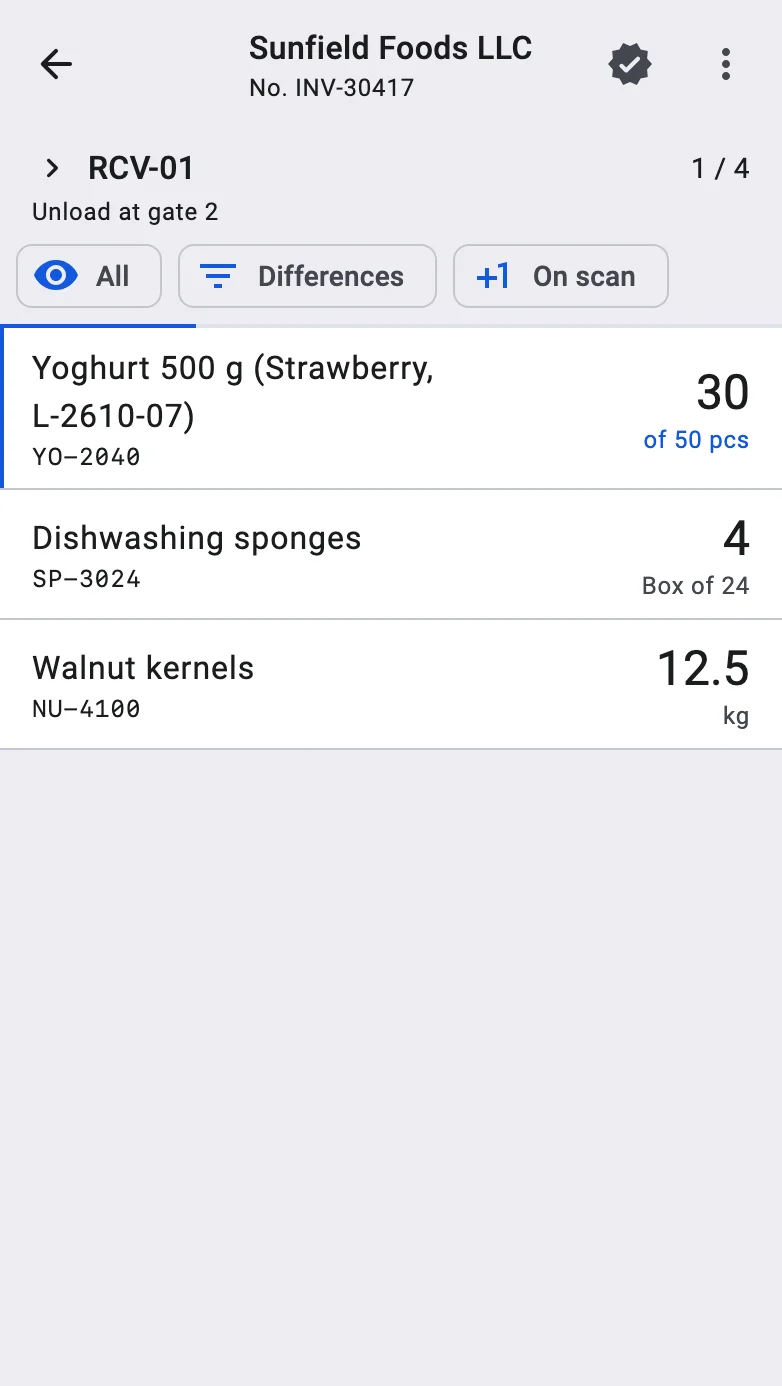
The receipt opens on the list of its lines.
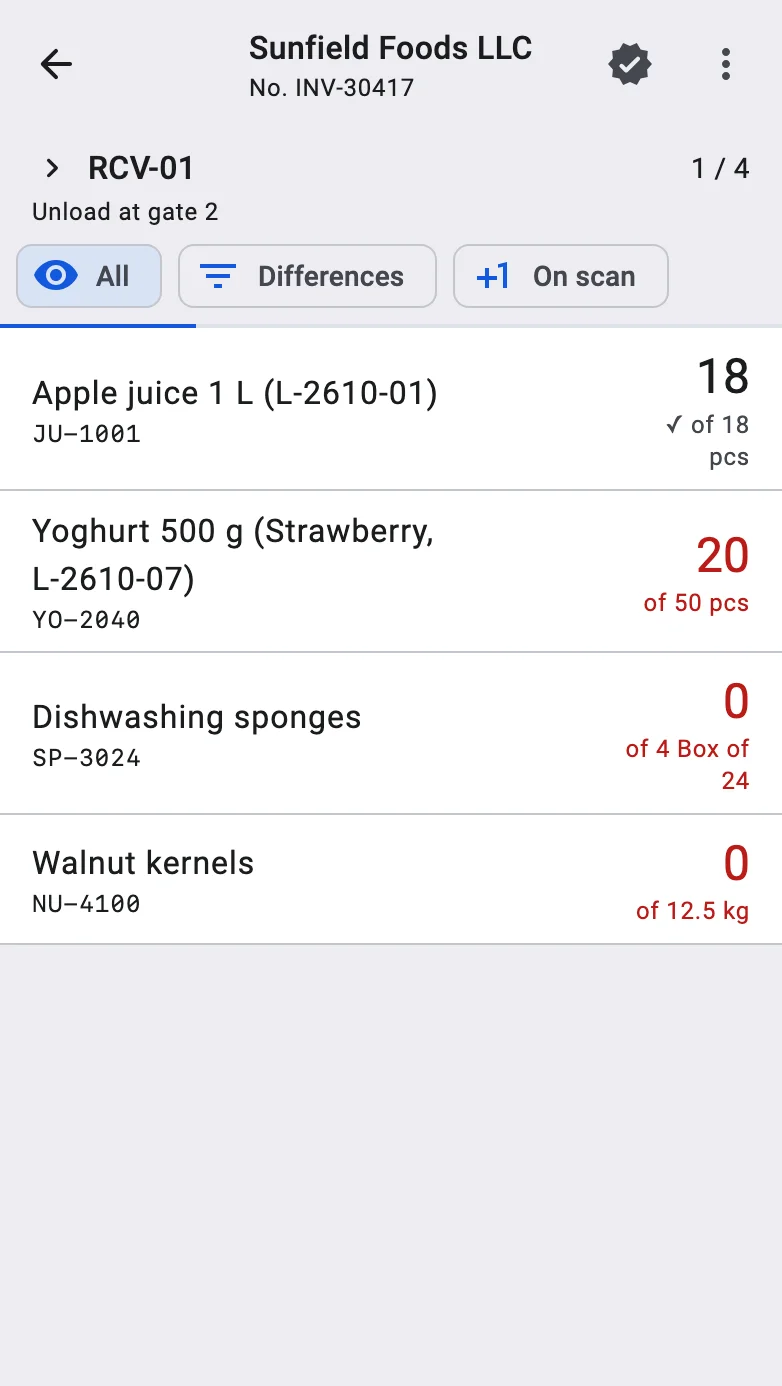
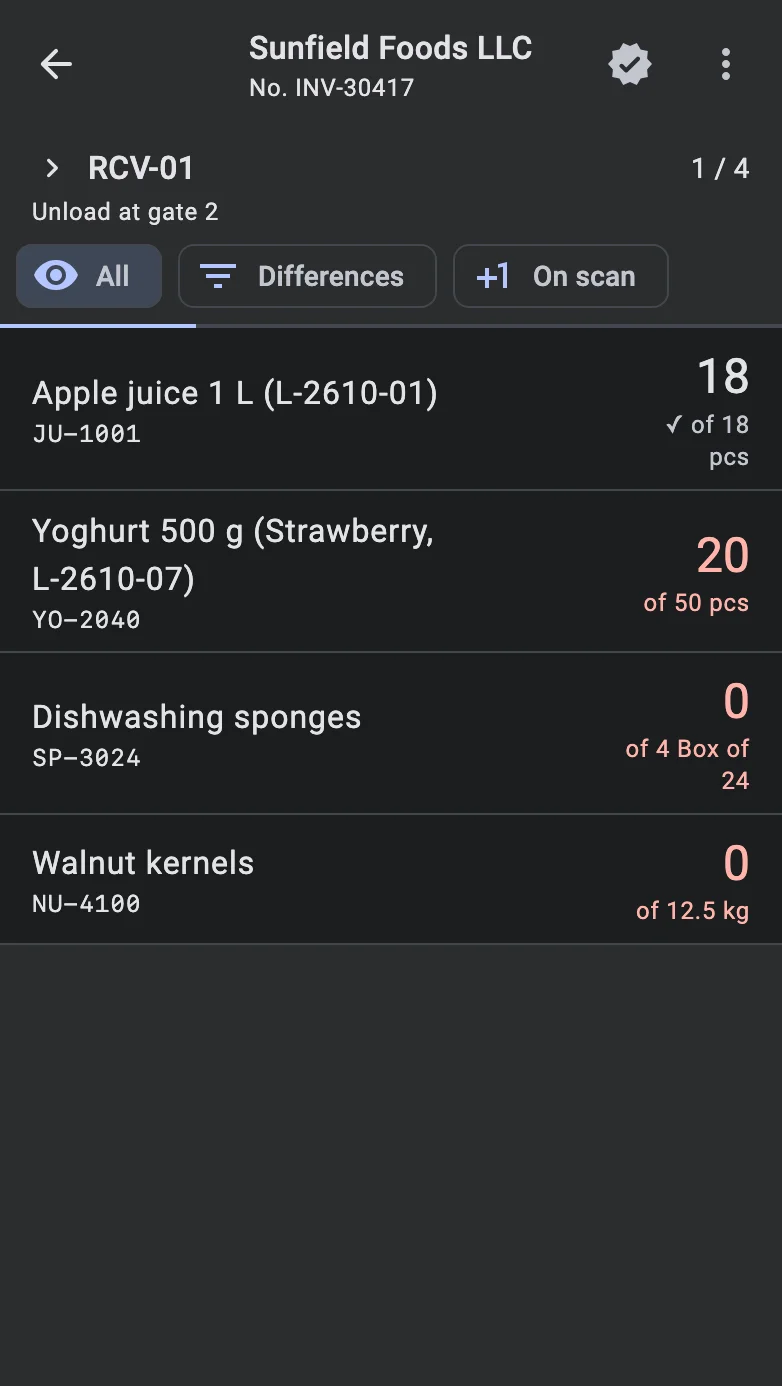
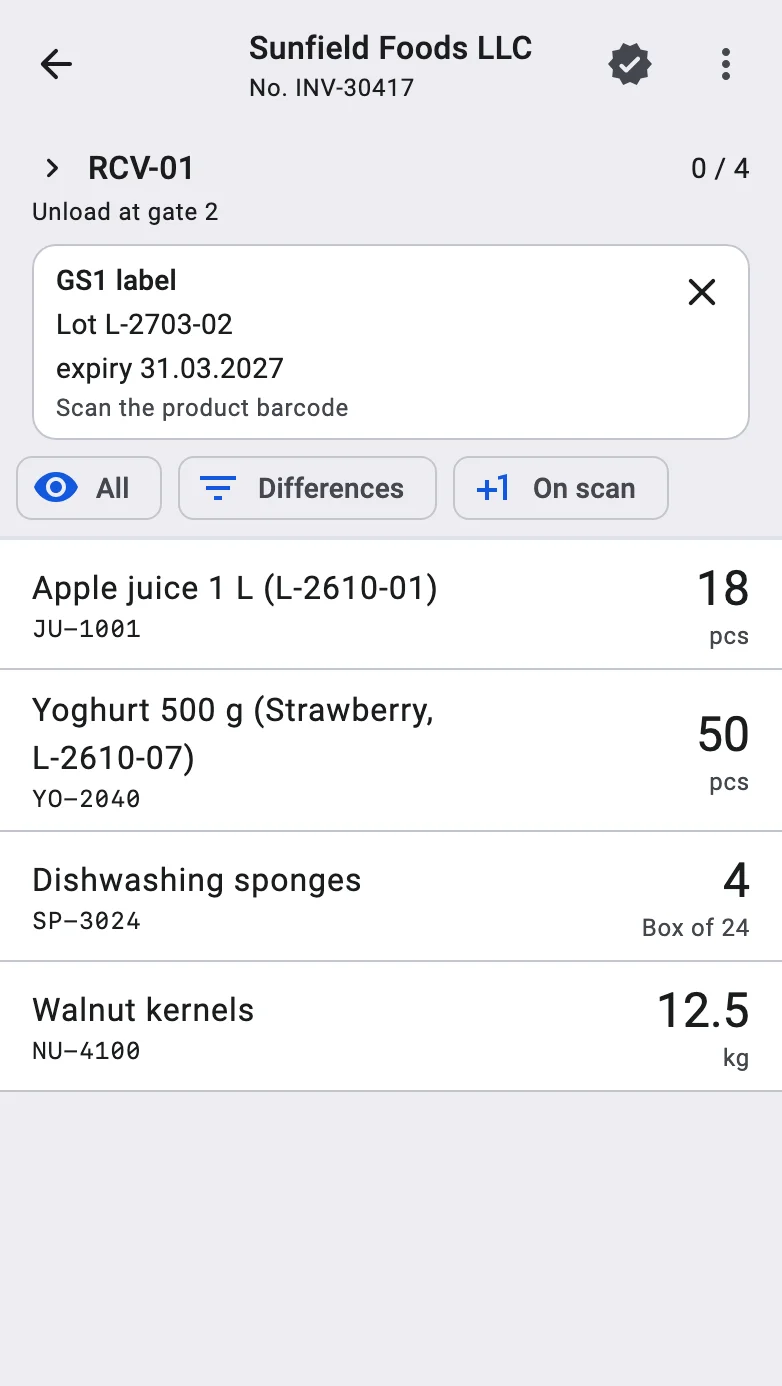
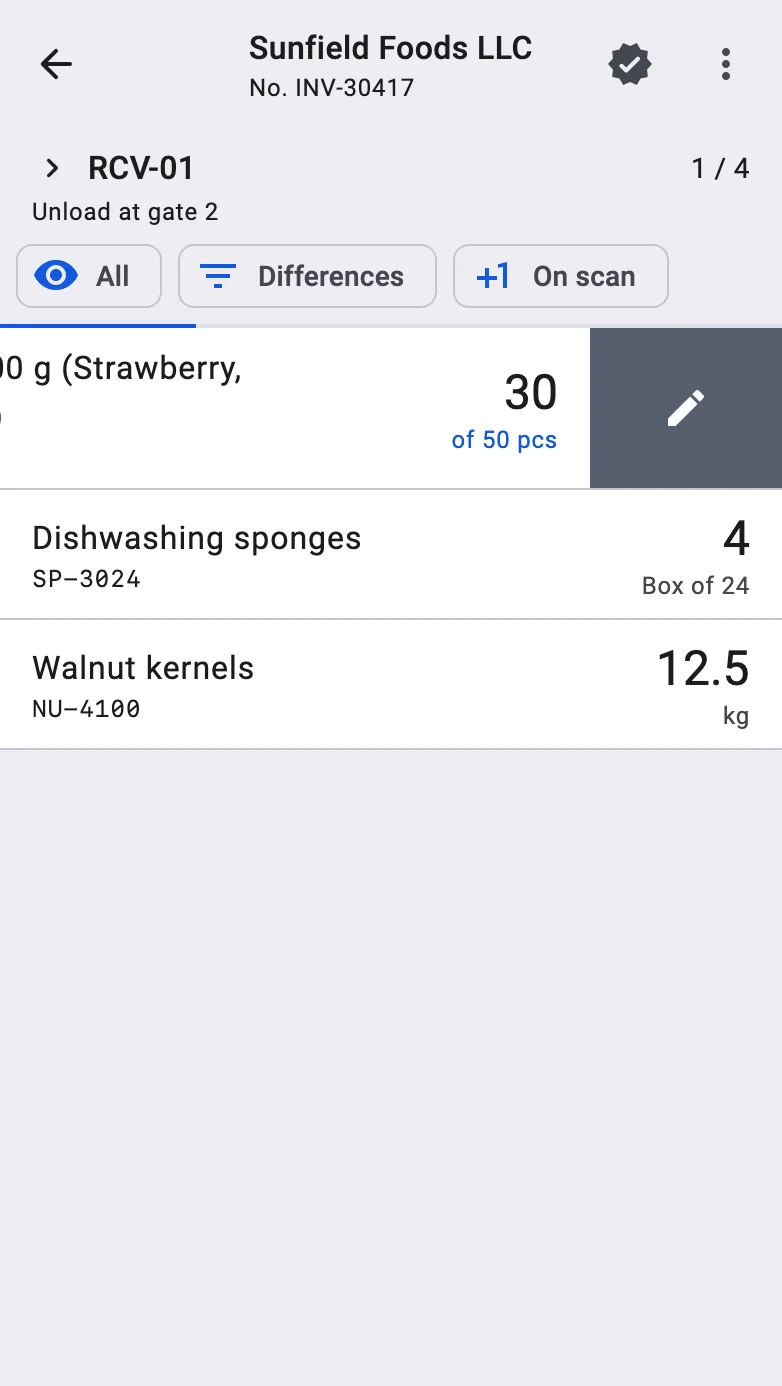
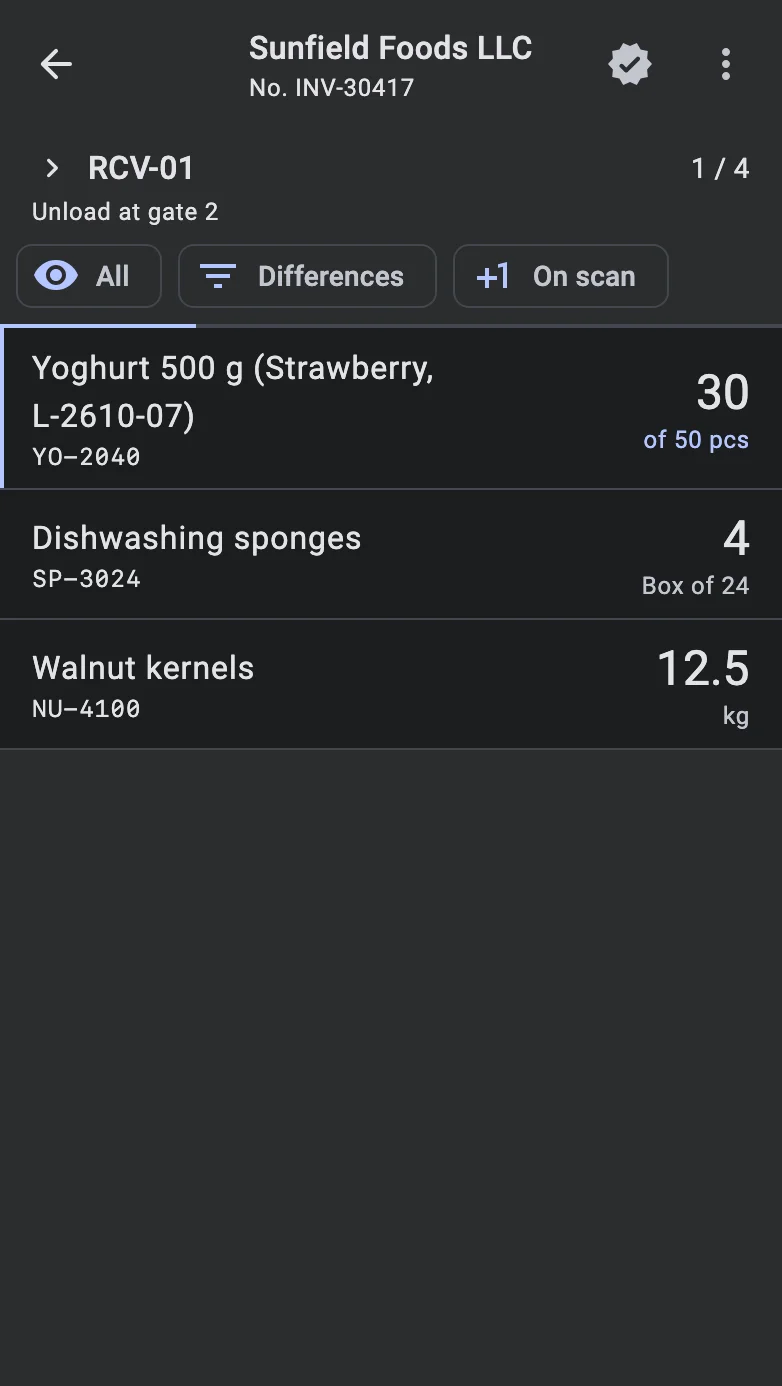
Each row shows the product with its features and lot, the article, and how much is still to receive with its pack type. By default the list holds only the lines that have something left to receive. A thin bar under the chips shows how many lines are done.
The chips above the list change what it shows:
- All — every line, including the ones already received. A row now shows what has been received and the plan beside it (for example "of 50"); a ✓ marks a line that matches its plan, and a line that does not is shown in red.
- Differences — only the lines whose received quantity differs from the plan, plus the line just changed.
- Tap a lit chip again to switch it off and return to the lines that still have something to receive.
- On scan — the quick-save switch, described under What a scan does. It is shown only when the warehouse does not put goods away straight on receiving.
A line that is partly received carries a coloured marker, and its row shows the plan next to the quantity left.
What the operator can do with a row:
- Tap it — opens the fact screen to receive more on that line (see The fact screen).
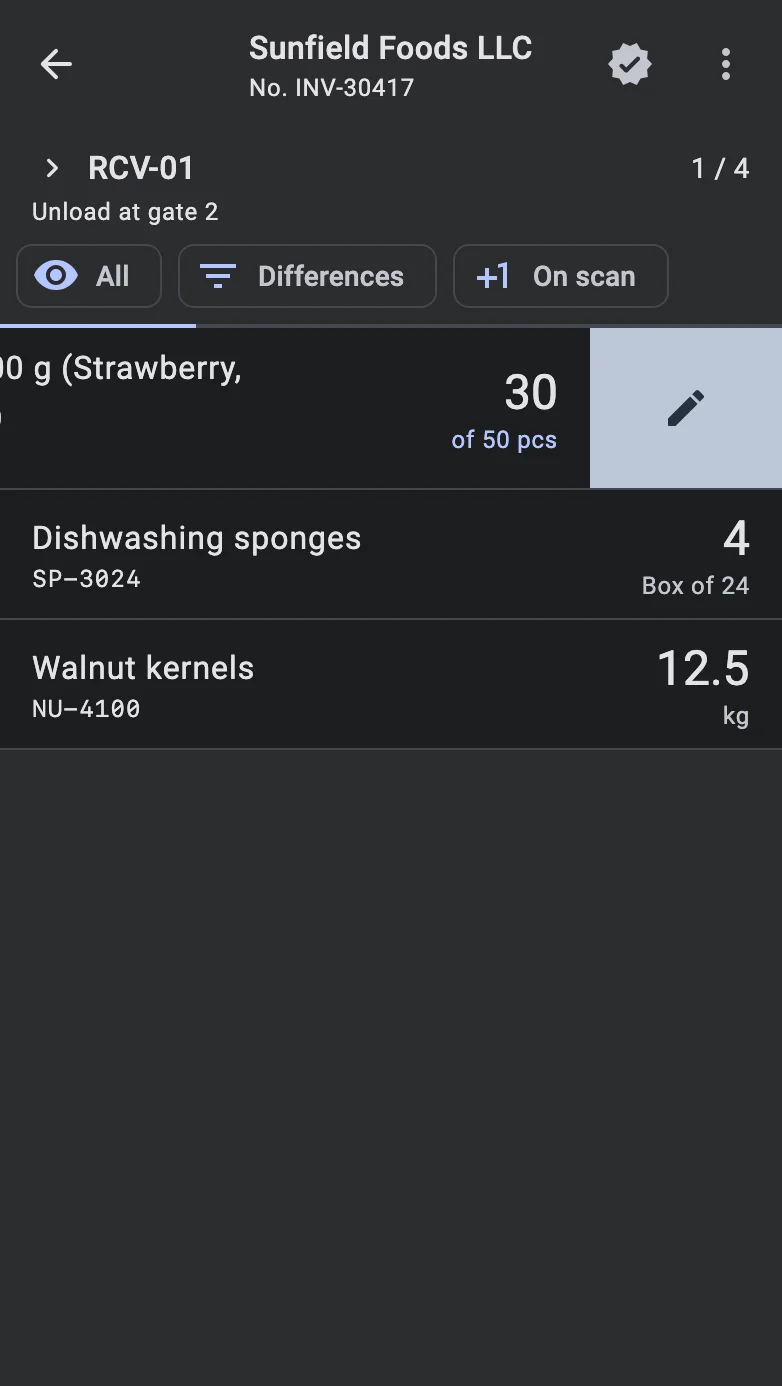
- Swipe it — reveals Edit fact, which opens the same screen in the mode where the operator sets the total received on the line instead of adding to it (see Correcting the total). The action is offered only for a line where something has already been received, and not on a receipt that is received into containers.
- Press and hold it — opens the product card.
When the receipt allows over-receiving, the end of the list has an Add line button. It opens the fact screen for a product that is not in the plan.
Identifying the product
The operator identifies an SKU — the combination of product, product features (if tracked), lot (if tracked), and pack type — by scanning a barcode or by picking it manually from a list. Required attributes depend on the product configuration. How SKU selection works.
When the barcode is not found in the system, matches several variations, or the scanned product is not in the receipt, the operator sees a dialog. What to do in each case — including the warehouse setting that decides whether an unknown barcode can be registered — is described on the Barcode resolution page.
What a scan does
Quantity entry mode
Quantity confirmed in form
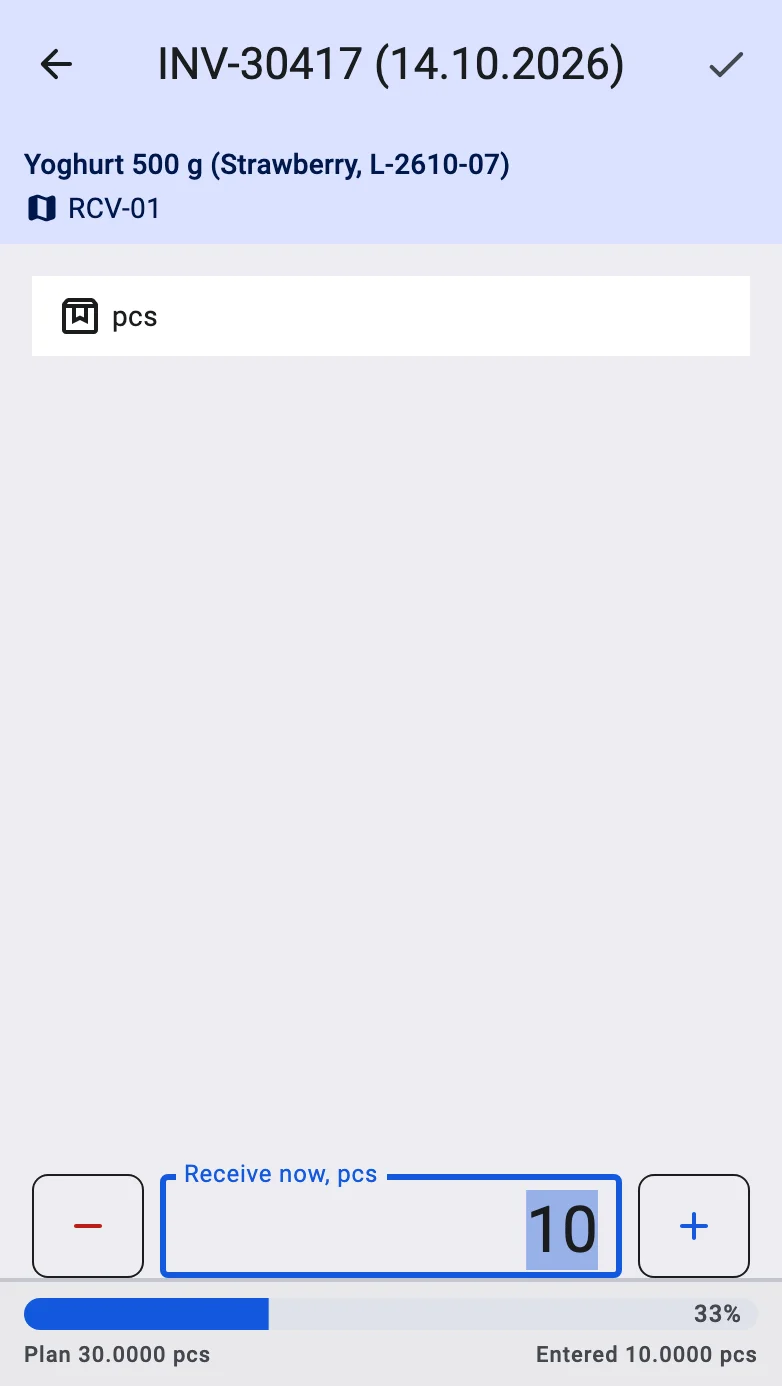
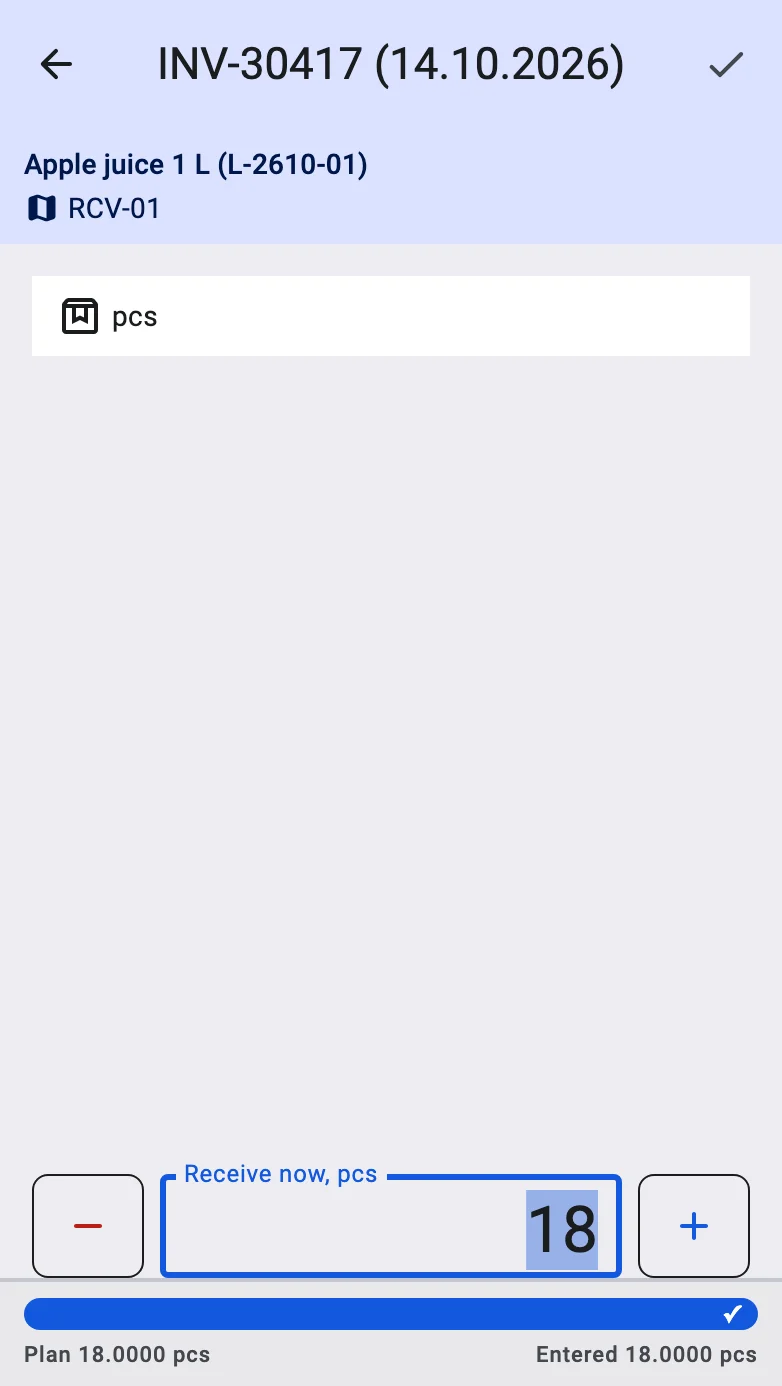
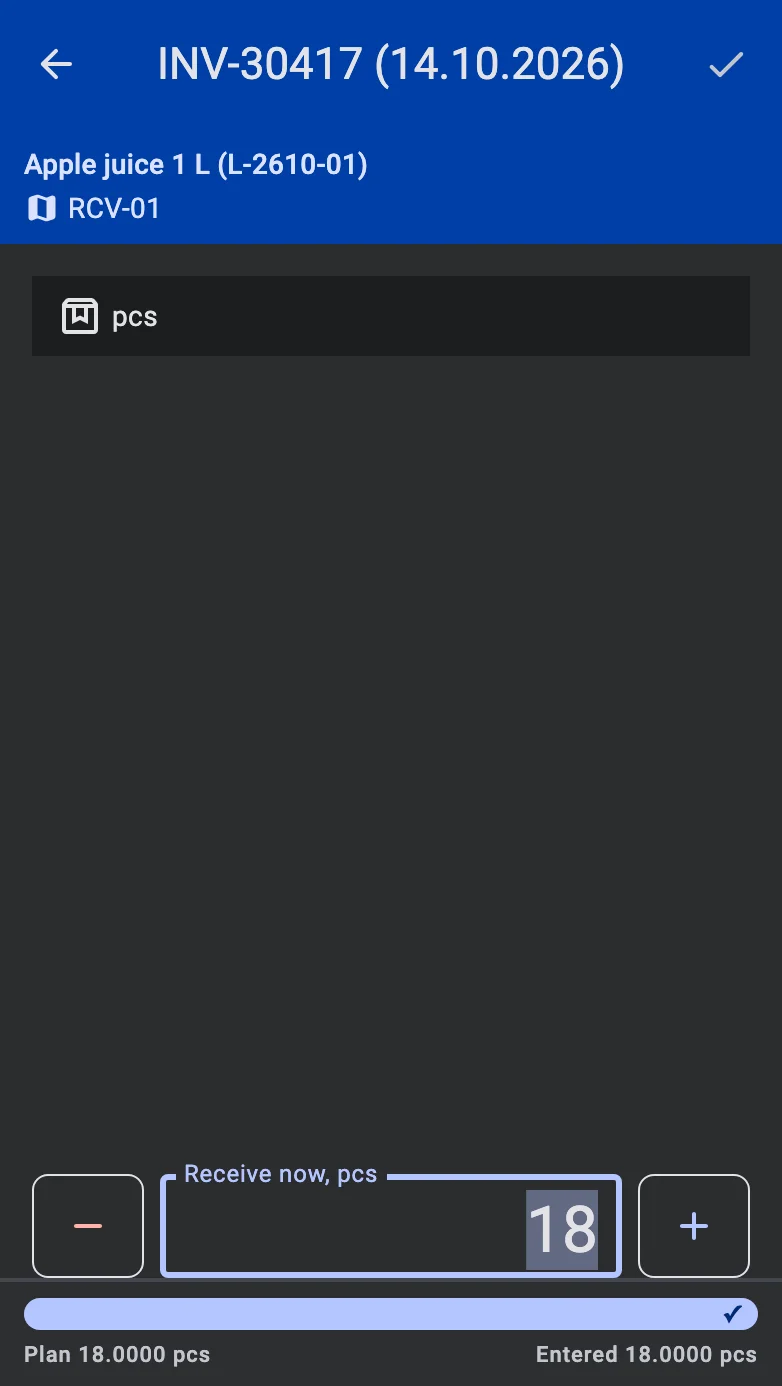
In the confirm-on-save mode (the On scan chip is off) a scan of a product barcode finds the matching line and opens the fact screen for it. The Receive now field is already filled in:
- with the quantity from the barcode, when it carries one;
- otherwise with what is still left on the line, counted in the pack that was scanned (at least one).
The operator checks or changes the quantity and confirms. Tapping a row does the same, with what is left on the line.
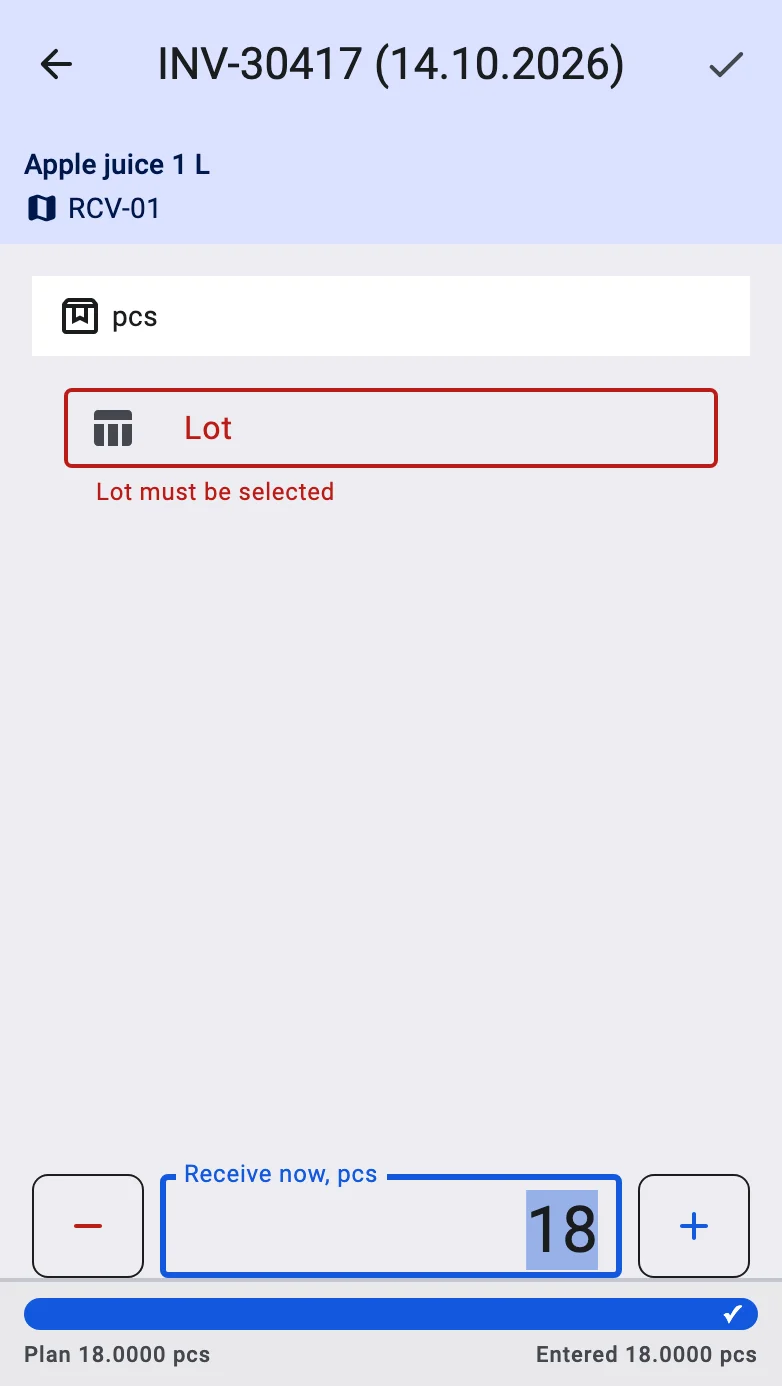
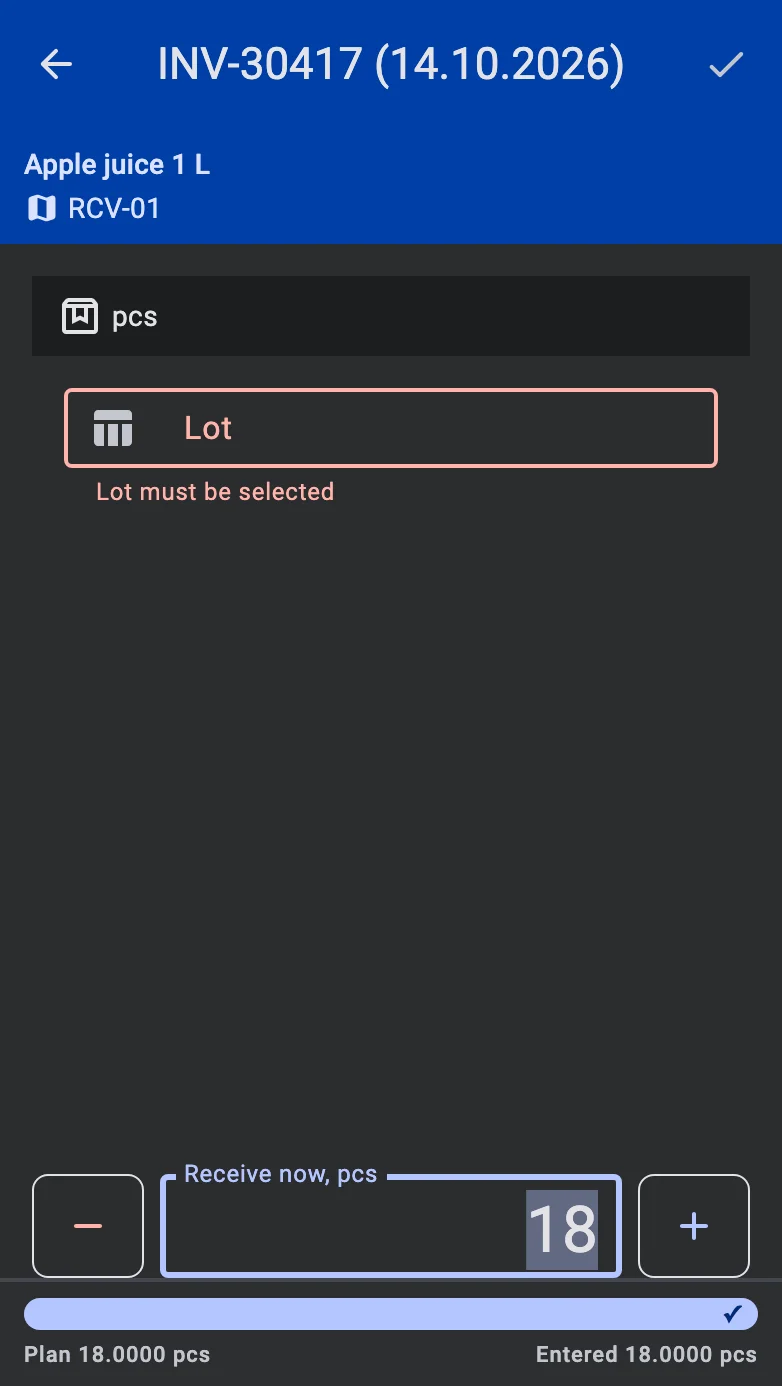
A required field that is still empty when the operator saves is marked in red and the fact is not saved.
"+1": quick save on scan
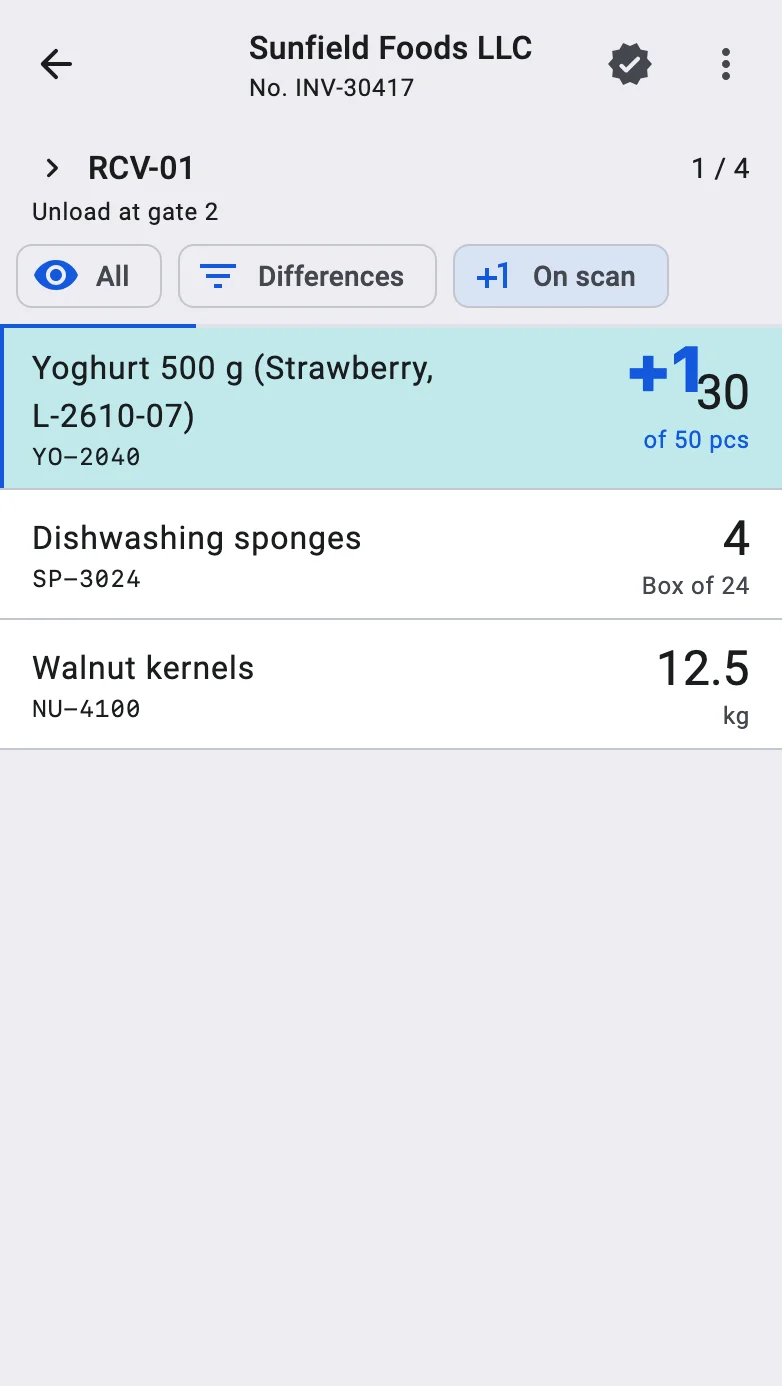
The On scan chip (with a +1 icon) above the list turns on the quick-save mode. It is off by default and the operator switches it on and off themselves; there is no warehouse setting for it. With it on, a scan does not open the fact screen — it saves the fact at once. The saved quantity is:
- taken from the barcode when it carries a value;
- otherwise equal to one.
Quick save applies only when the scan means a single unit — a pack of a unitary product, or a barcode with a quantity — and the line takes that pack type. In any other case the fact screen opens as usual. It also does not apply while a fact screen is open, or while a GS1 label is waiting for its product.
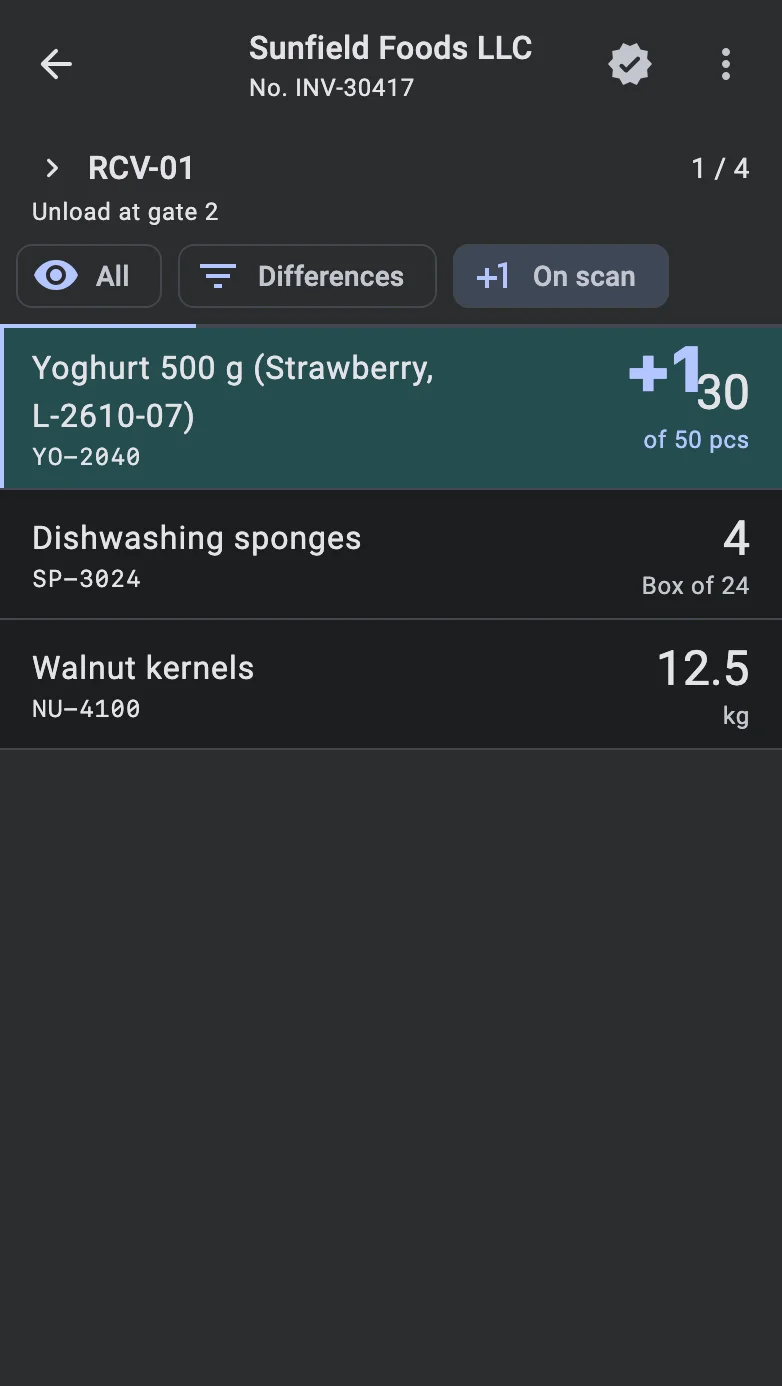
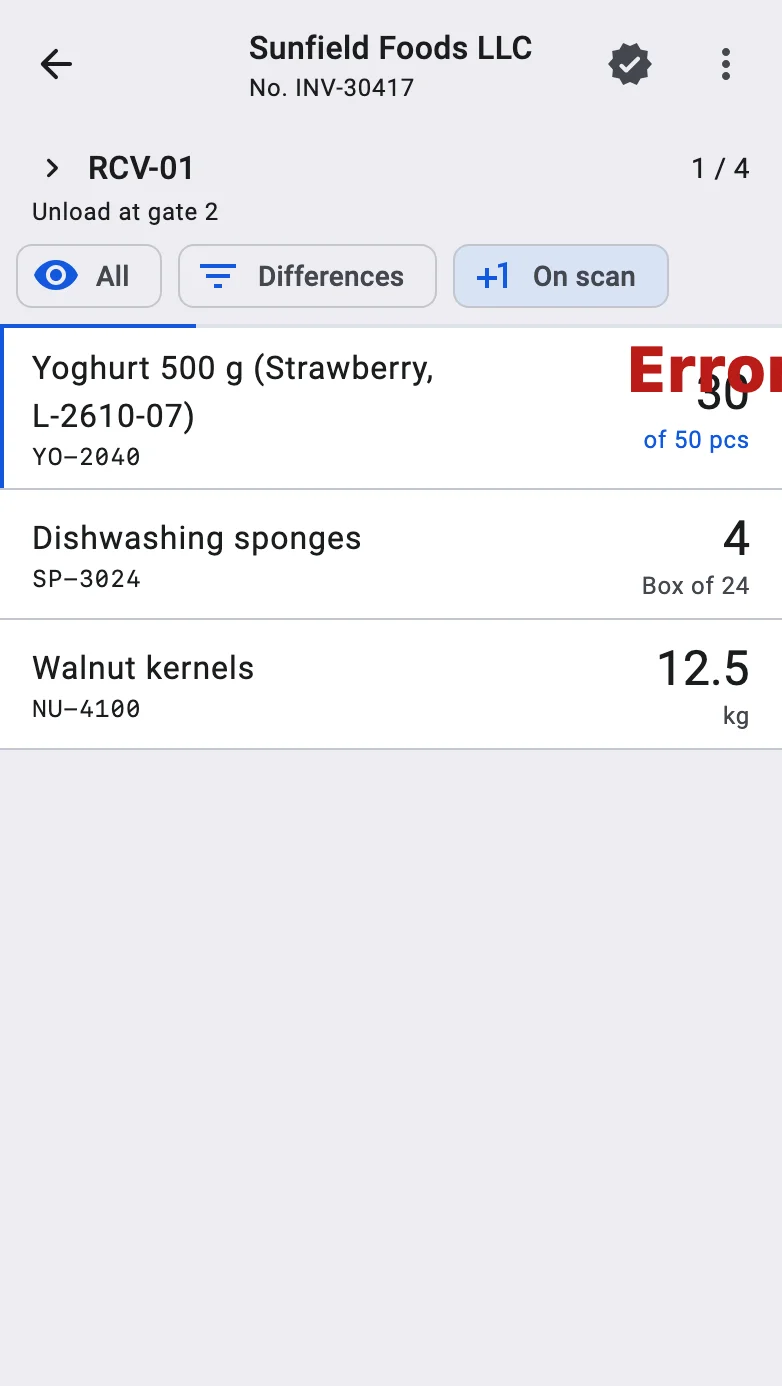
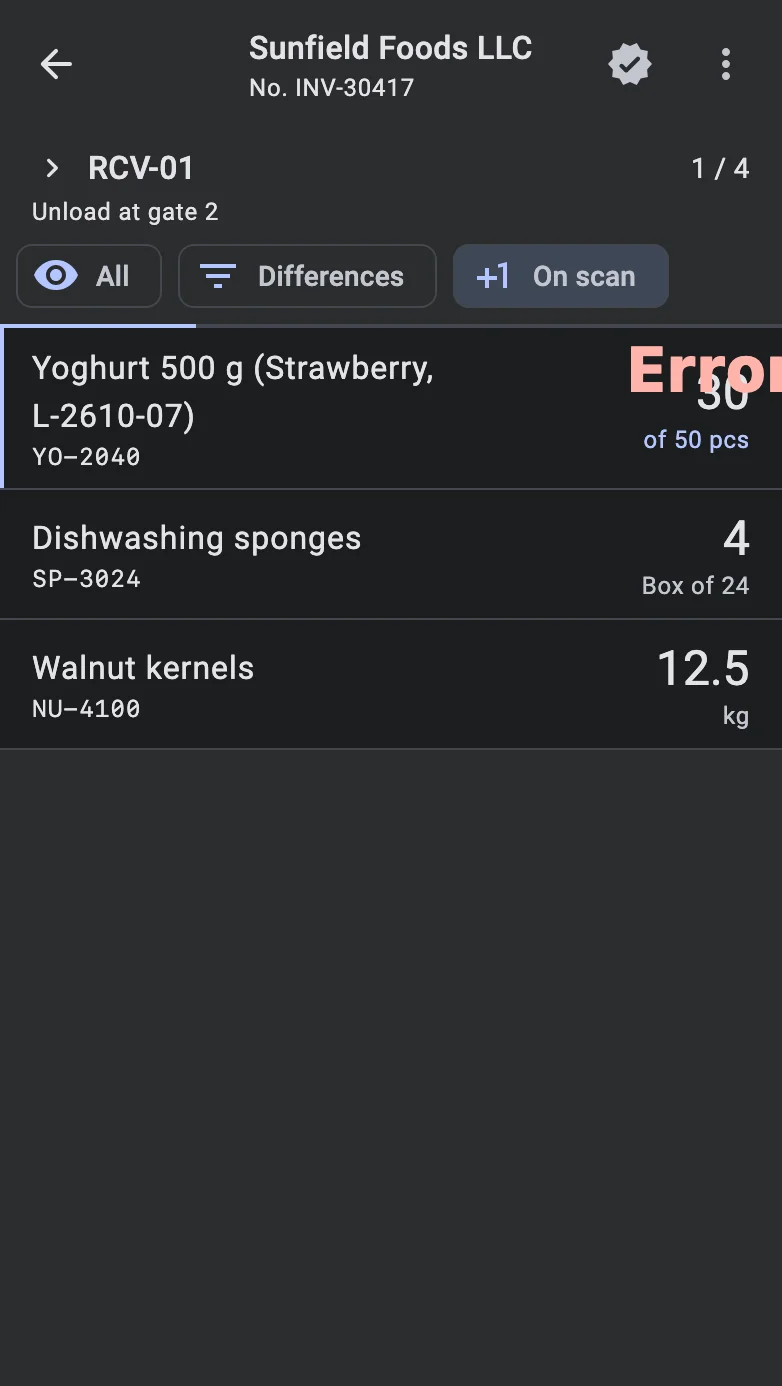
After a successful save a short animation showing the quantity just added rises from the line's row (for example "+1" or "+12.5"). When the fact is not accepted, an error mark appears in the same place; nothing is saved, and the operator switches the chip off or taps the row to see why. A lot that is not in the plan or has too little shelf life opens the same dialogs as on the fact screen (see Lots).
The mode speeds the work up noticeably when the operator is scanning identical items one after another — for example, a long run of identical packs from a pallet.
The fact screen
The fact screen is built in three parts so that the product and the quantity are always in view:
- On top, the product with its features and lot, and below it where the goods go — the location or the target container. When a GS1 label has been scanned, its chips are here too (see GS1 labels).
- In the middle, a card with the fields: Product, Product Feature and Lot where the product has them, Location or Target Container, and Pack Type. Where the goods go is described in Pick the receiving target; a pinned receiving location is described in Open the receipt. The card cannot be edited when the operator is correcting a total.
- At the bottom, the quantity and the way to save. While the operator types in another field with the keyboard open, this part shrinks to one line that shows the quantity; tap it to return to the field.
The quantity
Quantities go in the quantity field — set from the barcode, typed by hand, or worked out in the calculator, with − and + to adjust; the pack type sits beside it. How the quantity field works.
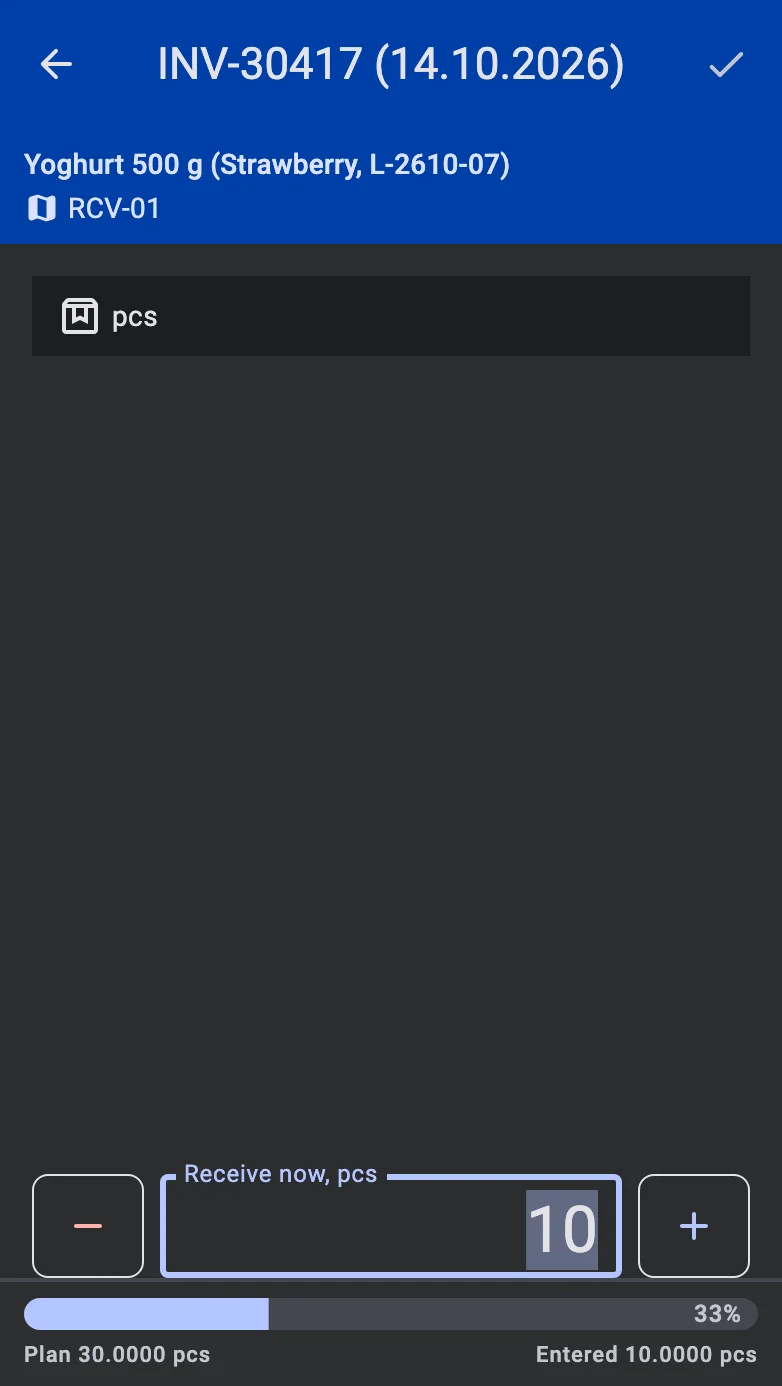
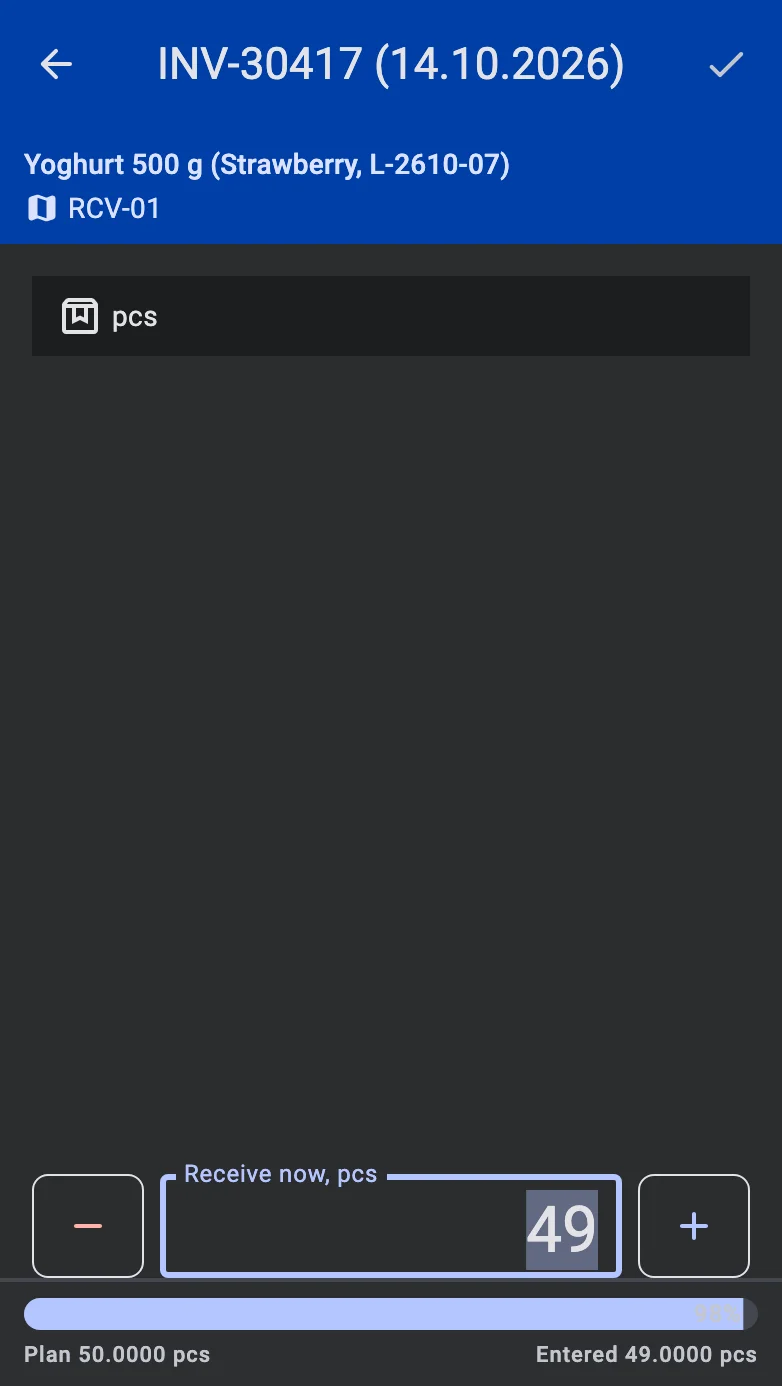
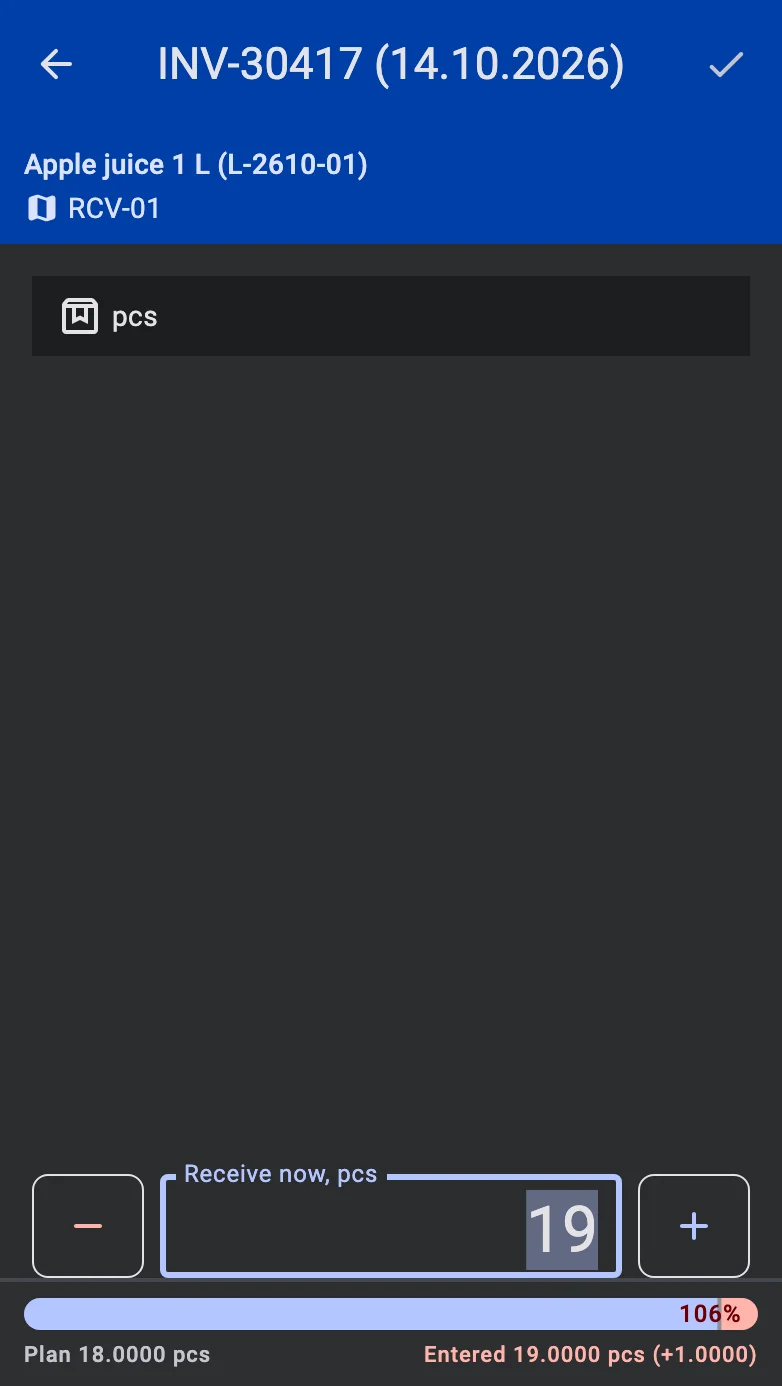
The field is labelled Receive now with the unit, and the number is added to what has already been received on the line. Under the field, a bar compares what is entered with what is still left on the line: it shows Plan and Entered, fills as the quantity grows, shows a ✓ when the line is covered and turns red for the part above the plan. The pack type can be changed in the card above; in a warehouse where packs are only a way to enter the quantity, see Pack accounting modes.
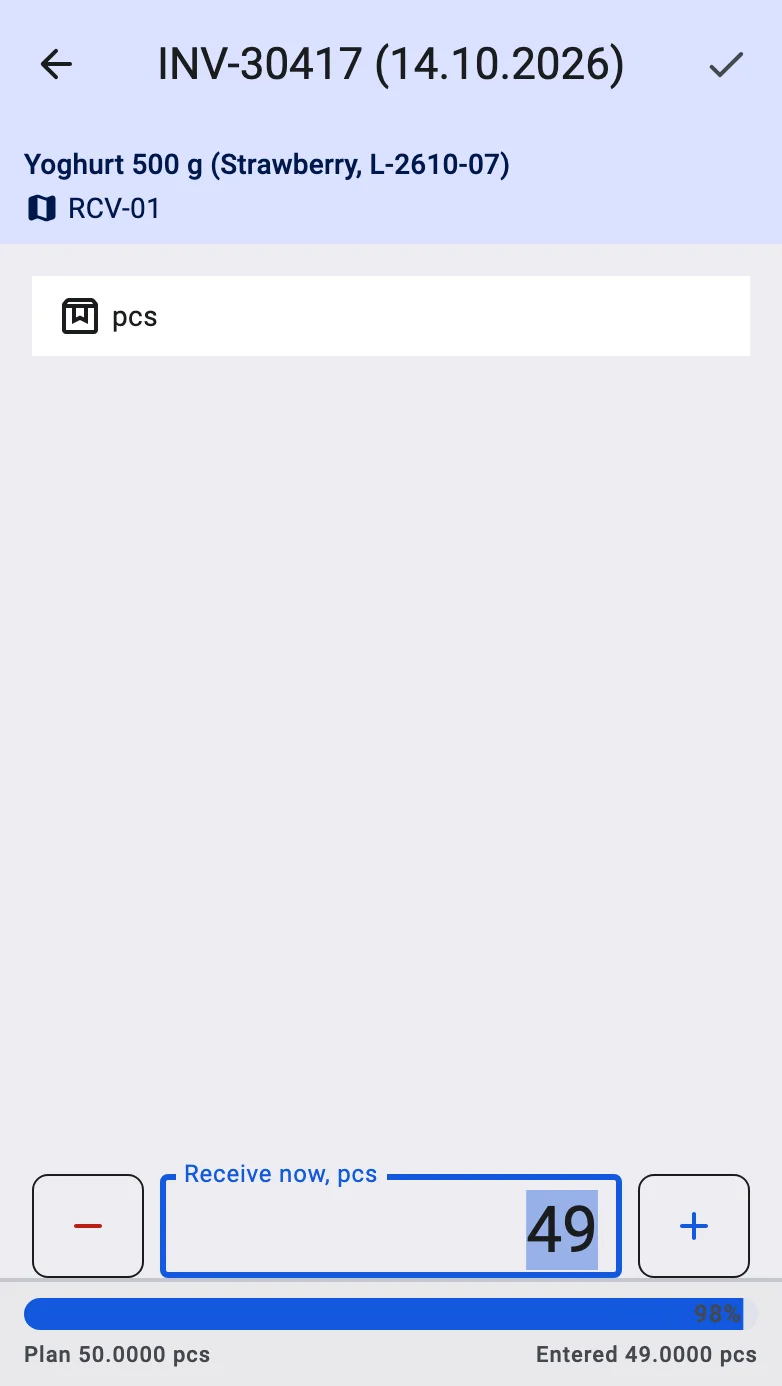
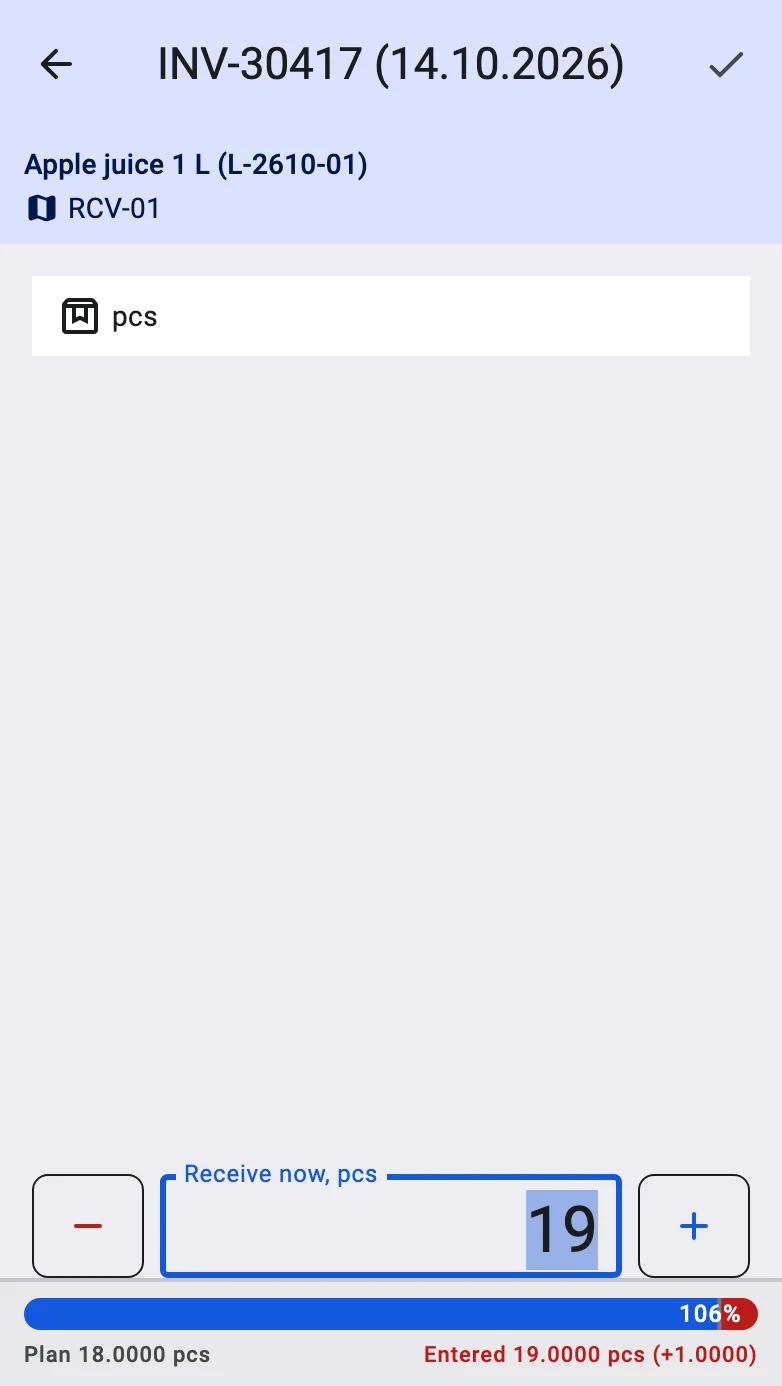
A quantity above the plan is saved only as far as the receipt allows over-receiving; beyond that the save is refused. A line that is not in the plan has no bar.
The in-app keypad
On a terminal the quantity is typed on the app's own keypad, which opens under the screen instead of the system keyboard. It has the digits, a decimal point (only for goods that can be fractional), backspace, a calculator key (where the calculator is switched on) and a confirm key. Where the terminal has a hardware keyboard, the field takes typing directly.
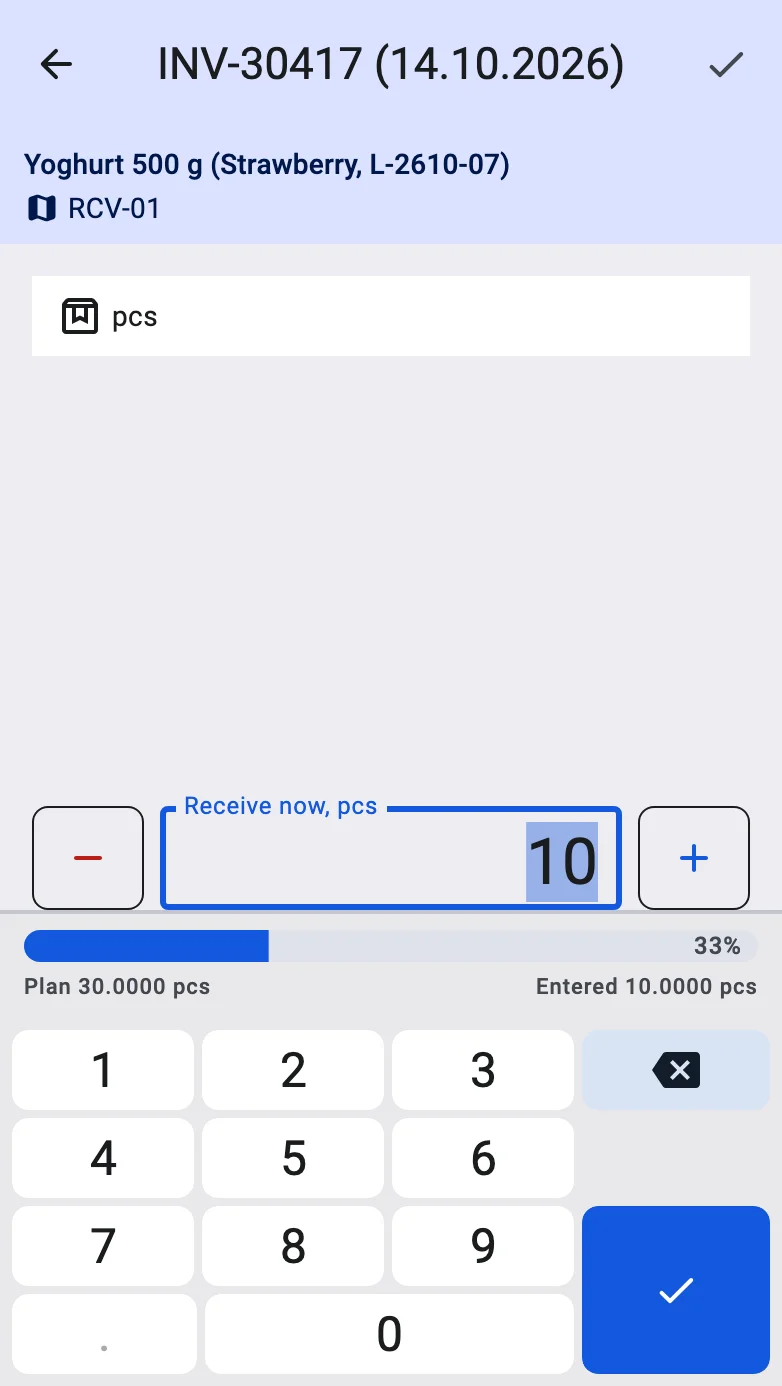
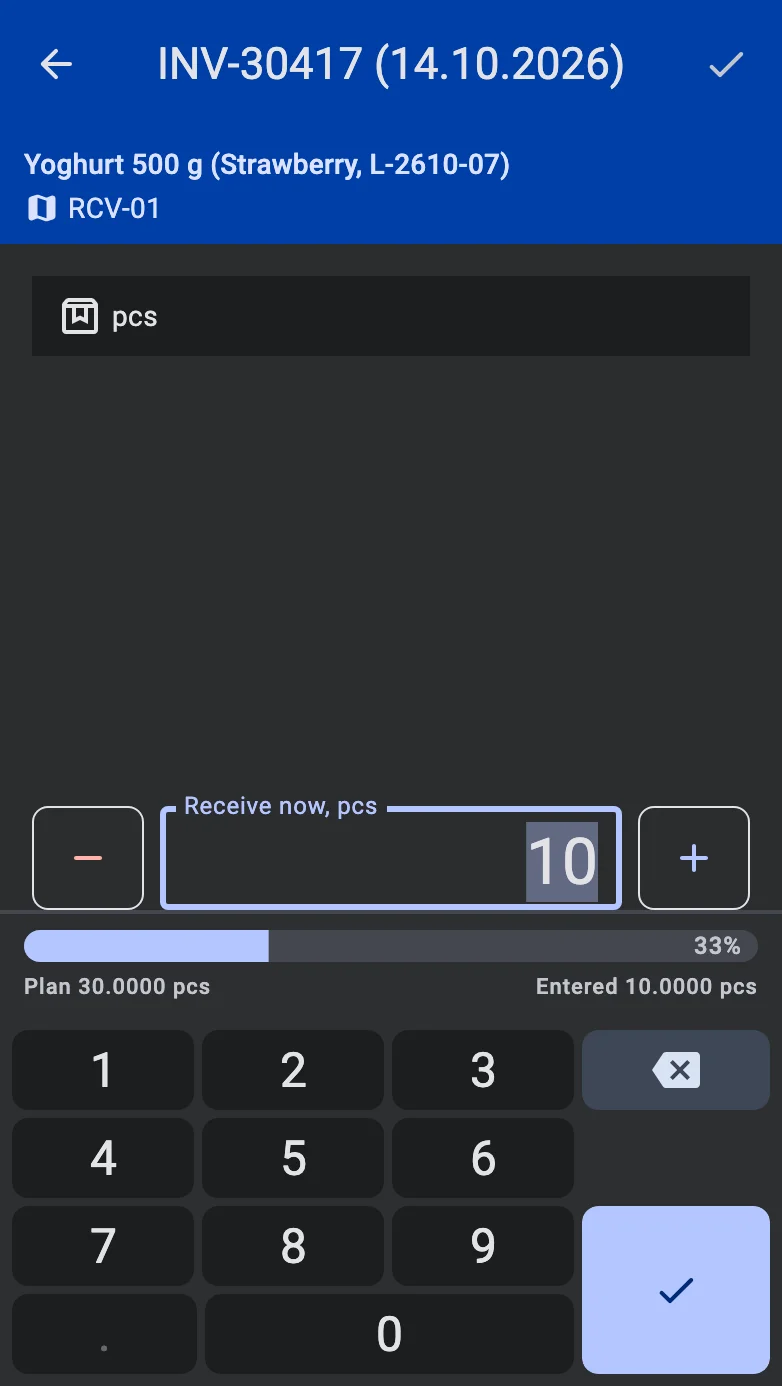
In the mode where the operator adds to the line, the confirm key saves the fact. In the mode where the operator sets the total, it is greyed out: saving is done by the button described below.
Saving
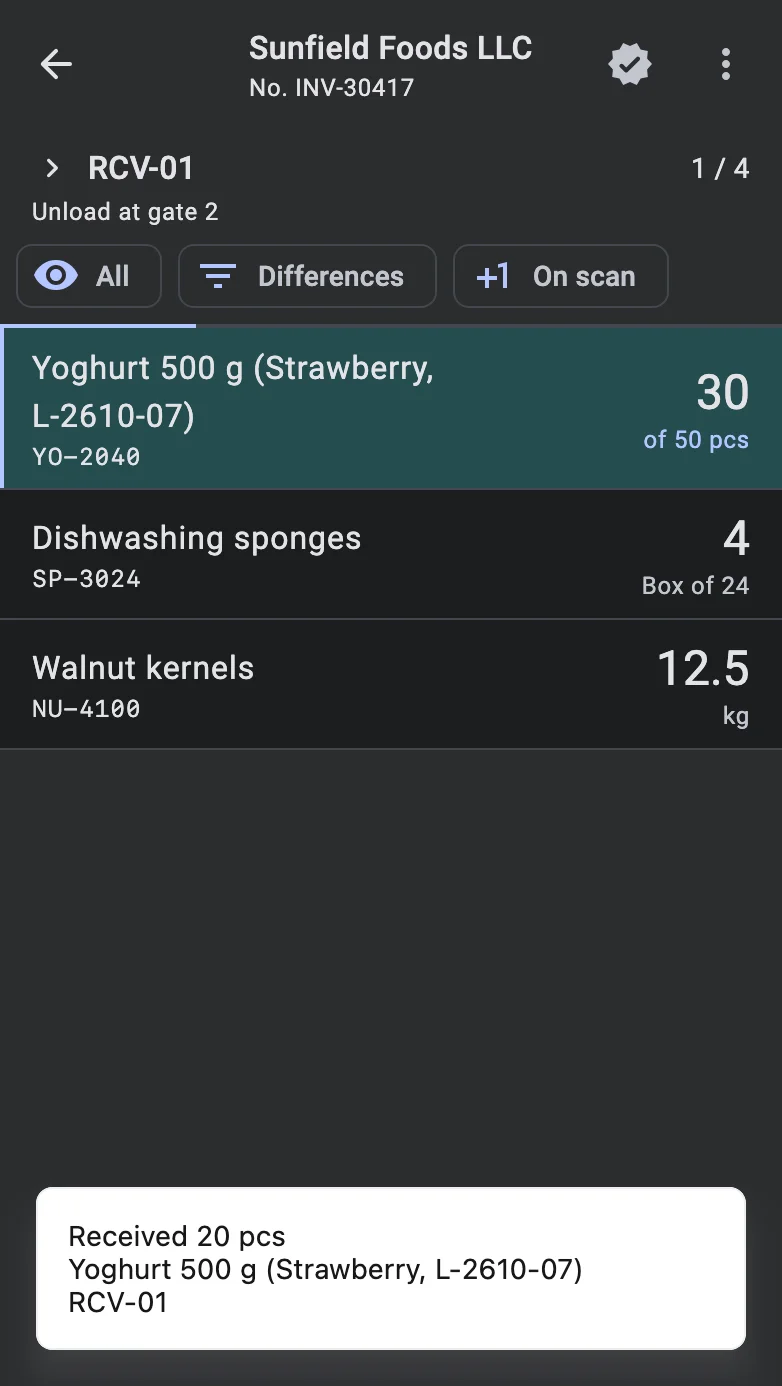
For an addition the operator saves with the ✓ in the top bar, or with the confirm key on the keypad. The ✓ is shown to a user who has the right to edit receipts. The fact screen closes and the terminal returns to the list, where the line has moved: its row shows the new quantity left, and a short message at the bottom names what has been taken in — Received, with the quantity and unit, the product with its features and lot, and the location or container.
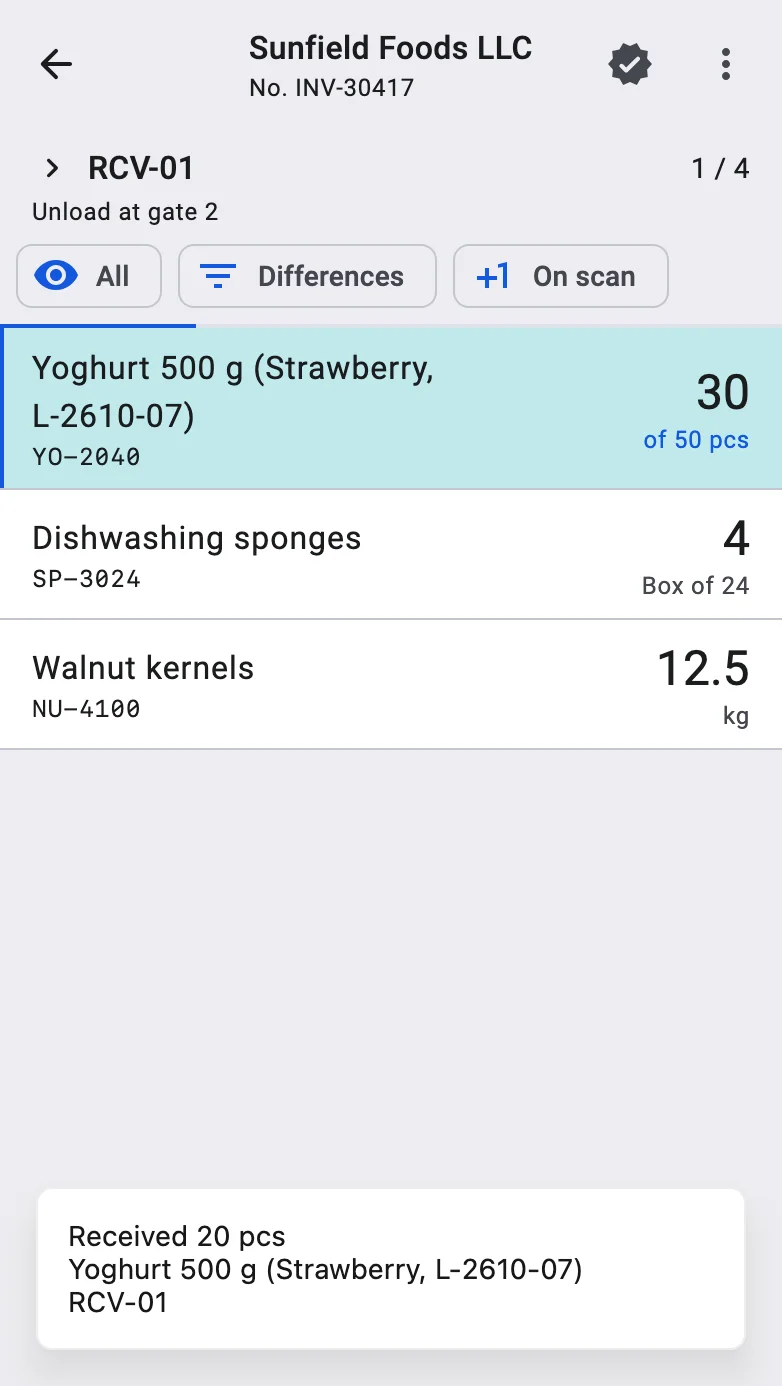
When the fact leaves the receipt confirmed (see automatic confirmation), the terminal leaves the document and says Receipt is confirmed. Otherwise the operator finishes the receipt from the list, as described in Close the receipt.
Correcting the total
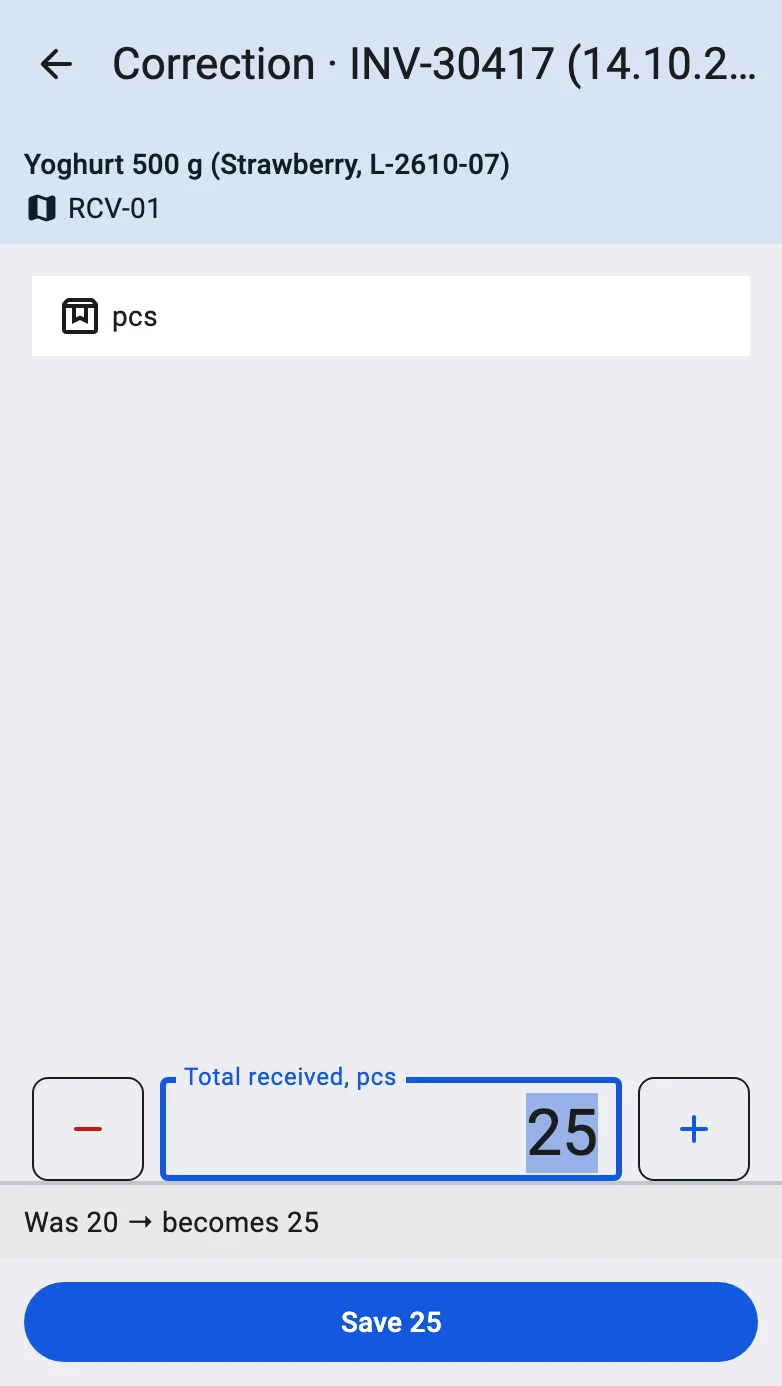
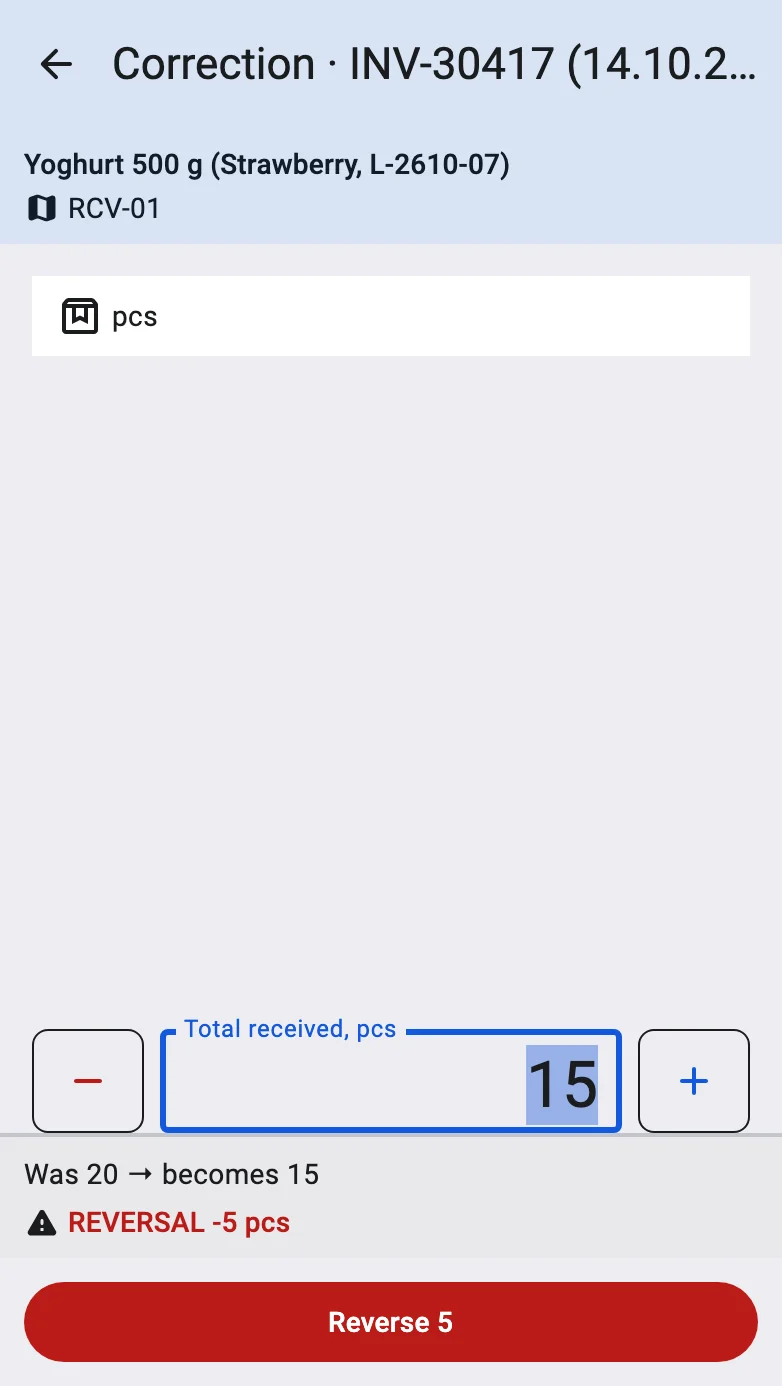
A wrong quantity on a line is corrected without adding anything: swipe the row and tap Edit fact. The fact screen opens in the correcting mode:
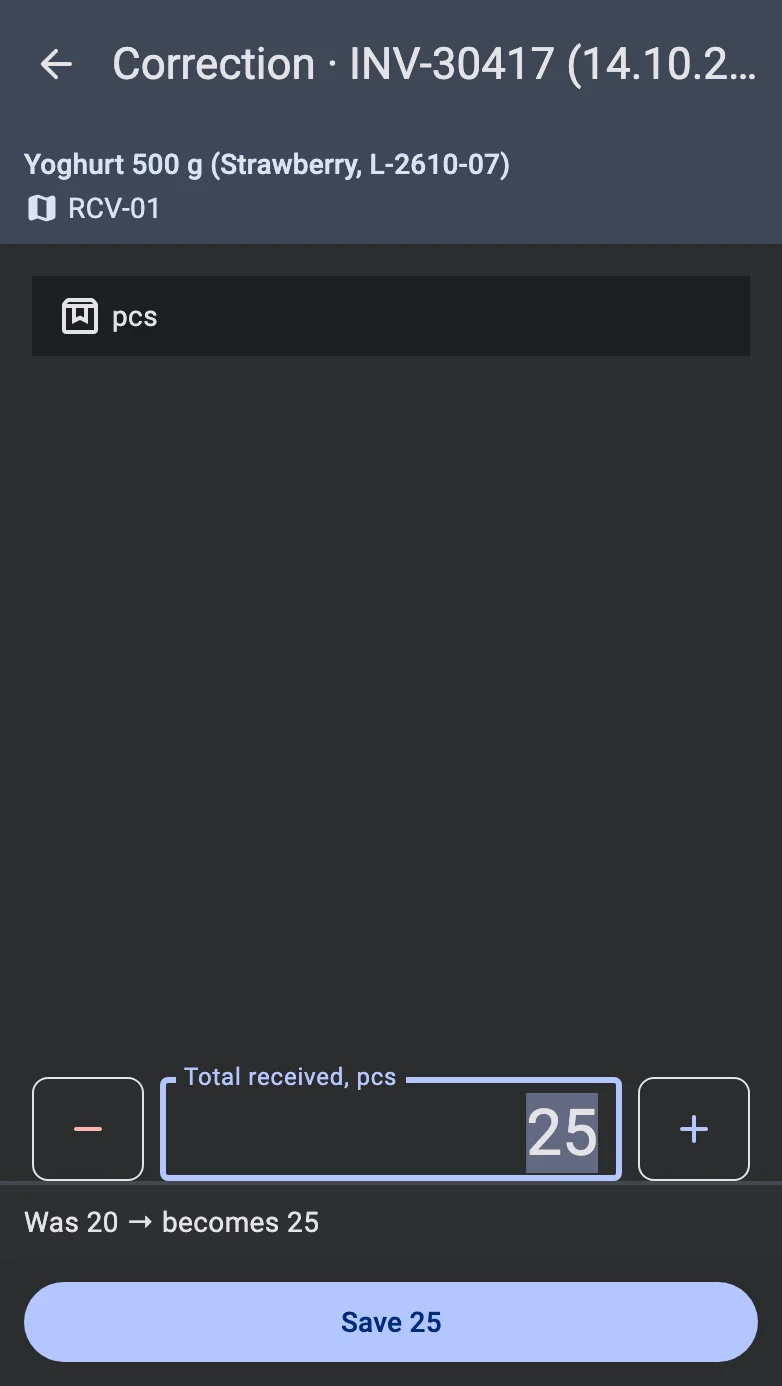
- the field is labelled Total received and holds what has been received on the line so far; the operator types the right total;
- the card with the fields is read-only;
- under the field, instead of the plan bar, a panel shows Was and what it becomes; when the new total is lower, a red row marked REVERSAL shows how much goes back;
- there is no ✓ in the top bar. The only way to save is the button at the bottom, whose caption names the result: Save with the new total, or, when stock goes back, a red Reverse with the quantity taken off.
Lots
The Lot field appears on the fact screen when the product's lots are tracked for receiving (or when the fact already has a lot). Saving waits until the terminal has checked the product's lot requirement. A plan line does not have to name a lot, and in some receipts it must: see Plan lines and lots. A lot with too little shelf life is held back by a dialog: see Lots with a short remaining shelf life.
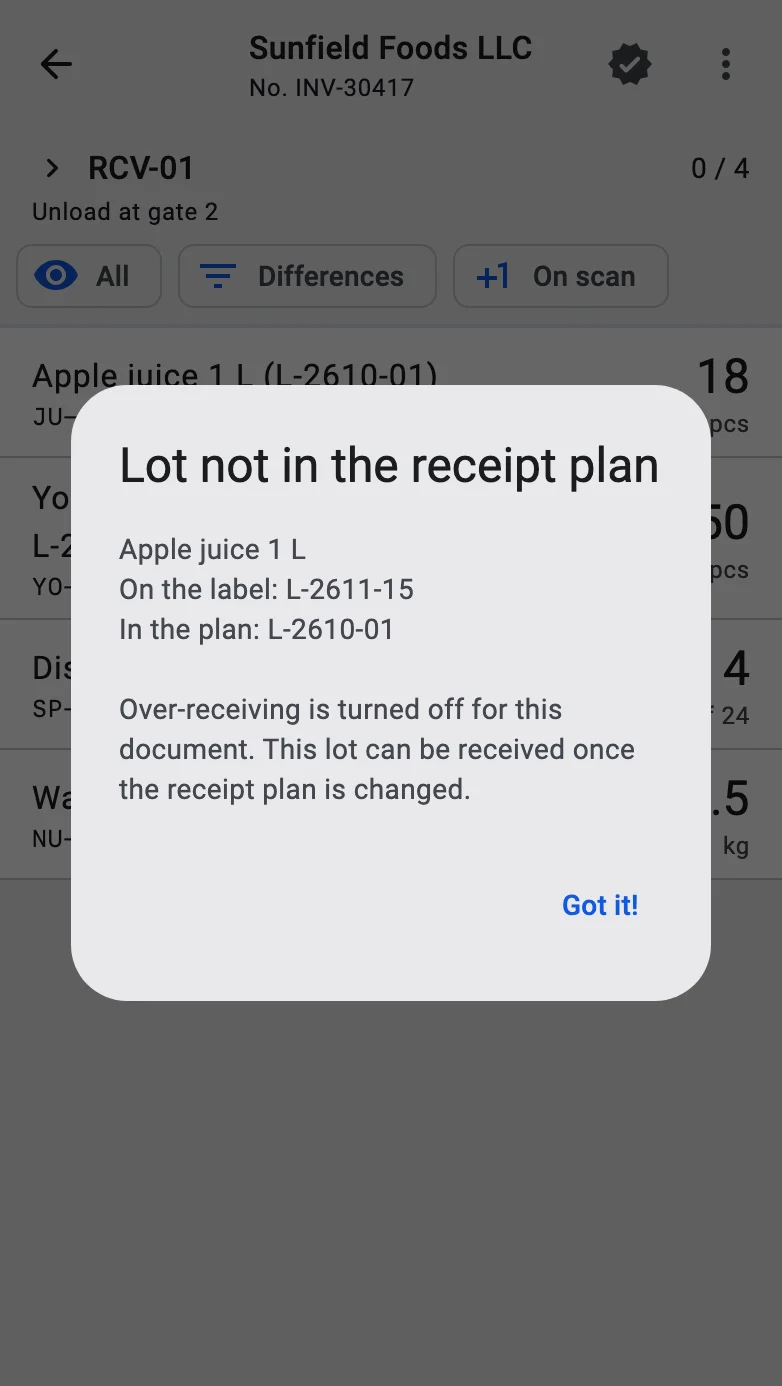
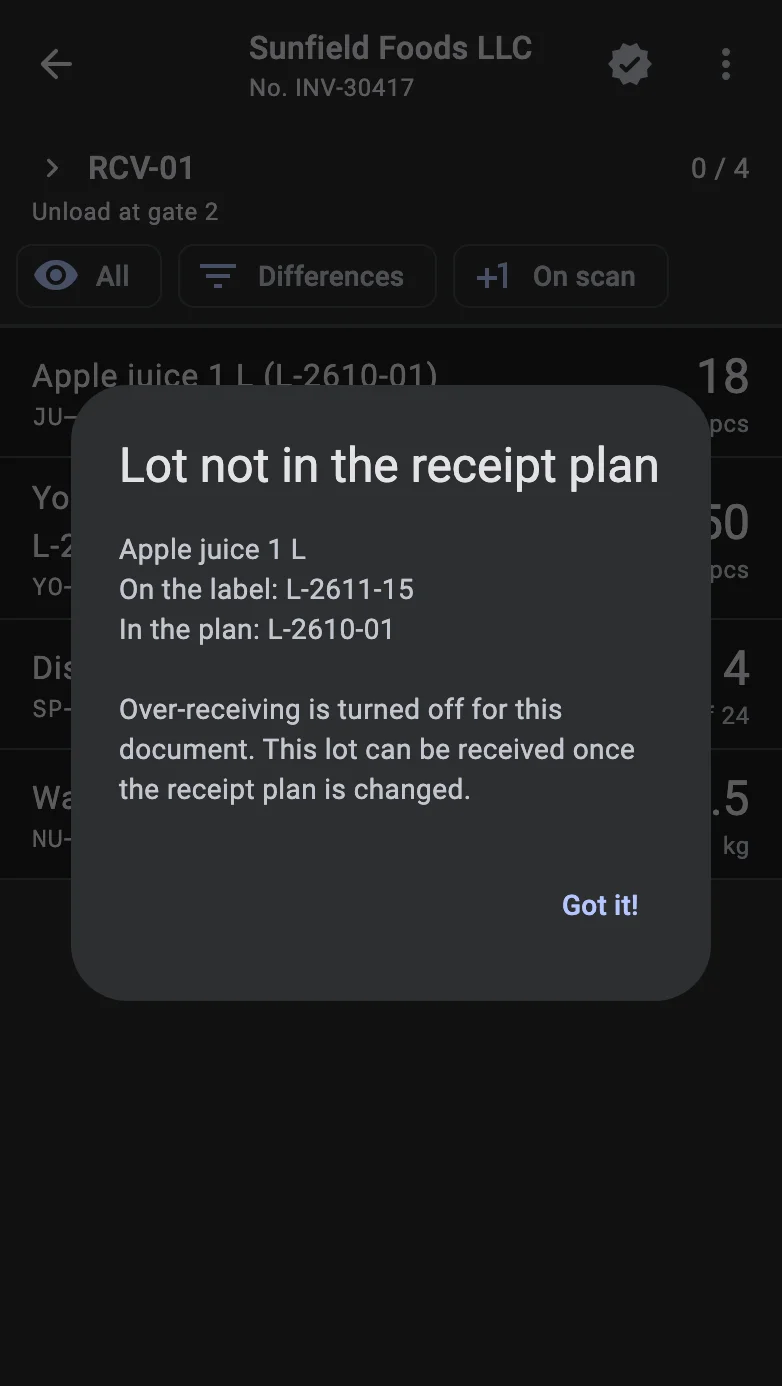
Lot not in the receipt plan
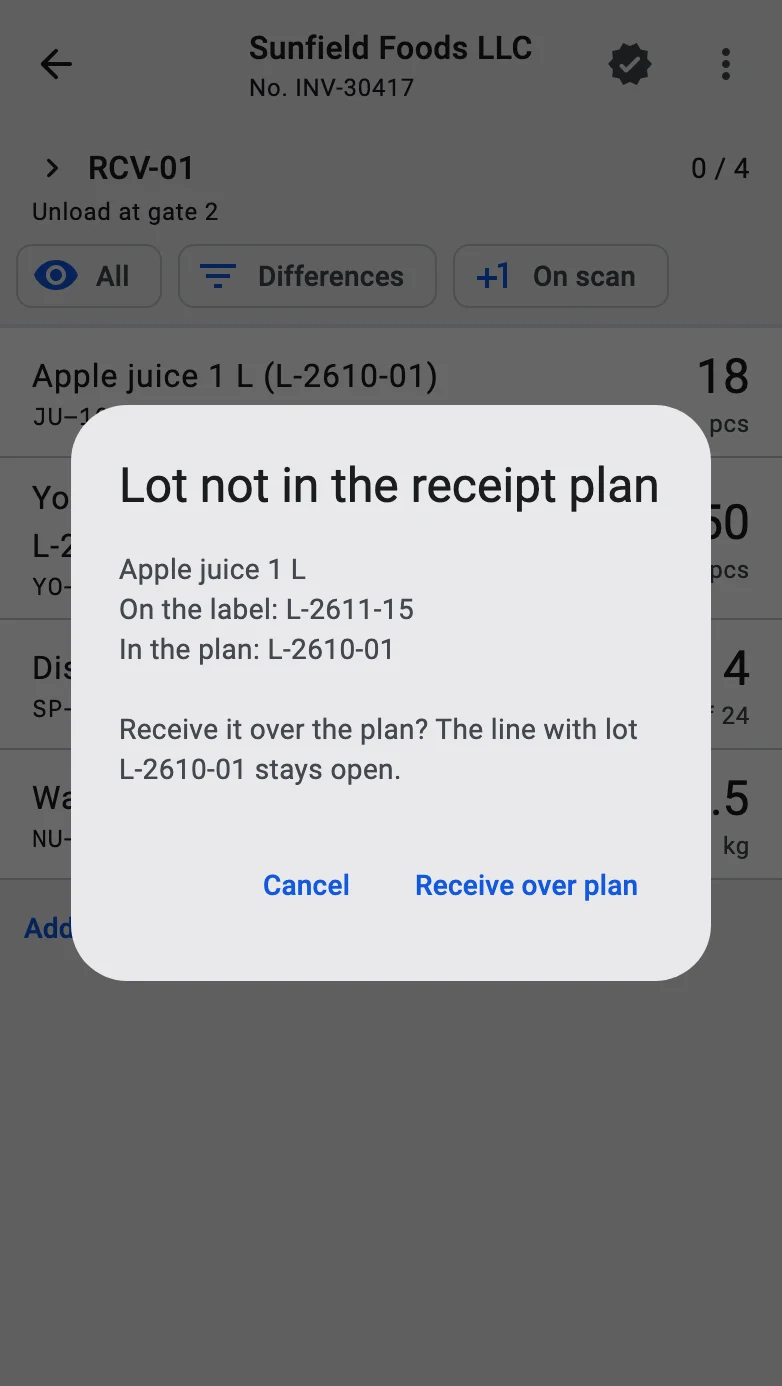
When the receipt plan names lots for the product and the lot on the barcode or on the label is none of them, the terminal stops with the Lot not in the receipt plan dialog. It shows the product, On the label with the scanned lot, and In the plan with the lots the plan has. A lot that is in the plan simply goes to its line.
- When the receipt allows over-receiving, the dialog asks Receive it over the plan? and says that the line with the planned lot stays open. Receive over plan takes the lot in as a fact outside the plan; Cancel leaves it unsaved. On the fact screen, Cancel also marks the Lot field: The label lot … is not in the receipt plan.
- When over-receiving is off, the dialog says so — the lot can be received once the receipt plan is changed — and has one button, Got it!.
A new lot
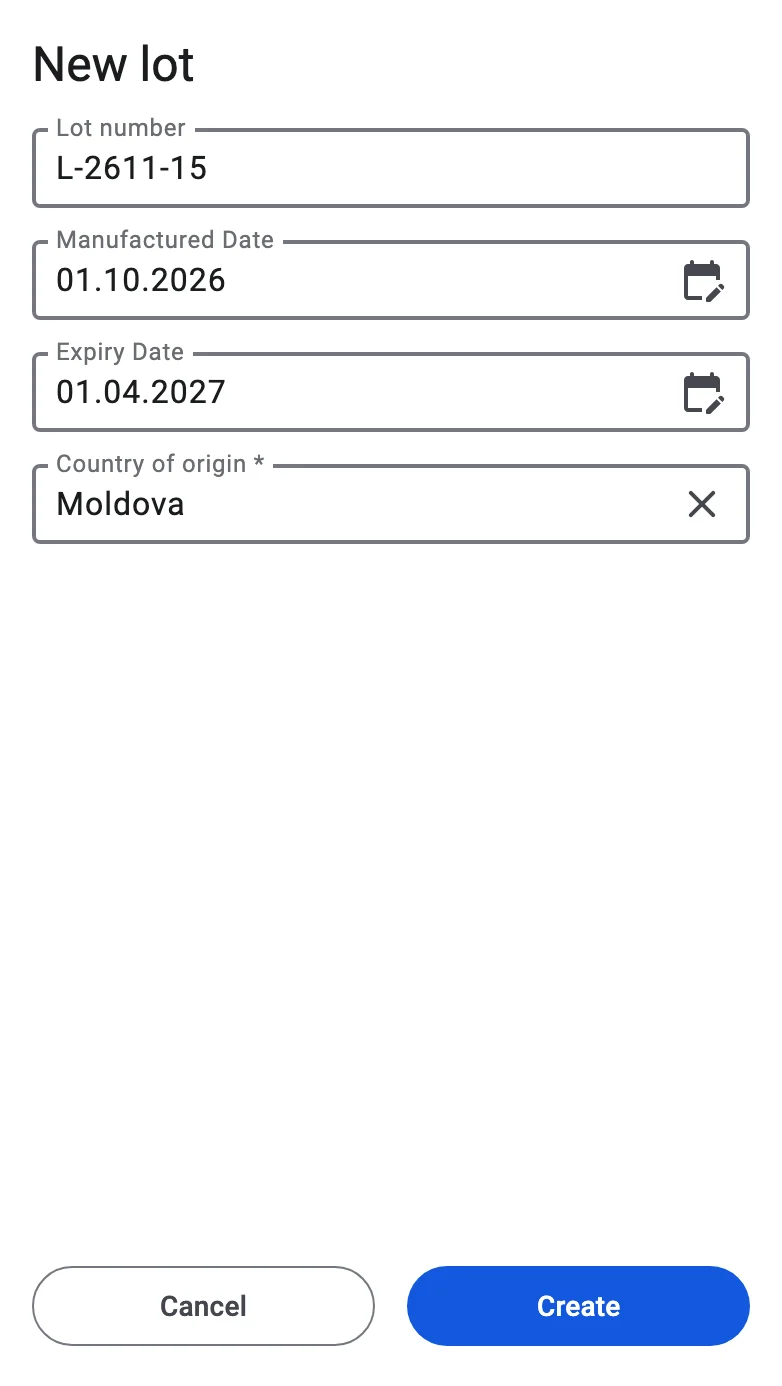
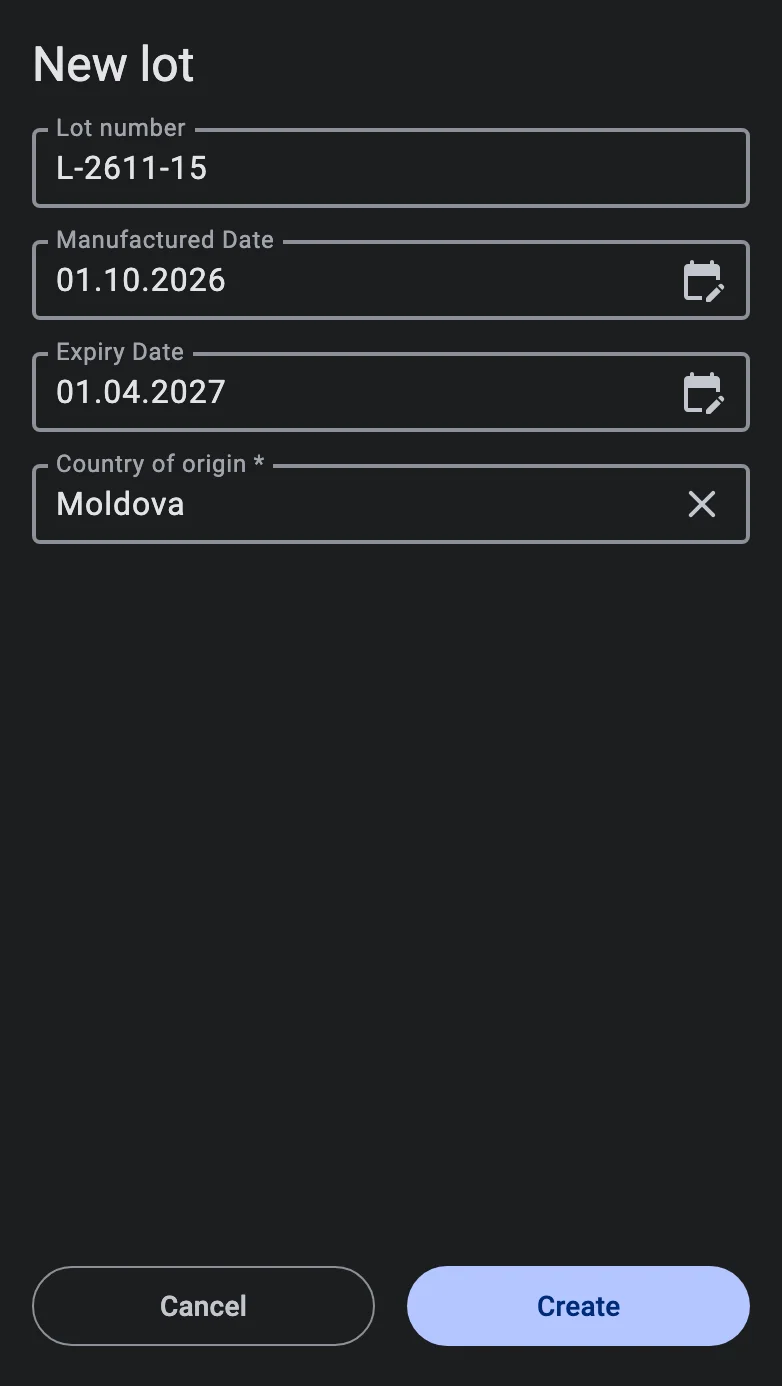
When the operator scans or types a lot number in the Lot field and no such lot exists, the terminal offers to create it — if the user has the right Create lots during operations (or manages lots) and the terminal is online. Without it the field says Code … not found.
The New lot form opens with the number already filled in. It has the Lot number, the Manufactured Date and Expiry Date, and the attributes the lot needs — the required ones first, the rest behind Show all. The Create button saves the lot and puts it on the fact; a message says Lot … created.
The lot's Supplier is not on the form: the terminal fills it in with the sender of the receipt, and it stays on the lot.
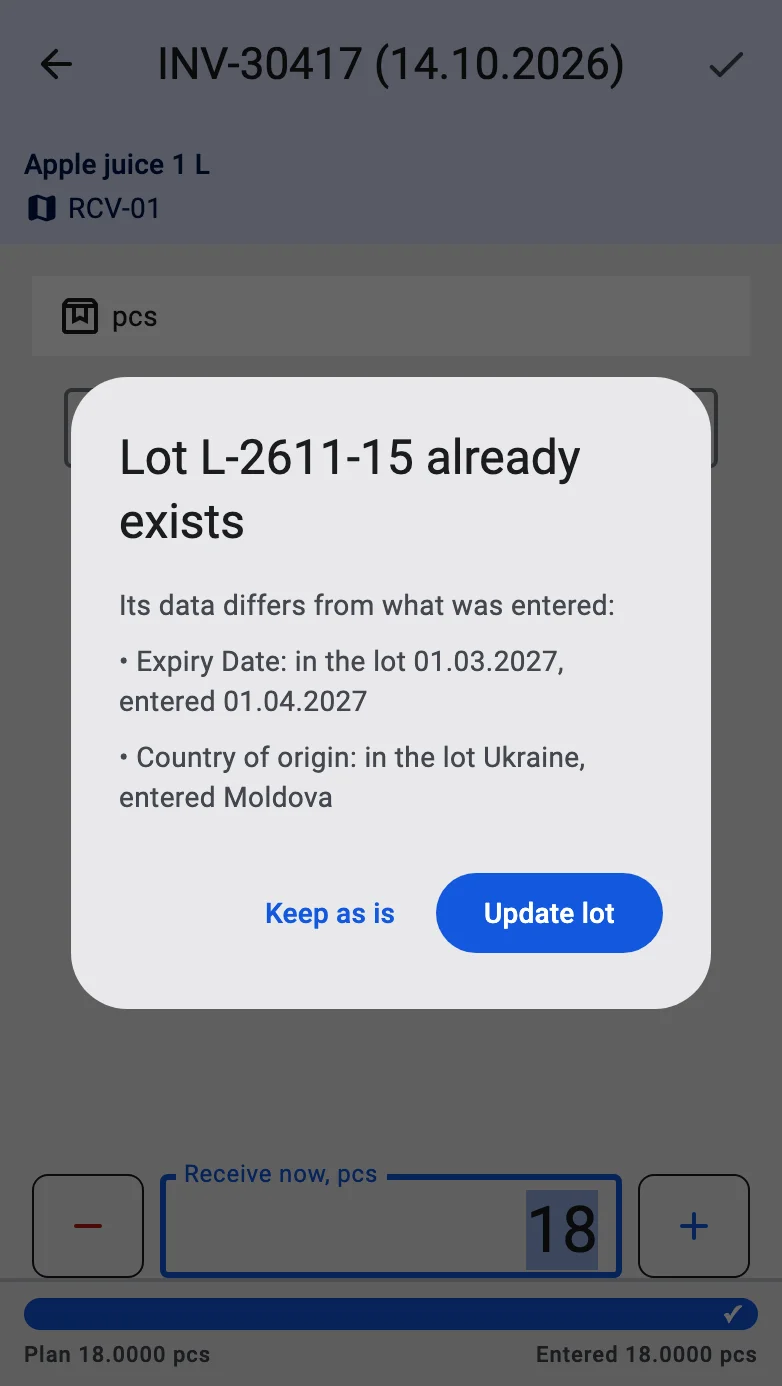
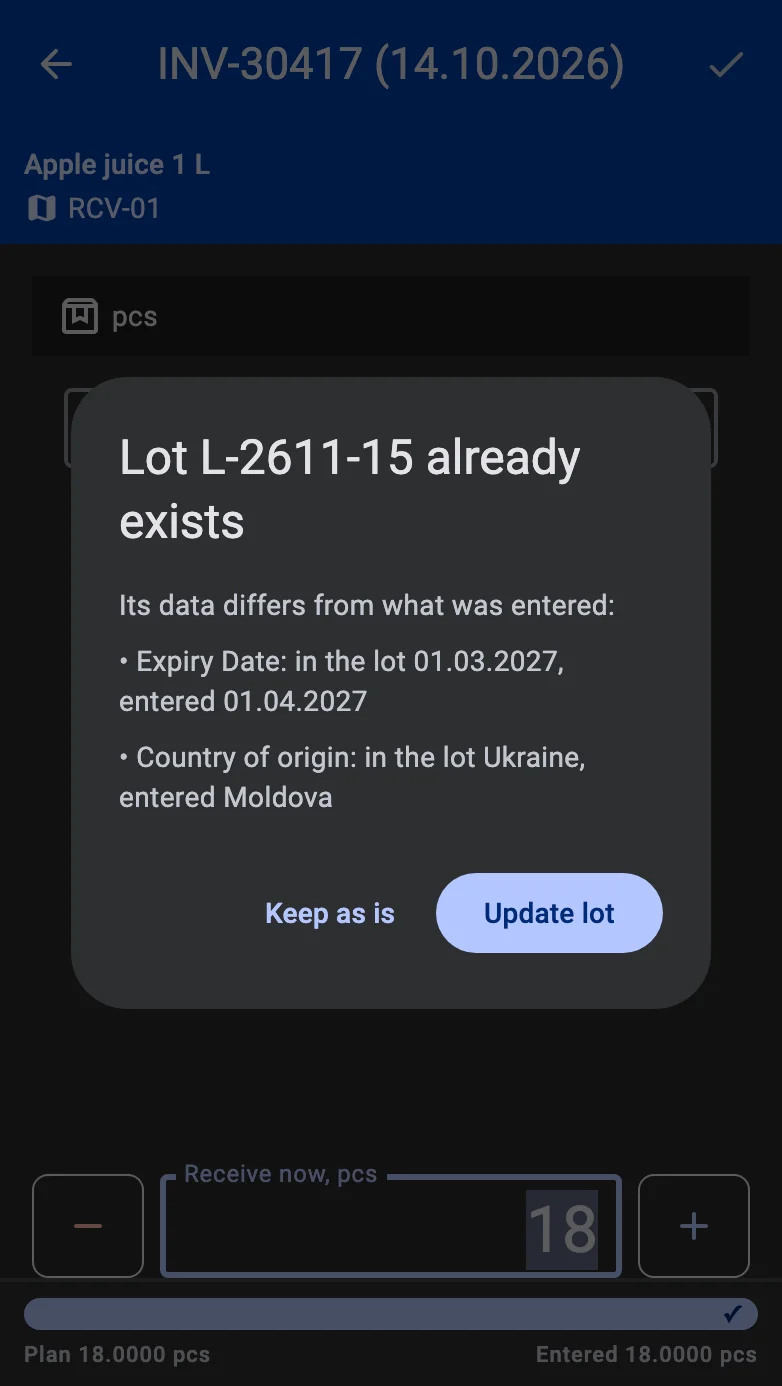
When a lot with that number already exists for the product, the terminal uses it instead of creating a second one. Where the existing lot lacks a value that was entered (a date or an attribute), the value is added to it and a message says Lot … filled in. Where the existing lot holds a different value, Lot … already exists lists the differences, and the operator chooses Keep as is or Update lot. When several lots have the same number, the terminal asks to choose one.
GS1 labels
A pallet label in the GS1-128 format carries the product, the quantity, the lot and its dates, and the container code in one to three barcodes. The terminal reads them one after another, when the warehouse has switched Parse GS1-128 on and the scanner is set up for it (see Scanning and barcode input). The label fills in the fact:
- Product, pack type and quantity — the product is found by the code on the label, and the Receive now field and the pack type take the label's quantity. A label with a product opens the fact screen for the matching line by itself.
- Lot — the terminal looks for the lot with the label's number. If it does not exist it is created from the label — its number, dates and attributes — and the sender of the receipt becomes its supplier, as in A new lot; a user without the right to create lots sees Lot … not found on the field. A lot that is not in the receipt plan opens the dialog above.
- Container — where the receipt takes goods into containers, the container code from the label is used as the container the goods go to.
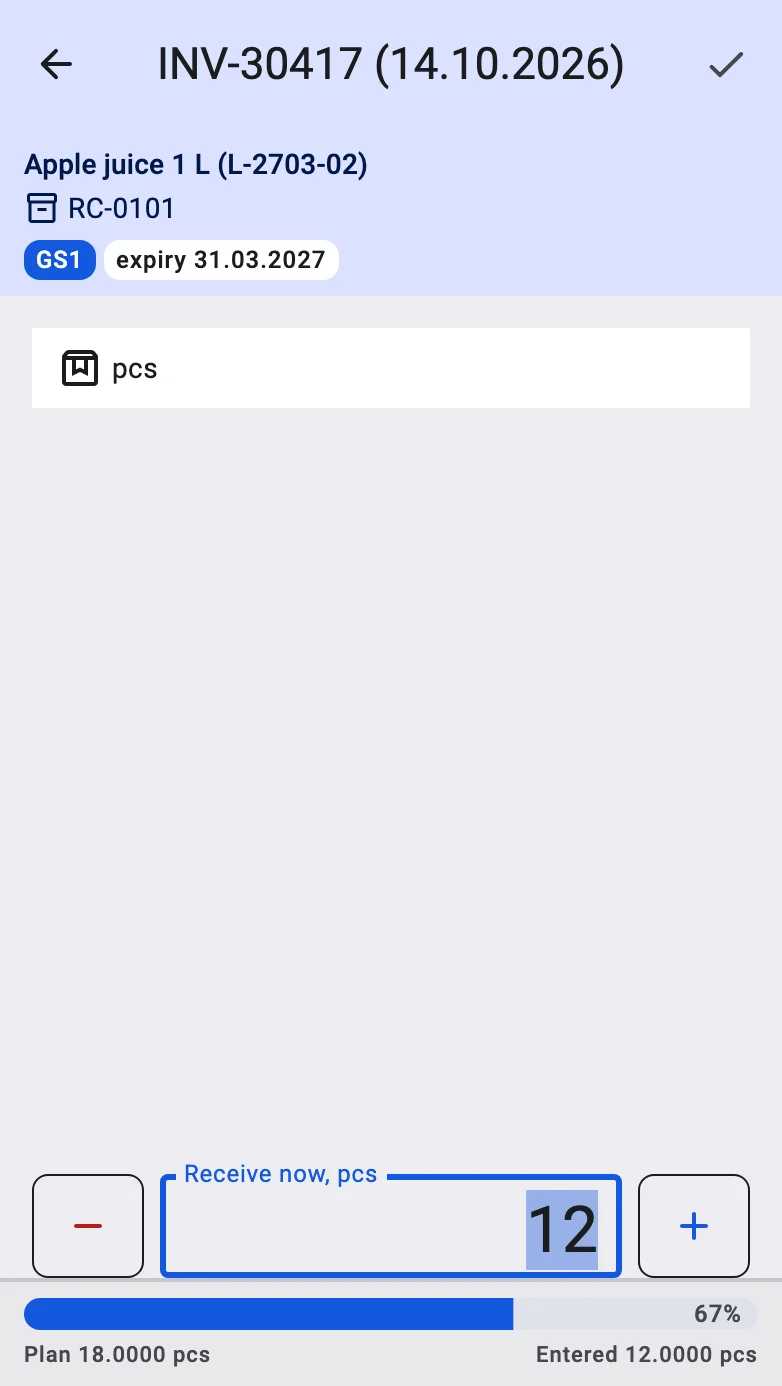
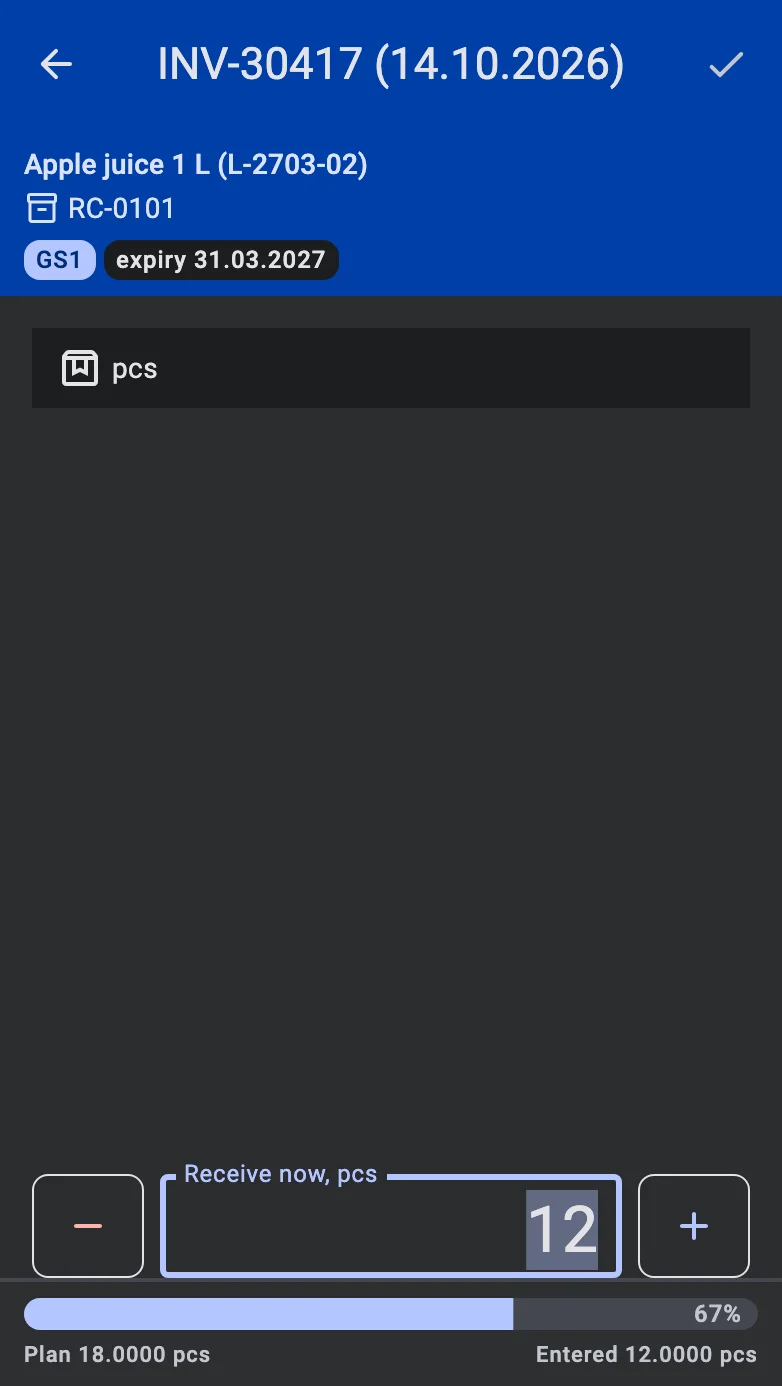
On top of the fact screen the label is shown as chips: GS1, the expiry and made dates, and Warnings when something on the label was skipped. The lot itself is shown in the product card. While the lot is being sorted out a chip says No lot number, Lot…, Lot not found or Lots not tracked. Tapping the chips opens GS1 label, which lists what Goes to the fact and what is Not used with the reason, for example no rule in the barcode policy.
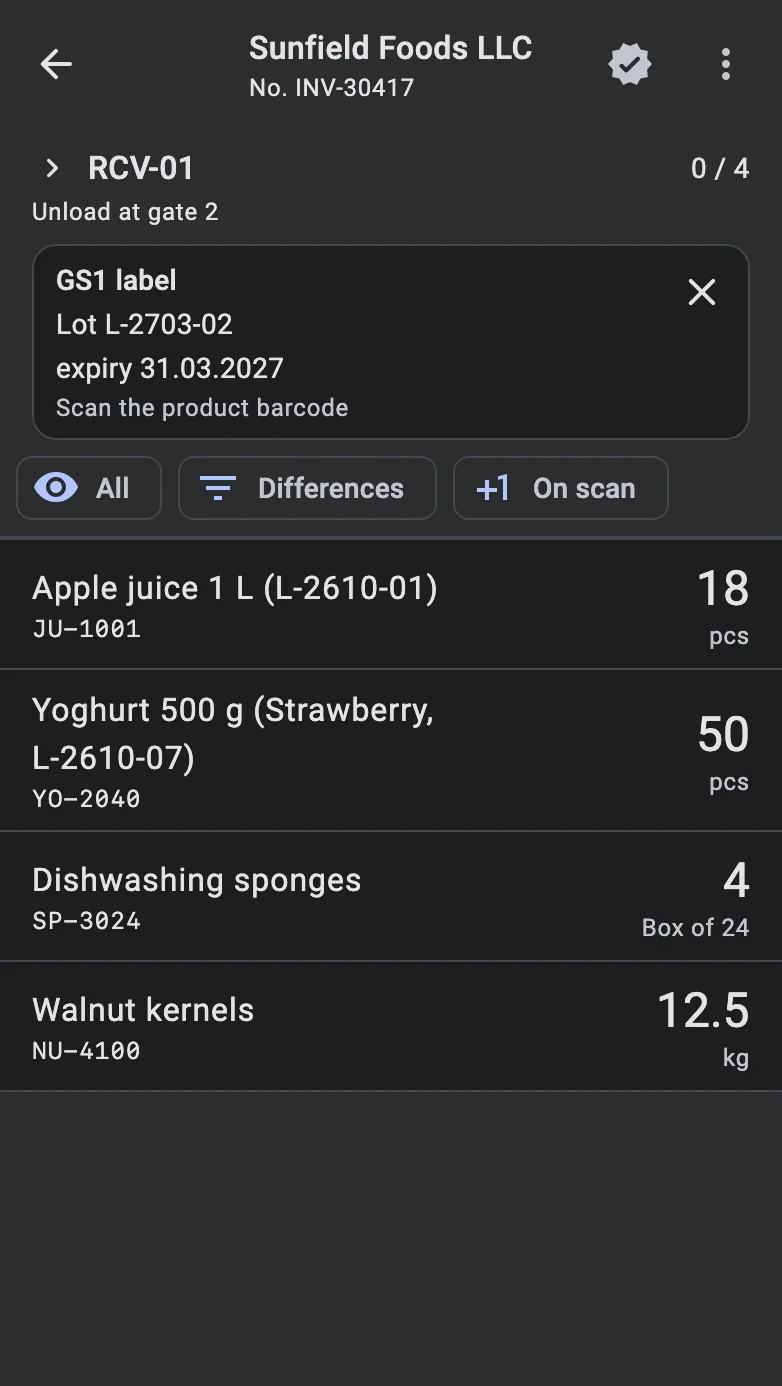
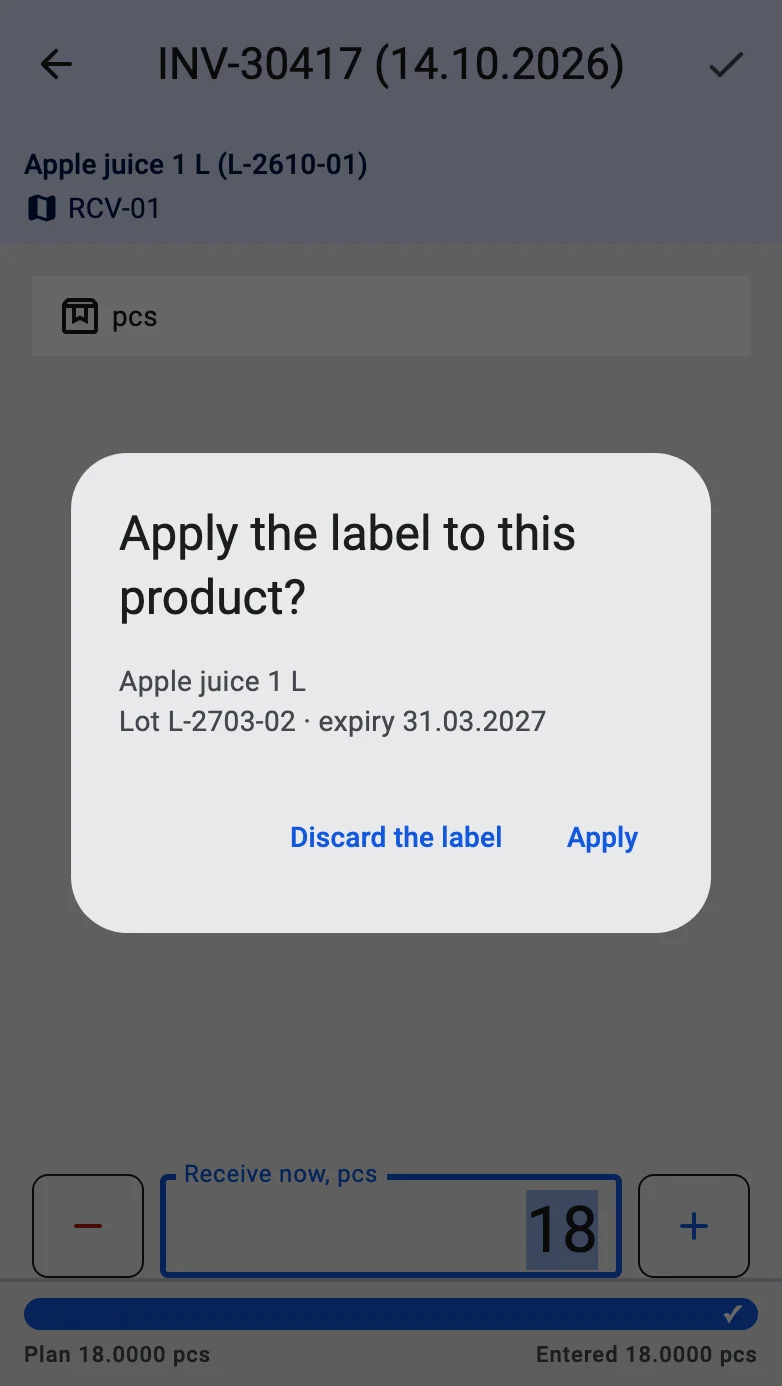
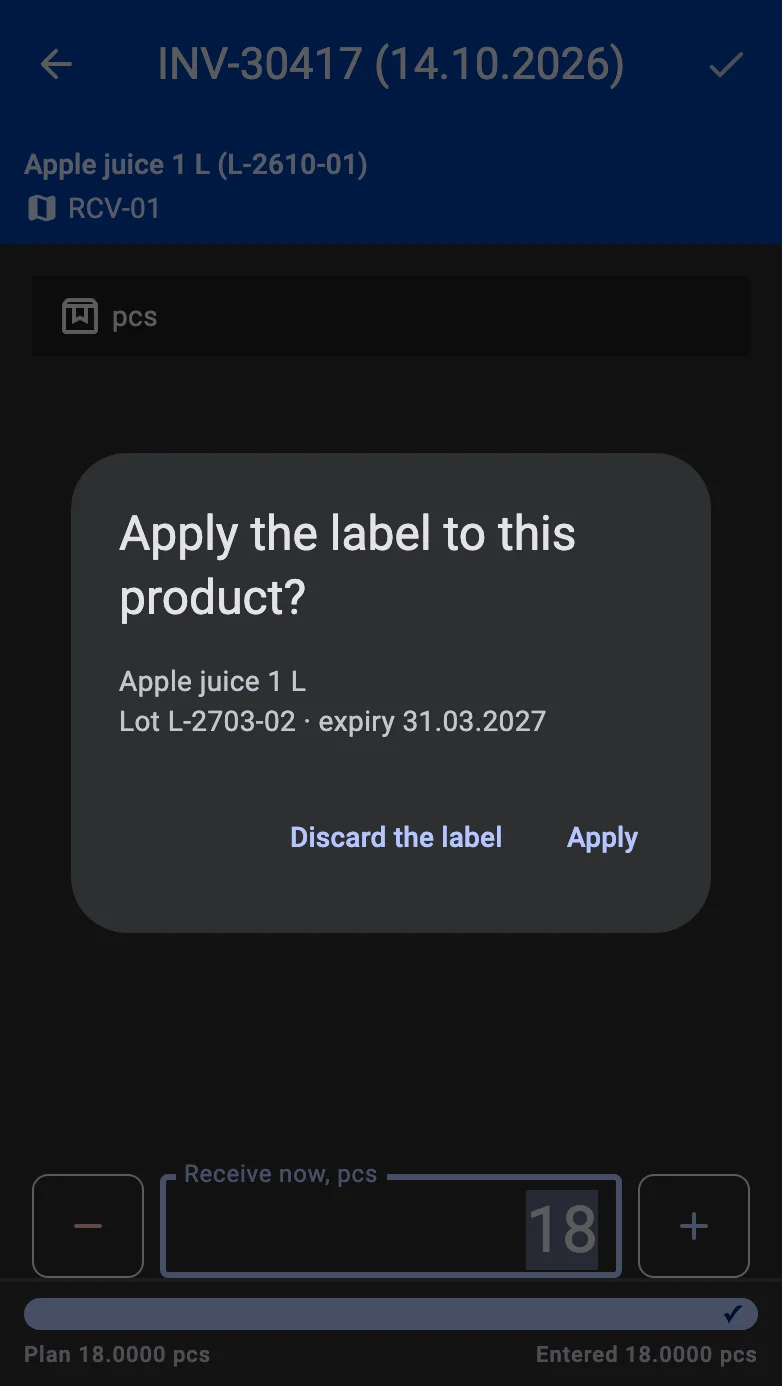
When the label does not say which product it is about — for example, only a lot barcode was scanned — it waits in a GS1 label card above the list with the lot and the expiry date read so far and the hint Scan the product barcode. The cross on the card discards the label. When the operator opens a product by hand while a label is waiting, the terminal asks Apply the label to this product?: Apply takes the label in, Discard the label drops it.
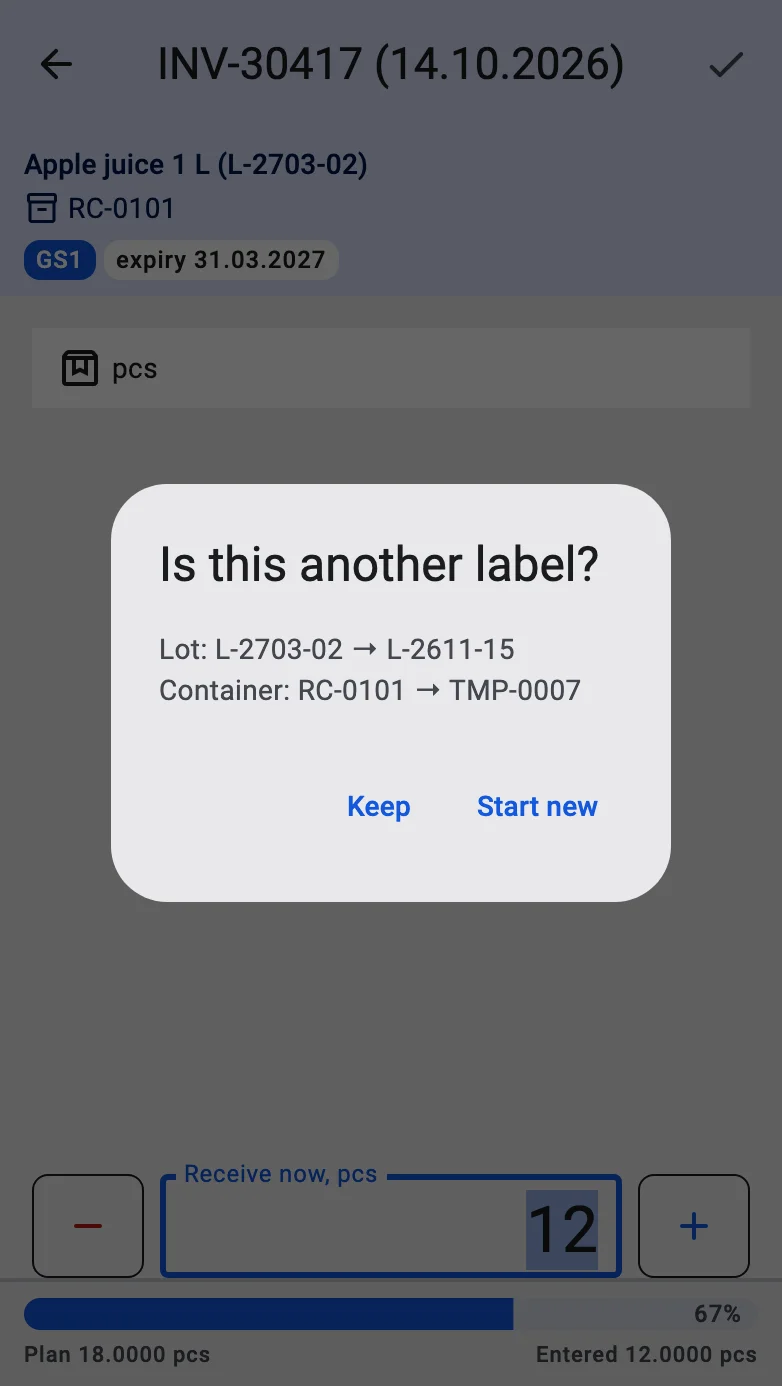
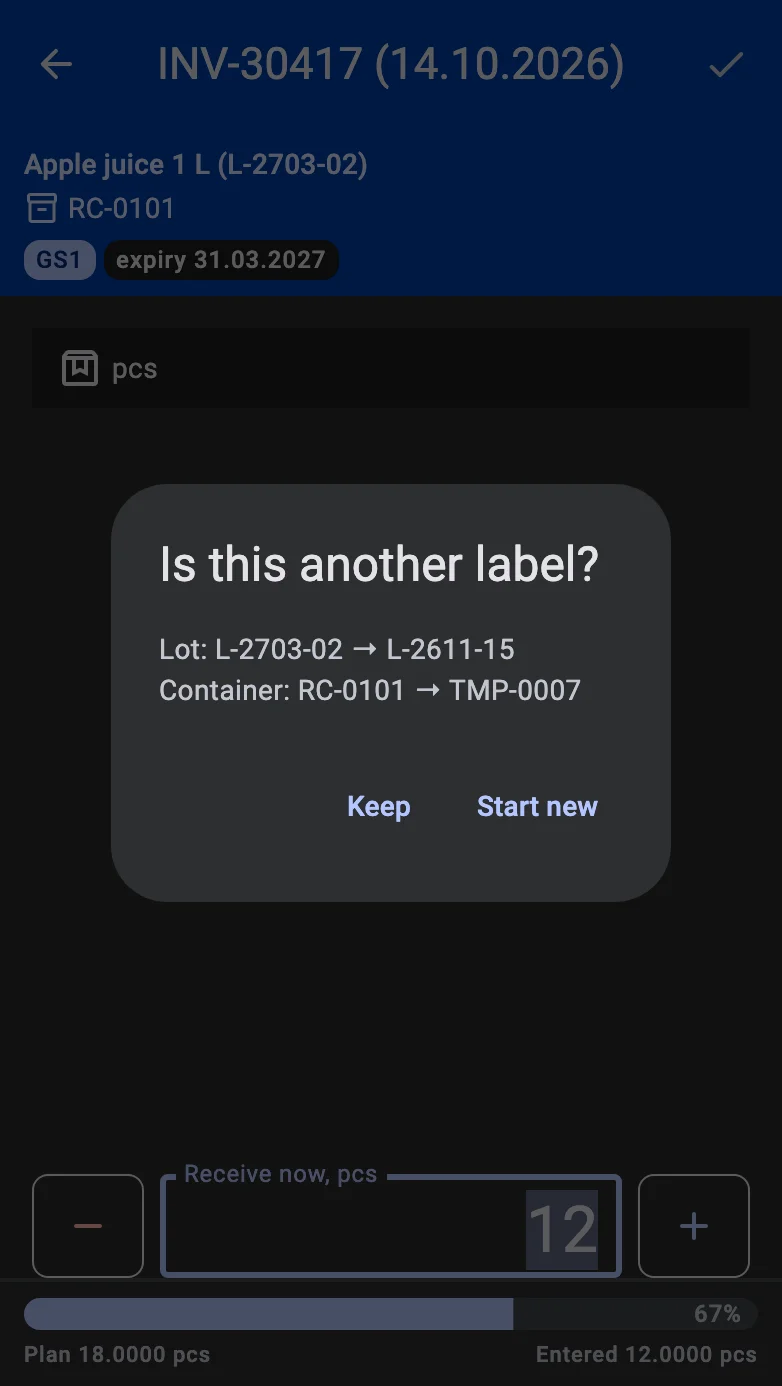
When another barcode scanned on the same fact disagrees with the label already read — another product, container or lot — the terminal asks Is this another label? Start new drops the first label and reads the new one; Keep ignores the new scan.