Goods receiving on PDT
The PDT side of the receiving module — short, focused steps the operator runs on the handheld terminal at the dock. The operator does not create the document and is not responsible for what happens at the workstation before and after their shift — their work is to register the fact of receiving.
For the full client-app workflow (document creation, discrepancies, closure), see Receiving in the client app.
What the PDT operator does
- Opens the receipt that the workstation has prepared for them.
- Picks a receiving target (a cell, a pallet, or a container — depending on warehouse settings).
- Scans goods one by one, confirms quantities, resolves barcodes that don't match expectations.
- Closes the receipt or hands it off to the workstation operator for the final review.
The screens and the order of steps are tuned to the smallest amount of input the operator needs to give while standing at the truck.
Working offline
The terminal keeps receiving when the connection to the server is lost. The receipts prepared for the operator's warehouse are already on the device, so the operator opens a receipt, scans and registers facts as usual. What is saved goes to a queue on the terminal and reaches the server by itself as soon as the connection is back — the operator does not repeat anything.
What the operator sees
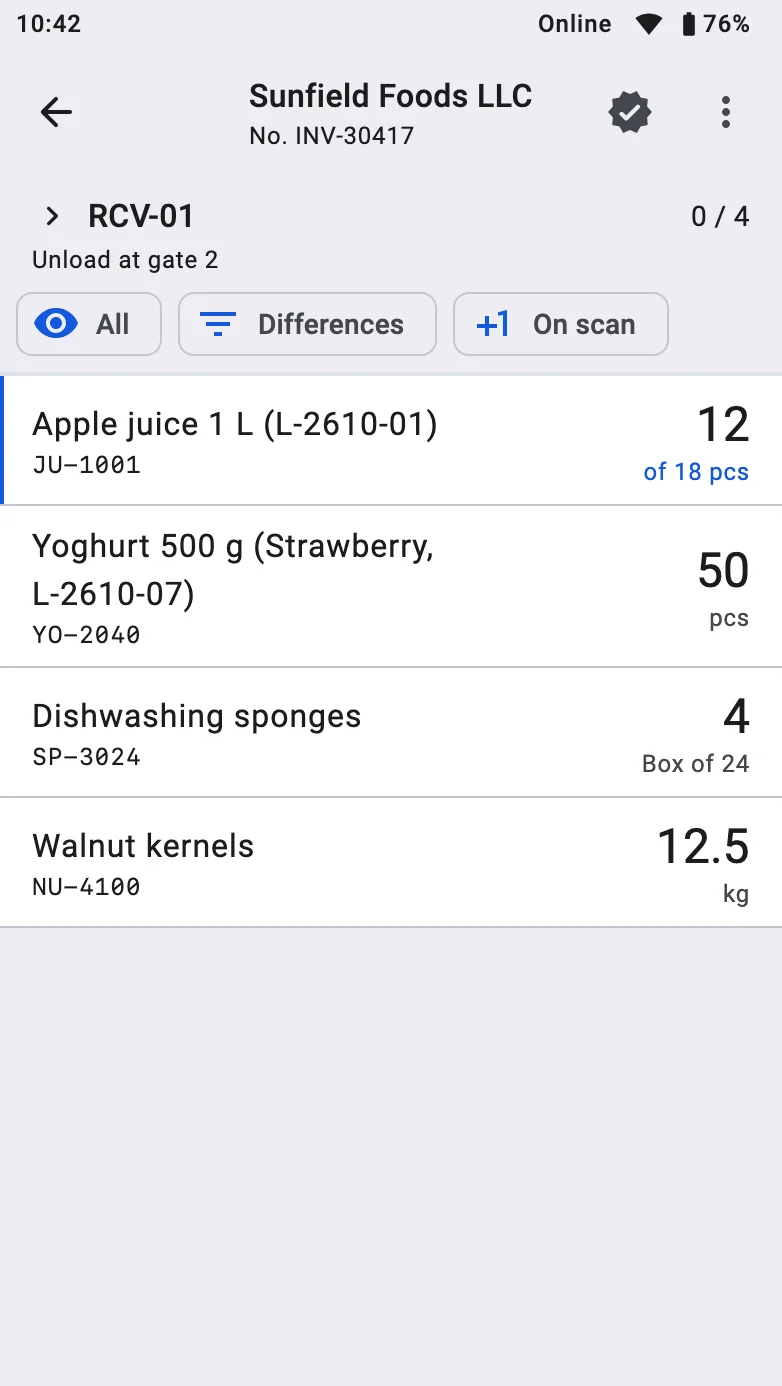
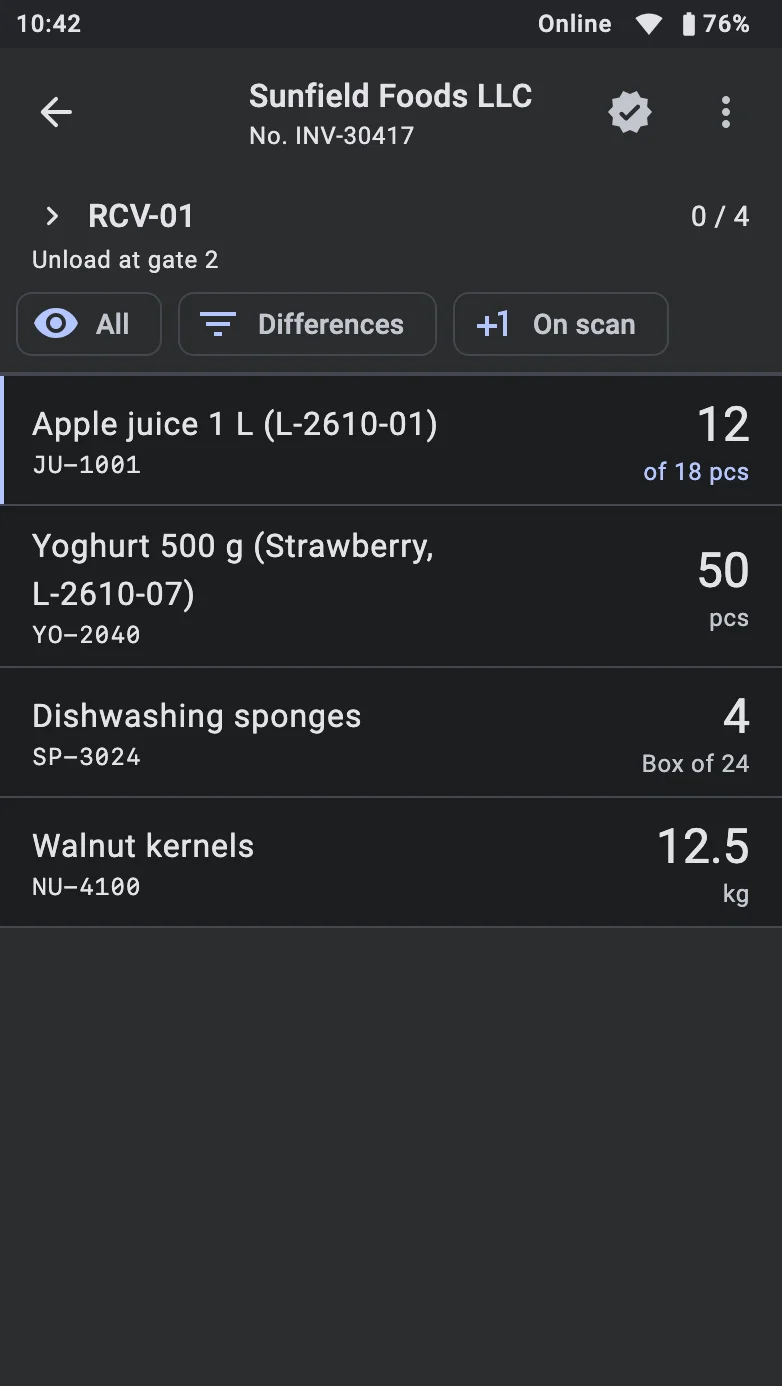
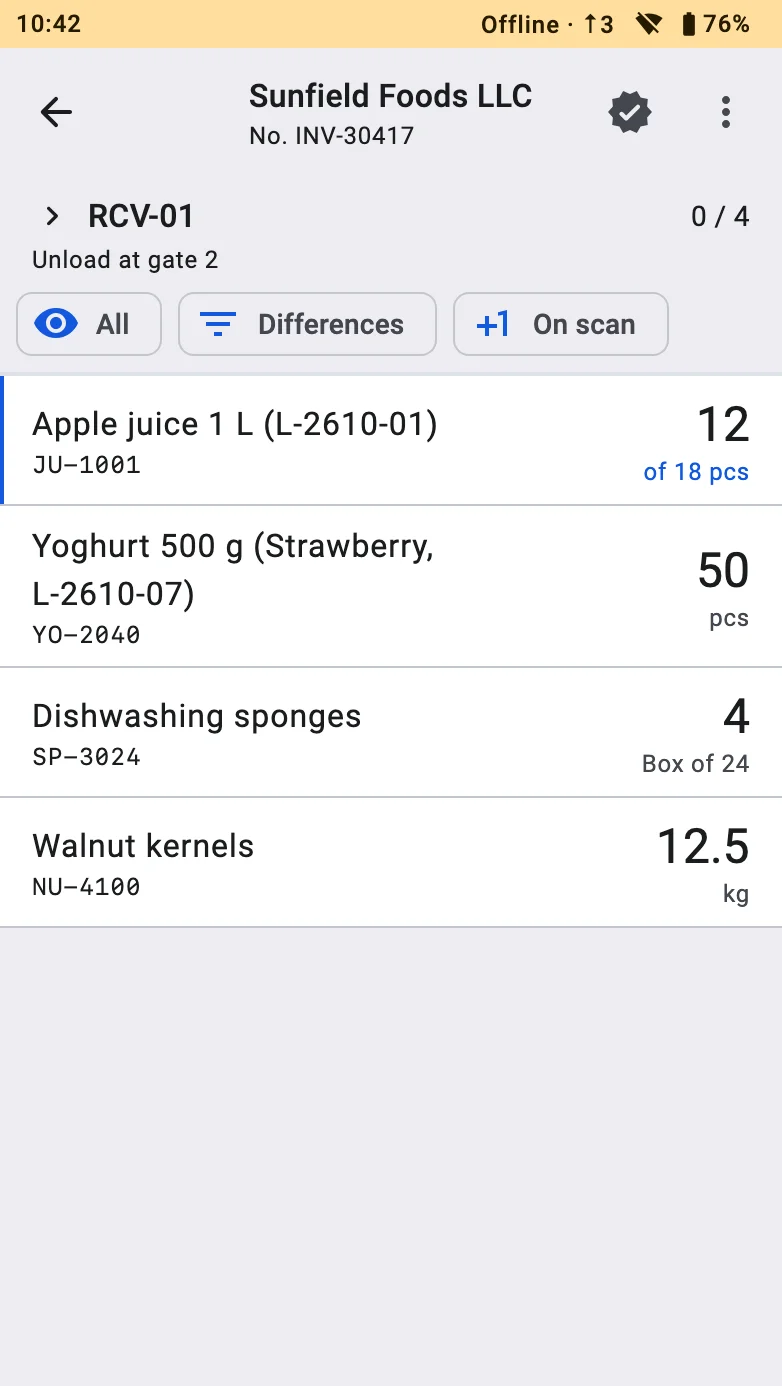
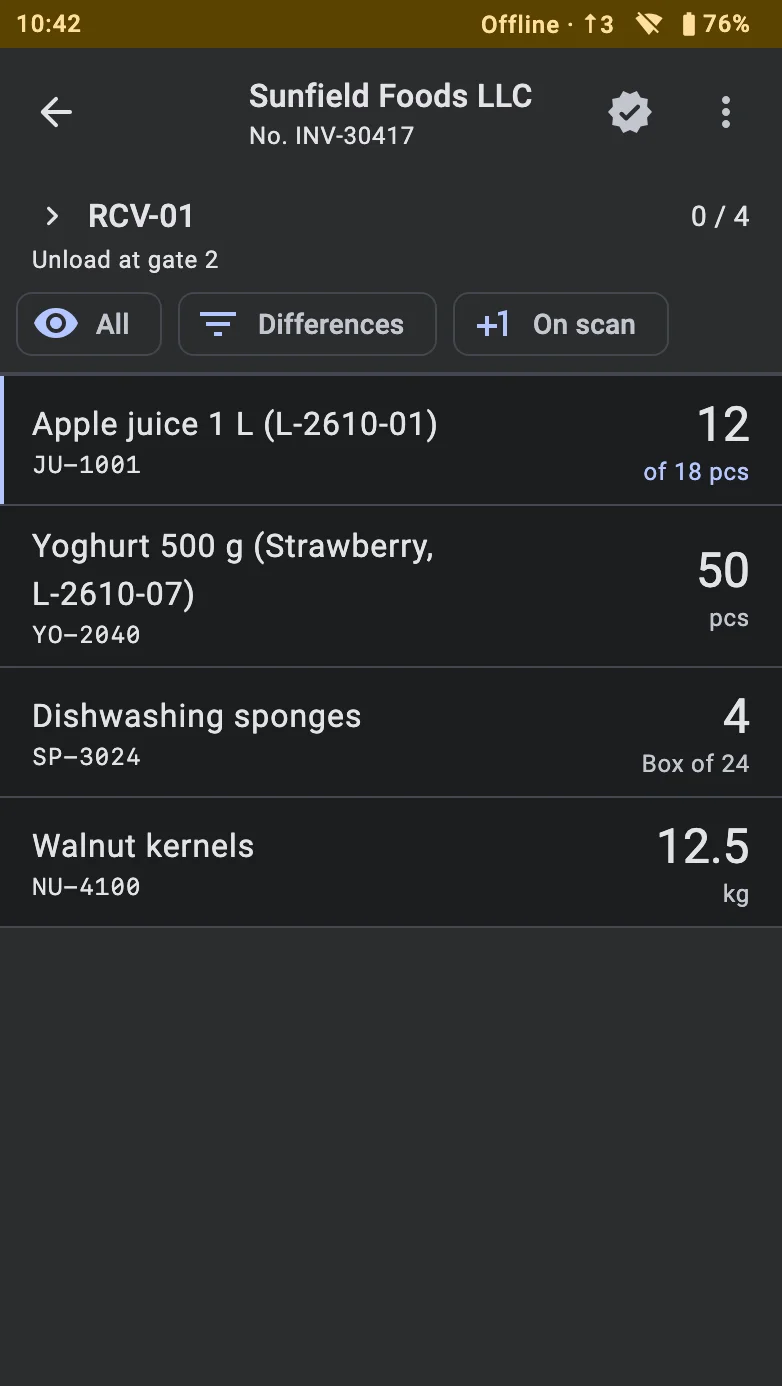
The bar at the very top of the screen shows the state of the connection. Next to the clock it carries one of these labels; the number after the arrow (for example ↑3) is how many operations are waiting to be sent:
- Online — everything is sent as soon as it is saved; no counter is shown.
- Offline — the connection is lost and the terminal works from the data it holds. The counter shows the queue.
- Syncing — the terminal is catching up with the server, or still loading its data while there is a connection.
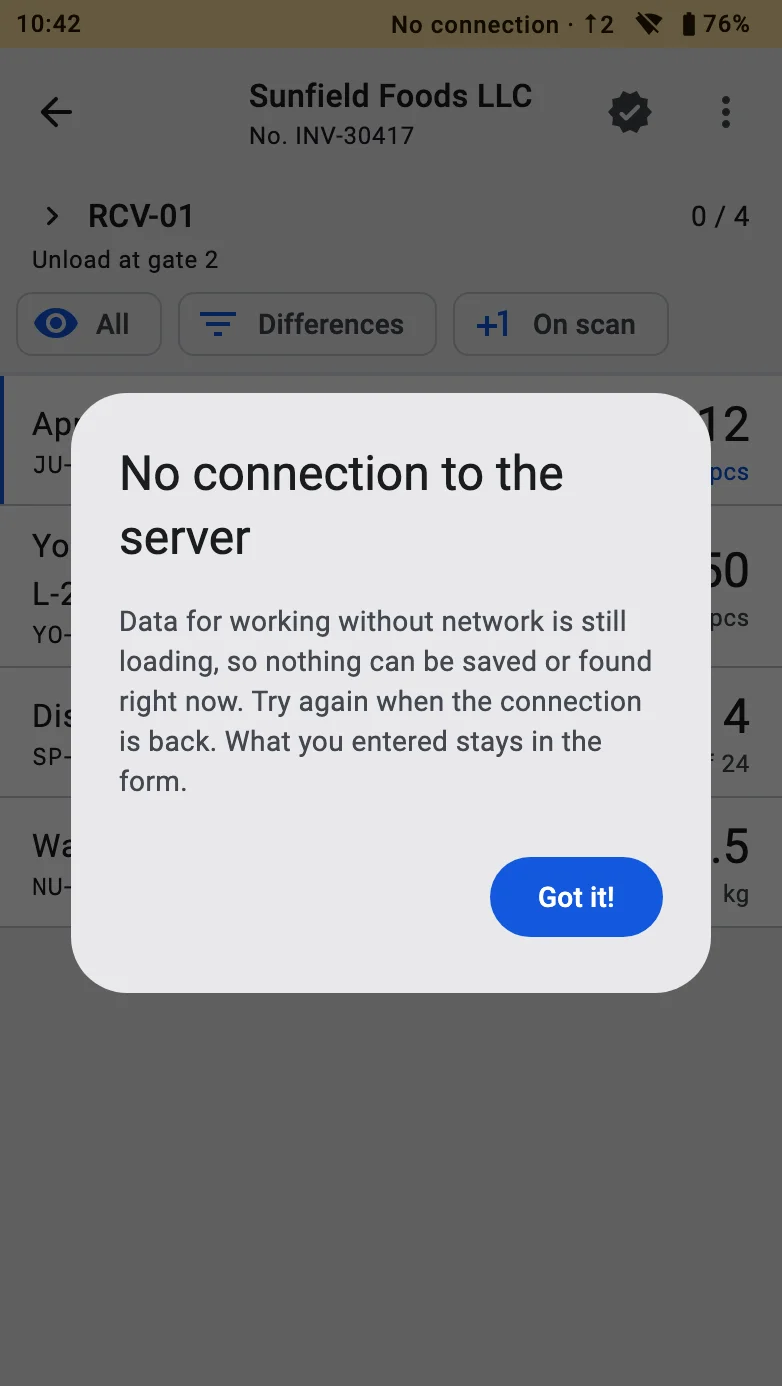
- No connection — there is no connection and the terminal has not yet loaded the data for working offline, so it cannot work offline. Wait for the connection.
- Not ready offline — the terminal has no sync session, or the session or the device was revoked. Log in while online; if the session or the device was revoked, only the administrator can fix it. The bar shows only the label; the reason is shown in the Sync sheet.
- Sync error — sending keeps failing; tell the administrator.
Tapping the label opens the Sync sheet: the warehouse, Data as of, how many operations are Unsent, the last error and the Sync now button. An administrator also finds the Operation queue there, where every waiting operation is listed by type — for example Receipt: fact, Receipt completed or Accept sender container.
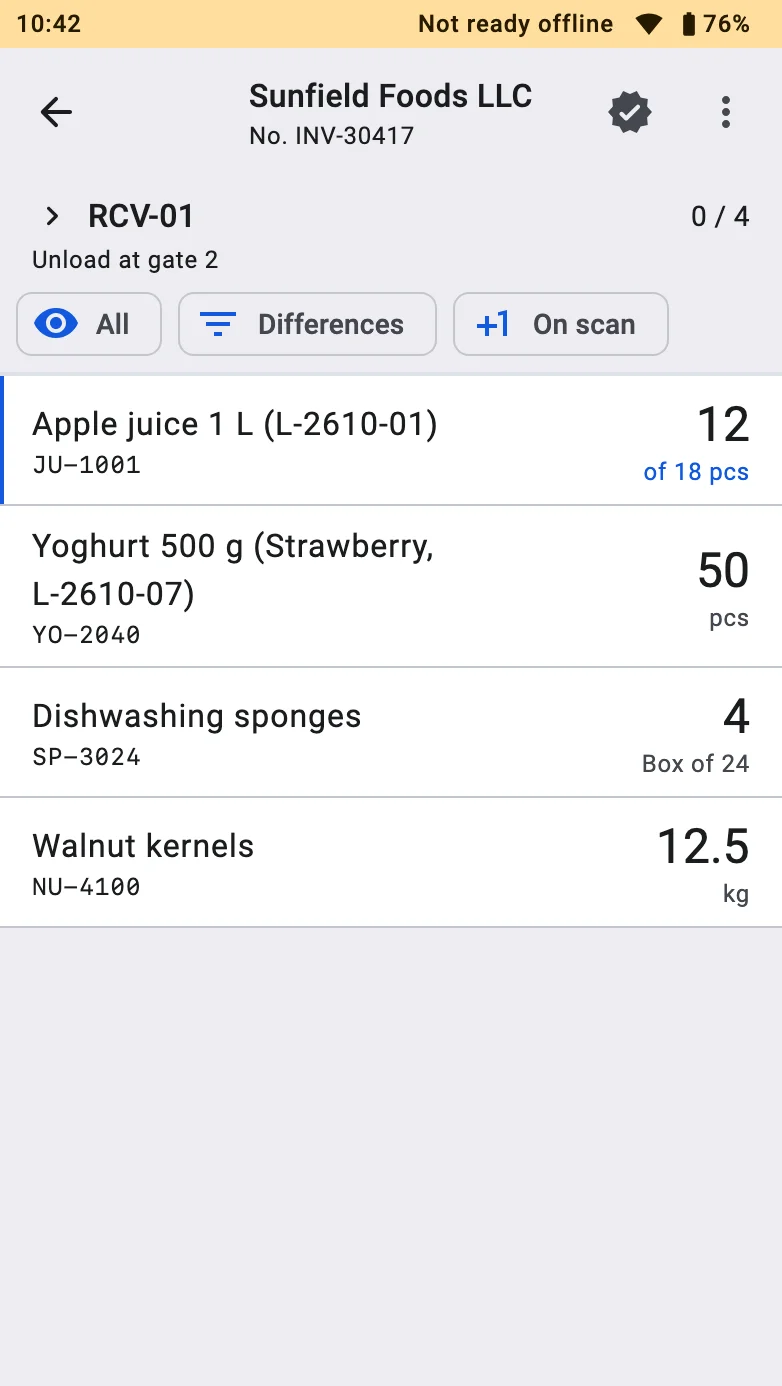
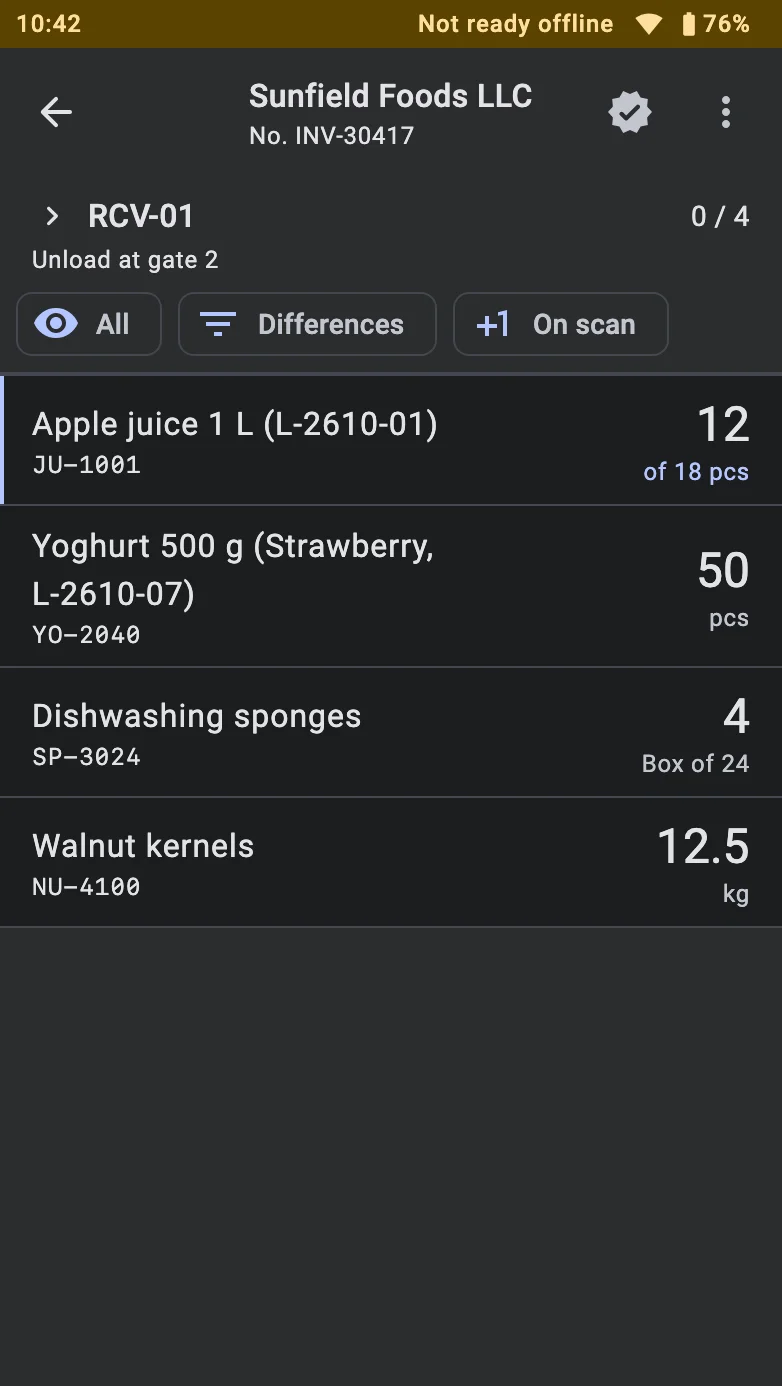
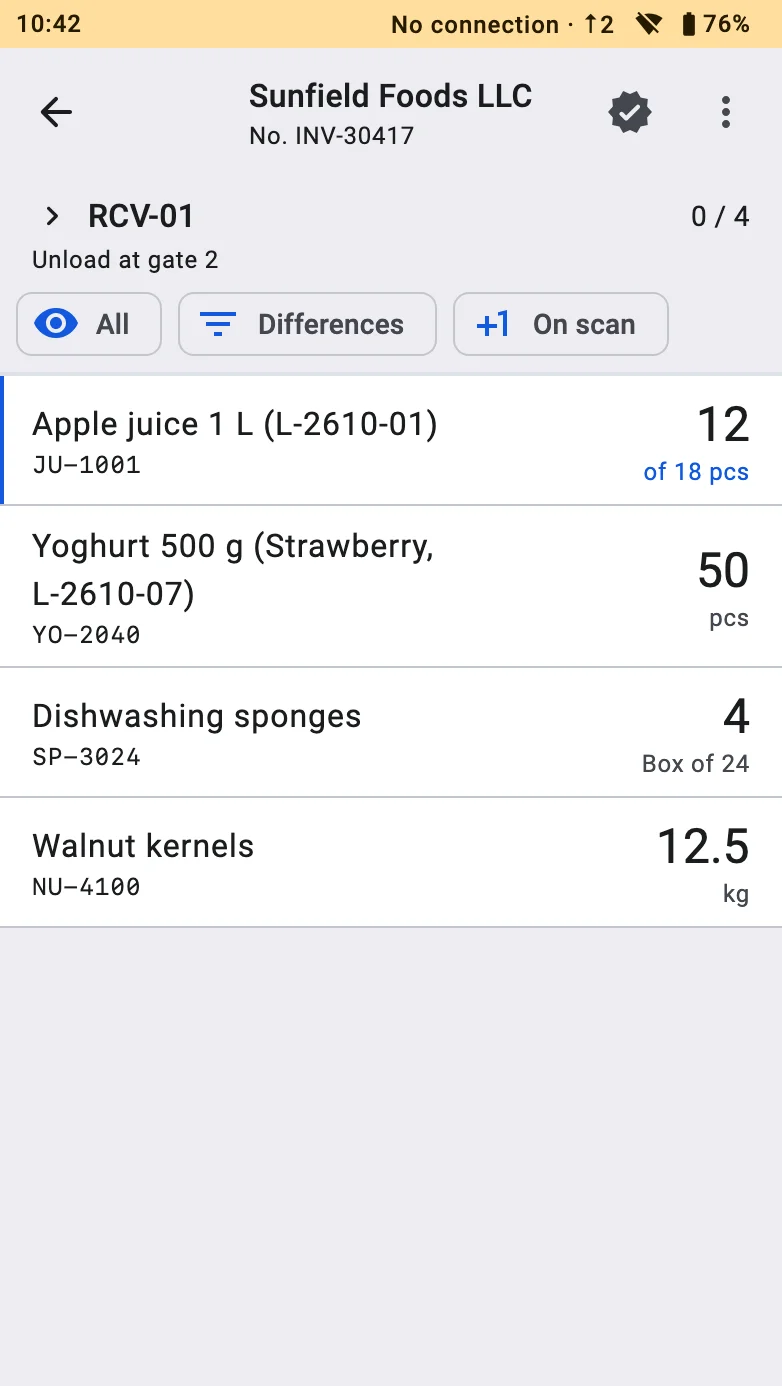
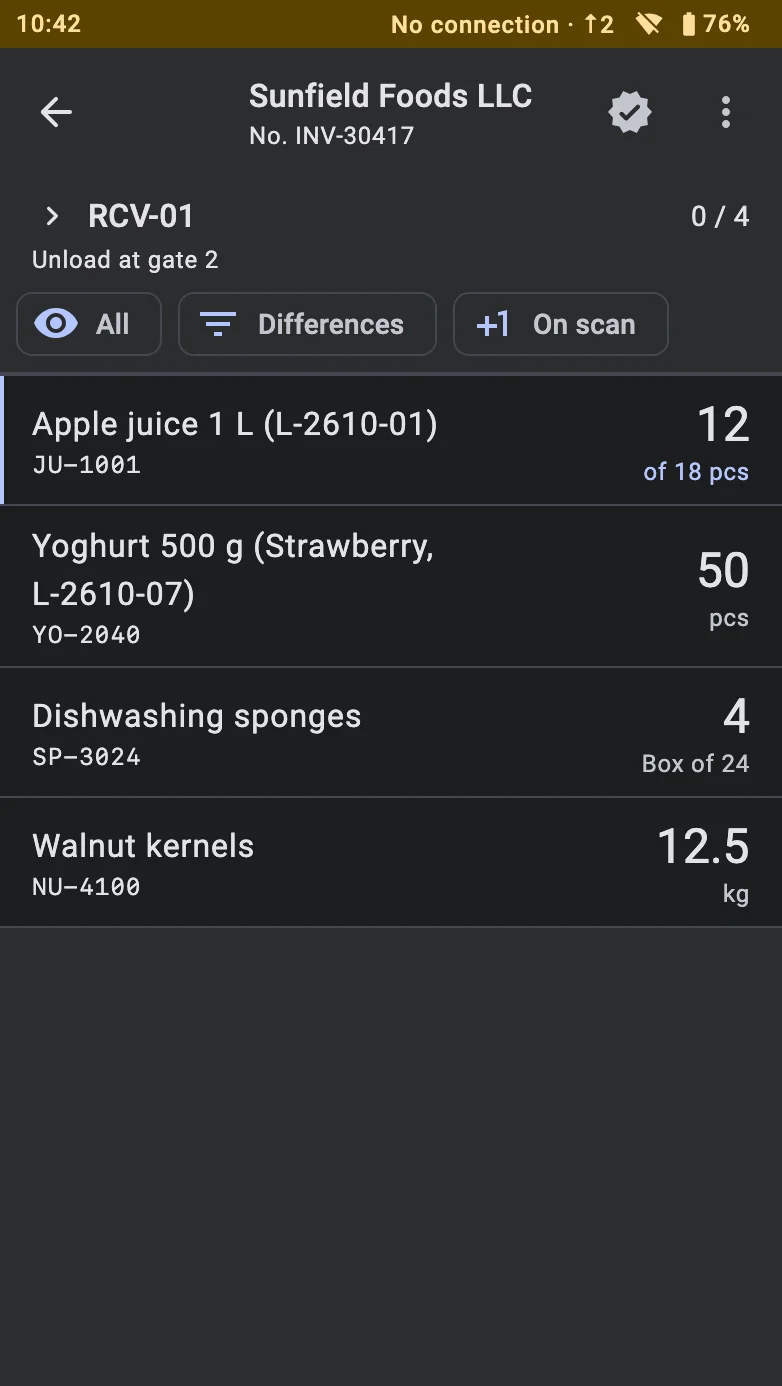
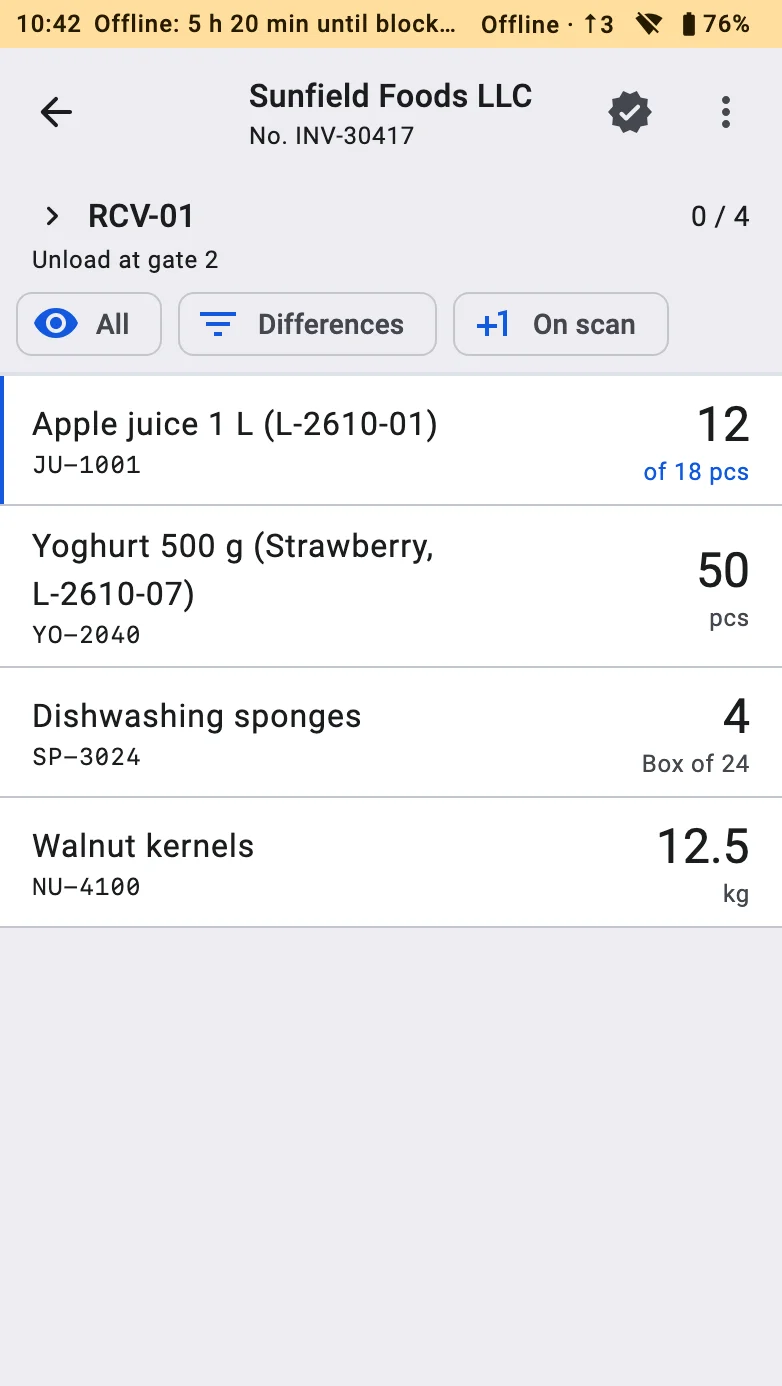
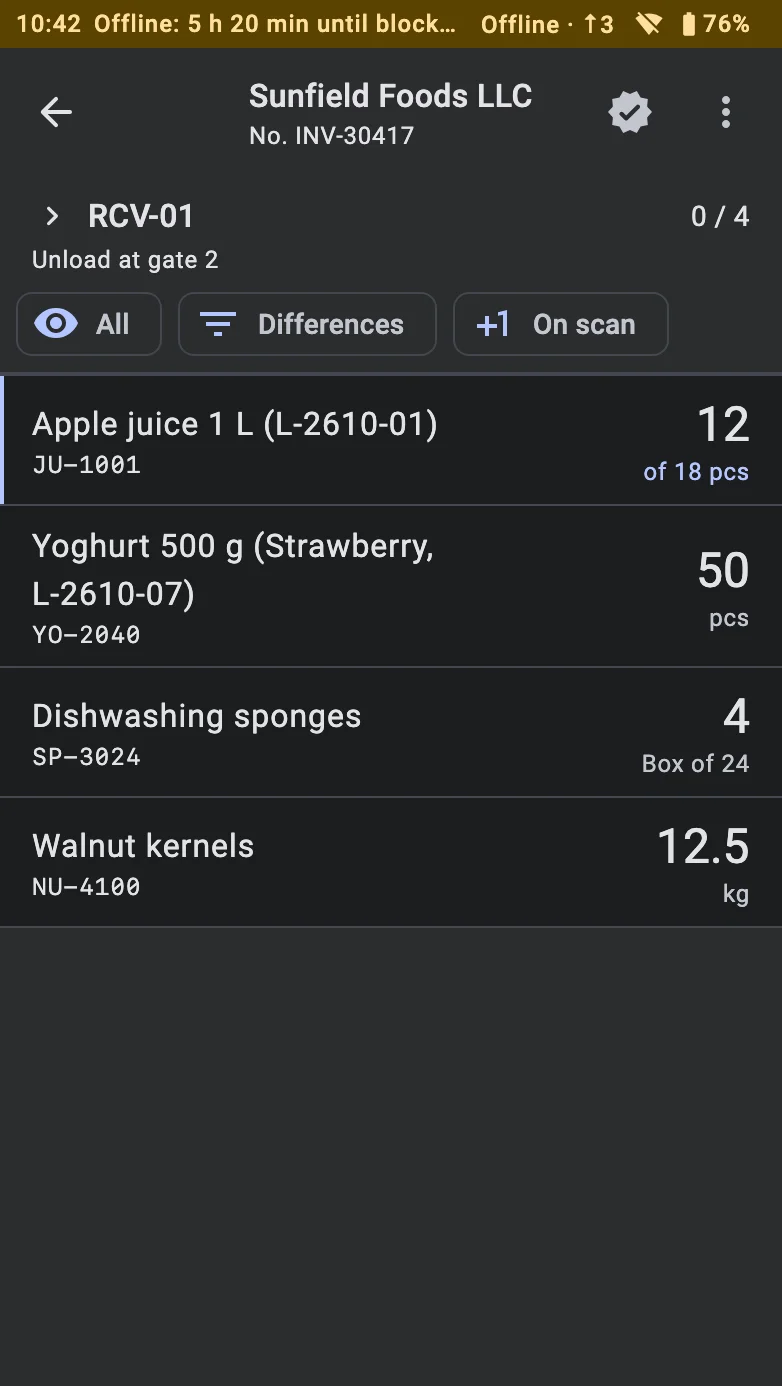
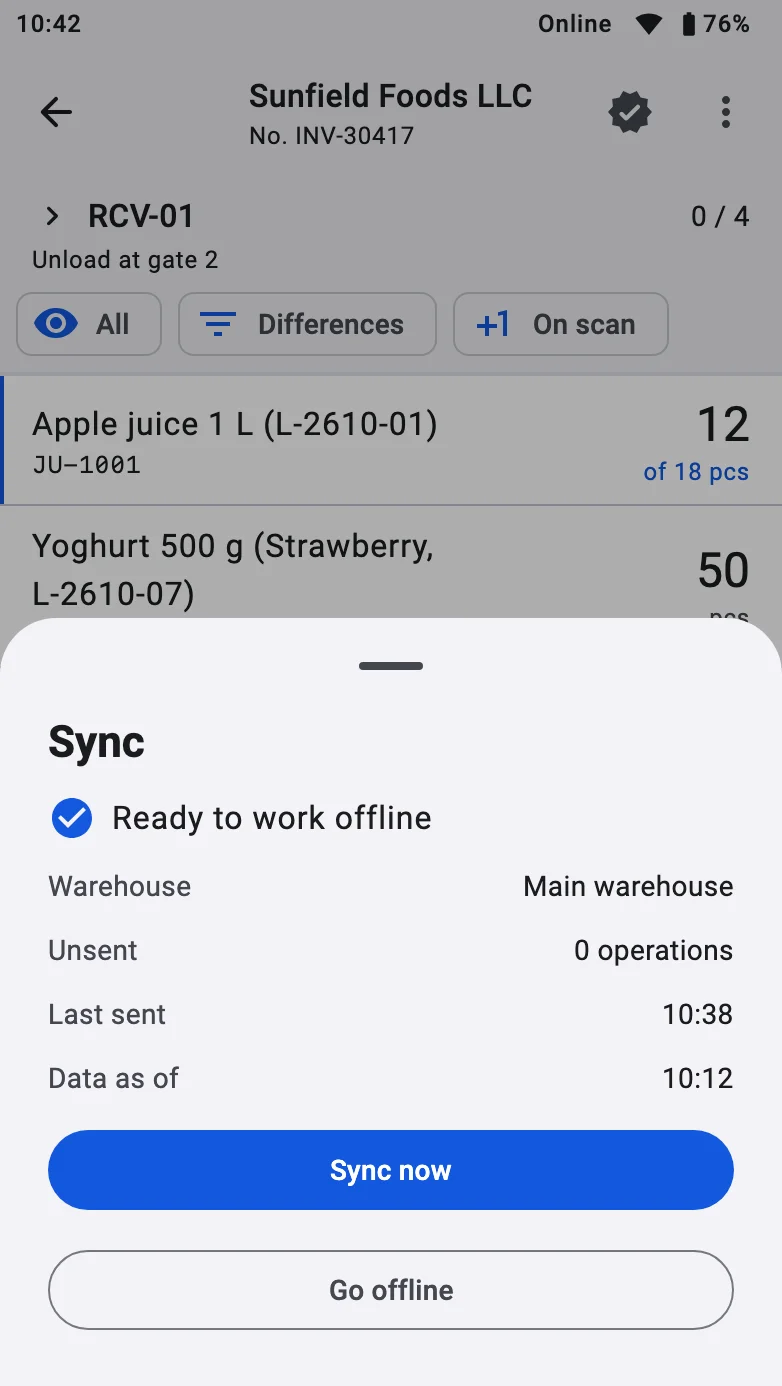
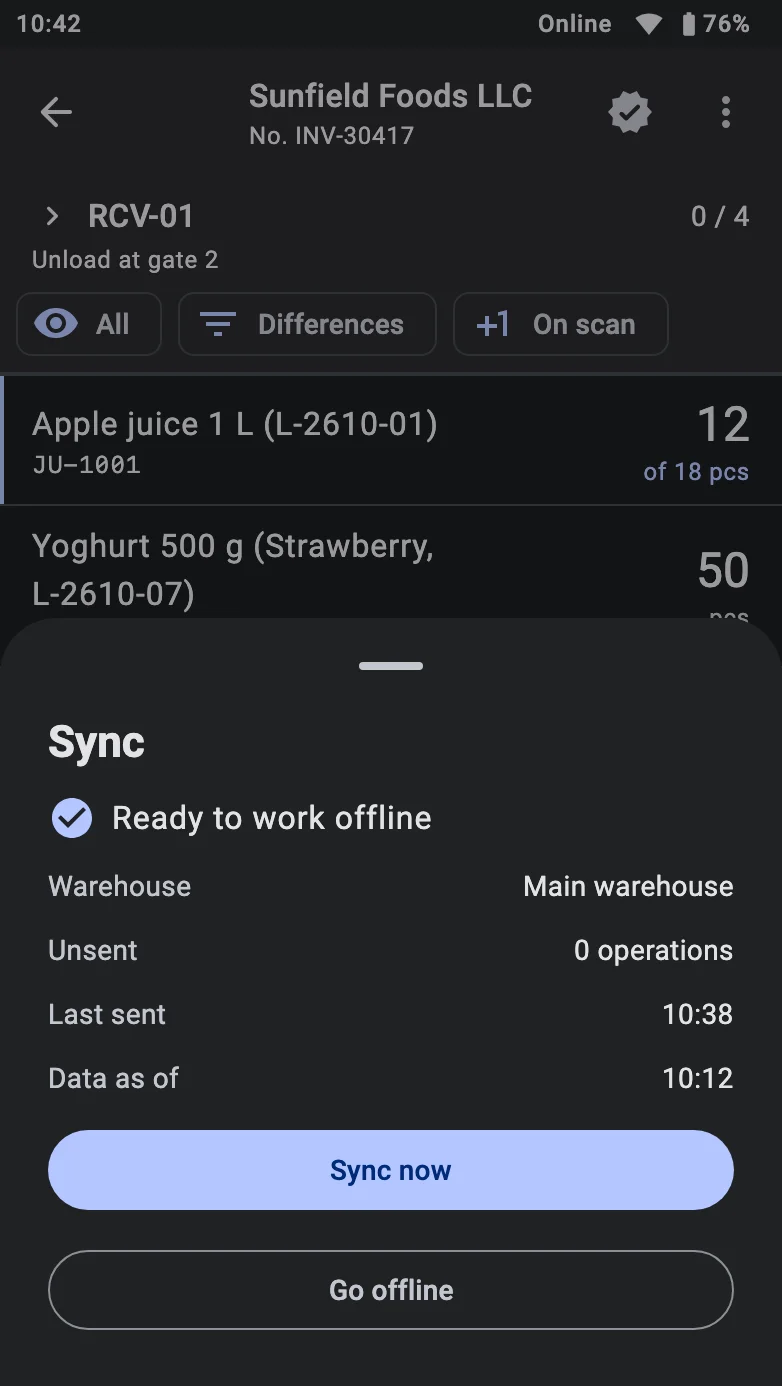
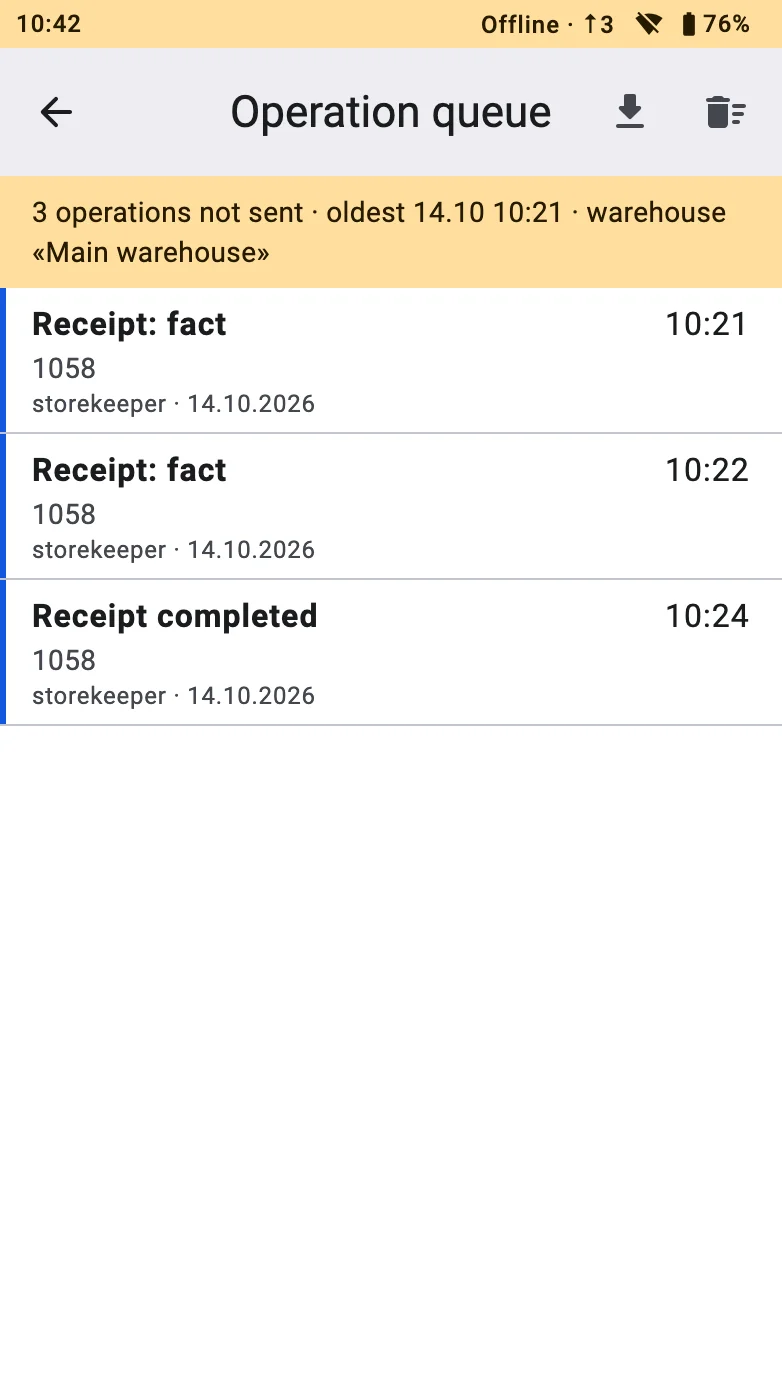
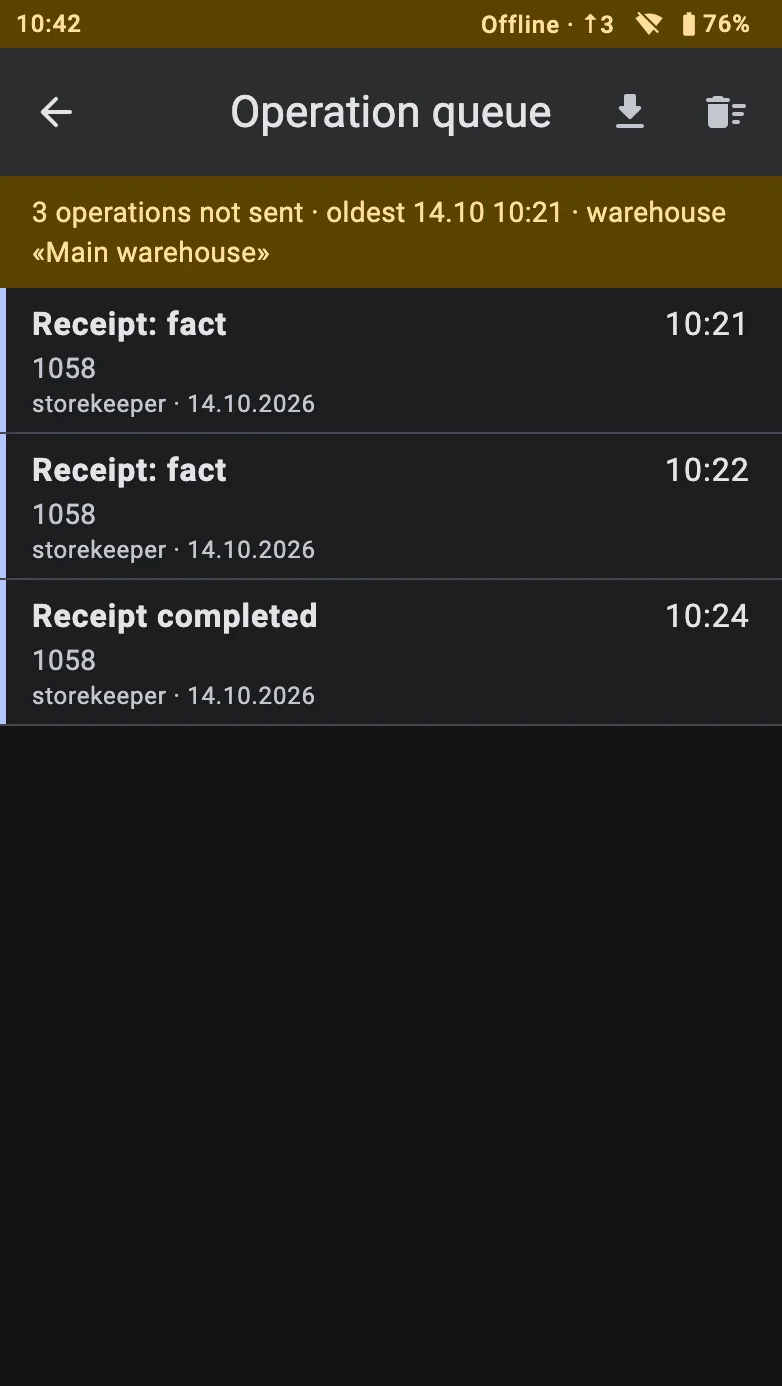
A terminal that stays offline for too long is stopped: the bar first says how much time is left (Offline: … until blocked), then Offline time limit reached — sync required. Reconnect and the queue is sent.
What is saved offline
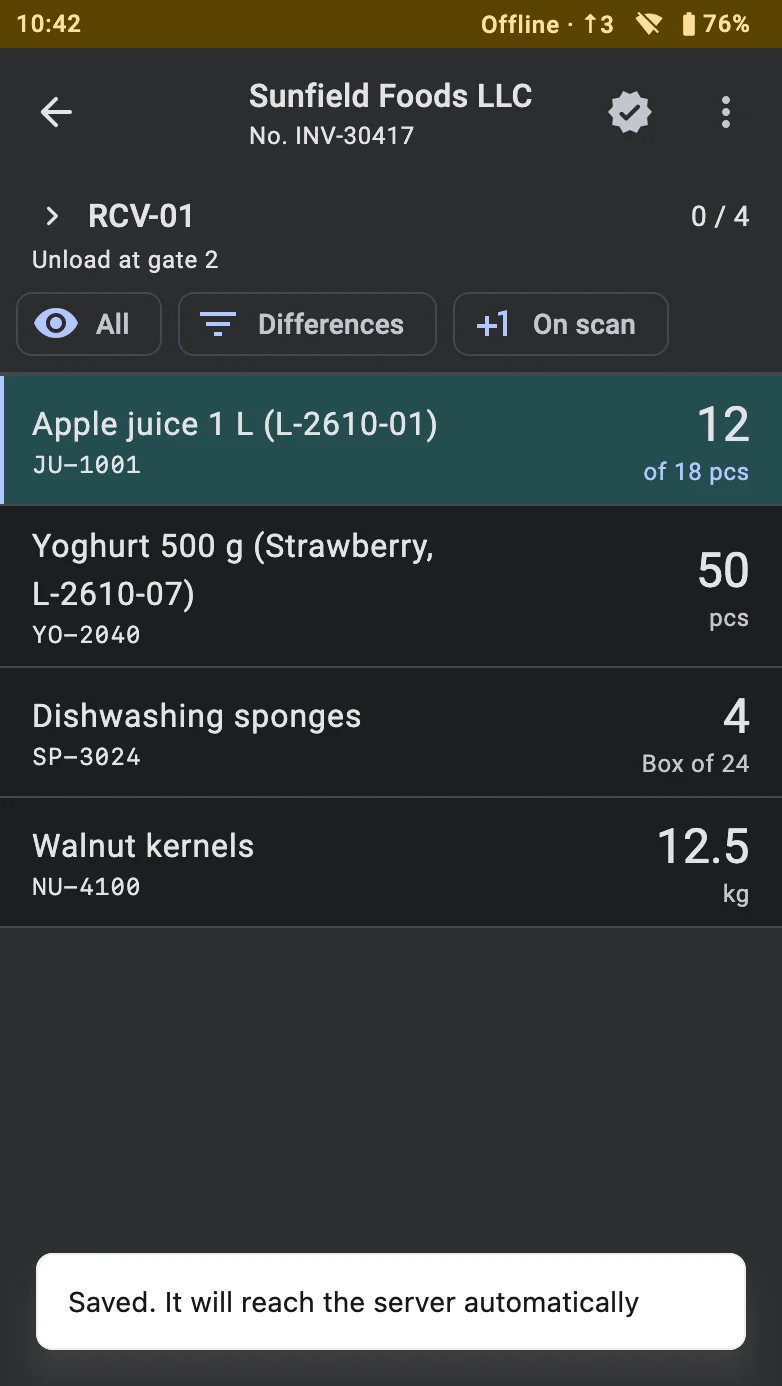
- Facts — a saved fact closes the screen and the terminal says Saved. It will reach the server automatically.
- Accepting a supplier container — queued the same way.
- Completing the receipt — the Finish icon works offline too; the terminal leaves the document with the same Saved… message instead of Receipt is confirmed.
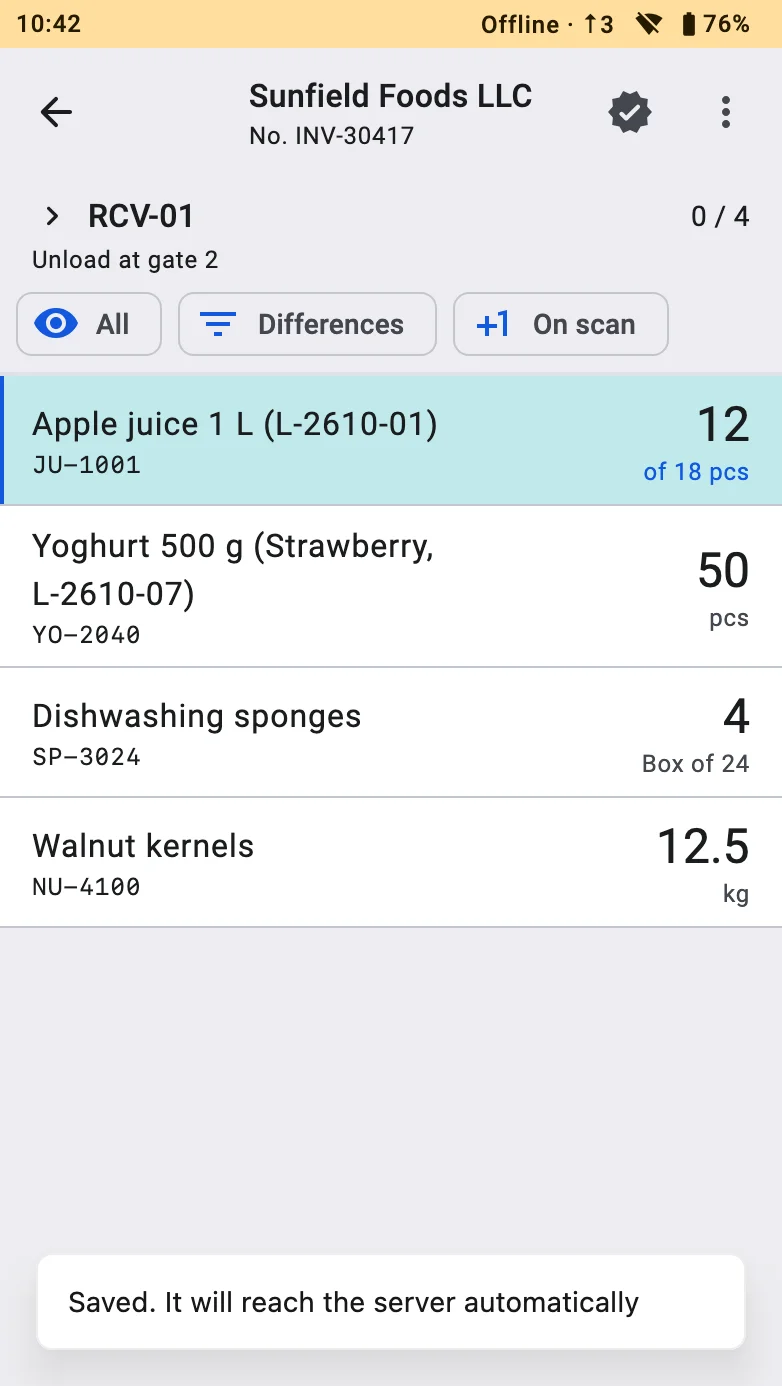
The terminal checks the fact against the same rules as the server (the product is in the plan, over-receiving is allowed, the container is free, the lot is required, and so on) and refuses a wrong one on the spot with the usual message. How a lot with too little remaining shelf life is handled offline is described in Lots with a short remaining shelf life. Work that no longer fits when the server posts it is recorded for review: see Offline discrepancies.
What needs the connection
- A new lot cannot be created offline — see A new lot.
- Offline, the receipt list and scanning a receipt's label find only the receipts already on the terminal; any other receipt does not show up until the connection is back.
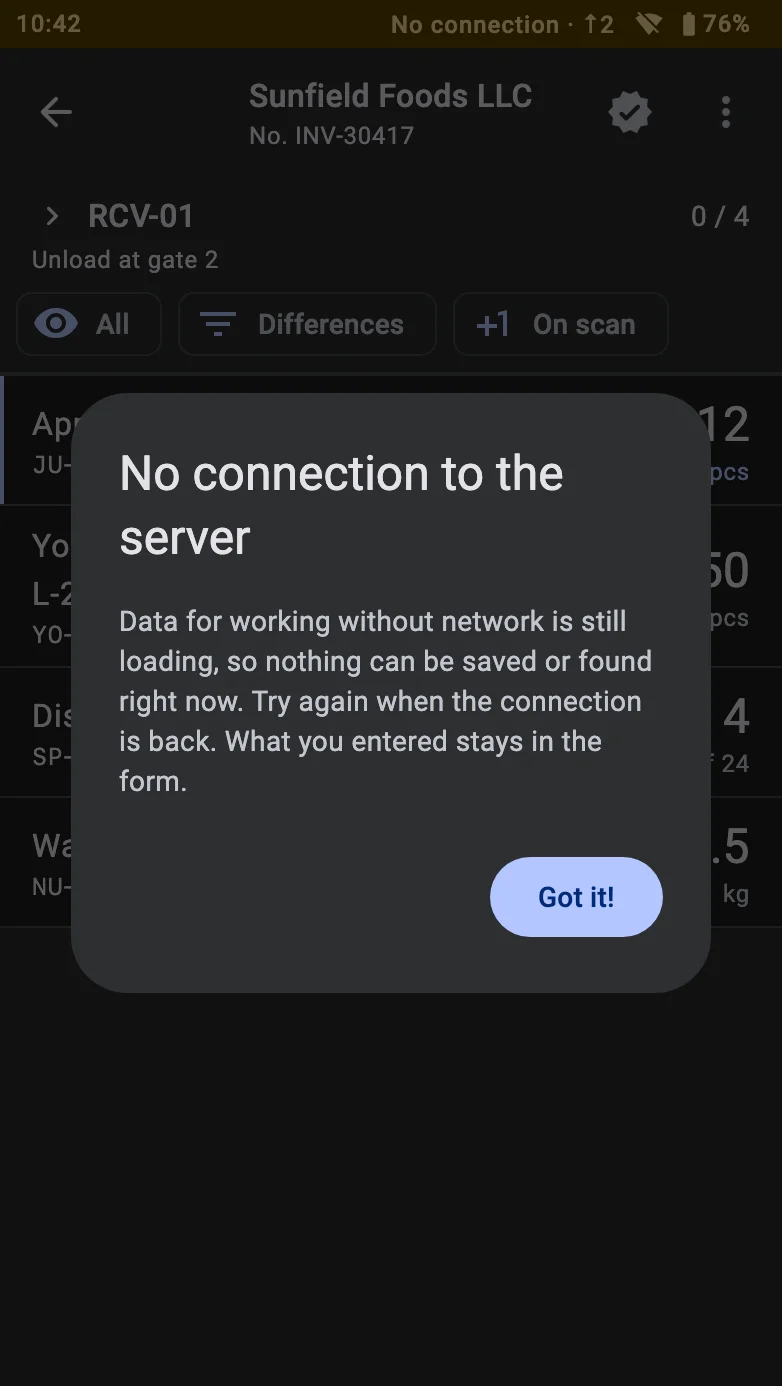
- If the terminal has not yet downloaded its data, saving and searching are refused with the No connection to the server dialog; what the operator typed stays in the form.
Process
- Receiving on PDT — the end-to-end PDT receiving flow.