Rotating and revoking a token
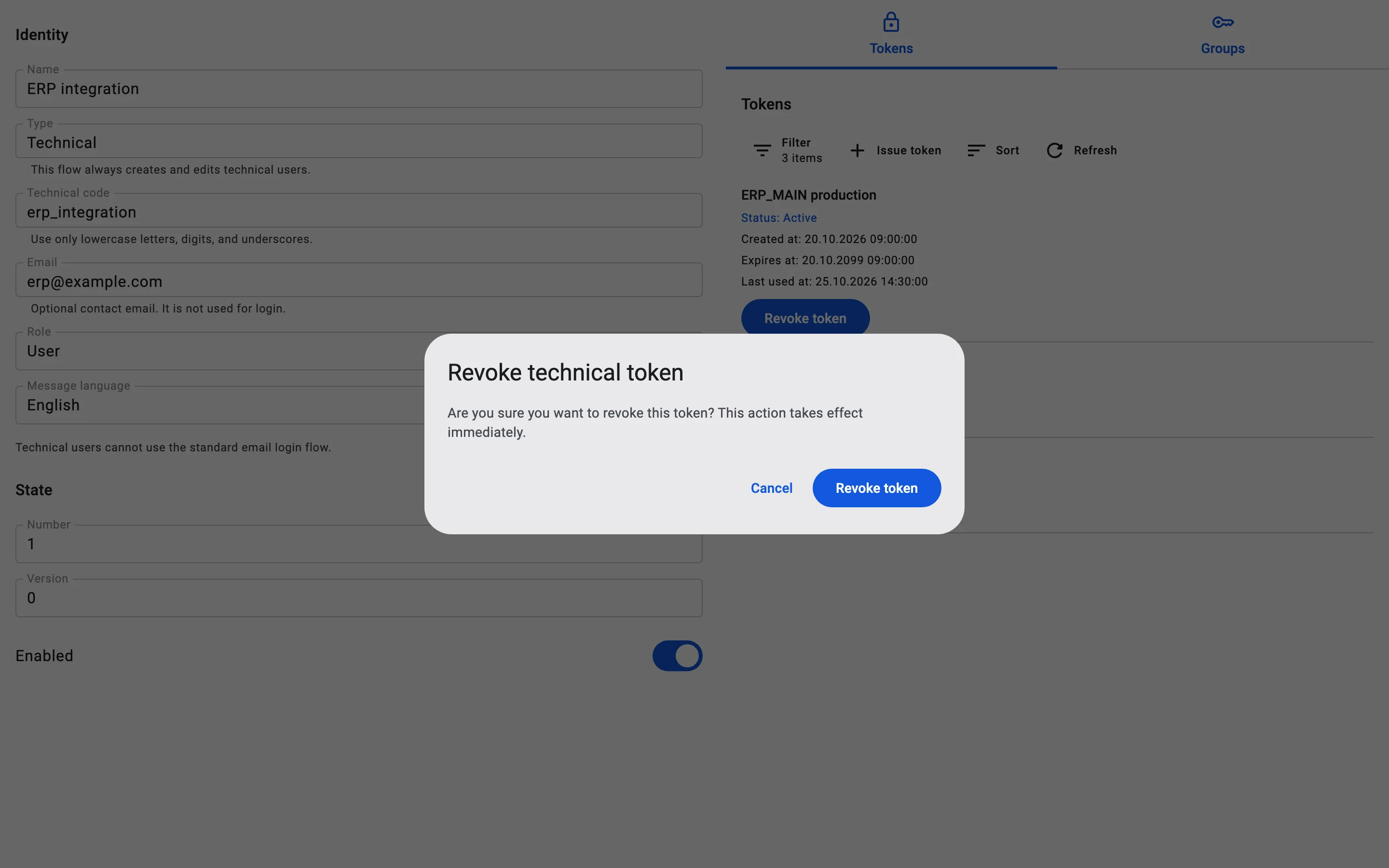
The Tokens tab keeps the whole history of the technical user's tokens, newest first. Each token shows its description, its status, when it was created, when it expires, and a Last used at time once it has been used.
Statuses
- Active — the token works. There is only one at a time.
- Revoked — the token was withdrawn and no longer works.
- Expired — the token's Expires at date has passed.
See Technical token statuses for details.
Last used at tells you whether the integration is really using the token. A token that has never been used shows no such time. This is a good check right after you hand a new token to the module.
Rotating a token
Replace a token before it expires, or whenever you suspect it has leaked. Plan this as a short pause of the integration: as soon as the new token is issued, the module can no longer sign in with the old one, and a session it already had ends within a few minutes:
- Issue a new token and copy the raw token.
- Put the new token into the module straight away.
- Check that it works: the module signs in again, and Last used at on the new token gets a fresh time.
There is no separate step to revoke the old token, because issuing the new one has already done it.
A lost token
The raw token cannot be shown a second time. If it is lost, do the same as for rotation: issue a new token, which revokes the lost one, and give the new one to the module.
Revoking a token
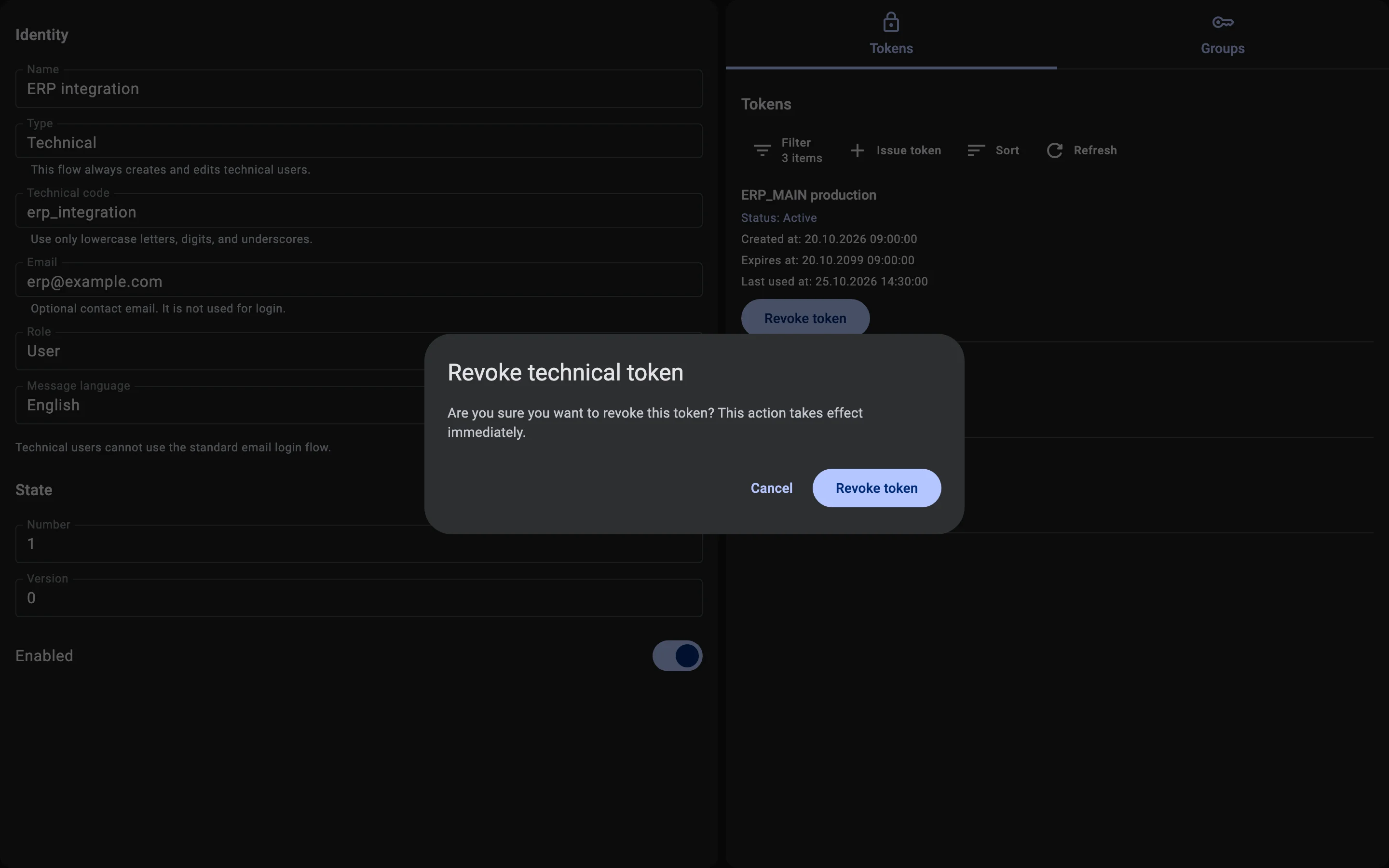
To stop an integration without replacing its token, click Revoke token on the Active token and confirm: "Are you sure you want to revoke this token? This action takes effect immediately." From then on the module can no longer sign in with this token, and its status becomes Revoked. A session the module had already opened is short-lived: it may keep working for a few more minutes until it runs out. To let the integration in again, issue a new token.