Setting up an integration
This document walks through the whole WMS-side setup of an integration, in the order you do it in the Client under Administration. At the end your developer has everything the code needs for its first request. For the big picture first, see the Integration overview.
Phase 1. Creating a technical user
A technical user is an account for a program, not for a person. It has no password and cannot sign in through the Client. Its only way in is a token, and with that token it can reach the integration endpoints only. Nothing else in the WMS accepts it.
Open Administration in the Client and go to Technical Users. Create a new one there.
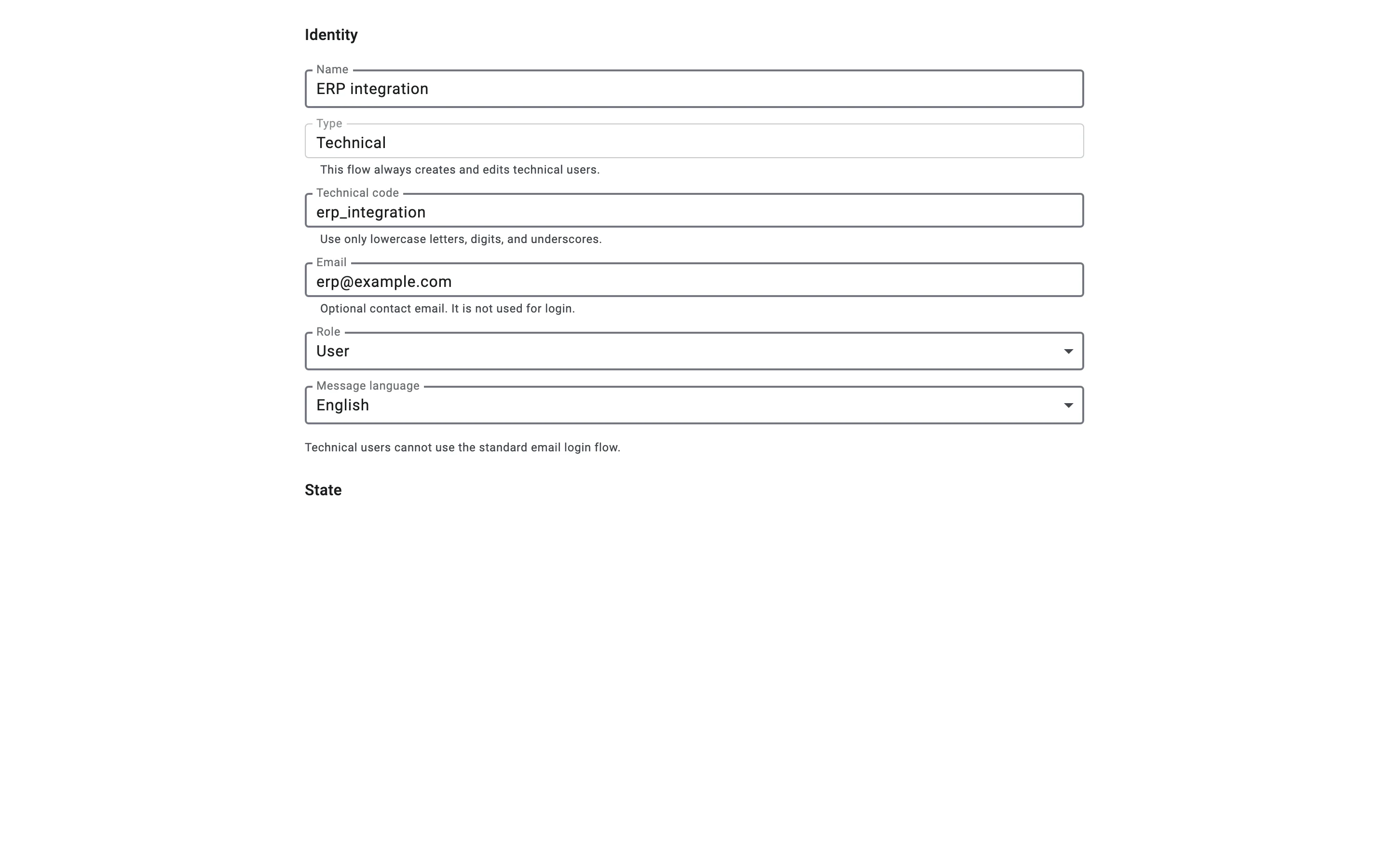
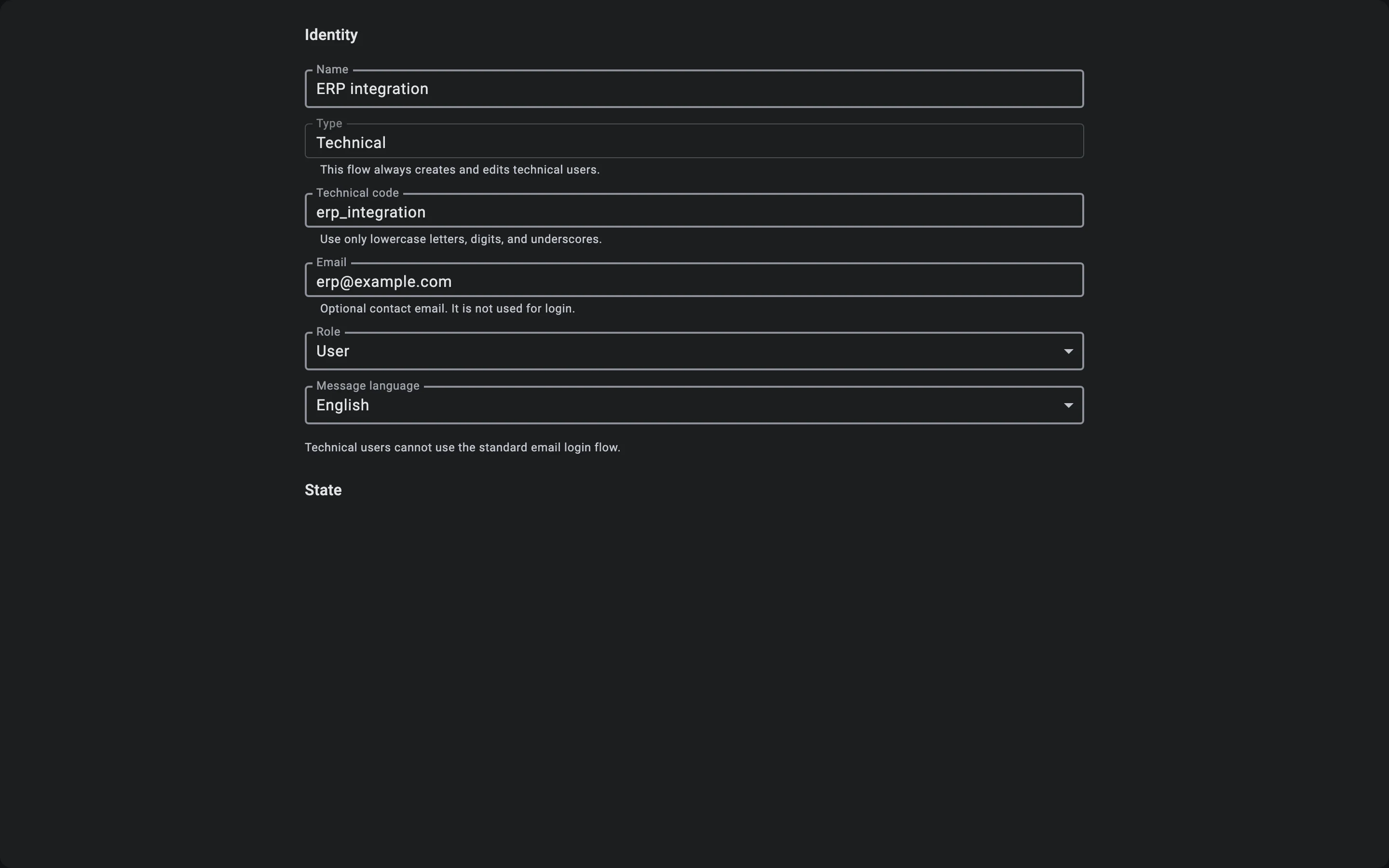
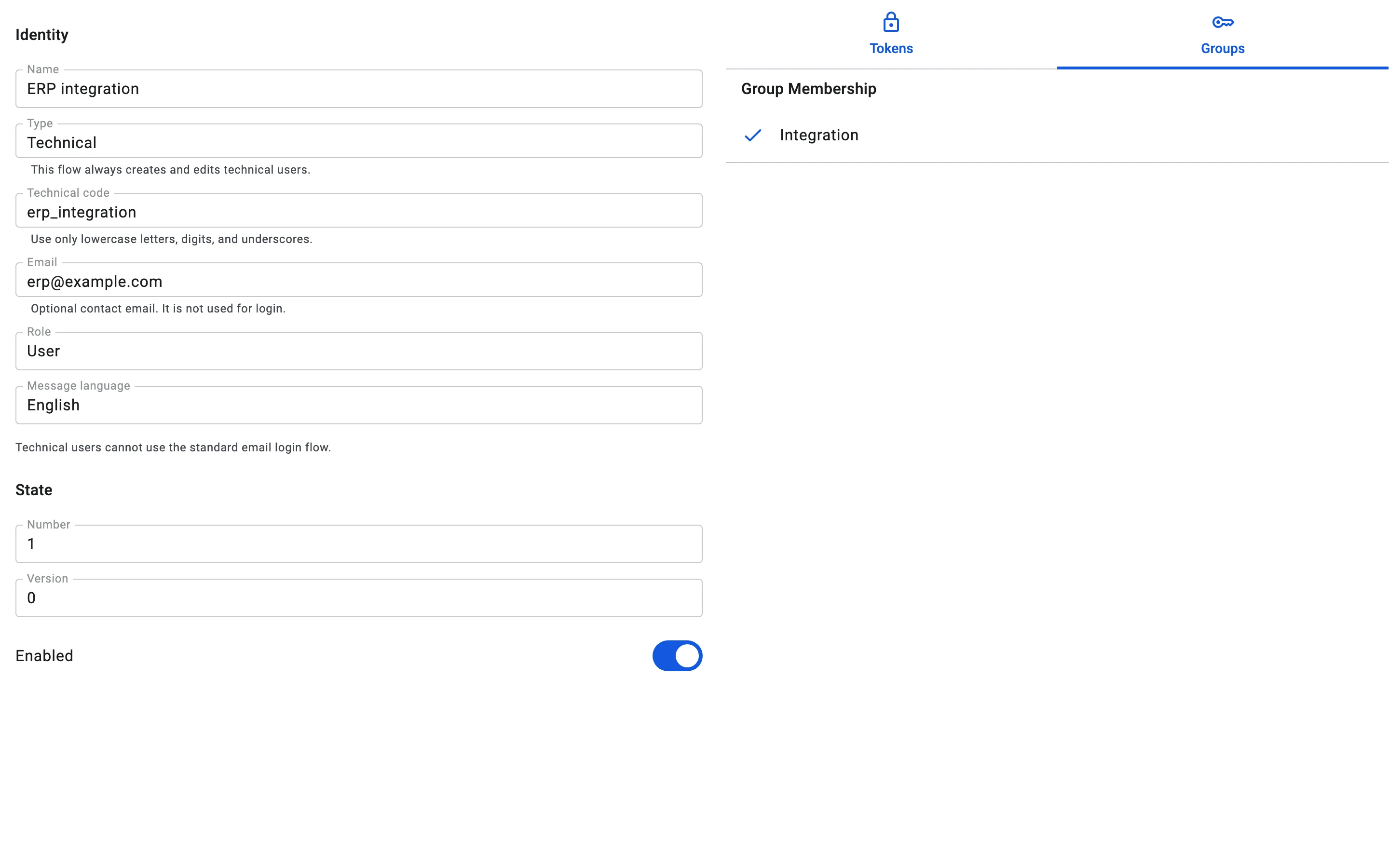
The technical user's General tab
The form has these fields:
- Name — a name people will recognise, for example "ERP integration".
- Type — always set to the technical type. This screen only creates and edits technical users.
- Technical code — the user's code, for example
erp_integration. Use only lowercase letters, digits and underscores. The code cannot be changed after the user is created. - Email — optional contact email. It is not used for sign-in.
- Role — the user's role. Choose User for a technical user: then it can do only what its access groups allow. An administrator role skips those checks and would give the integration full access.
- Message language — the language of the messages sent to this user.
Click Save. The Tokens and Groups tabs appear once the user has been saved.
The technical user's Enabled switch
A new technical user is created switched off. Once it is saved, its card shows the Enabled switch: turn it on to let the user sign in. The switch takes effect at once; you do not need to click Edit first.
While Enabled is on, the user's tokens work. If you switch it off, the Client asks you to confirm, and from then on the integration can no longer sign in with its token. A session the module had already opened is short-lived: it may keep working for a few more minutes until it runs out. Switch Enabled back on to restore access.
Licence limit
Enabled technical users count against the technical seats of your licence. If the limit has been reached, switching Enabled on fails with this message: "The technical-user limit for your license has been reached. Contact your administrator to free up or add seats." Free up a seat or ask for more, then try again.
Phase 2. Giving a technical user access
A technical user gets its rights the same way a person does: by being a member of an access group. A new technical user belongs to no group. With the User role, this means that even with a valid token it is allowed to do nothing yet. The Admin and Owner roles skip these checks, which is why a technical user should have the User role.
The technical user card opens in view mode, where you can only look at the groups. To change membership:
- Open the technical user and click the Edit (pencil) icon.
- Switch to the Groups tab. Its Group Membership list shows every access group, with a check mark next to the ones the user belongs to.
- Tick the group that gives the integration the rights it needs, for example "Integration". Untick a group to remove the user from it.
- Click Save. The button appears once you have made a change. The Client confirms with "Saved".
How groups are built and combined is described in Access groups.
Phase 3. Issuing a token
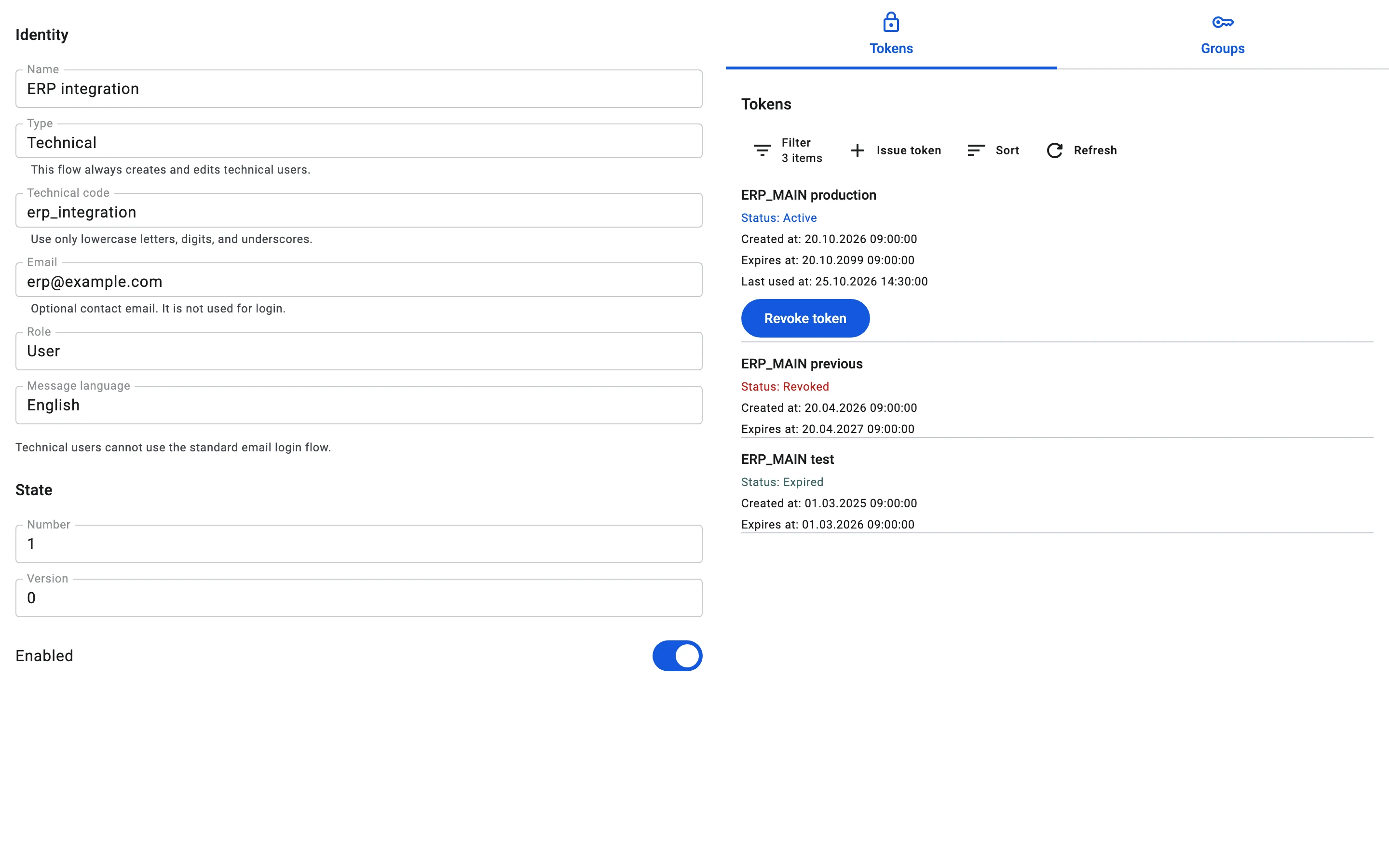
A technical user signs in with a token. You issue it on the Tokens tab of the technical user card.
Issuing
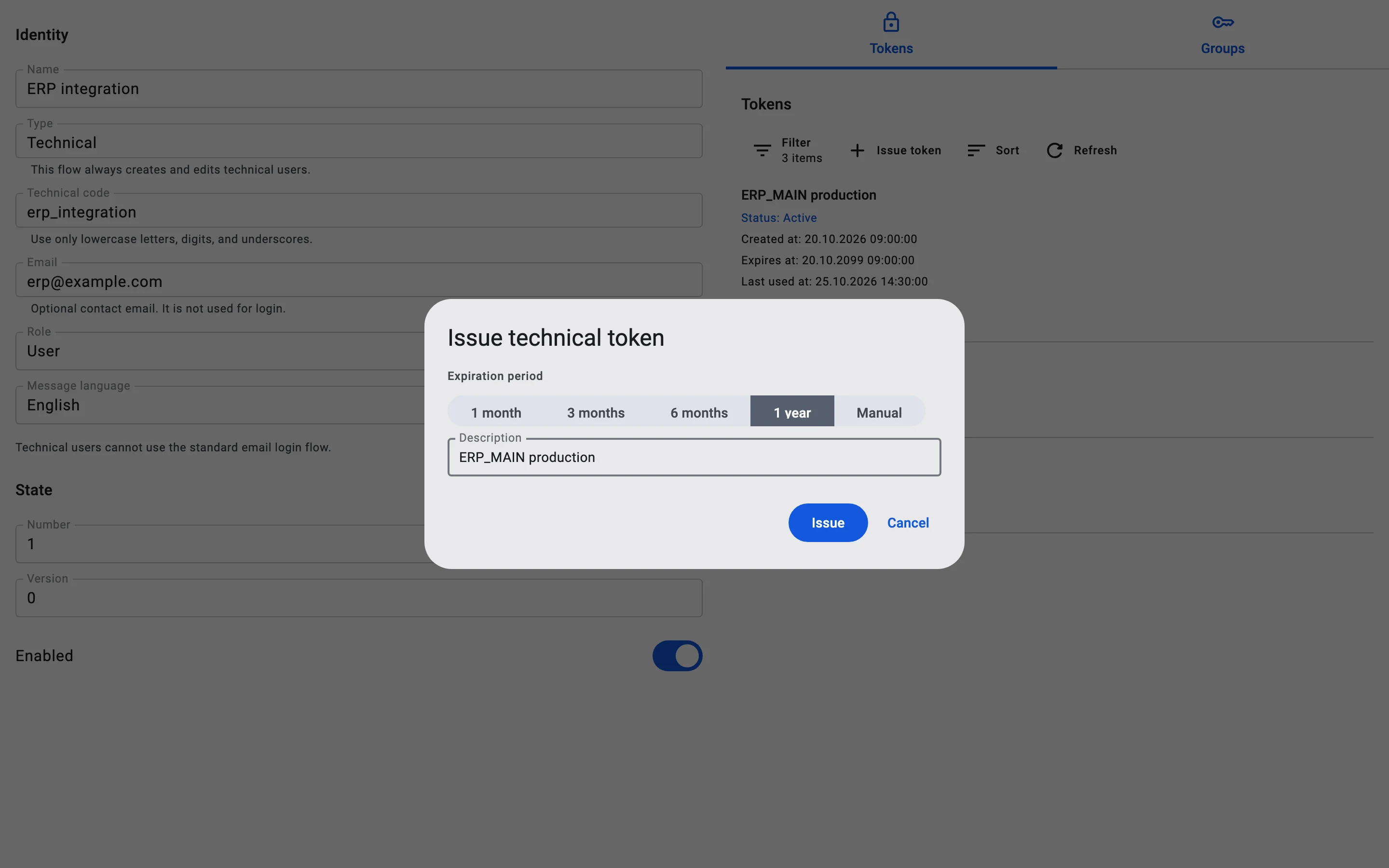
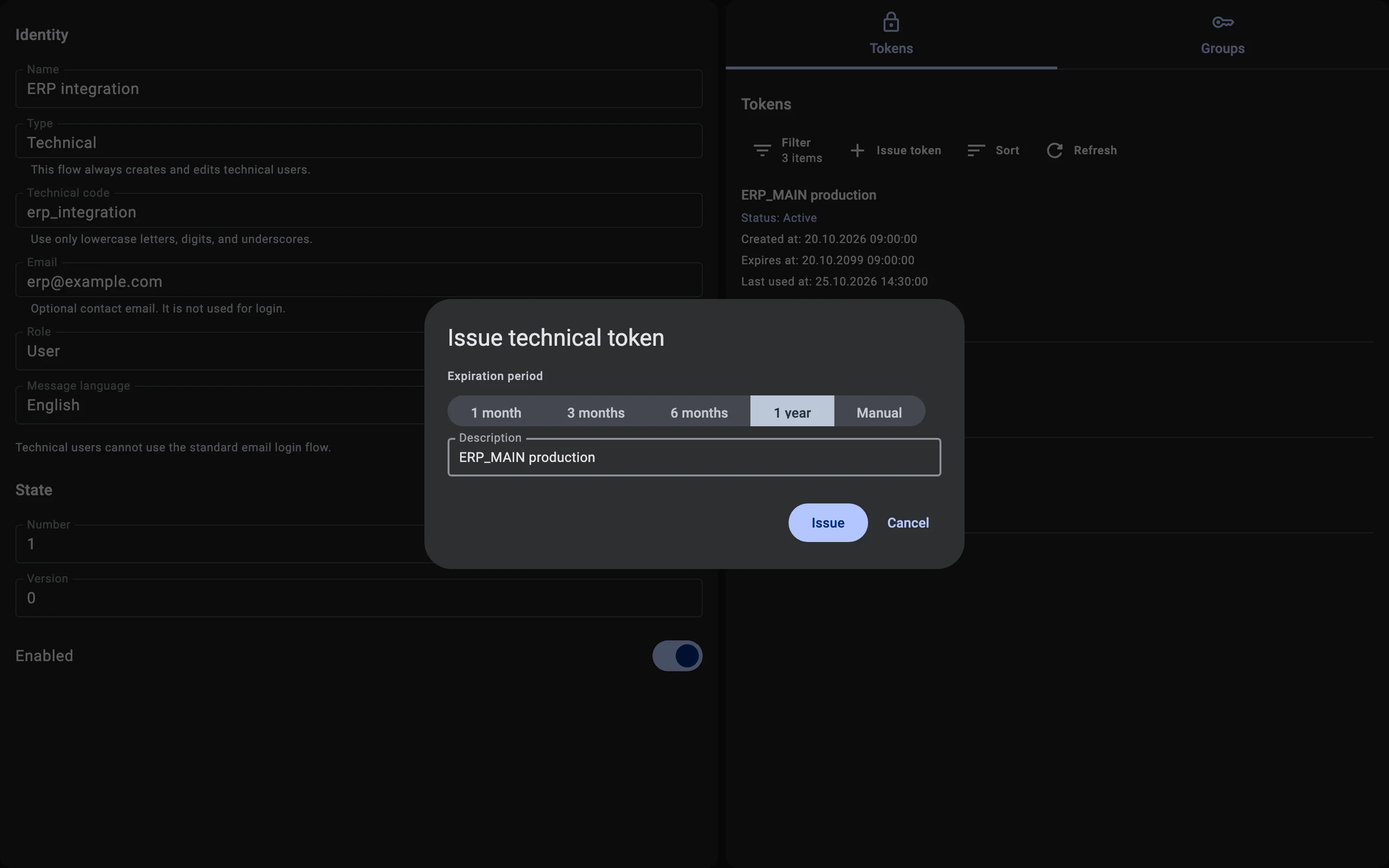
- On the Tokens tab, click Issue token. The Issue technical token dialog opens.
- Under Expiration period, choose 1 month, 3 months, 6 months or 1 year. If none of them fits, choose Manual and enter the exact expiry date and time. The date must be in the future and within the longest lifetime a token may have (by default, one year from now). A later date is rejected.
- Fill in Description so you can recognise the token later, for example "ERP_MAIN production".
- Click Issue.
A technical user has one active token at a time. Issuing a new token revokes the current one. From the moment you click Issue, the module can no longer sign in with the old token. A session it had already opened is short-lived and may keep working for a few more minutes. The module works normally again only after you give it the new token.
The token is shown once
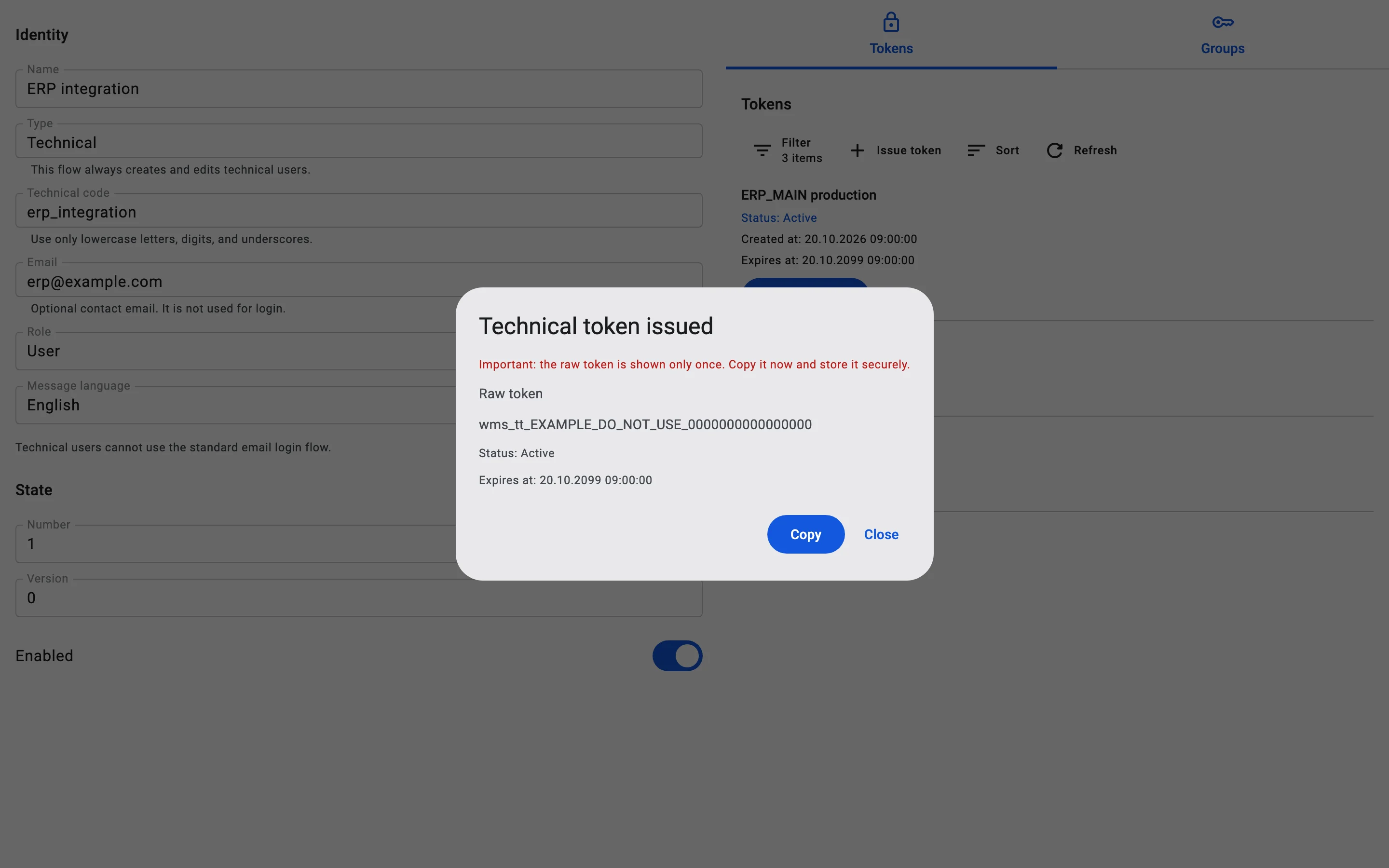
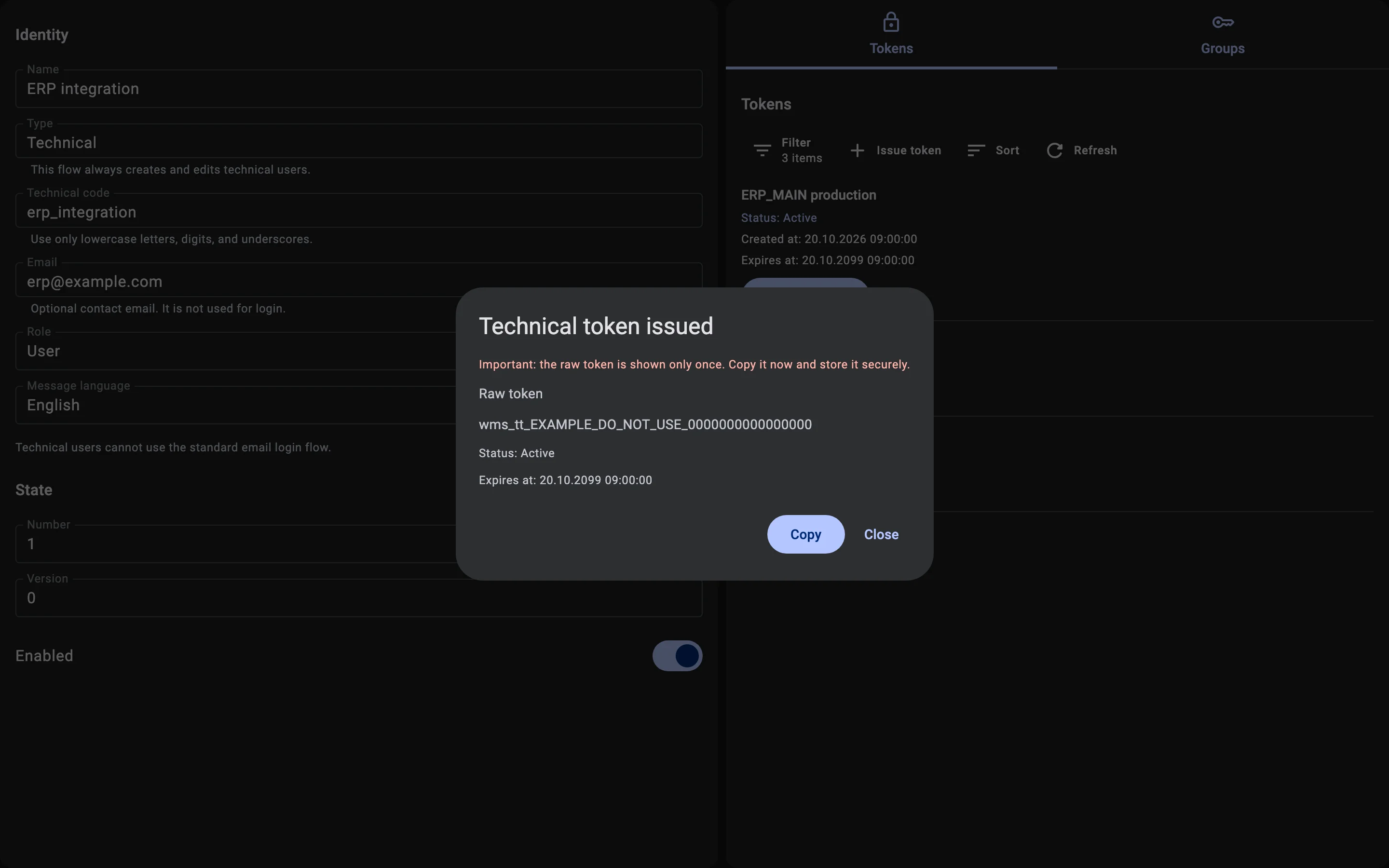
The Technical token issued dialog shows the Raw token, its status and its Expires at date. The raw token appears only once: "Important: the raw token is shown only once. Copy it now and store it securely." Click Copy to put it on the clipboard, and keep it somewhere safe. After you click Close, nobody can see it again.
Phase 4. Registering an external system
An external system is the record of the connected program inside the WMS. It says who the program signs in as, what it may do, and how the WMS treats its data.
Open Administration in the Client and go to External Systems. To add a system, click Create. To change one, open it and click Edit; when you are done, click Save. The Client confirms with "External system saved".
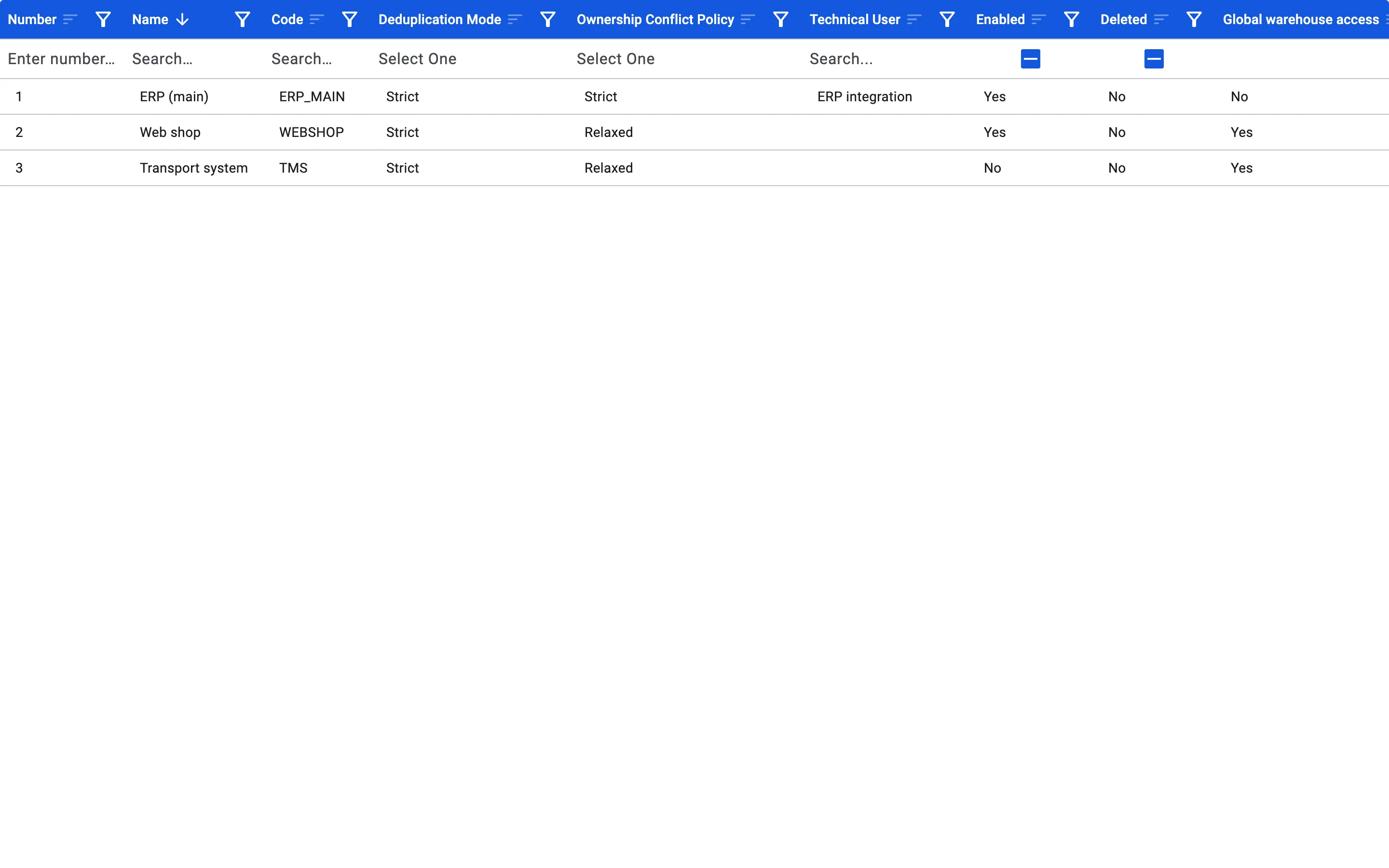
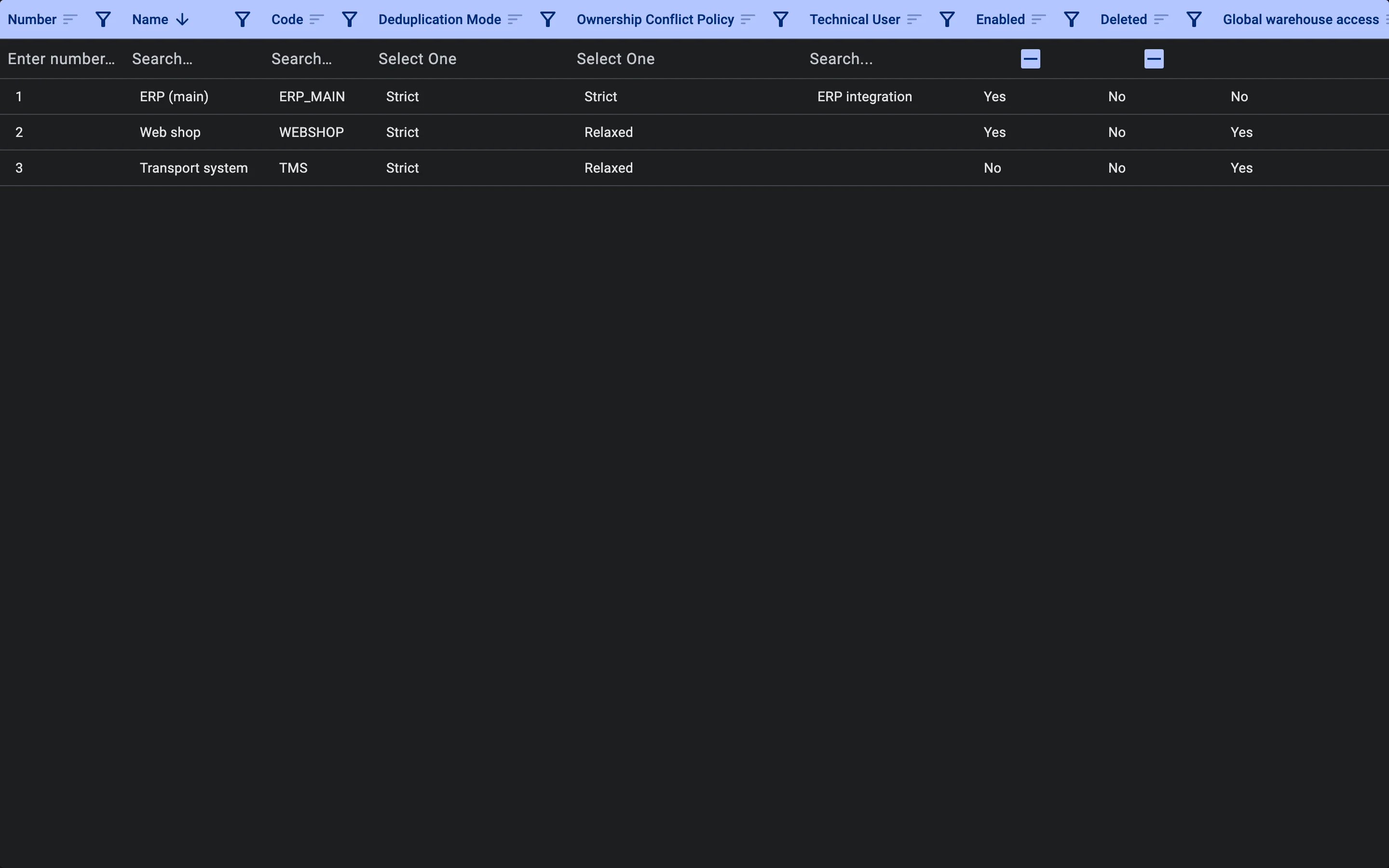
The external system's General tab
The form has these fields:
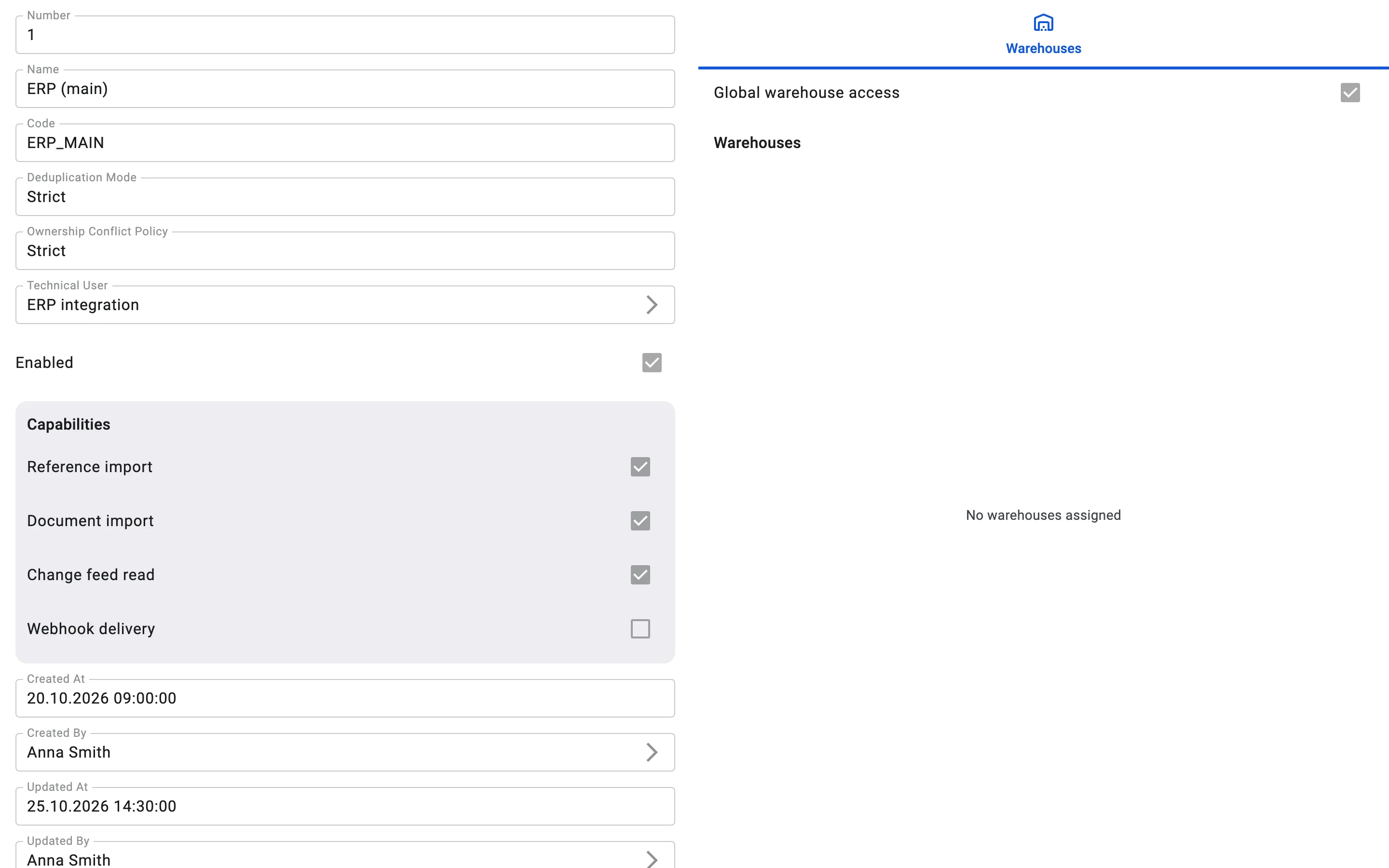
- Name — a name people will recognise, for example "ERP (main)". It is required.
- Code — the code of the system, for example
ERP_MAIN. It is required. Your developer uses this code in every request, so choose it carefully: the code cannot be changed after the system is created. - Deduplication Mode and Ownership Conflict Policy — see below.
- Technical User — the technical user the system works as, for example "ERP integration". Pick it from the list of technical users; see Creating a technical user. The system is linked to the user, not to a particular token, so issuing a new token does not break the link.
- Enabled — decides whether the system works at all.
On a computer the card shows this form on the left and the Warehouses tab on the right, in one view. The Number field, assigned by the WMS, appears once the system exists.
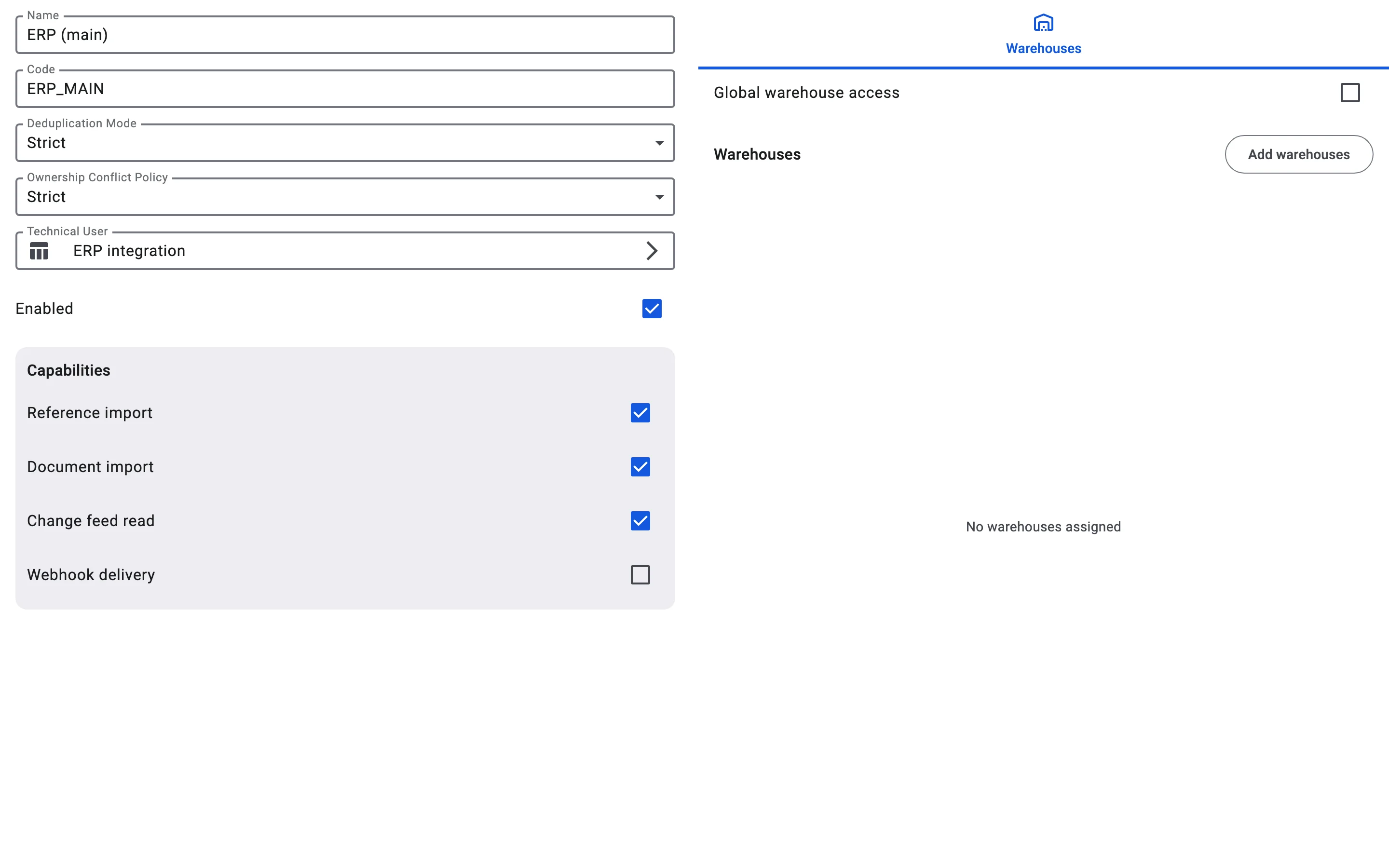
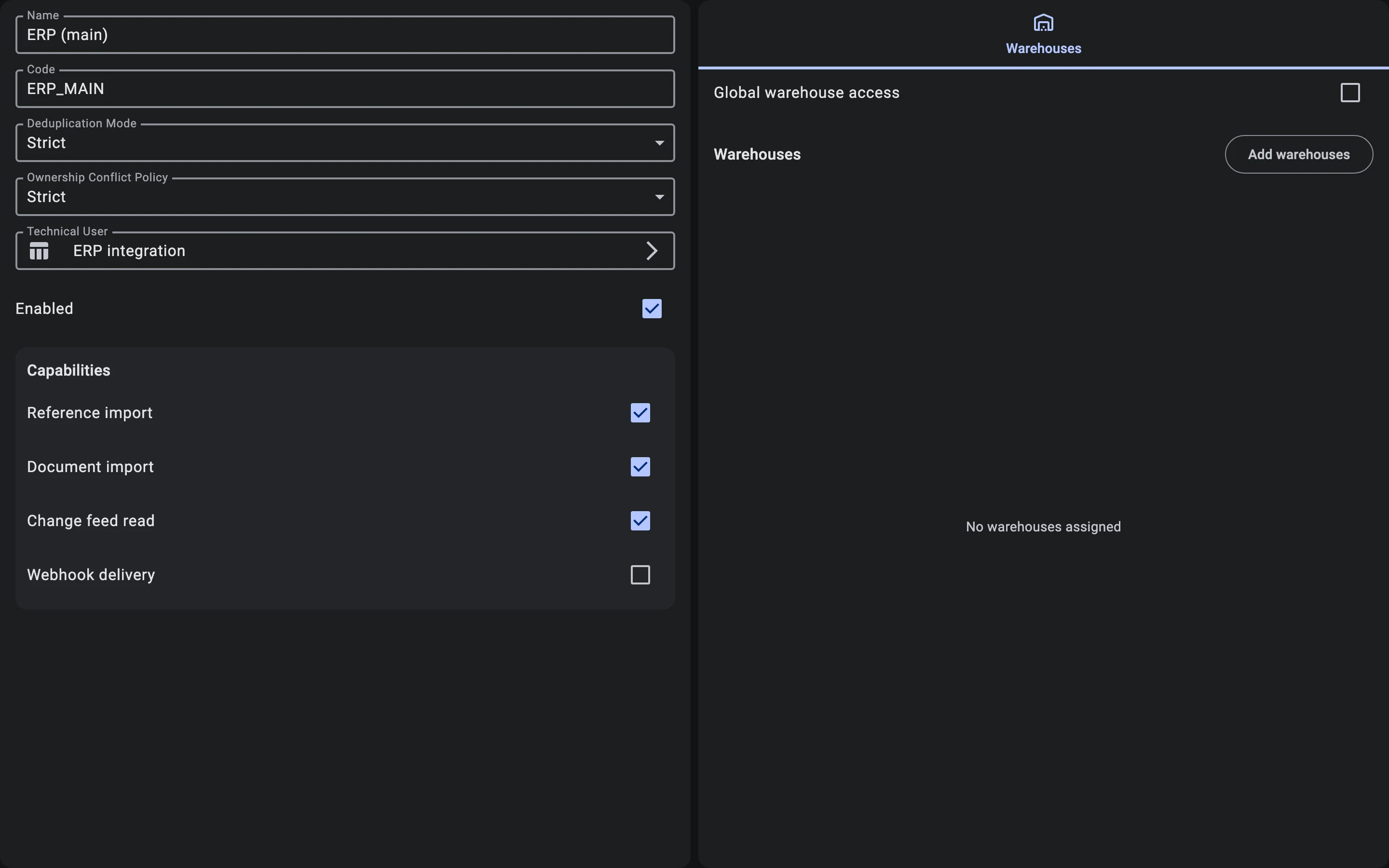
Capabilities
Under Capabilities, tick only what the connected system really uses:
- Reference import
- Document import
- Change feed read
- Webhook delivery — reserved for the future
If a request needs a capability the system does not have, the WMS rejects it. See Integration capabilities for what each one allows.
Deduplication mode and ownership conflict policy
- Deduplication Mode decides what happens when data sent by the system collides with a record the WMS already has: Strict or Relaxed. See Deduplication modes.
- Ownership Conflict Policy decides what happens when two systems claim the same record: Strict or Relaxed. See Ownership conflict policies.
What a recorded conflict means and how to resolve it is covered in Conflicts.
The external system's Enabled setting
While Enabled is on, the system works. If you switch it off, the WMS rejects its requests, as if the system were not registered. Switch it back on to restore access. The WMS rejects the requests of a deleted system in the same way.
Phase 5. Setting the warehouse scope
The warehouse scope says which warehouses the external system may work with. You set it on the Warehouses tab of the external system card. While you are creating the system, the tab is already editable. To change it later, click Edit on the card, and click Save when you are done.
There are two ways to set it.
Global access
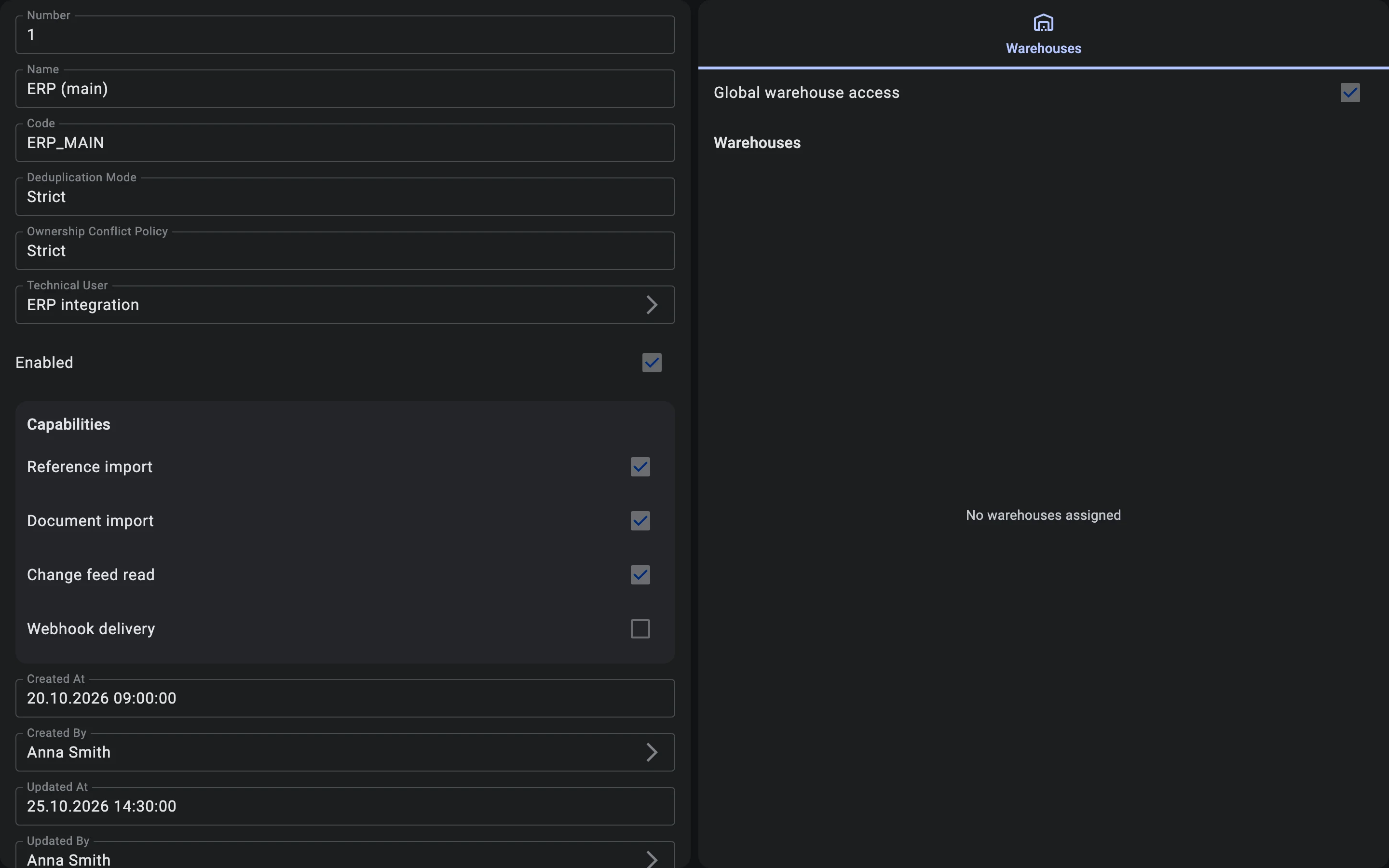
Tick Global warehouse access to let the system work with all warehouses, including those you create later. The list below it is then not used.
A chosen list
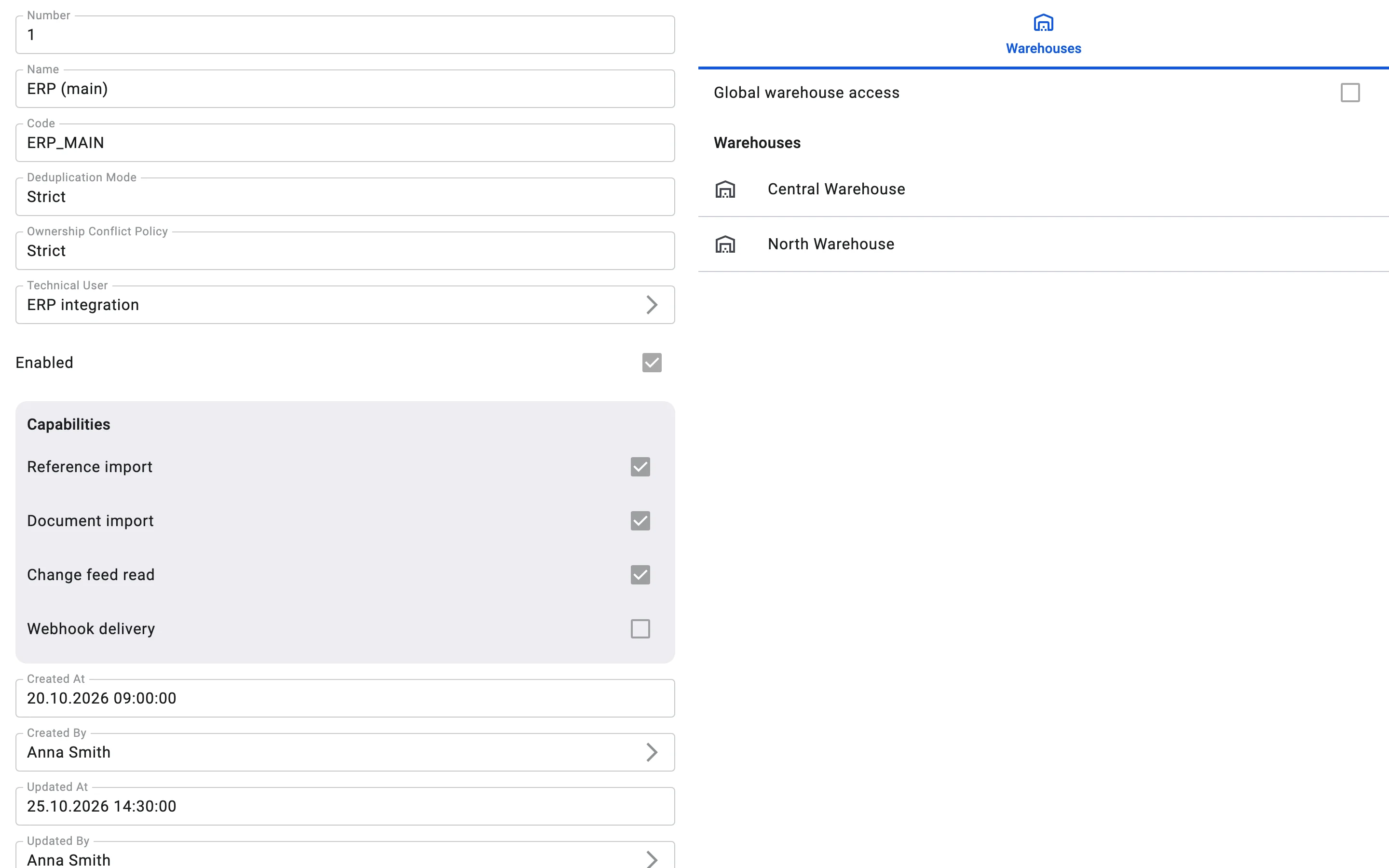
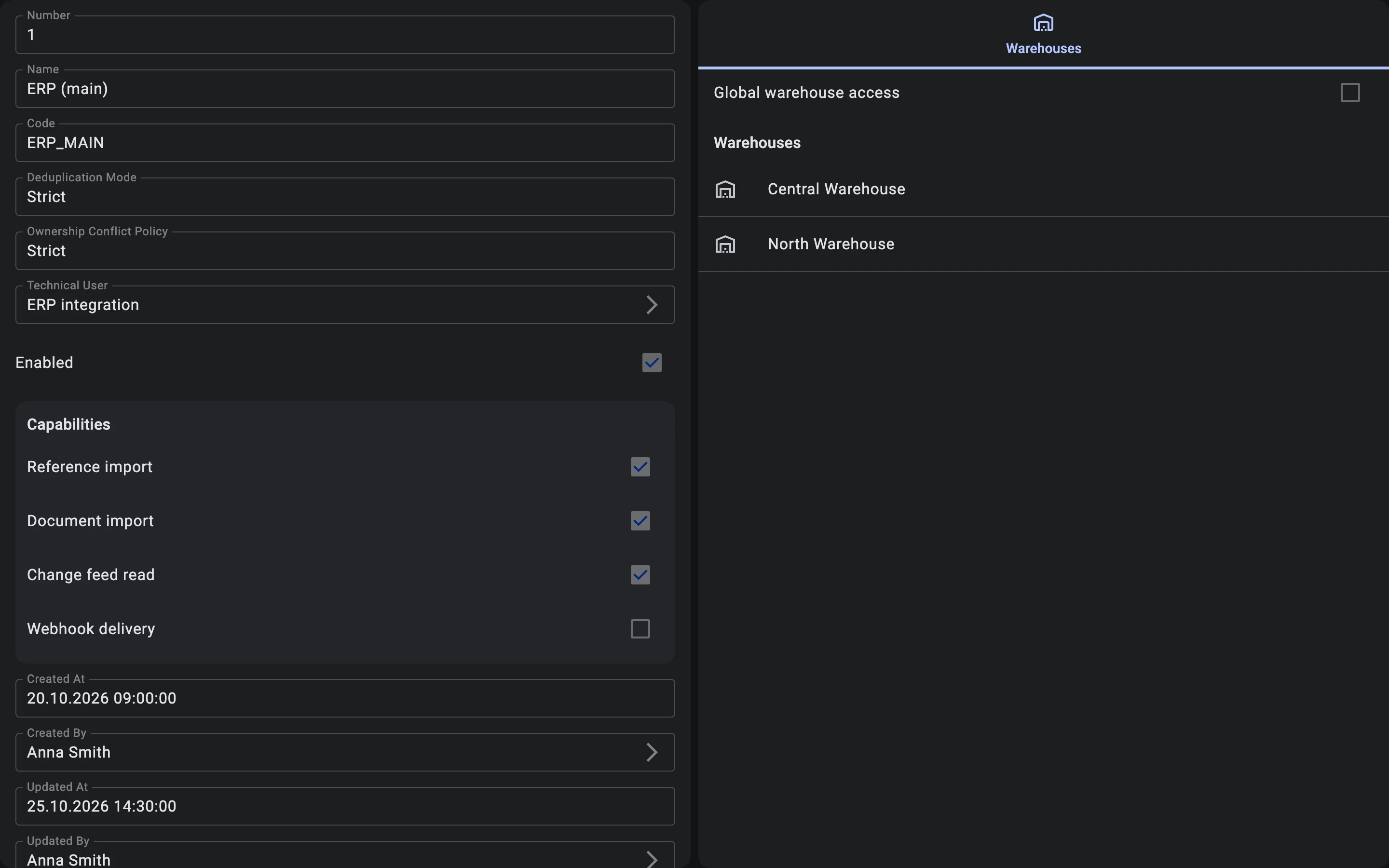
Leave Global warehouse access off and list the warehouses the system may use, for example "Central Warehouse" and "North Warehouse":
- In edit mode, click Add warehouses and pick one or more warehouses.
- To take a warehouse off the list, use Remove next to it.
- Click Save.
The system can then work only with the listed warehouses. A request about any other warehouse is rejected.
If Global warehouse access is off and the list is empty ("No warehouses assigned"), the system has access to no warehouse. Either tick Global warehouse access or add the warehouses the system needs.
Phase 6. Hand off to the developer
Give the developer the company code, the raw token and the external system code. The hand-off checklist in the overview lists them; the developer continues with API basics. Later, when the token must be replaced, see Rotating and revoking a token.