Transferring ownership
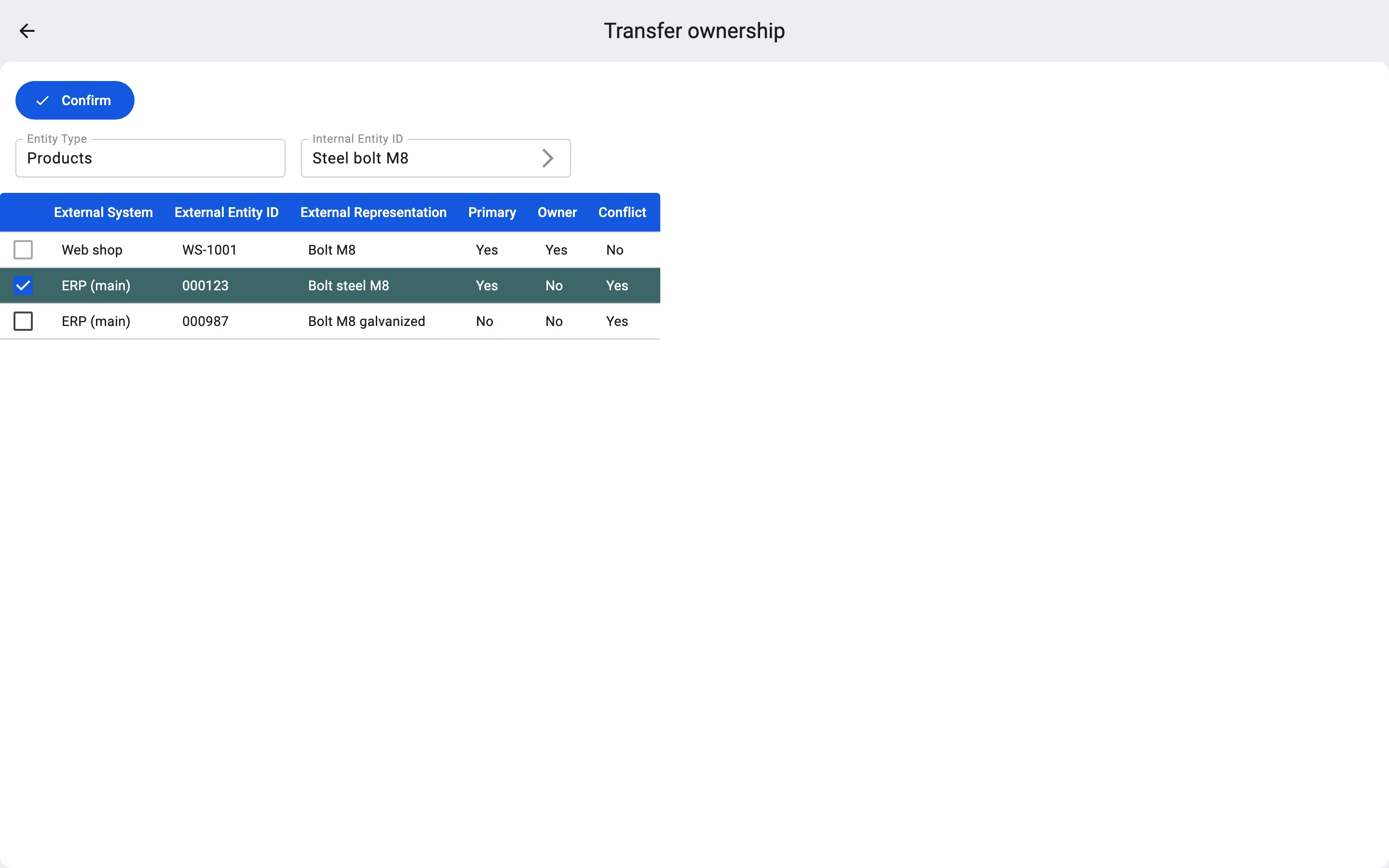
Use this when another system should own the record from now on. For example, the product catalogue moves from the web shop to ERP (main), and the product "Steel bolt M8" should follow the ERP (main) code 000123 instead of the web shop's WS-1001.
After the transfer:
- the code you choose becomes the owner and its system's main code;
- the other codes of the same system for this record stop being main codes;
- the previous owner's code stays linked, but no longer as the owner;
- the conflict marks are removed from every code of the record.
From then on the new owner can update the record as a whole. The previous owner's full updates are handled by its own ownership conflict policy: with Strict they now end in a conflict on its code. Before transferring, agree which system leads the record.
Steps
- In External References, select the code that should become the owner.
- In the bar at the bottom, click Transfer ownership. The Transfer ownership screen opens. Its table lists the codes of every system for the record, with the External System column, and the reference you selected is ticked.
- Make sure the right code is ticked, and click Confirm.
The Client shows "Owner changed successfully" and returns to the list.