Unloading and scanning
Unloading the truck happens in parallel with recording into the system. Scanning — both with the camera and with a hardware scanner — works only in the PDT mode of the app, so this part of the phase runs on the handheld terminal (see Receiving on PDT). On the PDT, the receiver:
- scans the barcodes of pallets or cases being unloaded;
- scans the barcodes of products inside;
- enters quantity when the barcode does not carry it (for weight-priced goods the quantity is read automatically);
- captures lot, expiry date, and other product attributes when policy requires.
In real time the system:
- matches scanned lines against the expected lines;
- highlights overages, shortages, and unexpected products;
- calculates the receiving pace — useful for the shift supervisor to see the load on the shift.
Container settings of the receipt
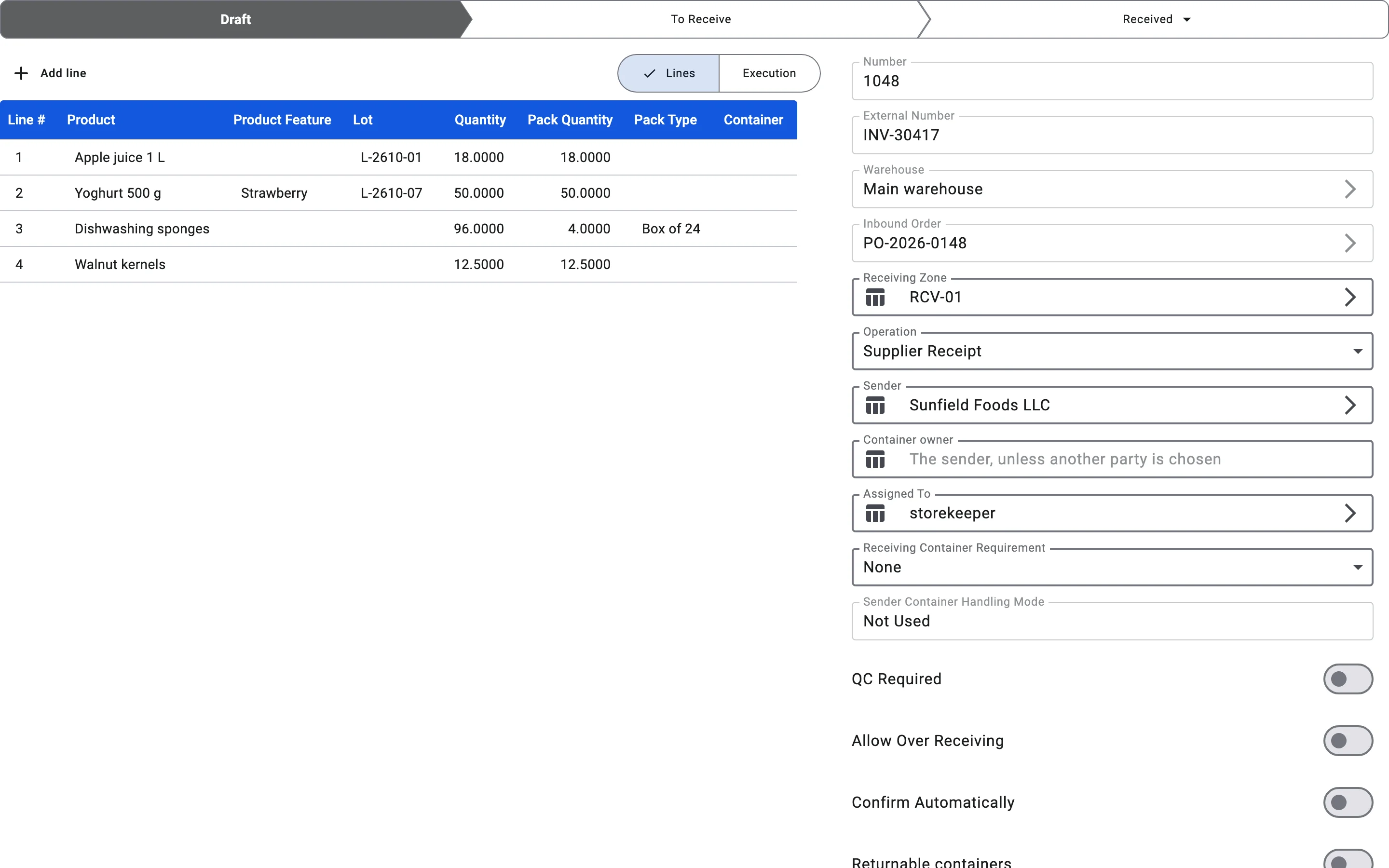
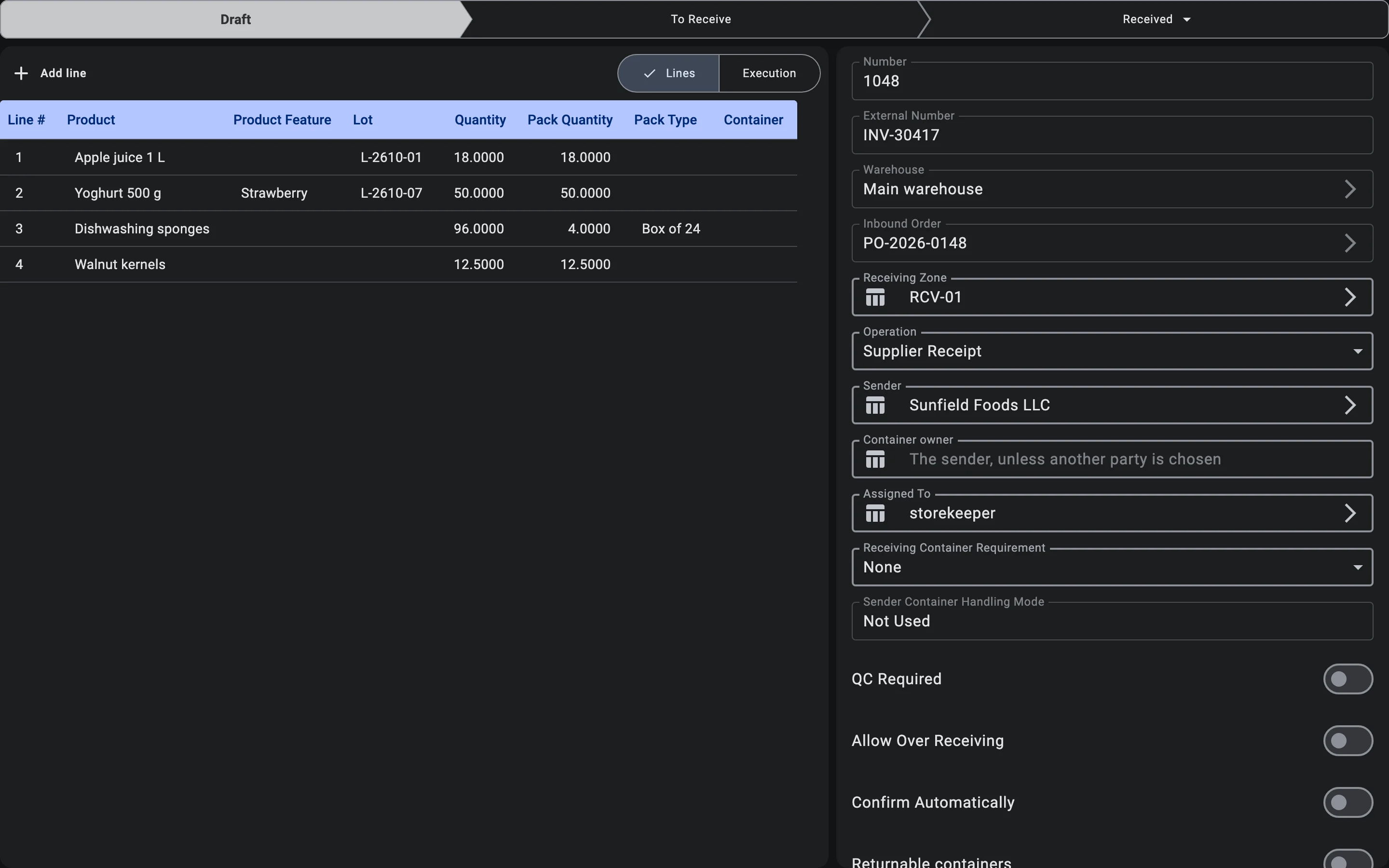
Two settings on the receipt decide how containers take part in unloading. On the receipt form they sit one above the other, and the order matters: Receiving Container Requirement comes first, because it decides which values of Sender Container Handling Mode below it are possible at all. A receipt made from an inbound order takes the sender mode from the order and the requirement from the warehouse's receiving settings.
- With the requirement None, goods are never received into a container, so the only sender mode that fits is Not Used. Choosing None on the form switches the sender mode to Not Used and locks that field.
- A receipt or an inbound order that pairs None with any other sender mode is refused when it is saved; the message names the sender mode that needs a receiving container. When the warehouse's default requirement is None but the order accepts sender containers, a receipt made from that order starts with Optional (Sender Only) instead.
- Optional (Sender Only) together with Reference Only or Not Used can be saved, but has no sender container to receive into, so such a receipt behaves like receiving without a container.
Receiving container requirement
None — receiving without a container
When receiving happens without containers, every scanned line is attributed to a specific cell of the receiving zone. The operator names the cell where the goods are physically placed; no container is used as the target, and the sender mode is Not Used.
Optional (Sender Only) — into the sender container if present
When picking a container is not required but receiving into a supplier pallet is allowed, the operator has two options: when a supplier pallet is present and the sender mode accepts it (Accept for Storage or Accept for Putaway), lines are stored into it; when there is no pallet, lines go directly into a cell of the receiving zone. Choosing a warehouse or temporary pallet manually is not allowed in this mode.
Required — always into a container
When receiving into a container is mandatory, the operator cannot write a line directly into a cell — they must either pick a supplier pallet the sender mode accepts, or scan a warehouse or temporary container and scan lines into it. Without a target container the scan is not recorded.
Sender container handling
Sender containers accepted for storage
When supplier pallets stay on the warehouse as storage units, the receiver scans the pallet's barcode before the lines inside. Accepting the pallet receives what is left of its lines into it and registers it on the warehouse balance as a storage container.
Sender containers accepted for putaway
When supplier pallets travel into putaway along with the goods, the receiver scans the pallet's barcode before the lines inside. Accepting the pallet receives what is left of its lines into it and registers it on the balance as the carrier that takes the goods to their cells.
Sender containers for tracking only
When supplier containers are used only to find and group lines, the receiver scans the container number to open the lines it holds. The lines land in a cell of the receiving zone or in a warehouse container, depending on the receiving container requirement; the supplier's container itself is not taken onto the balance as the sender's.
Sender containers not used
When the supplier does not use containers, the receiver scans product lines directly. There are no preliminary container scans — each line lands in the system as a separate receipt line.
The operator identifies an SKU — the combination of product, product features (if tracked), lot (if tracked), and pack type — by scanning a barcode or by picking it manually from a list. Required attributes depend on the product configuration. How SKU selection works.
Quantities go in the quantity field — set from the barcode, typed by hand, or worked out in the calculator, with − and + to adjust; the pack type sits beside it. How the quantity field works.
Quantity entry mode
Quantity confirmed in form
In the client app the receiver most often works with the receipt-line form: opens a line from the plan, picks the SKU (if it was not auto-matched), enters the actual quantity, the pack type and — when needed — the lot and features, then saves the fact. Every saved fact appears immediately on the Receipts tab with per-line progress.
"+1": quick save on scan
The "+1" quick-save mode belongs to the PDT screen, not the client app: it is switched on with the On scan chip (with a +1 icon) above the line list on the PDT receiving screen and is off by default; the chip is not shown when the warehouse puts goods away straight on receiving — there is no warehouse setting and no client-side switch for it. With the mode on, a scan saves the fact straight away without opening the form: the quantity is taken from the barcode, or defaults to one. How the mode behaves — the on-screen animation, errors, when it pays off — is described in the PDT phase Record the fact.
Lots with a short remaining shelf life
A product's lot tracking policy can set Minimum remaining shelf life on receipt, days. Every fact saved for a lot of such a product is checked against it: the days left from today to the lot's expiry date must be at least that minimum. A lot without an expiry date, or a policy without a minimum, is not checked. The check applies the same way when a whole sender container is accepted — every line it takes in is checked.
A lot with fewer days left is blocked, and the Short remaining shelf life dialog opens. It lists each such lot with its product, expiry date, the days left and the receipt minimum. What happens next depends on the user's right to accept such lots:
- With the right, the dialog offers Accept and Cancel. Accept saves the fact with that lot; Cancel leaves it unsaved.
- Without the right, the dialog adds Only a senior can accept this lot — call one. Its only button, Got it!, closes it, and the fact is not saved.
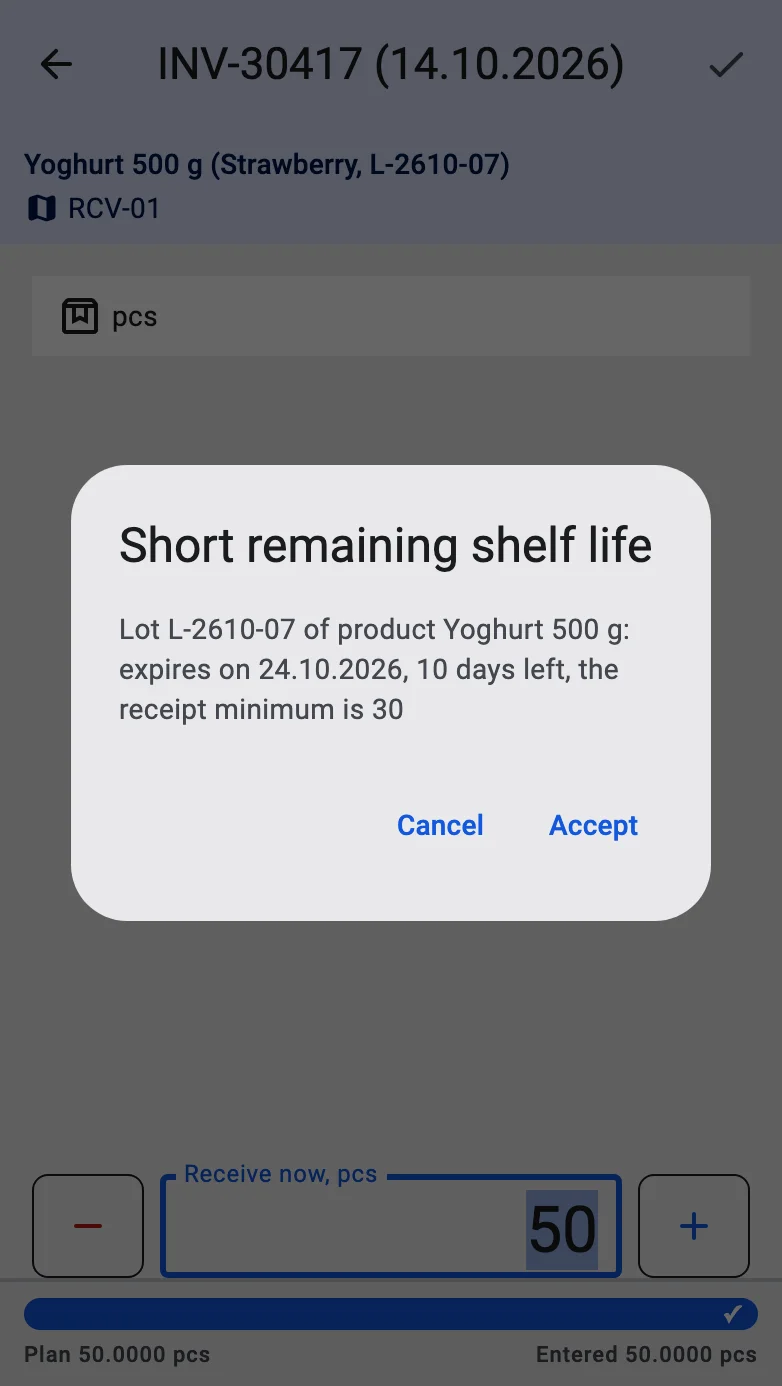
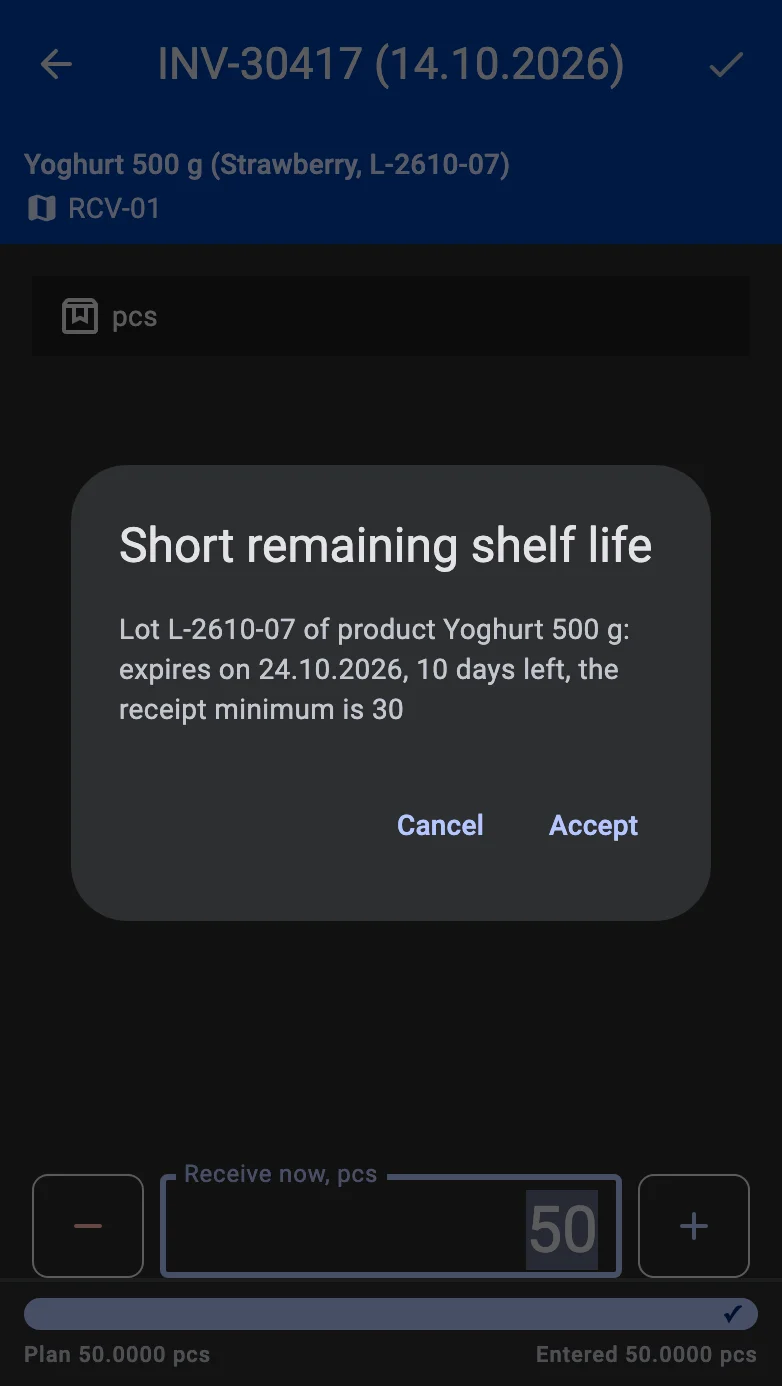
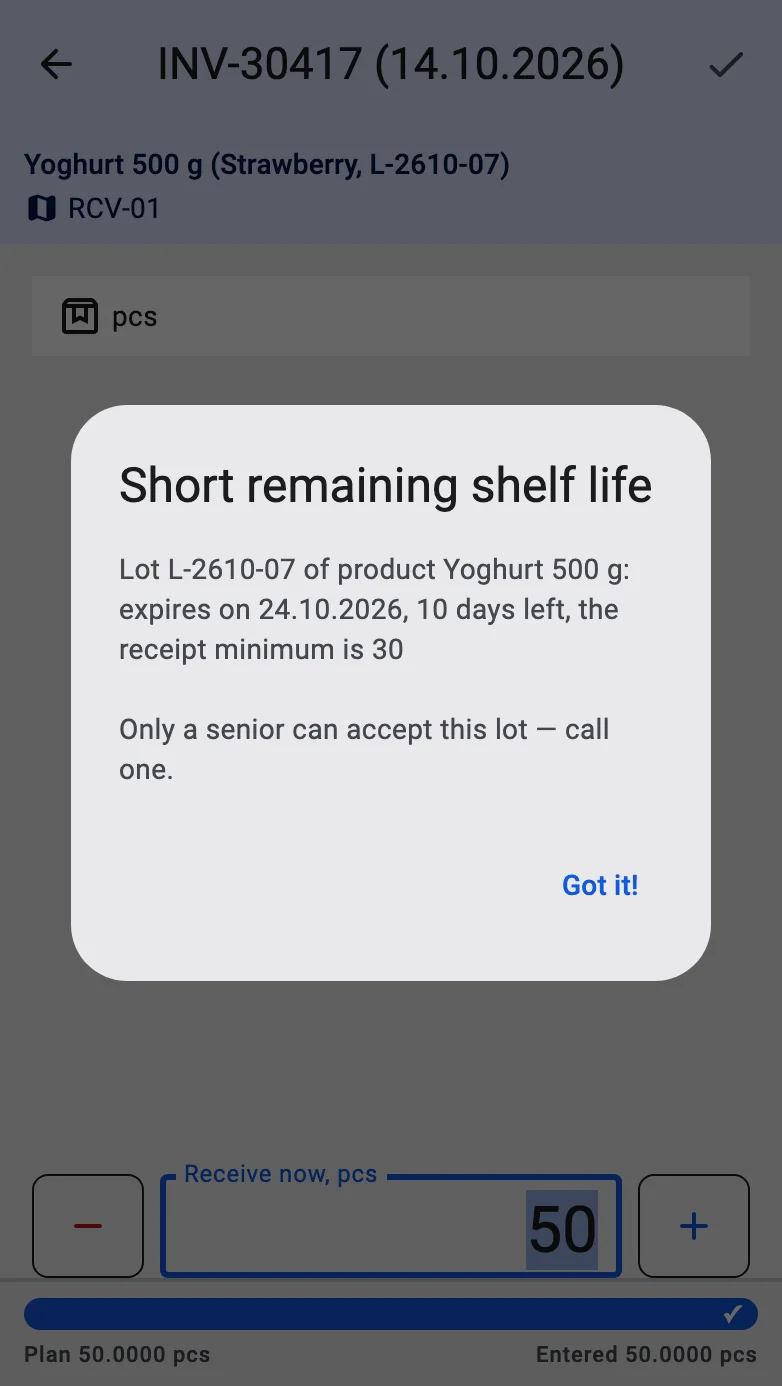
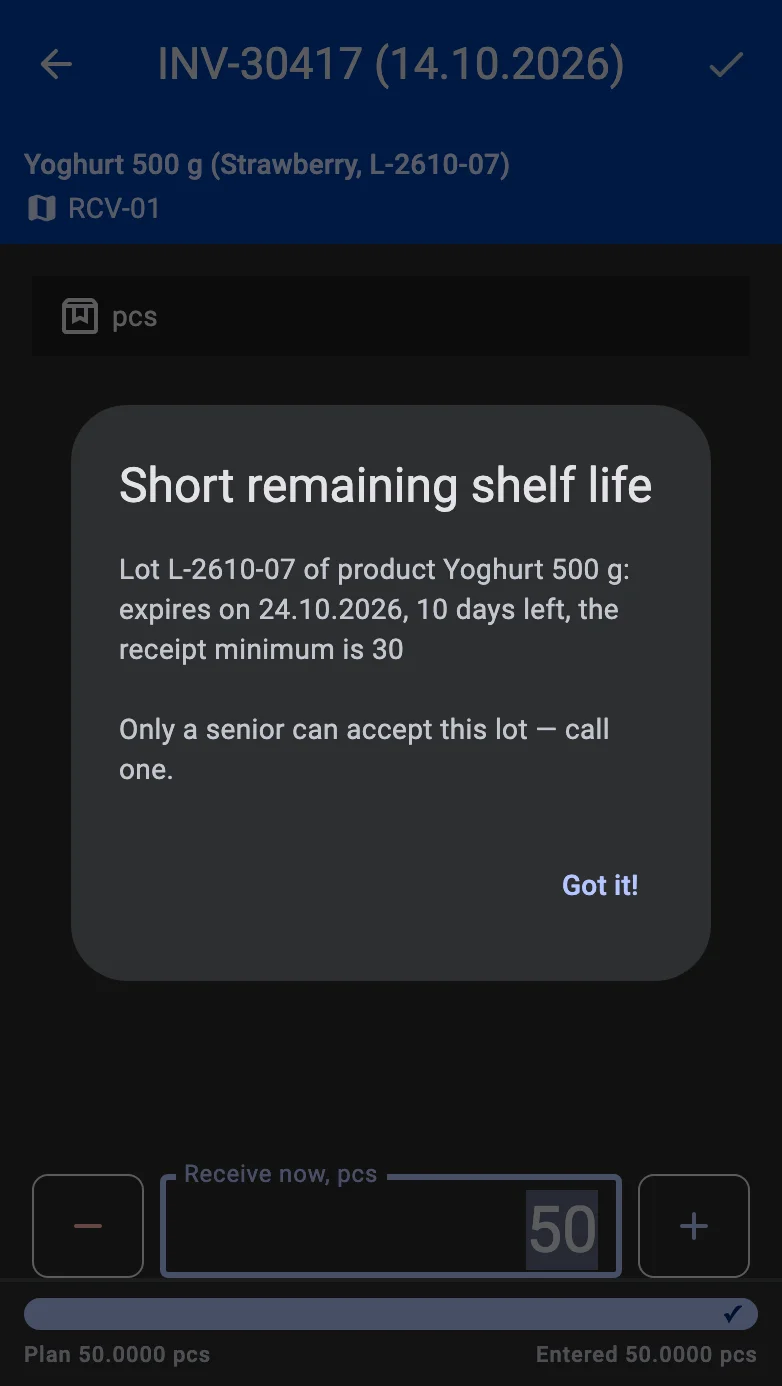
A terminal working offline shows the same dialog and applies the same right. A lot accepted offline is posted when the connection is back; if the server still finds it too short, it is recorded as a discrepancy to review (see Discrepancy resolution).
Returnable containers: acceptance and debt
When your company works with returnable containers, every existing container the receipt takes onto the warehouse balance — a sender container accepted as it stands, or an existing container scanned as the receiving target — also records what it means for the container debt. Temporary containers and the Reference Only mode never record anything here.
For each container, the outcome is one of these:
- The container comes back to you. If a counterparty owed this container back to you, accepting it closes that counterparty's debt. Its owner and returnability stay as they were.
- Nothing changes. A container you already owe to someone, or your own container that was already standing in your warehouse, is left as it is — your own pallet used as a carrier never becomes the sender's property.
- You now owe it back. A container that has to go back opens a debt to its owner: the receipt's Container owner, or the sender when that field is empty. A receipt with neither is refused and asks for an owner.
- It becomes yours. A container that does not have to go back becomes your own, free of any debt.
Whether a container has to go back is decided by the container line of the inbound order when there is one — Expected back or Stays with us. Without such a line, only a container whose type is returnable can have to go back, and then the receipt's Returnable containers switch decides.
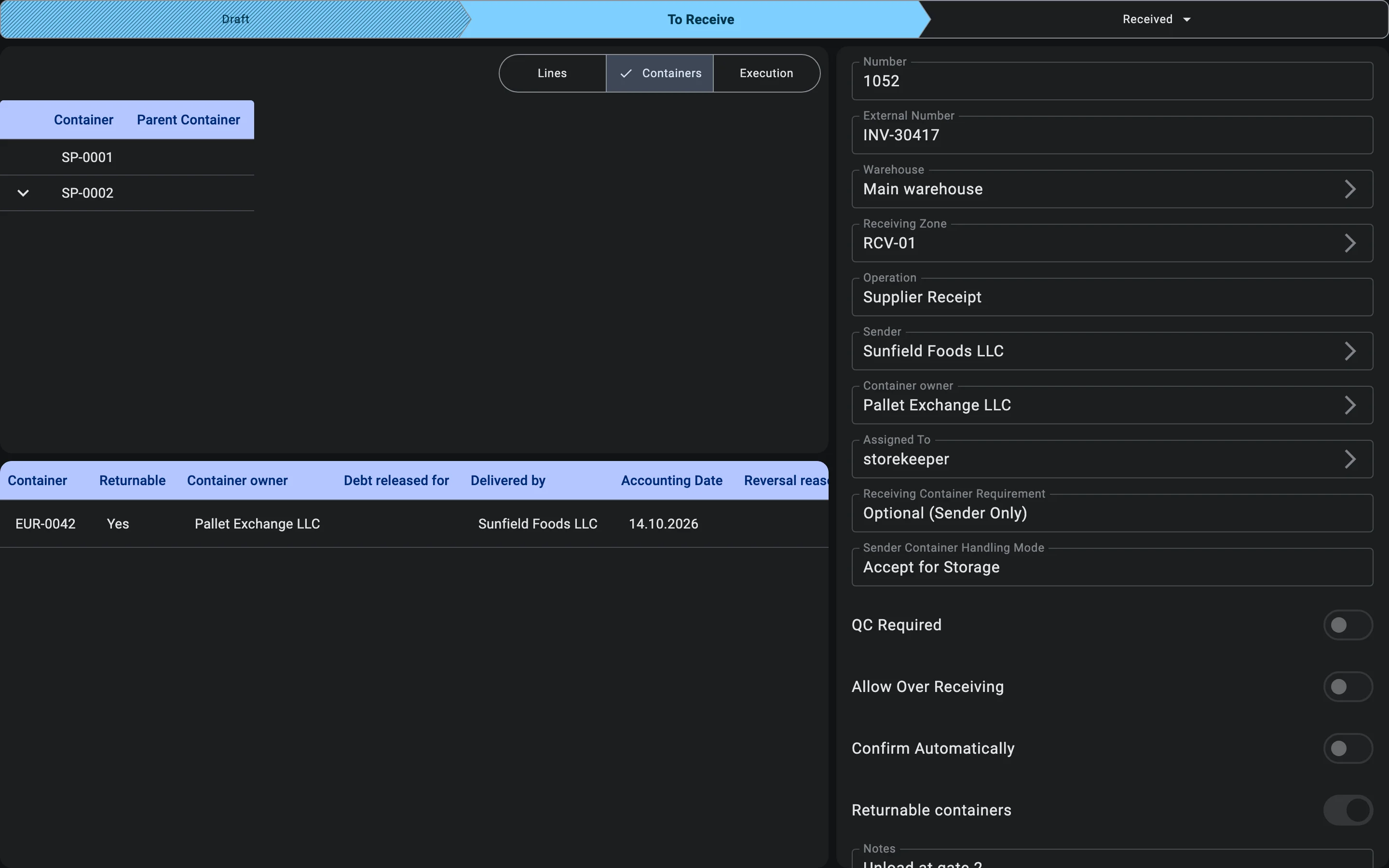
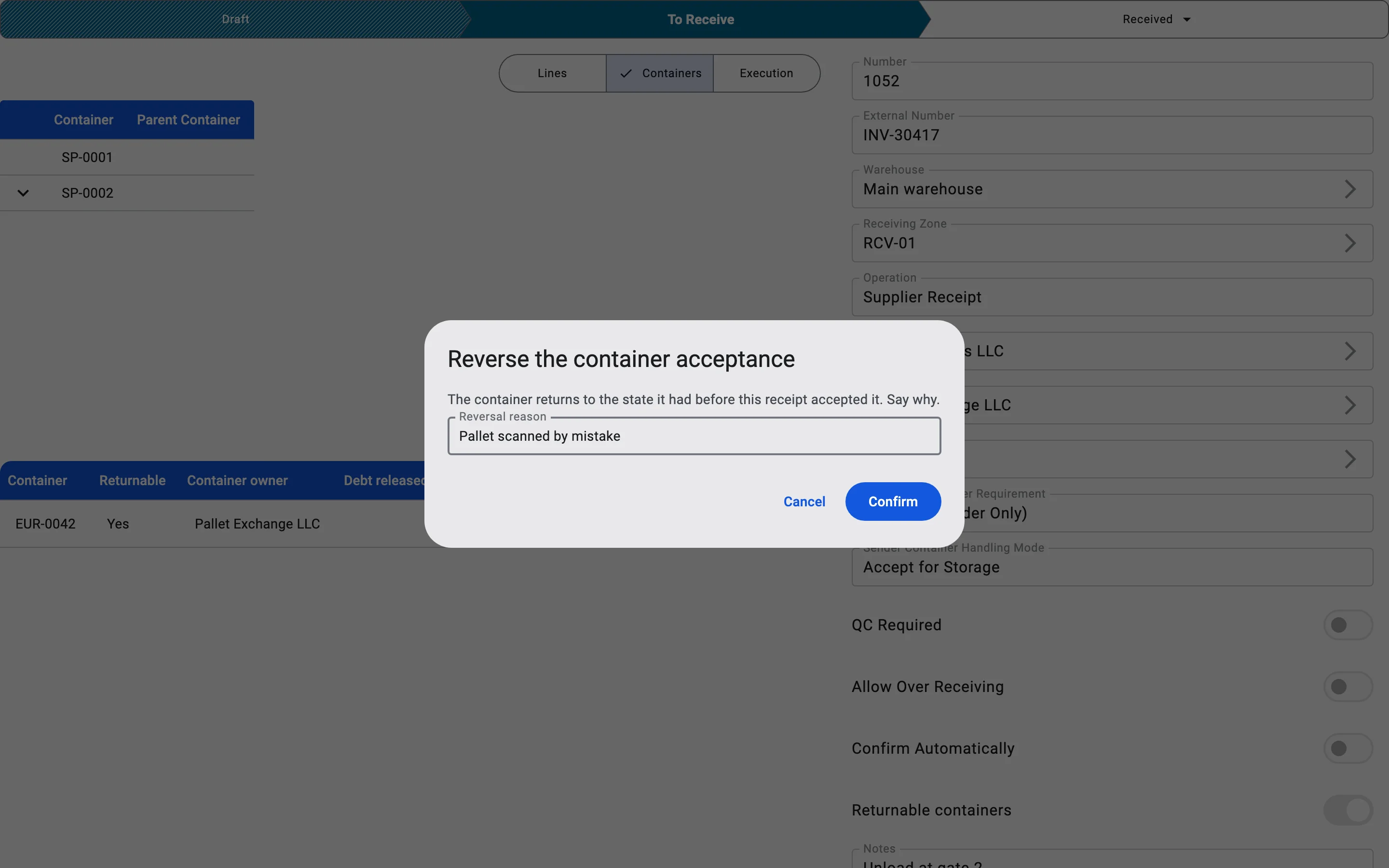
Every acceptance is listed on the receipt's Containers tab, with the columns Container, Returnable, Container owner, Debt released for, Delivered by, Accounting Date and Reversal reason. On the terminal the same result is shown under the container in the list — Returnable · owner … or Closes the debt of … — and in a short message right after the container is accepted.
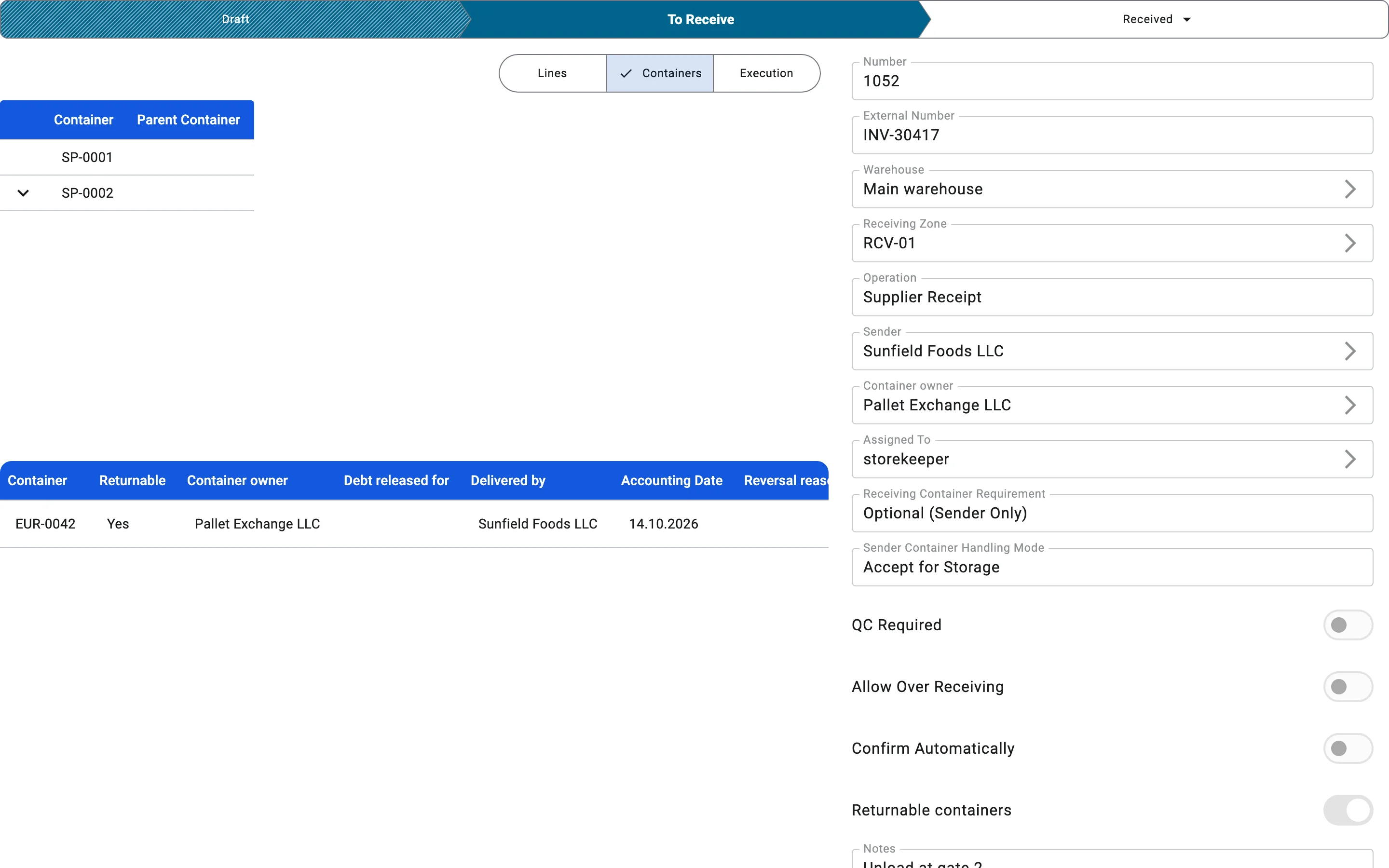
Reversing an acceptance
An acceptance recorded by mistake can be reversed: with the Reverse button in its row on the Containers tab, or with Reverse acceptance in the menu of the container's screen on the terminal. The Reverse the container acceptance dialog explains that the container returns to the state it had before this receipt accepted it and asks for a Reversal reason; Confirm stays unavailable until a reason is entered. The reversal is kept in the list with its reason, and the container debt follows it.
Reversing needs the right to post receipts. It is not possible on a Cancelled receipt, or once another document has already acted on that container's debt.
On the PDT
On the PDT this phase runs as Fact recording in the Receiving on PDT flow — with the same two quantity-entry modes, but without the tabbed interface of the client app.