Receipt creation
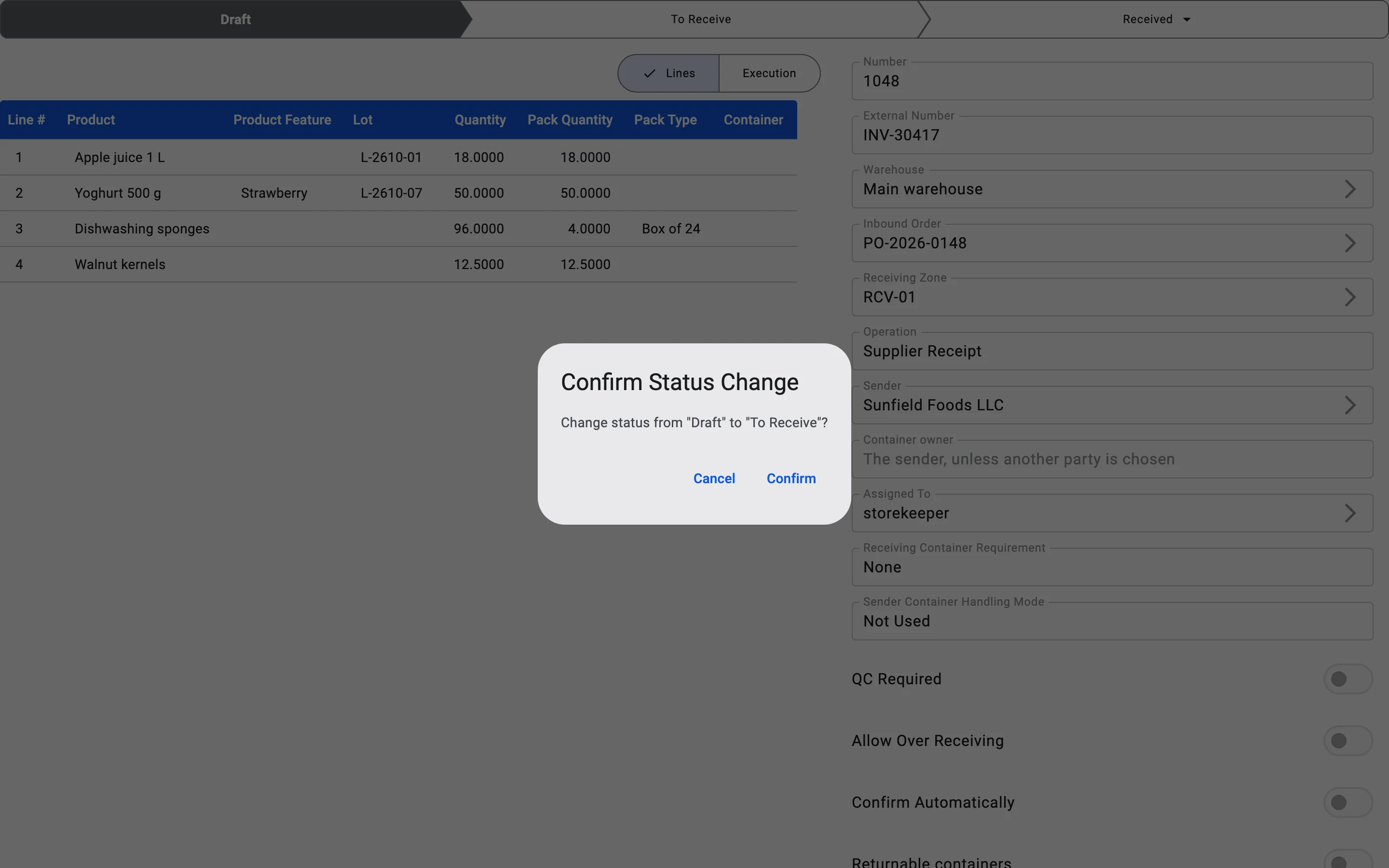
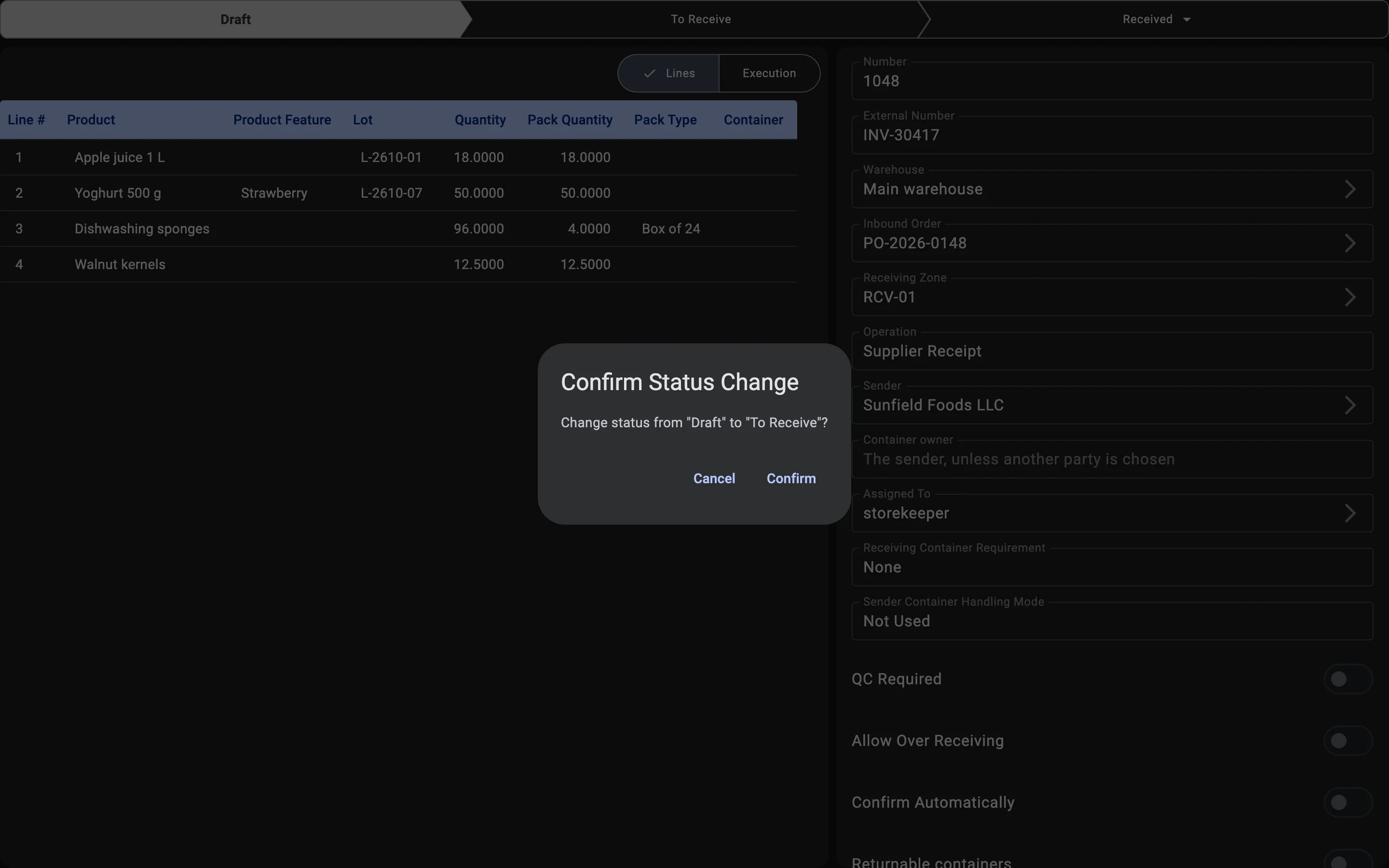
The receipt is the working document that the rest of the process hangs from: facts of received goods, containers, discrepancies, and closure all attach to it. The document moves through a small set of statuses — Draft while it is being prepared, To receive once it is released for receiving, Received when receiving is finished, and Cancelled if it is cancelled. Creating the document is the first step of the process in the client app.
The document is created in one of two ways — based on an existing inbound order or from scratch. Choosing between them is a per-delivery decision, not a warehouse setting: the same warehouse regularly uses both paths.
The Inbound Order is not part of the receiving process itself — it is a separate document that describes what the warehouse expects to receive. It is an input into the process: when it exists and the cargo arrives, it is used as the basis for the receipt. When there is no order (emergency delivery, return, mistake), a standalone receipt is created without one.
Receipt creation source
Creation from an inbound order
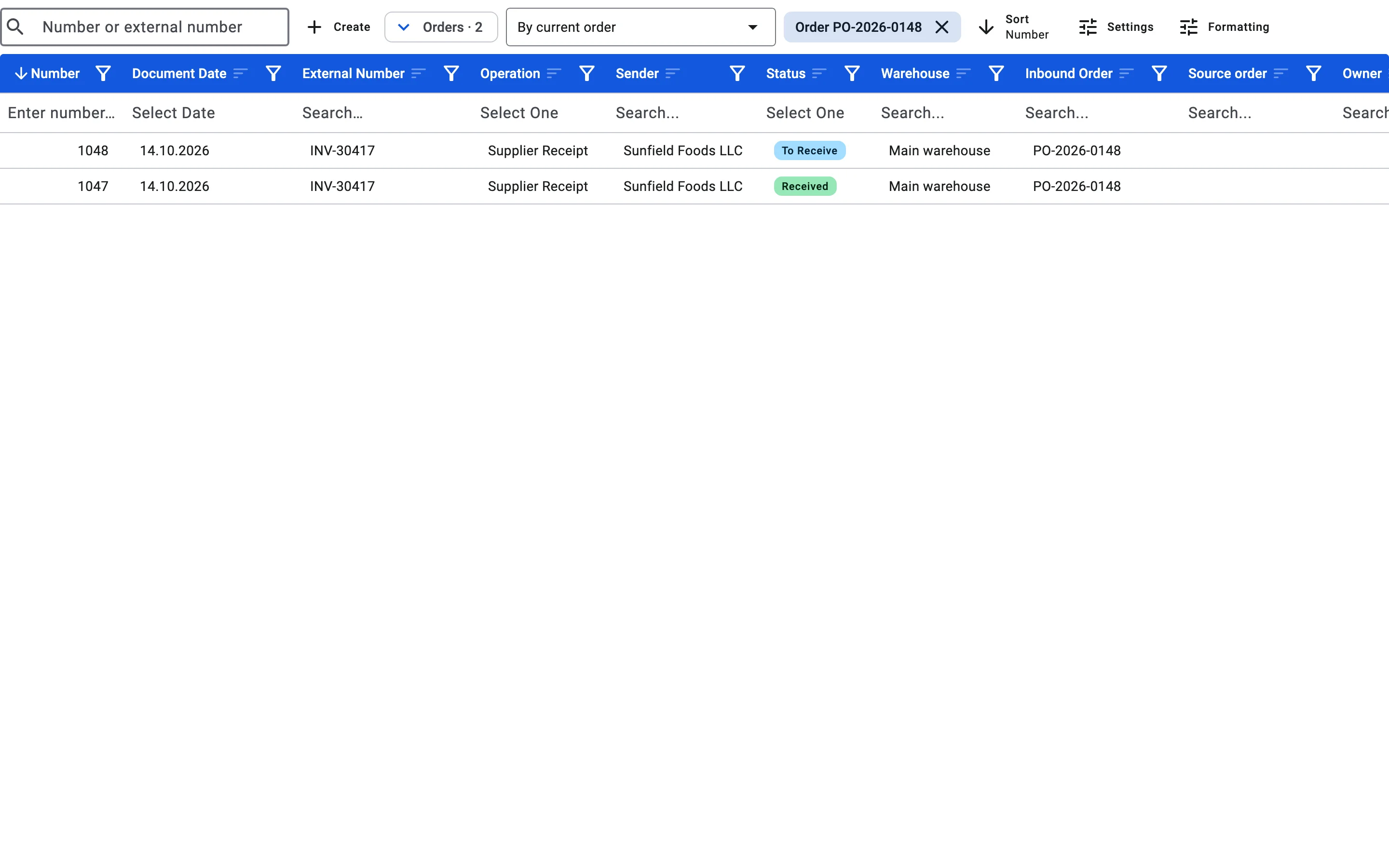
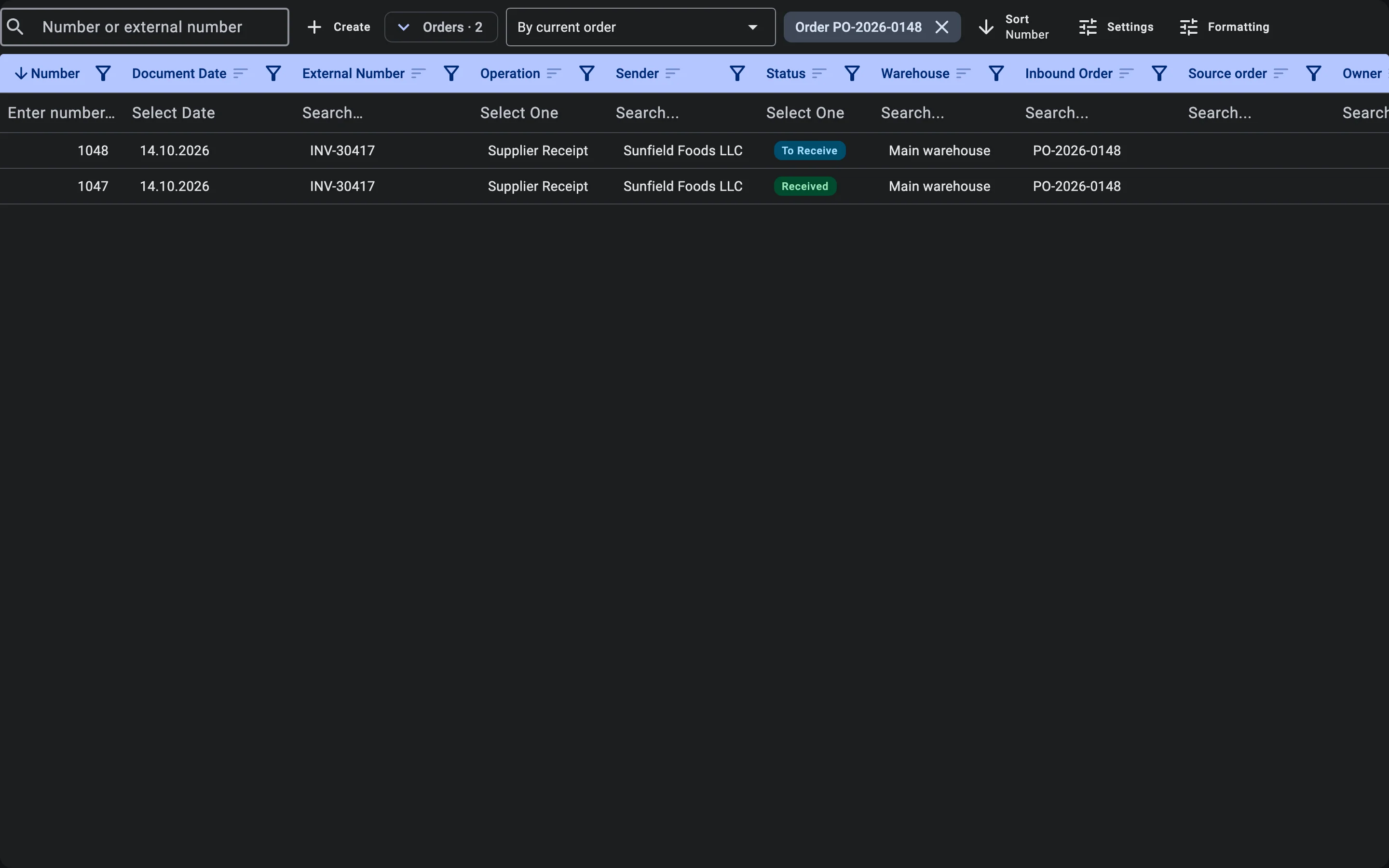
The receipt list opens with the receipts only. Inbound orders stay out of the way until they are needed: next to the Create button there is an Orders chip (when orders are waiting, it also shows how many, for example Orders · 3). The chip is offered only to users who are allowed to read inbound orders. Press it to open the orders section above the receipts, and press it again to close it; the section stays open or closed the way you left it.
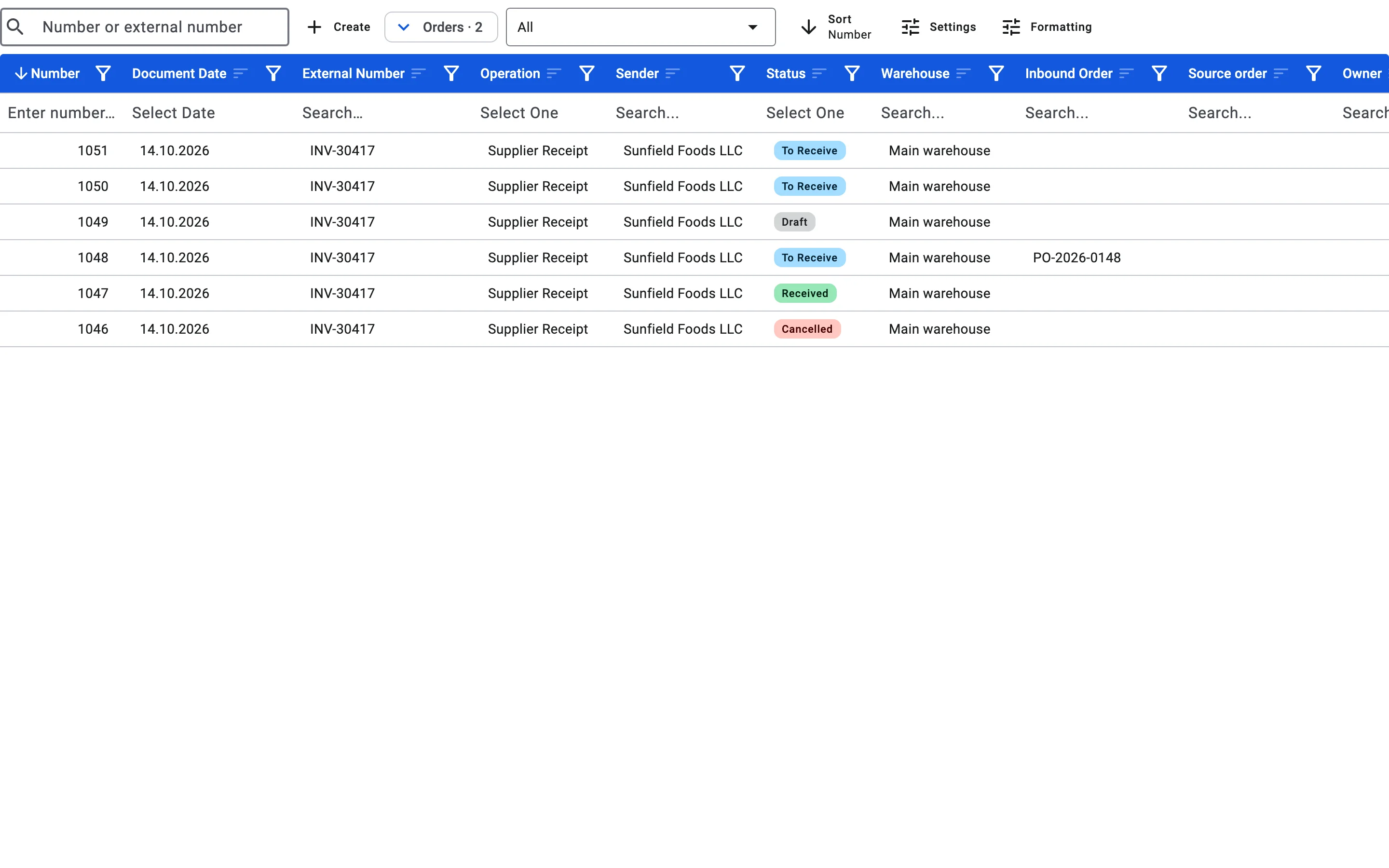
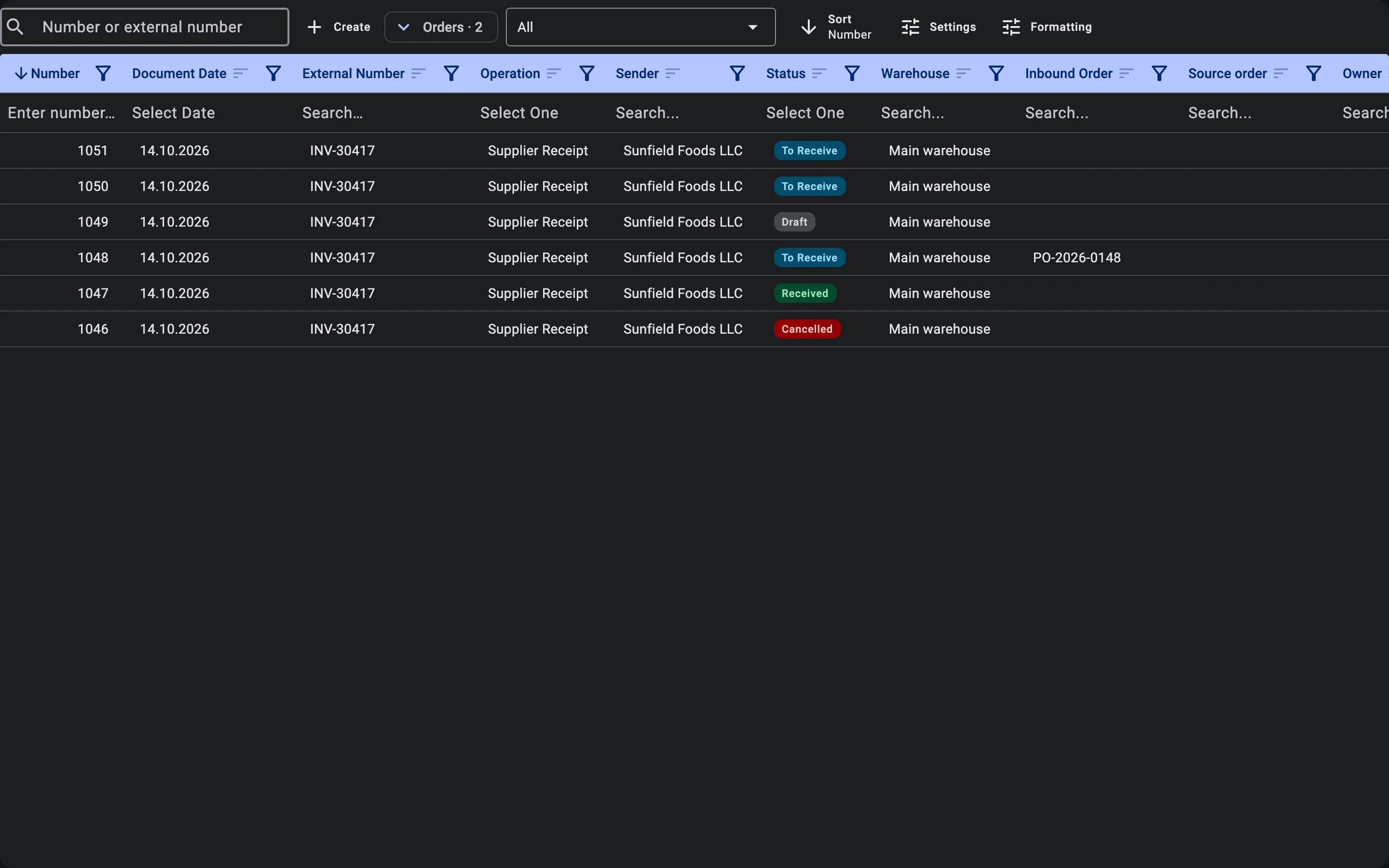
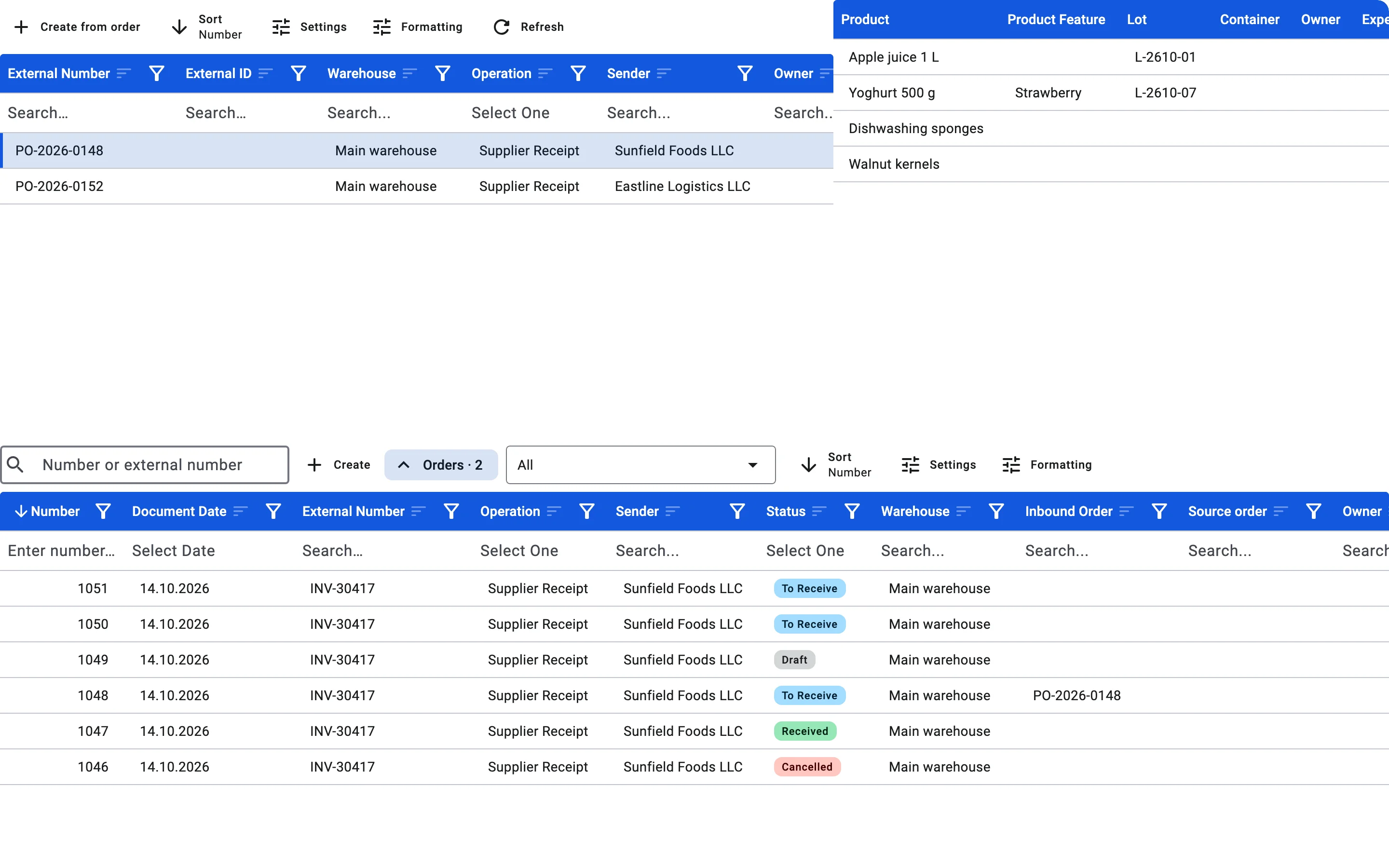
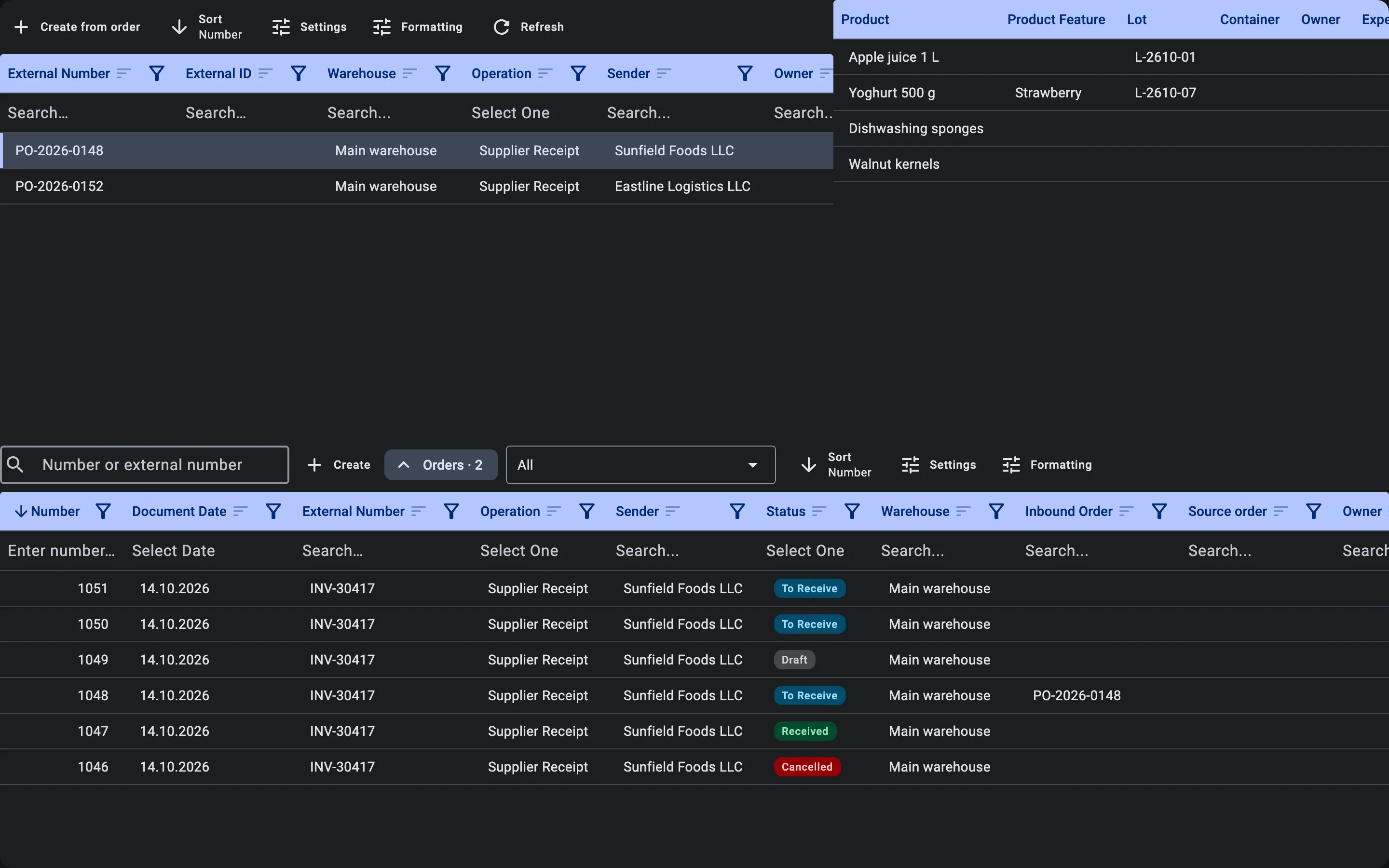
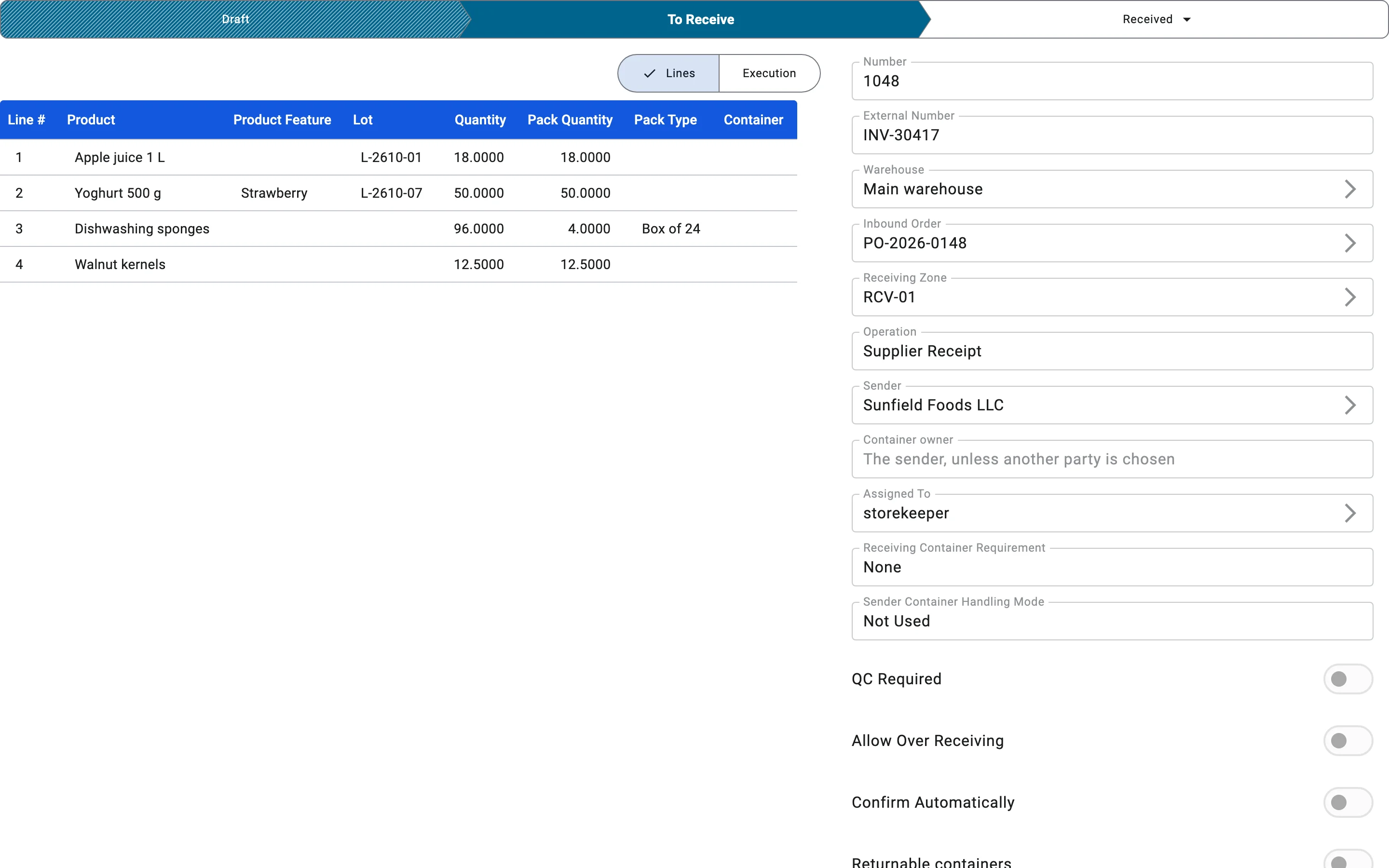
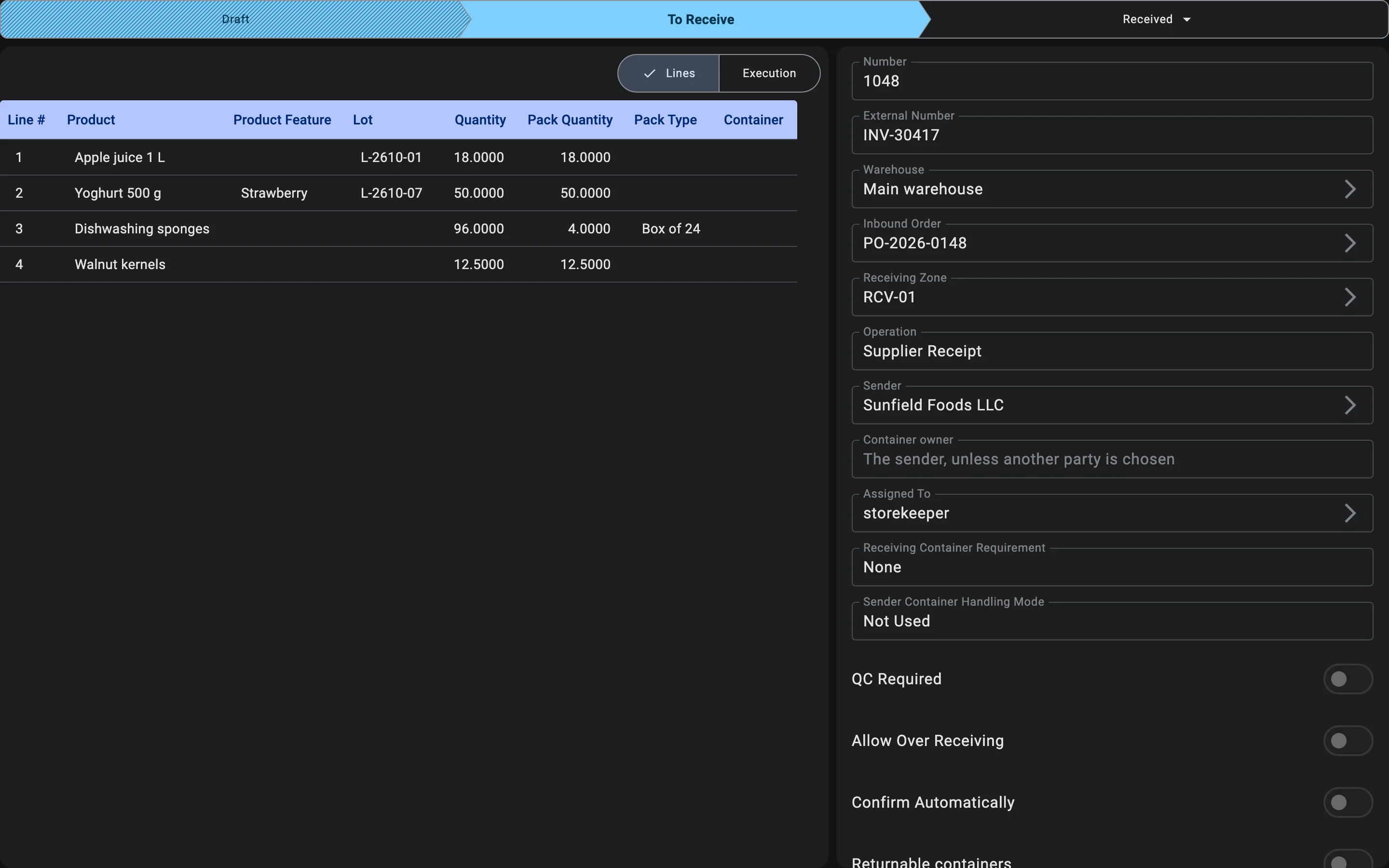
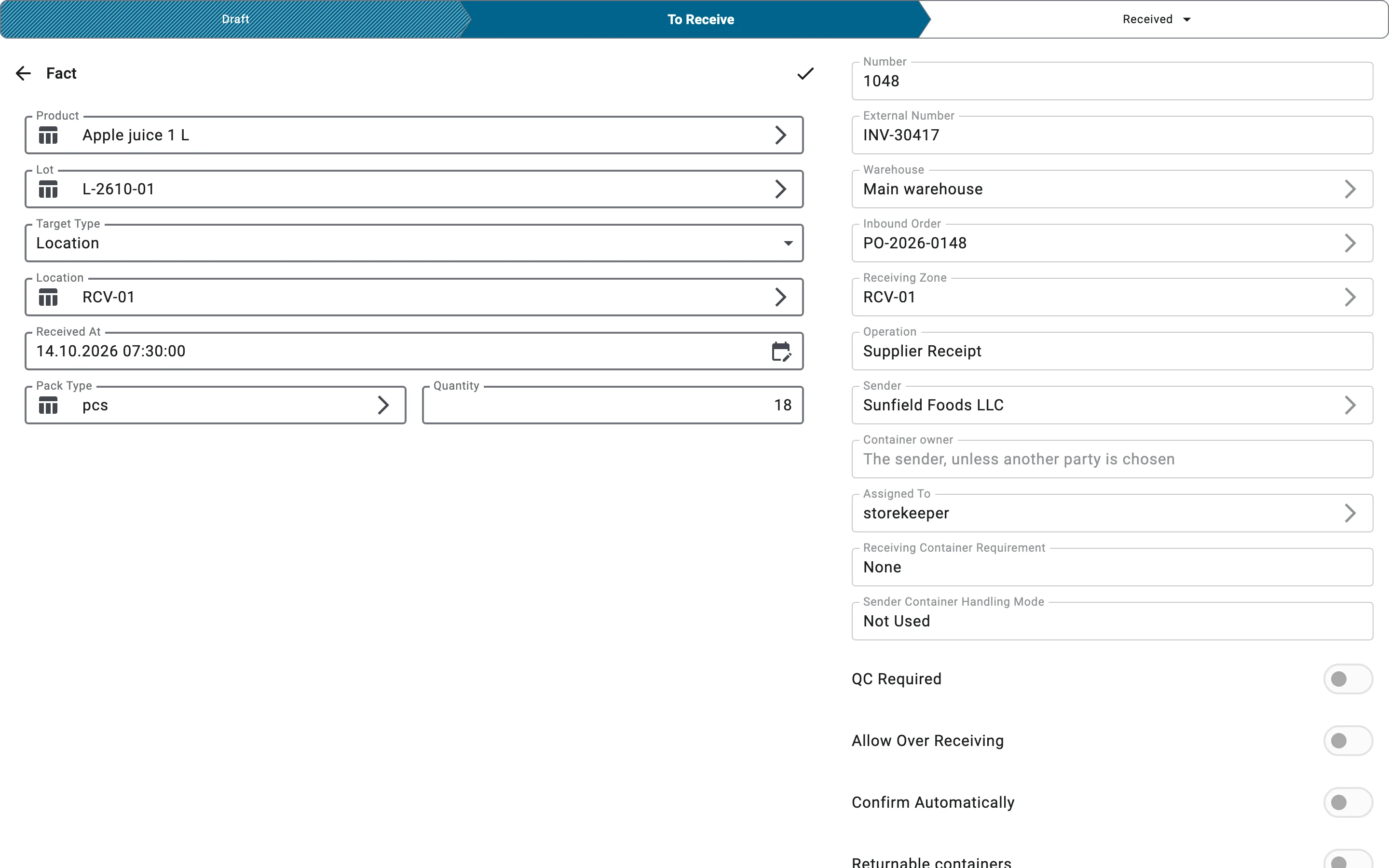
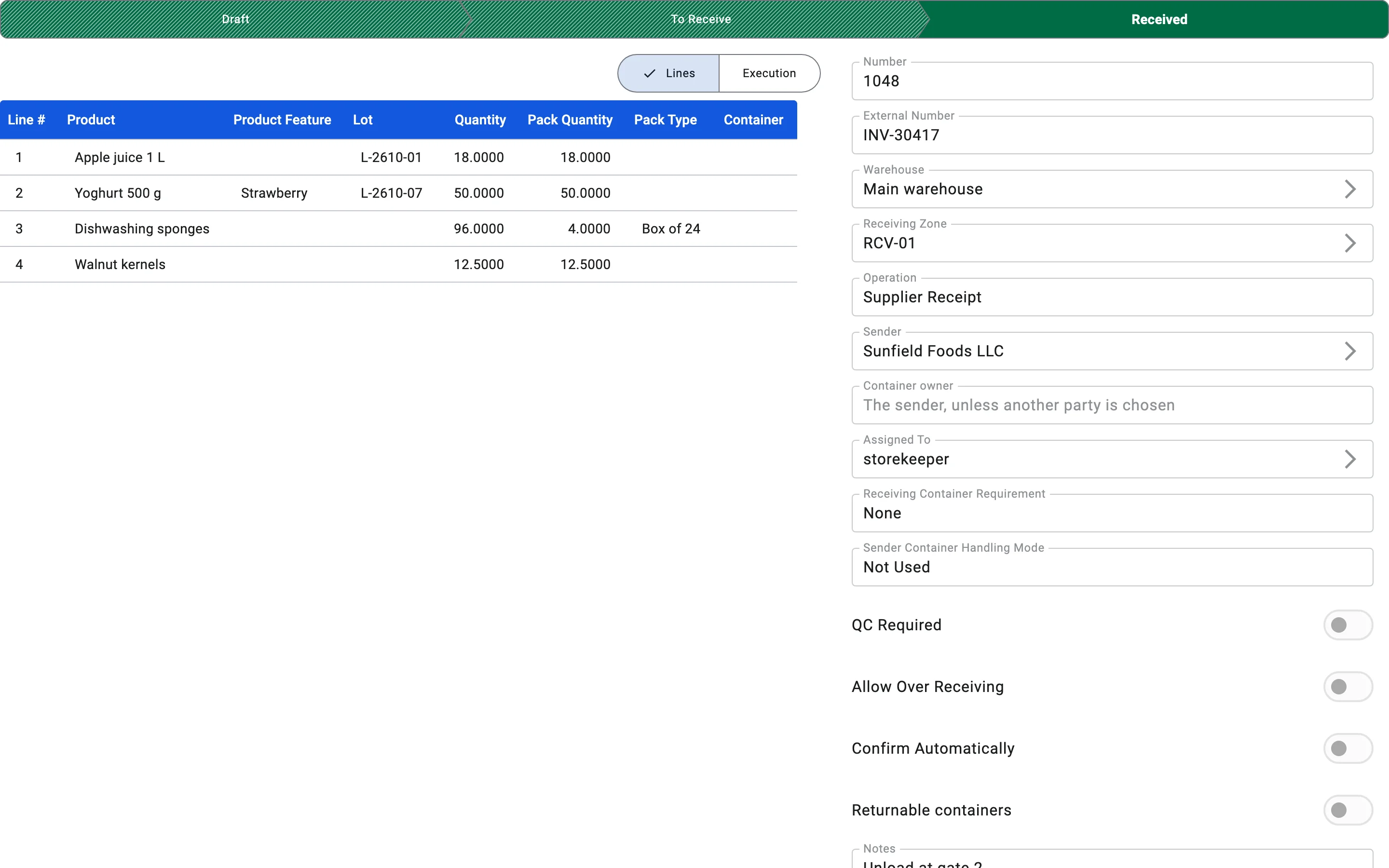
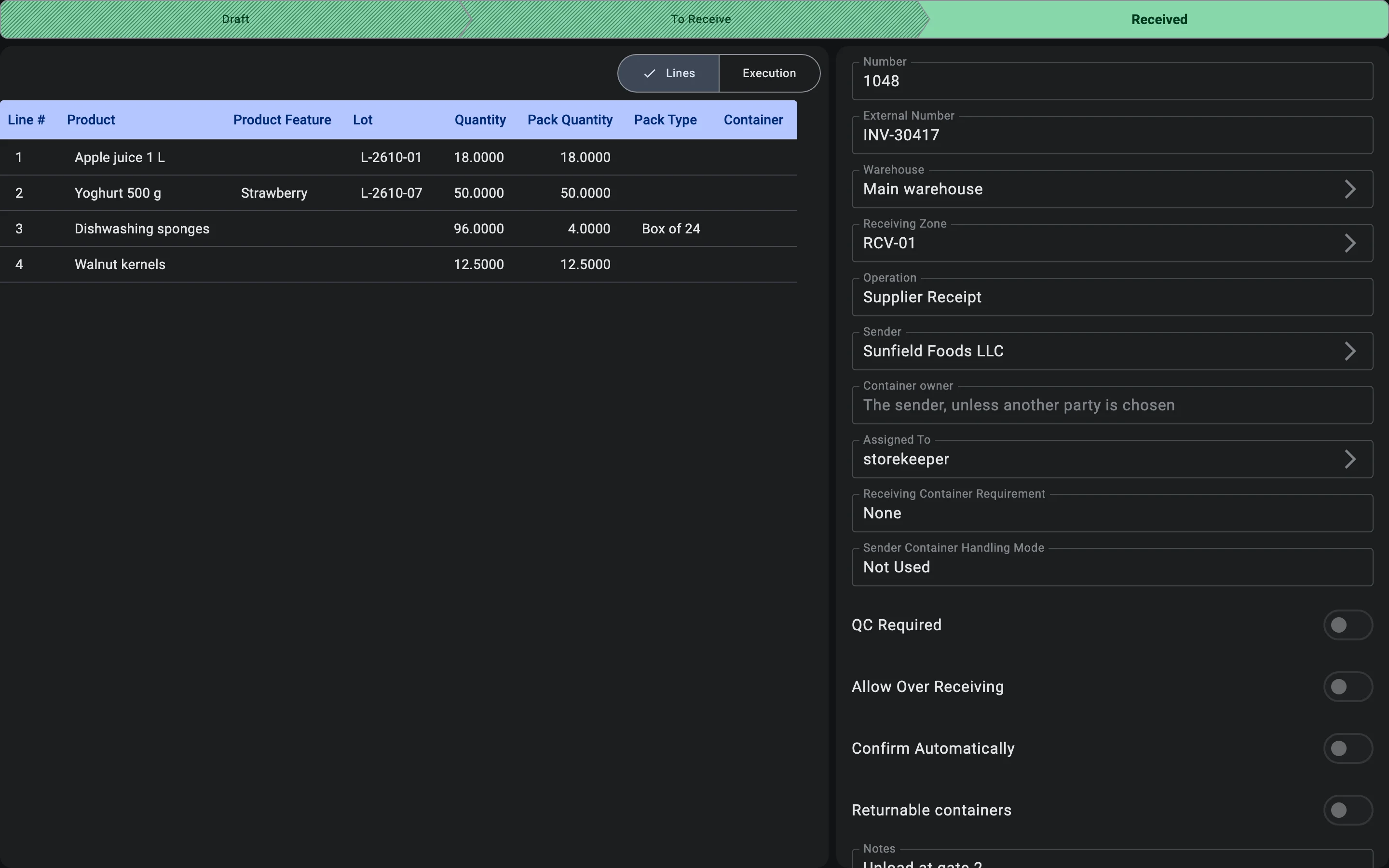
To build a receipt from an order, select the order in that section and press Create from order (the button stays disabled until an order is selected). The receipt form opens already filled in, and nothing is saved until you save it:
- the system populates the receipt lines from the order lines, taking into account quantities not yet allocated to other receipts;
- if the order specifies containers, they are pulled into the receipt as full branches (nested ones included) — the operator does not need to copy them manually;
- line quantities equal what is still to be received; pack types are carried over from the original unless a partial receipt is already in flight;
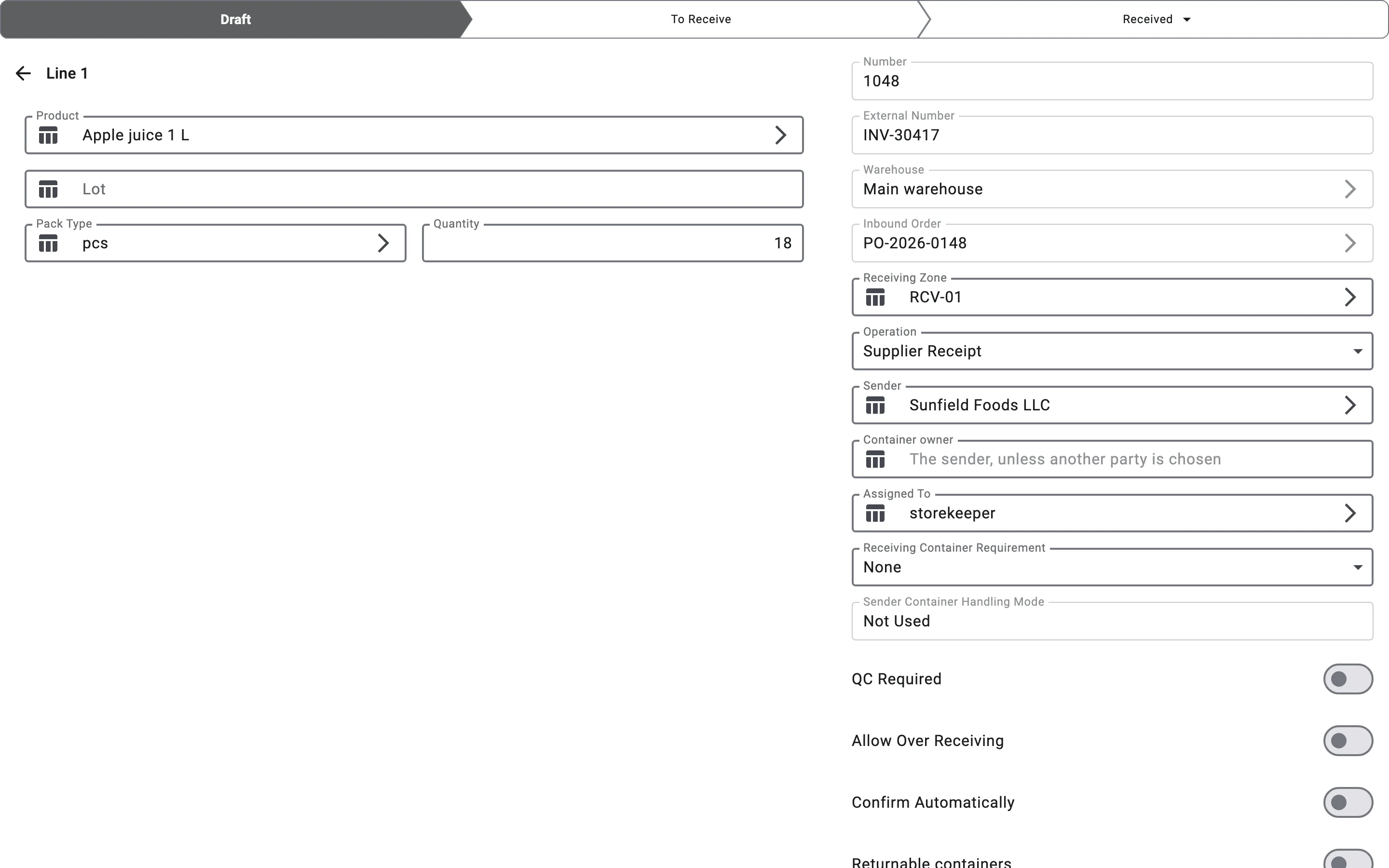
- the header comes from the order as well: the operation, sender, owner, warehouse, tolerance, the Allow Over Receiving switch, the container handling mode, and the Confirm Automatically and Returnable containers settings. The receiving zone, the container requirement and the quality-control flag come from the warehouse's own receiving settings;
- the Inbound Order field shows which order the receipt belongs to and cannot be changed;
- the user can narrow the receipt before saving — for example, delete the lines or containers the truck is not bringing if it carries only part of the order.
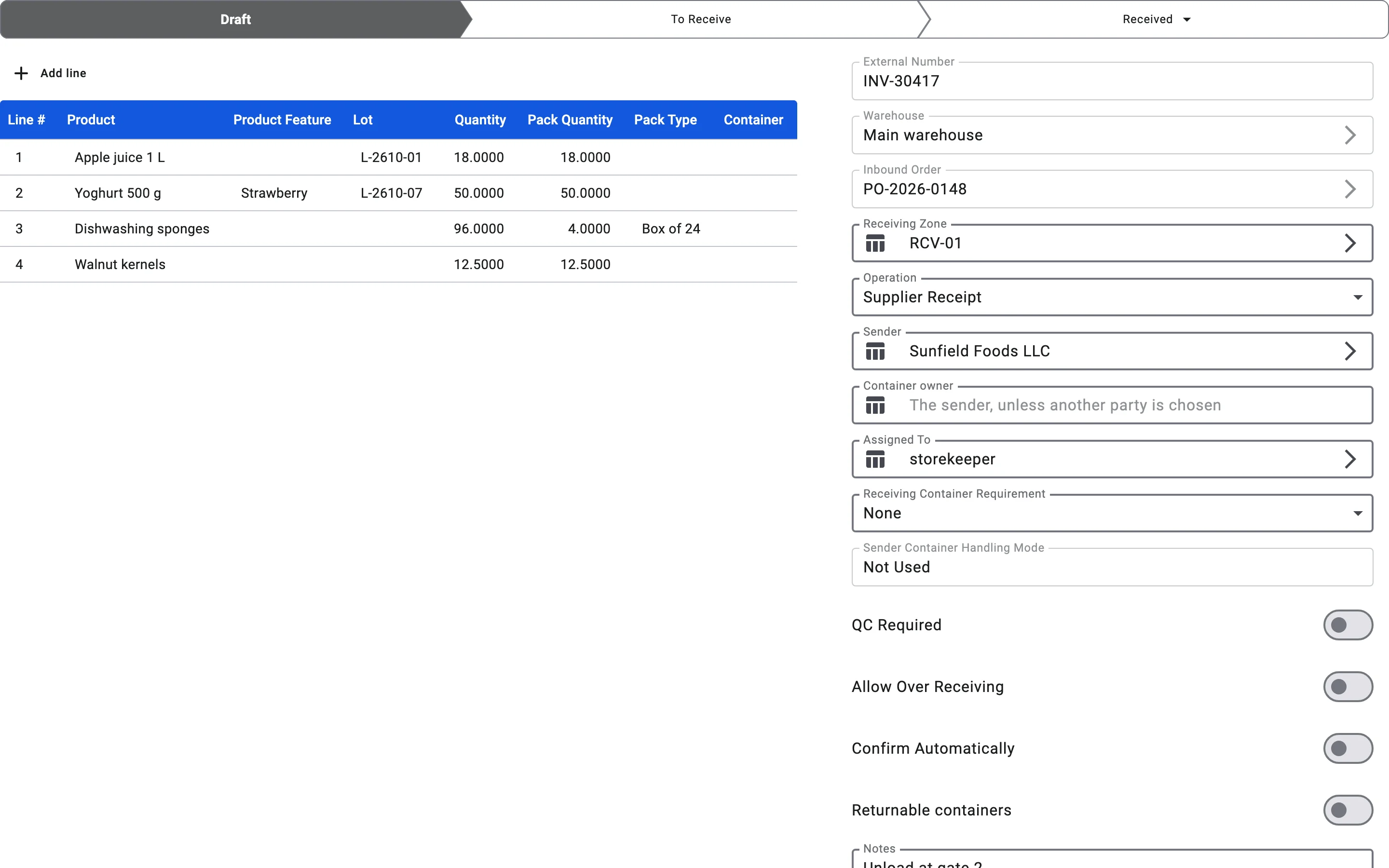
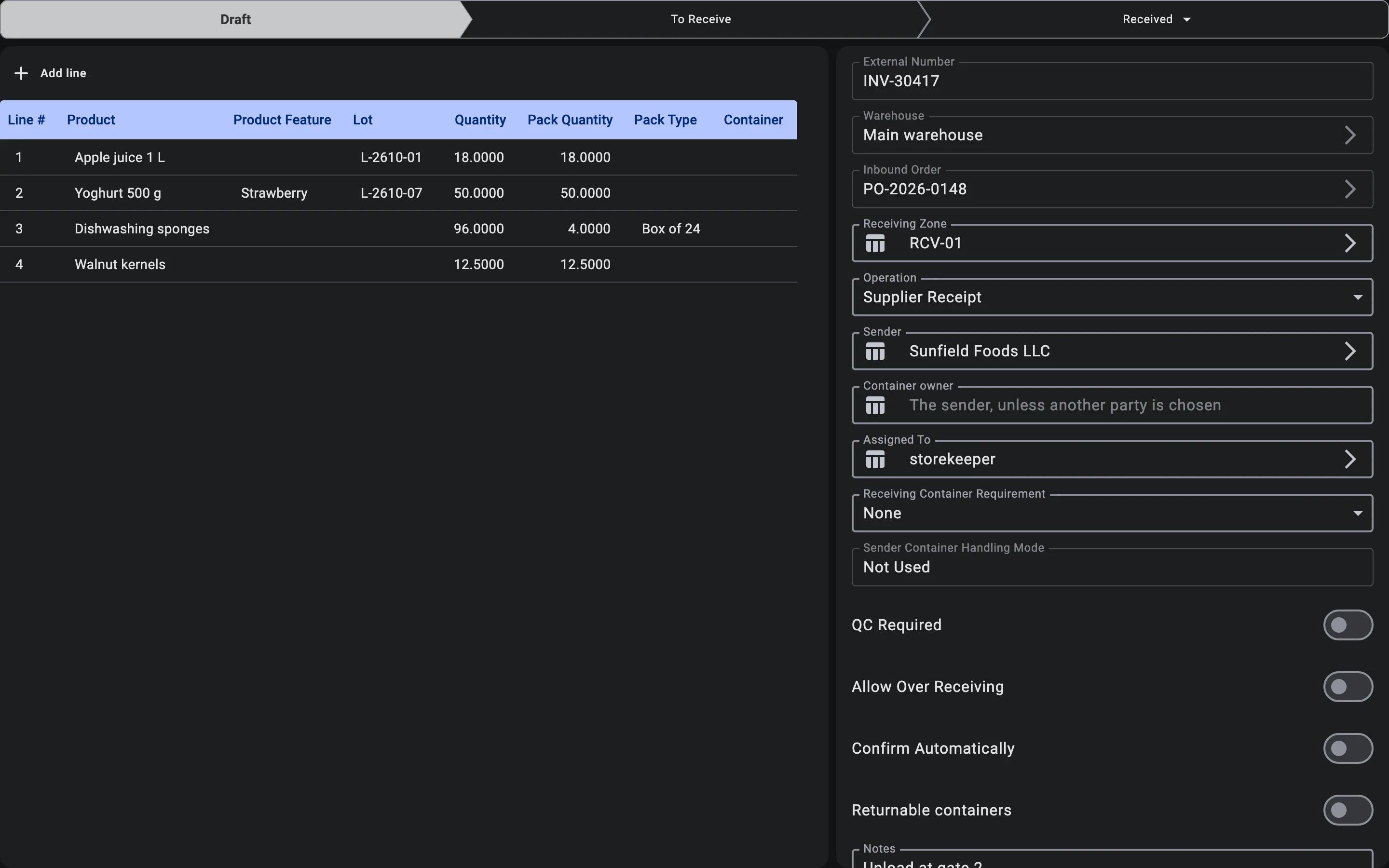
Once saved, the document is in Draft. Lines can still be adjusted while the document is in Draft or To receive; editing closes once it moves to Received or Cancelled.
A receipt made from an order stays linked to it. To see only such receipts, choose By current order in the list filter (the other choices are All and All except received): the list narrows to the selected order, and a chip reading Order and the order number appears next to the filter. Pressing the chip removes the narrowing. The Inbound Order column and its filter work for any order.
Standalone creation
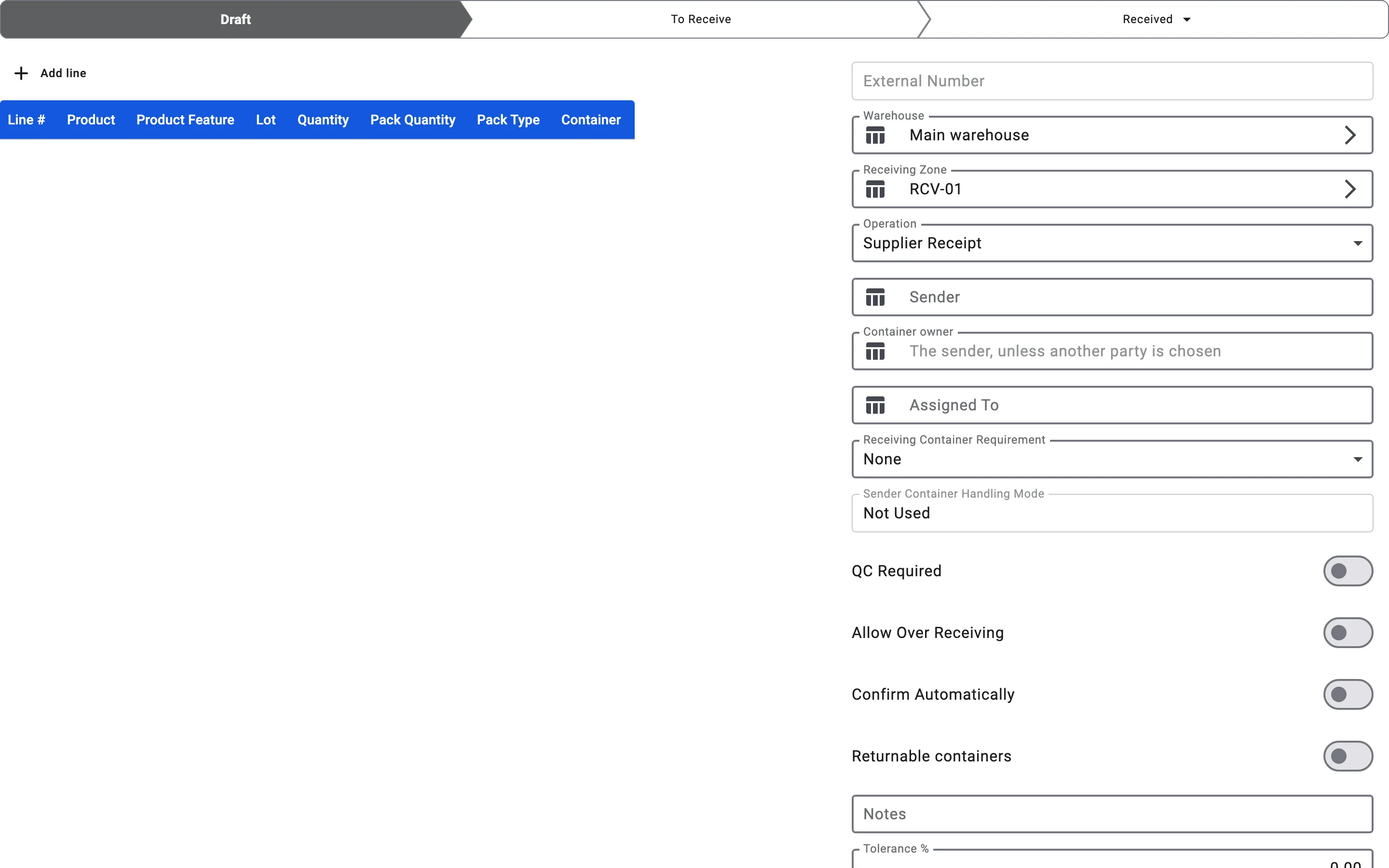
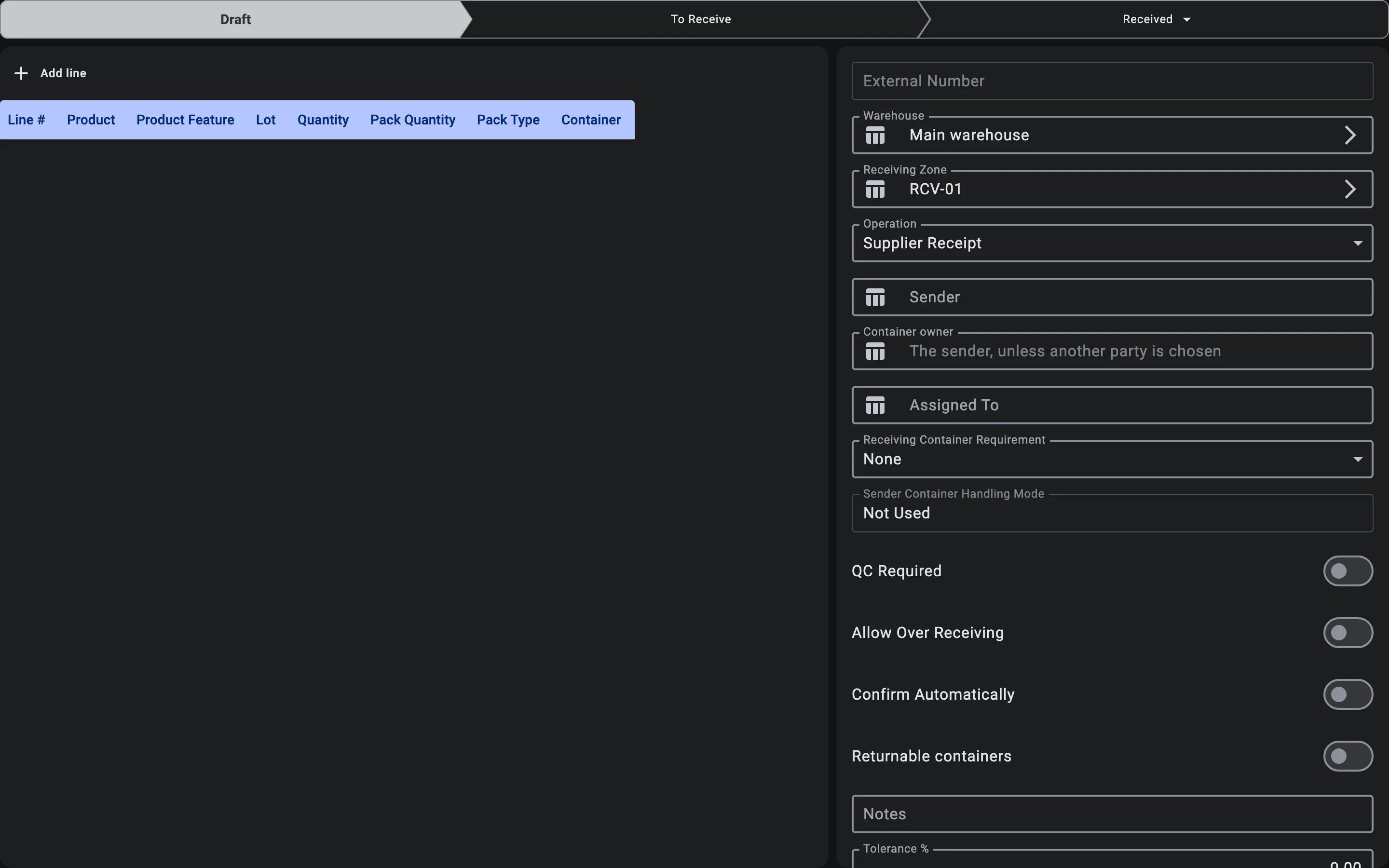
When there is no inbound order, the receipt is created from scratch: press Create in the top bar of the receipt list (the same action is offered when the list is empty). A blank form opens, and nothing is saved until you save it.
- the warehouse is the one you are working in, and the receiving zone is filled in from that warehouse's receiving settings; the user fills in the Owner, the Operation, the Sender (required for operations that have a supplier) and, where needed, the other document attributes such as Assigned To, Notes and Tolerance %;
- the Allow Over Receiving, Confirm Automatically and Returnable containers switches start switched off;
- lines are added by hand from the product catalogue;
- quantities and pack types are entered by the operator;
- containers, where used, are added separately by hand.
Typical cases where this path fits: emergency or unplanned deliveries, customer returns, transfers in from other warehouses without a prior order, and corrections to already-closed documents made by creating a new one.
Looking receipts up in the list
The list has a search field (Number or external number) that searches the receipt number and the external number together; it waits for a short pause in typing before it searches. Other ways to narrow the list:
- the list filter described above, and the per-column filters;
- the Barcode column and filter: a receipt that arrives from an external system may carry its own barcode. The column is shown by default, and you can filter the list by it. The barcode is read-only in the client; on the handheld terminal, scanning it finds the receipt (see Receiving on PDT);
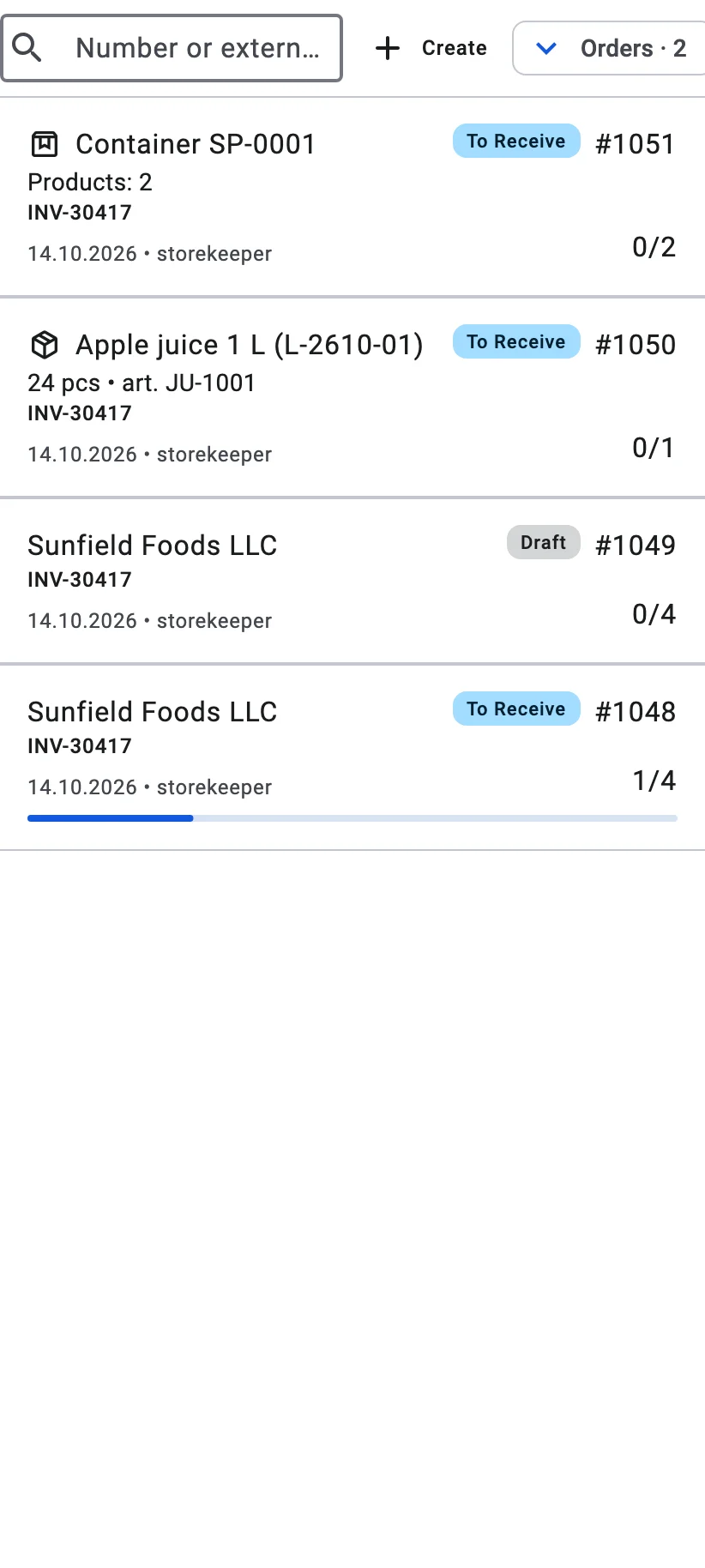
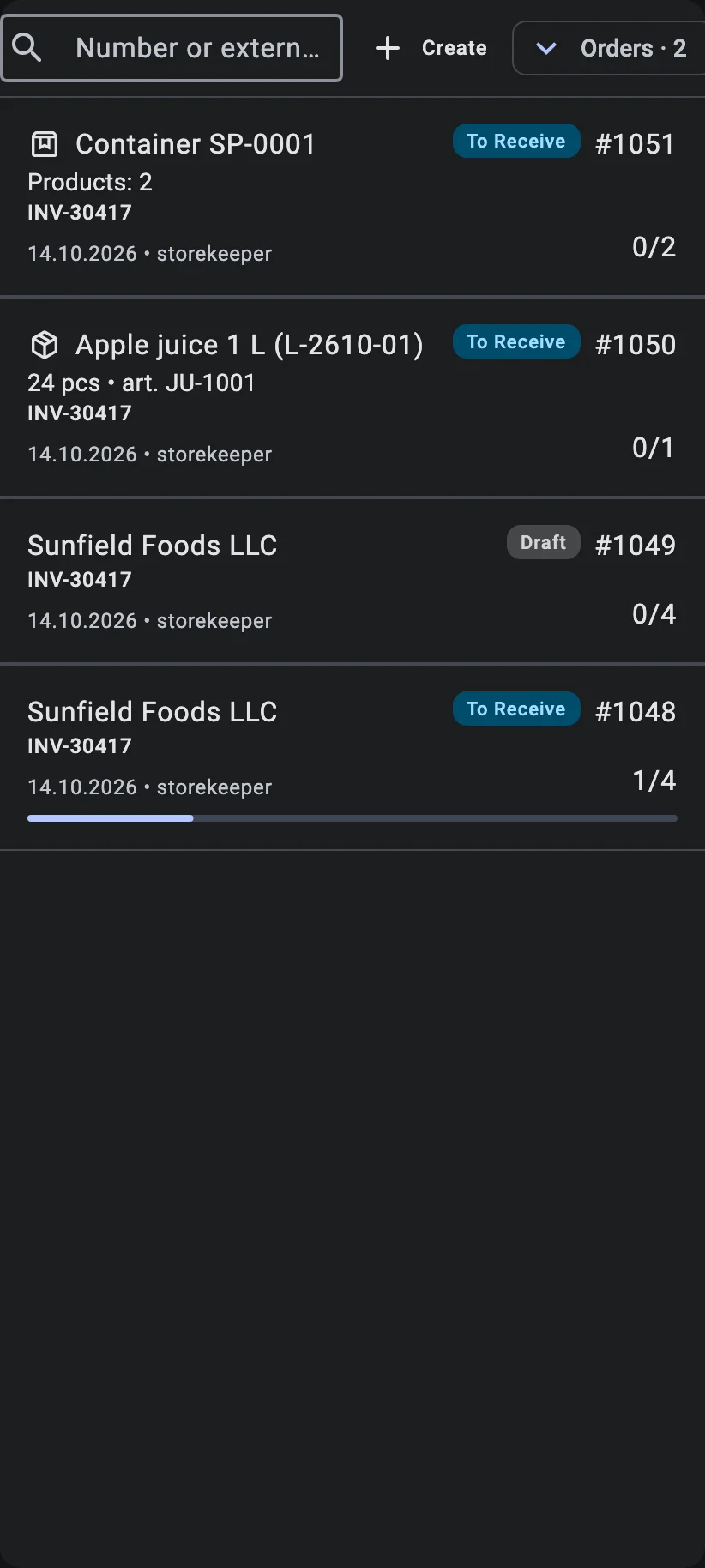
- the Status column and filter. In the card layout used on narrow screens every row also names its status in a chip, not only by colour.
Options set at creation
These apply to either way of creating a receipt. A receipt made from an order starts with the order's values; a blank receipt starts with everything switched off.
Automatic confirmation
The Confirm Automatically switch lets the receipt finish itself when everything matches the plan. What exactly triggers it, and what does not, is described once in Receipt statuses. The switch can be changed on the receipt while the receipt is editable.
Returnable containers
If your company works with returnable containers, the receipt form has two extra fields; without that option they are not shown at all.
- Returnable containers — the switch says that the containers arriving on this receipt are expected to go back to the sender. A receipt made from an order takes the switch from the order.
- Container owner — whose containers they are. Left empty, it is the receipt's sender (the field's hint says so). When the receipt has no sender, choose the owner here.
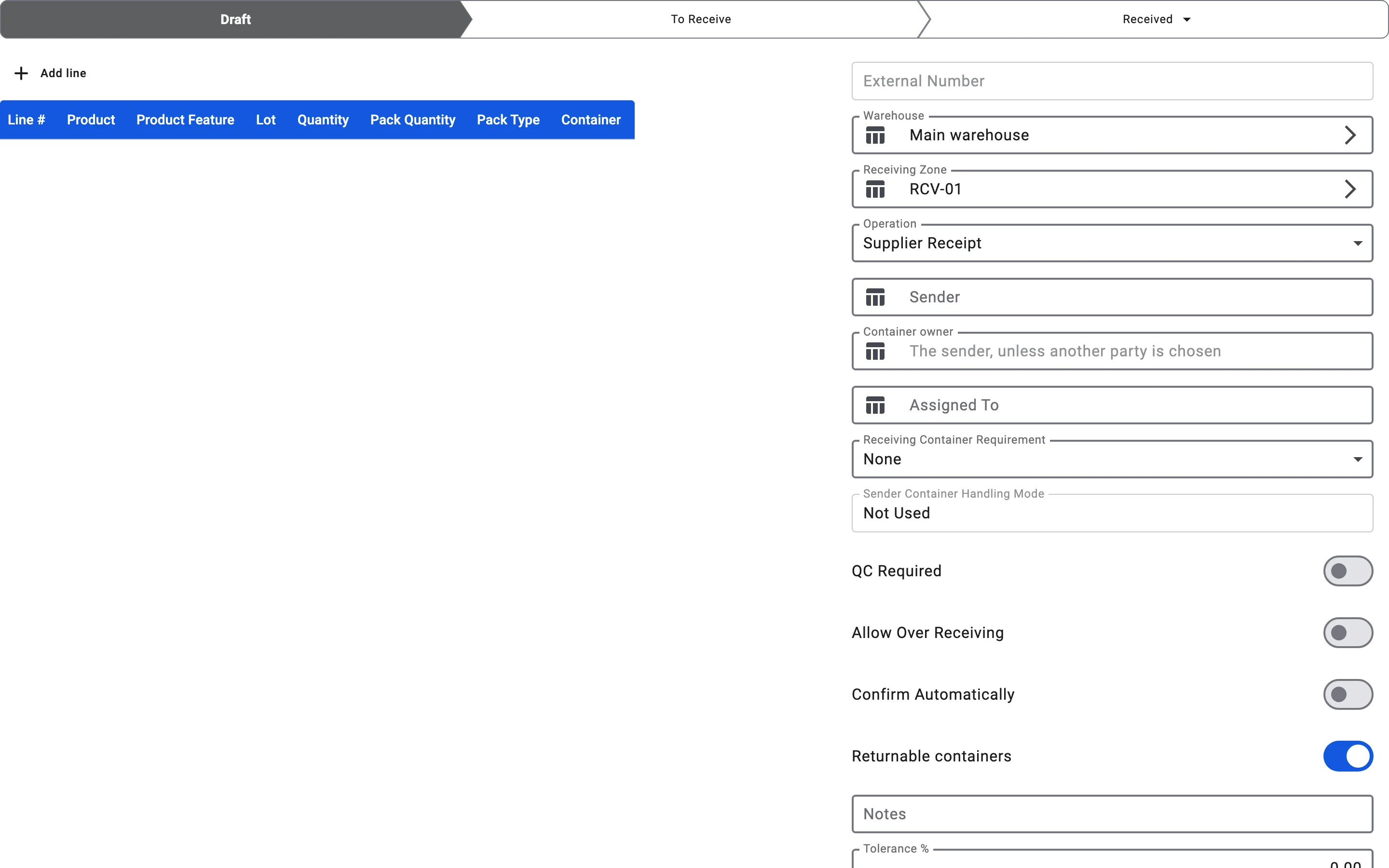
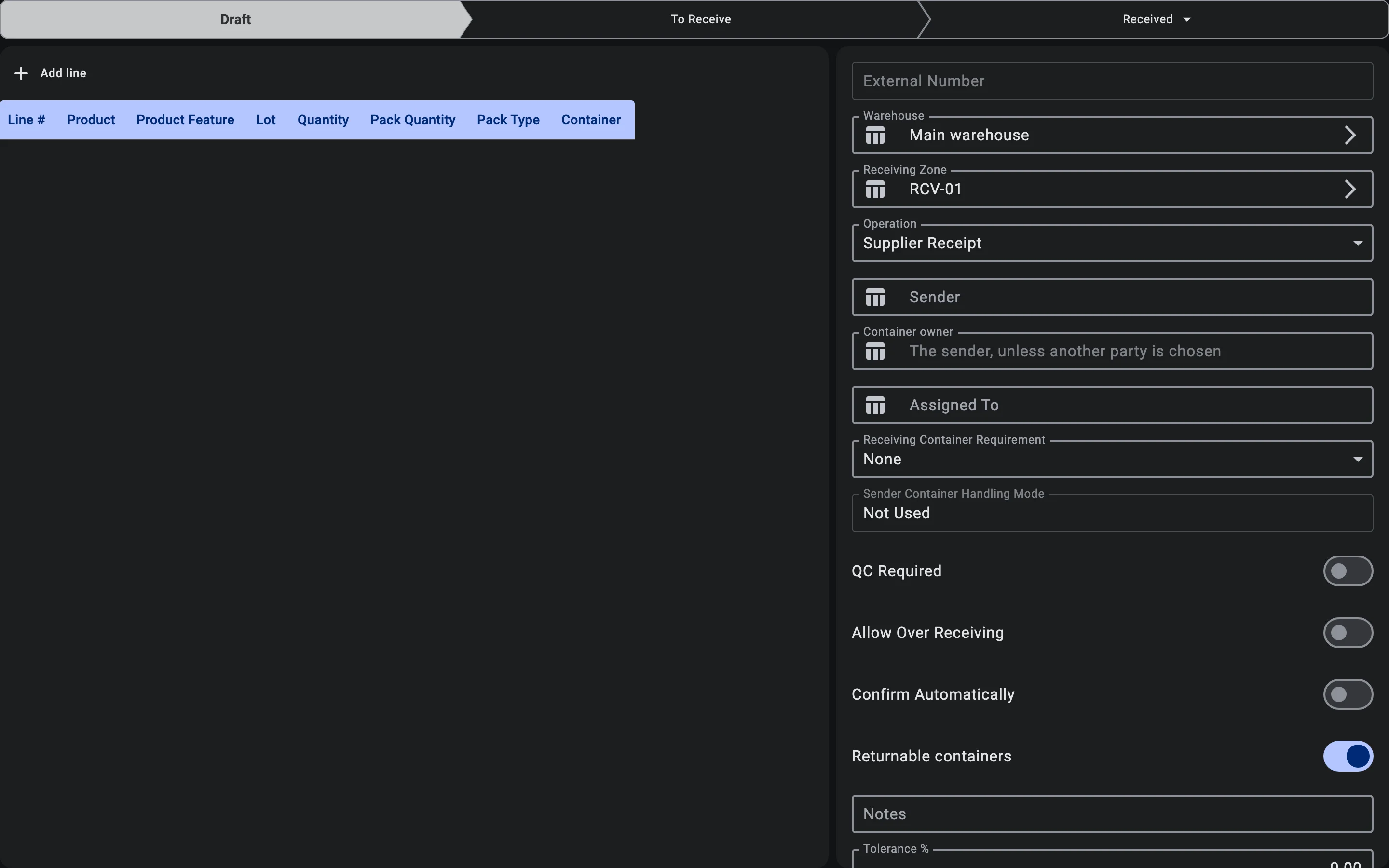
These two fields are only what is recorded when the receipt is created. What happens when a container is accepted or reversed, and how a container debt appears and closes, is described in Returnable containers: acceptance and debt.
Single-line receipts
A single-line receipt is a document about exactly one thing, so the handheld terminal can take the operator straight to registering it. The marker comes from the external system that sends the document: the operator does not set it on the form, and a receipt made from an order in the client is never single-line. A single-line receipt has one of two shapes:
- A product receipt — exactly one line and no containers.
- A container receipt — exactly one container with nothing nested in it, every line sitting in that container, and a container handling mode that accepts the container as it stands (the storage and putaway acceptance modes, see Container settings of the receipt).
A document that fits neither shape is refused when it is saved, with a message saying which rule it broke. In the card layout used on narrow screens, a single-line receipt shows what it is about in place of the sender: the product name with its quantity and article, or Container with its code and Products: with how many there are.
Plan lines and lots
A line of the receipt plan does not need a lot, even for a product whose lots are tracked: a line without a lot is satisfied by a fact of any lot of that product, and the lot is chosen when the goods are received. The exception is a receipt that accepts sender containers as they stand (the storage and putaway acceptance modes): while it is in Draft or To receive, every line for a product whose lot is mandatory must name its lot, and the save is refused otherwise. A lot that the warehouse's lot policy does not accept is refused on a line in every case.
On the PDT
On the PDT the operator does not create the receipt — they pick it up from the work list. See Receiving on PDT.