Receipt closure
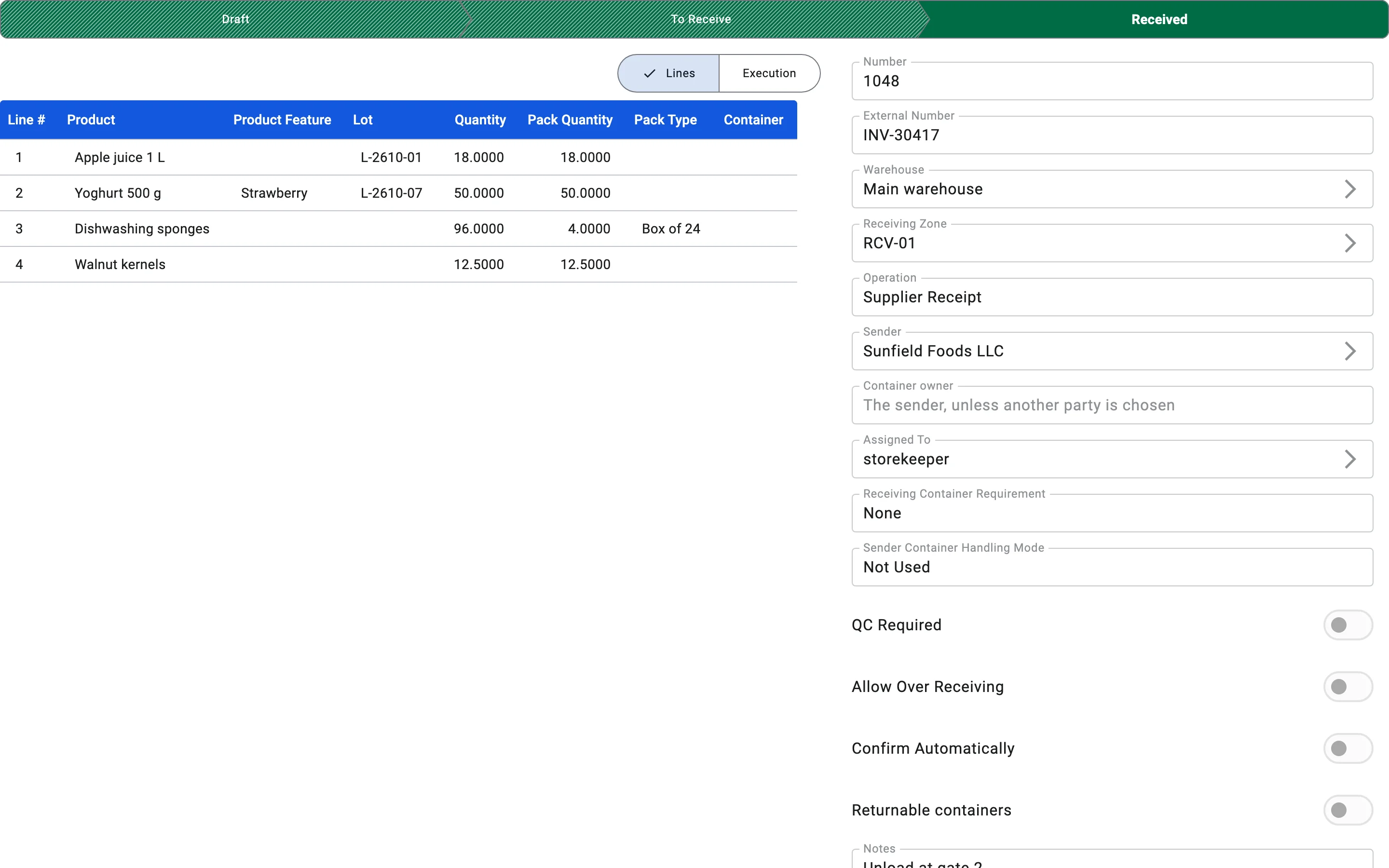
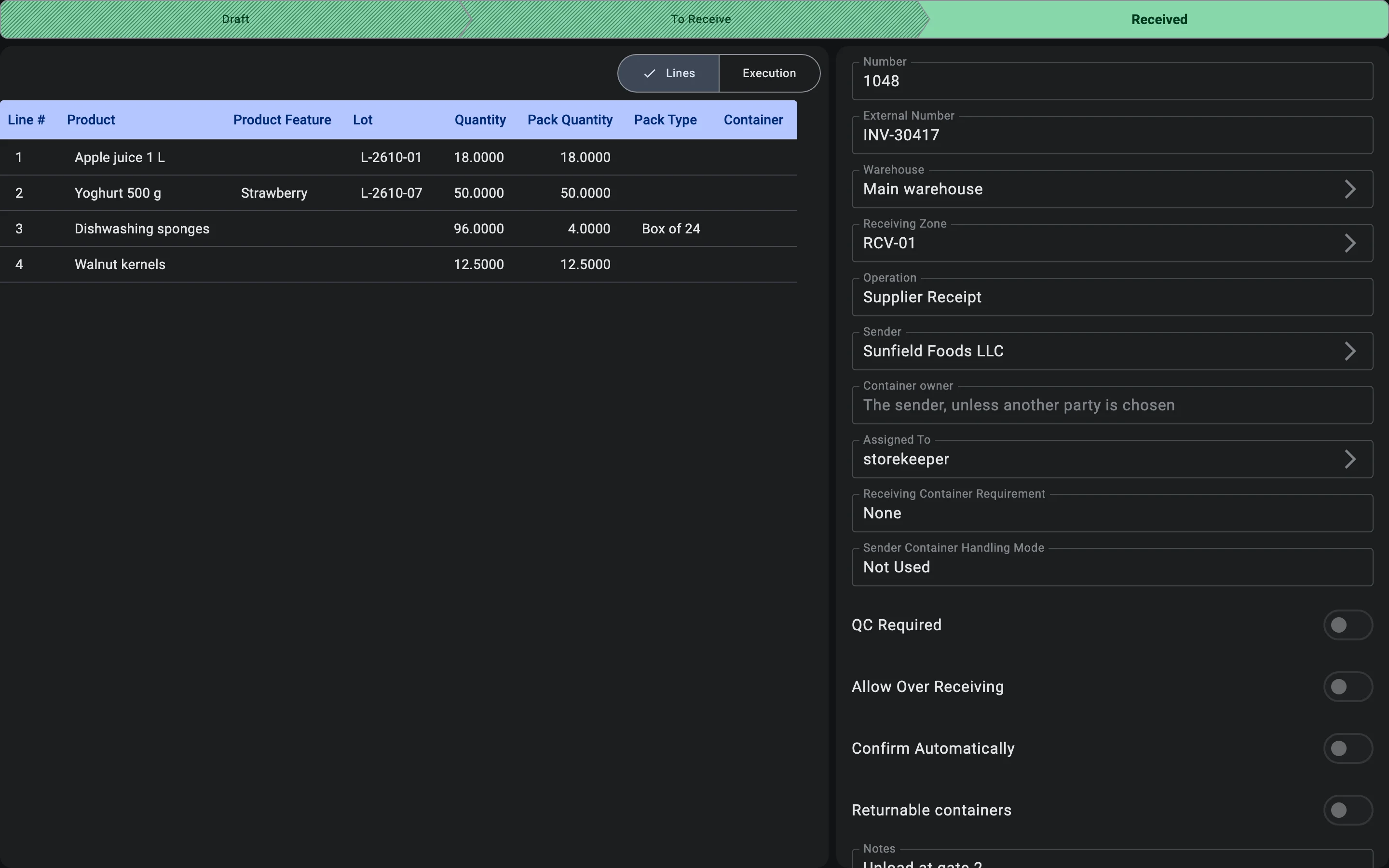
When every line has been processed, the receipt is finished and moves to Received. Finishing by hand needs the Post receipts right and something actually received — a receipt with no accepted goods and no accepted containers cannot be finished. At that moment:
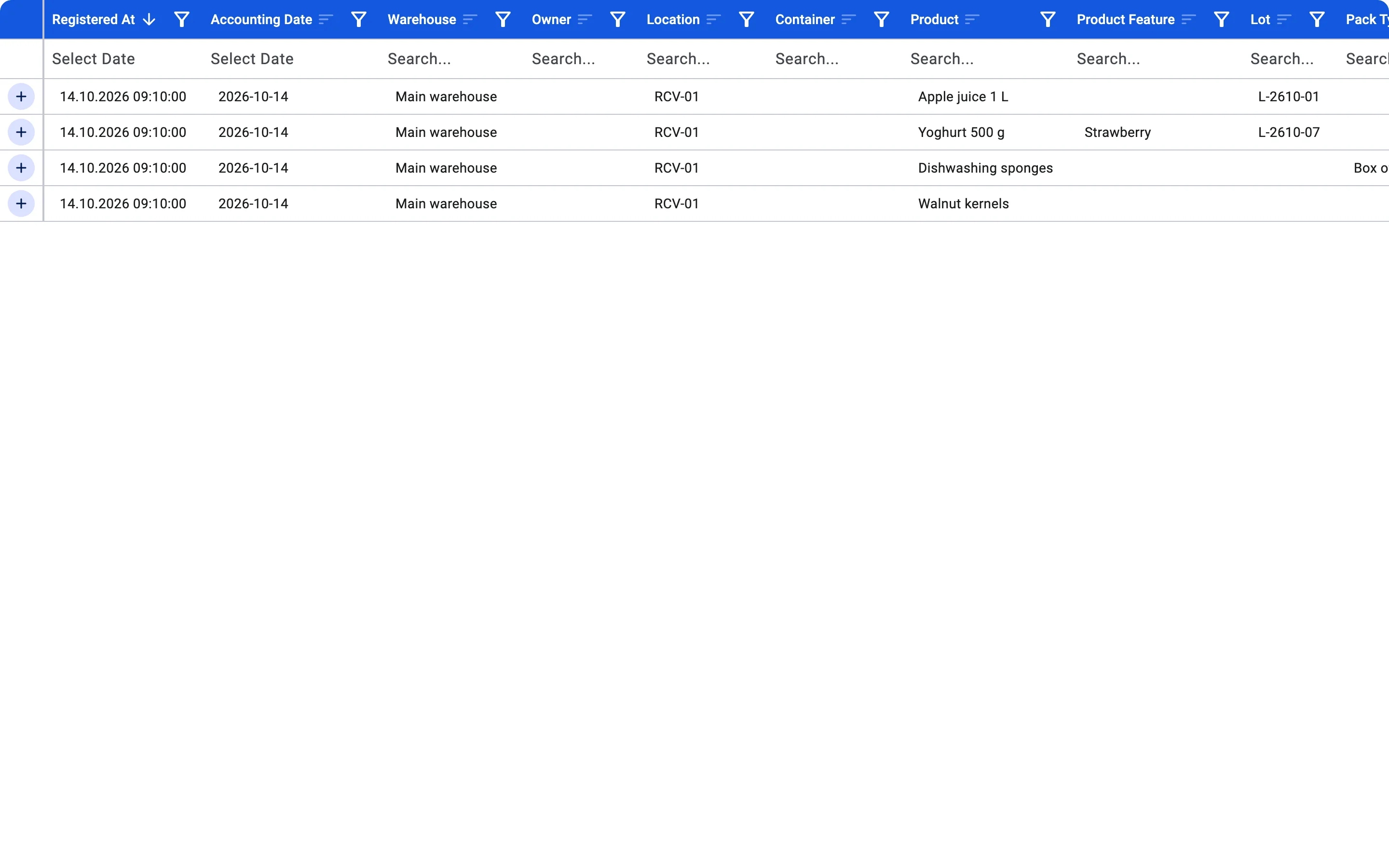
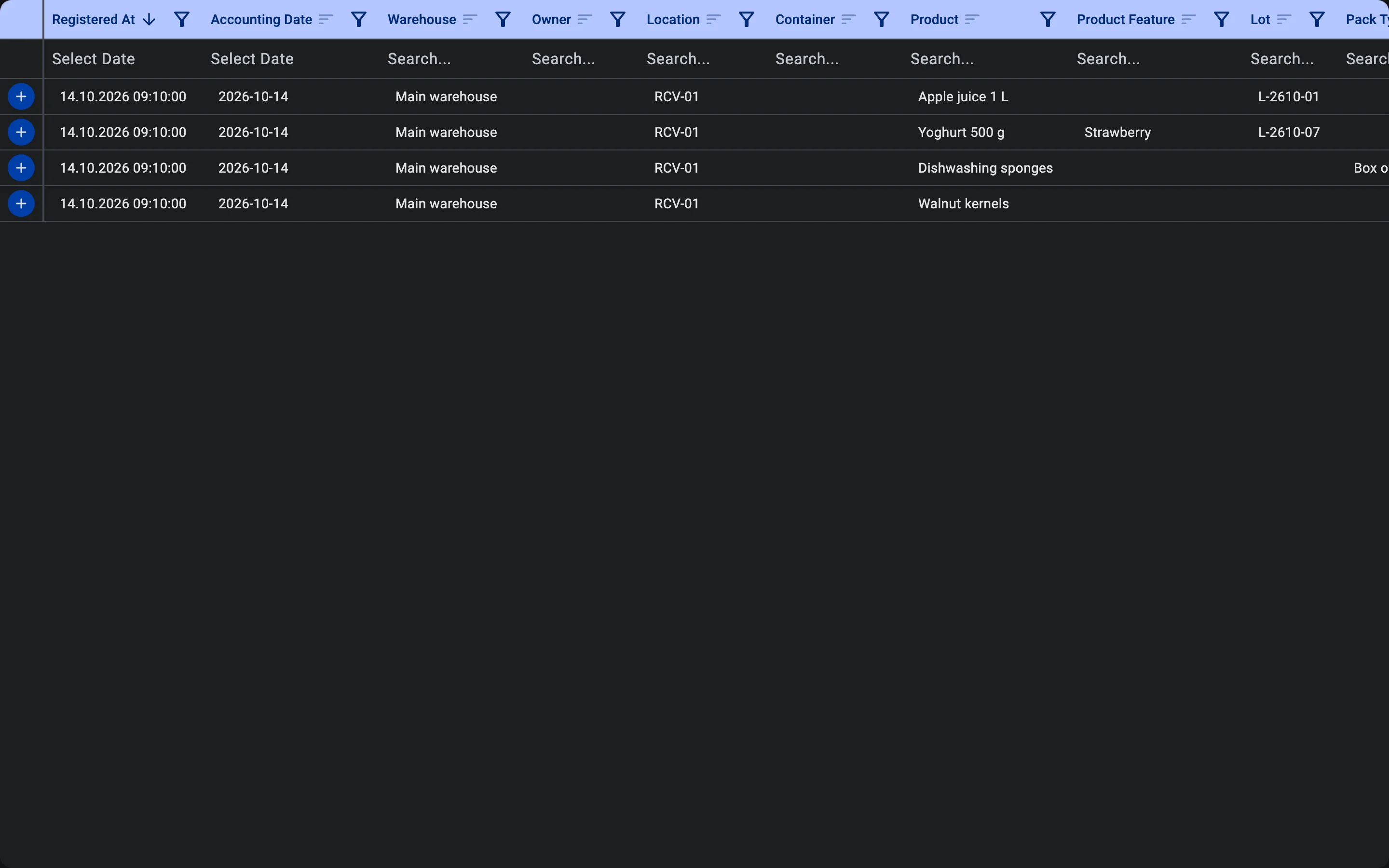
- the warehouse stock is officially increased by the received quantity;
- the goods become available for sale and order picking;
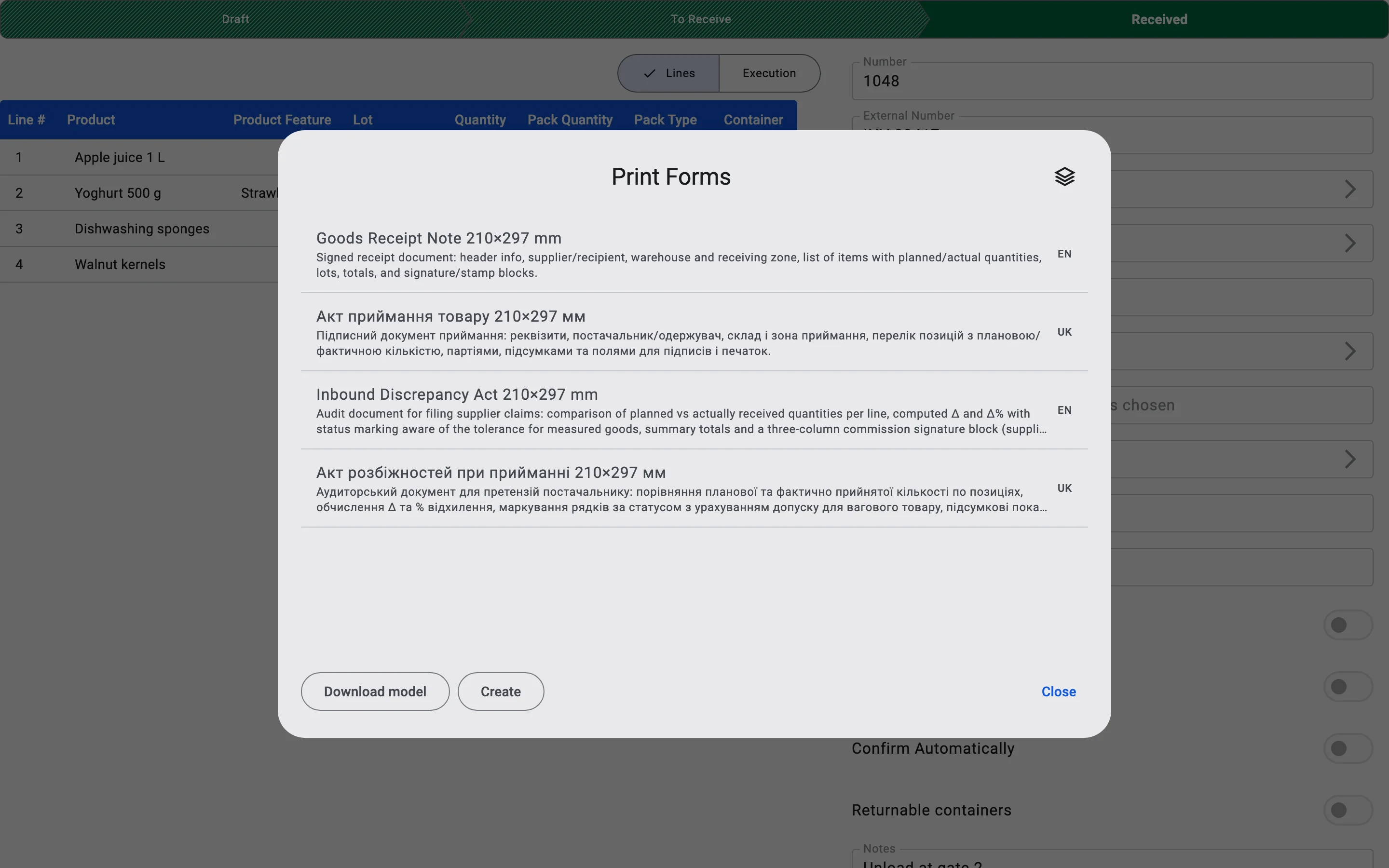
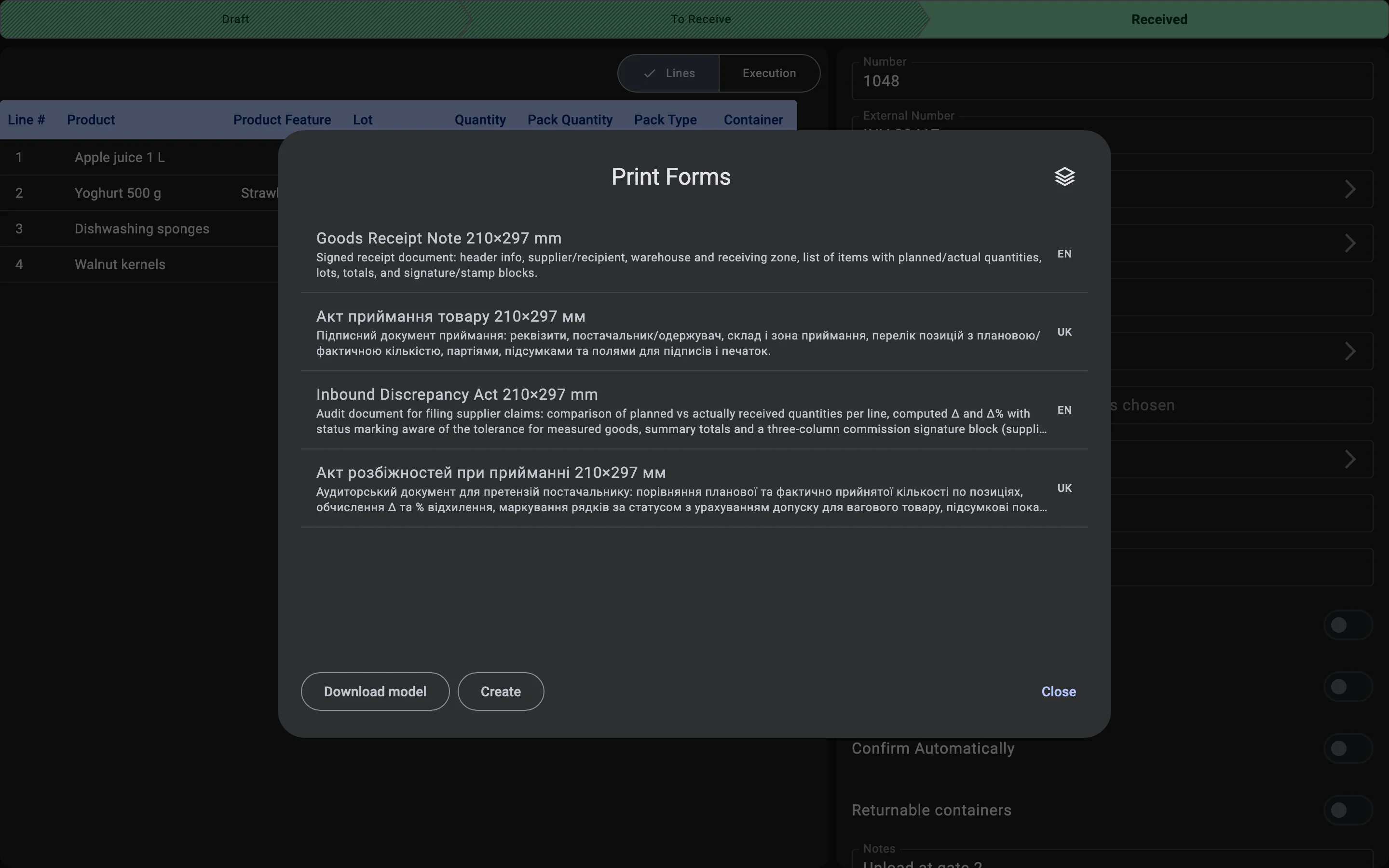
- the receipt report and the discrepancy act (if there are discrepancies) can be printed from the receipt;
- the ERP system gets the updated data through the integration;
- the receiving containers are settled — see Containers on closing.
What the closed state means, and what can no longer be done to the receipt, is in Receipt statuses.
Containers on closing
A container that was registered on the receipt and is still open when the receipt closes does not block closing. Each one is settled by what is in it: a container holding goods is closed, so nothing more is added to it, and an empty one is released, so it is free for other work. This happens in the same step that posts the stock, and it is the same whether the receipt is finished by hand or confirms itself.
When the receipt confirms itself
The receipt is finished by hand unless it has the Confirm Automatically switch on (see Automatic confirmation).
- Switch off (the default). The receiver or the shift supervisor finishes the receipt when the last line is processed.
- Switch on. There is no finishing step. The receipt closes itself at the moment a recorded fact, or an accepted container, makes every line match the plan exactly. If the plan is not matched the receipt waits and is finished by hand as usual. The exact conditions are in Automatic confirmation.
The outcome is the same either way. Pressing finish on a receipt that has already confirmed itself changes nothing.
On the PDT
On the PDT this phase is the final step — the operator taps Confirm the completion and gets a confirmation dialog when unreceived lines remain. Details are in the Receiving on PDT flow.