Receiving in the client app
This document describes the end-to-end receiving process as it runs in the client app (on a workstation — a desktop computer or a shift supervisor's tablet). All eight phases — from creating the document to closing it — are visible to the operator as tabs and checklists in the full working interface.
If you are looking for receiving on the PDT, see Receiving on PDT. The Inbound Order is not part of this process: it is an input into it and is documented separately.
Use the variation picker on the right (or the collapsed block above the text on a narrow screen) to tailor the process to your warehouse settings; leave any dimension unset to see every branch.
Common scenarios
Phase 1. Receipt creation
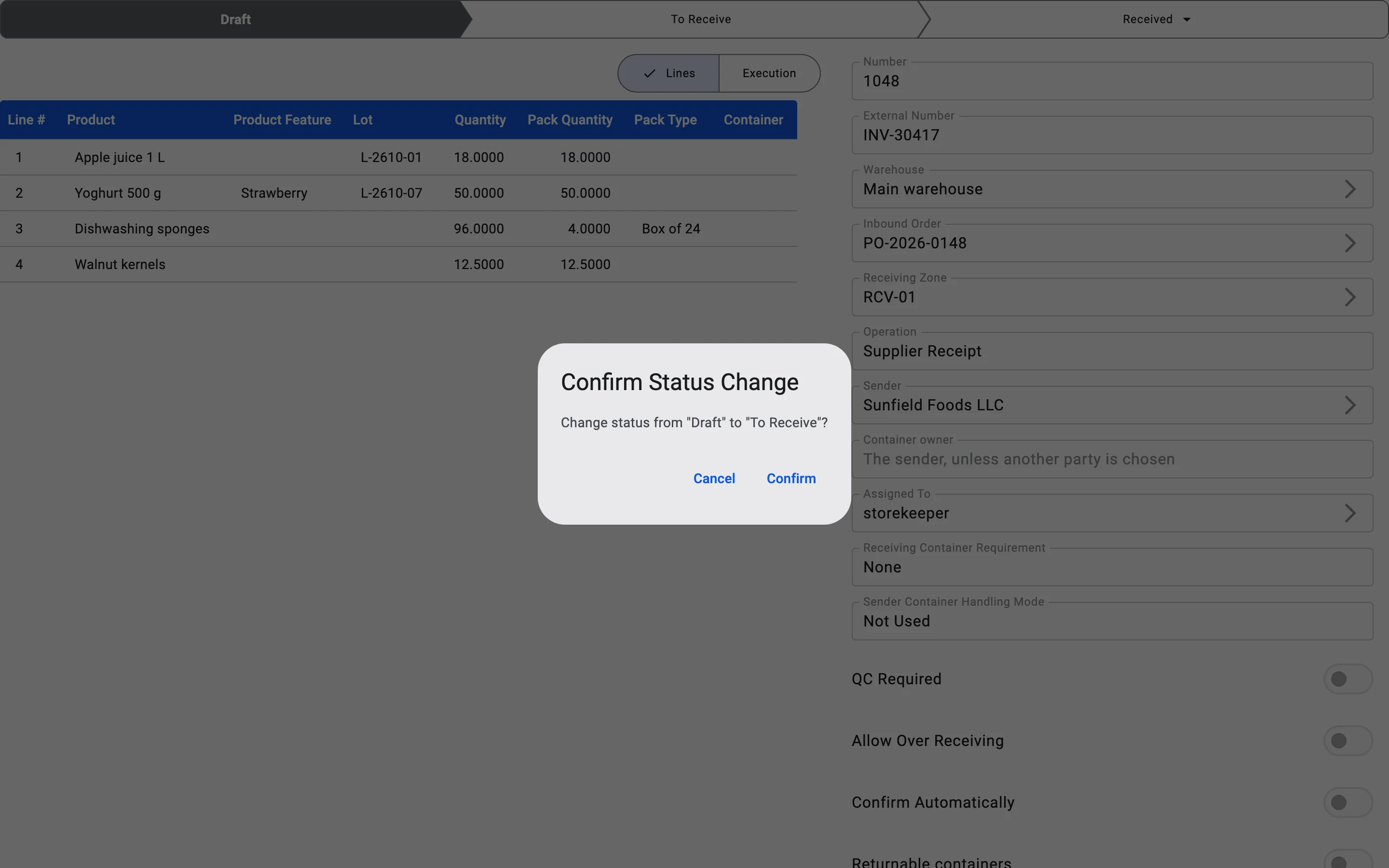
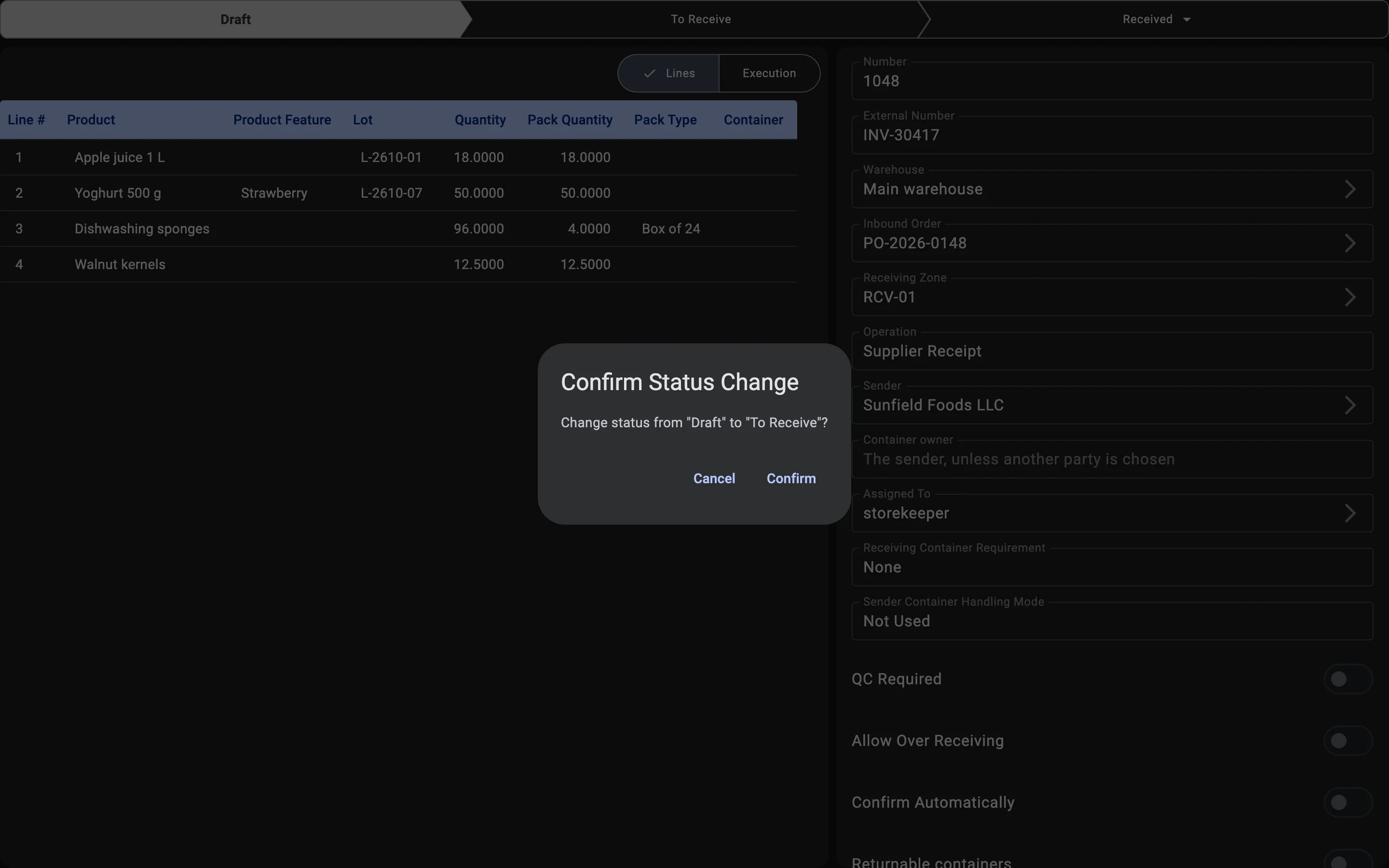
The receipt is the working document that the rest of the process hangs from: facts of received goods, containers, discrepancies, and closure all attach to it. The document moves through a small set of statuses — Draft while it is being prepared, To receive once it is released for receiving, Received when receiving is finished, and Cancelled if it is cancelled. Creating the document is the first step of the process in the client app.
The document is created in one of two ways — based on an existing inbound order or from scratch. Choosing between them is a per-delivery decision, not a warehouse setting: the same warehouse regularly uses both paths.
The Inbound Order is not part of the receiving process itself — it is a separate document that describes what the warehouse expects to receive. It is an input into the process: when it exists and the cargo arrives, it is used as the basis for the receipt. When there is no order (emergency delivery, return, mistake), a standalone receipt is created without one.
Receipt creation source
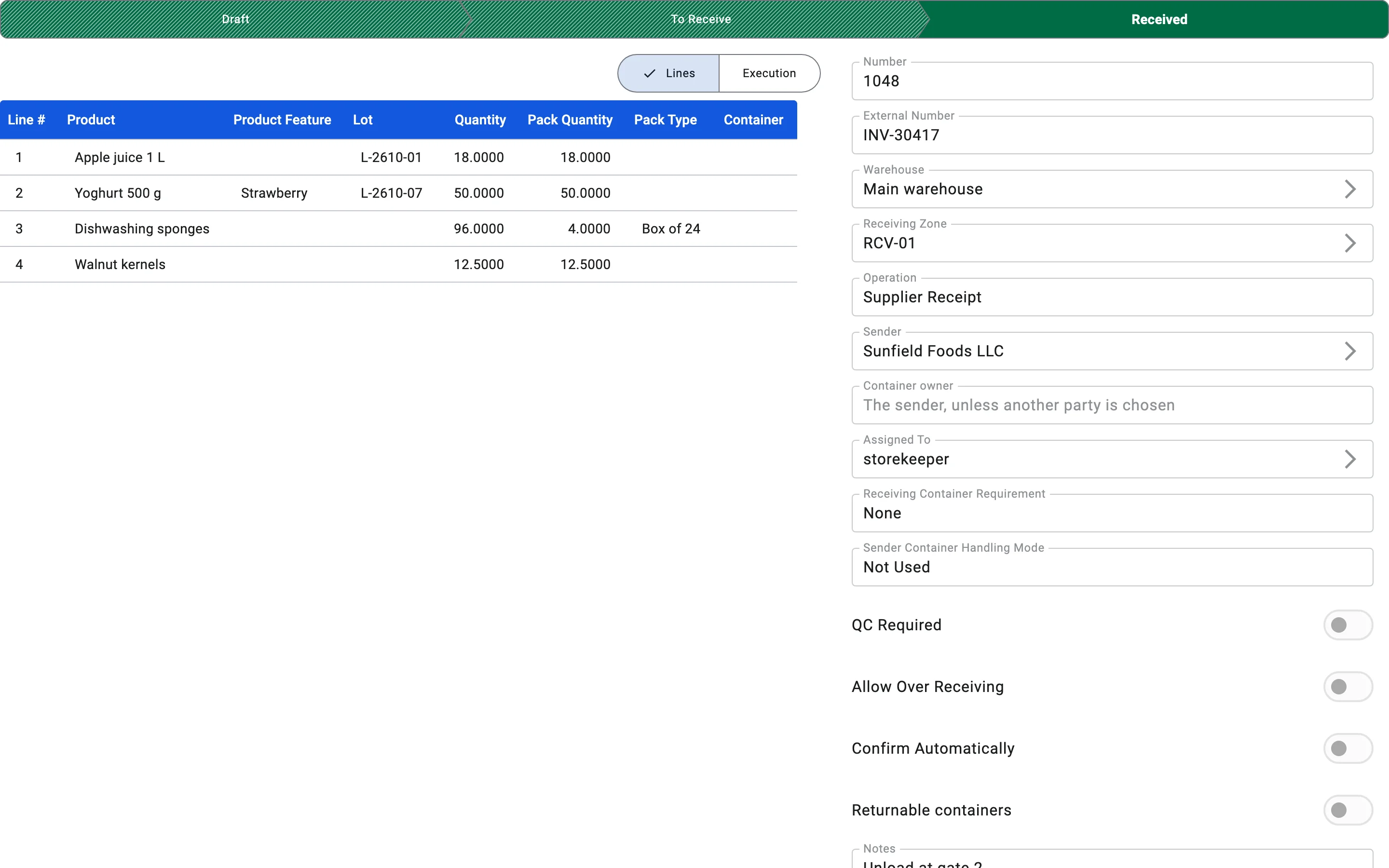
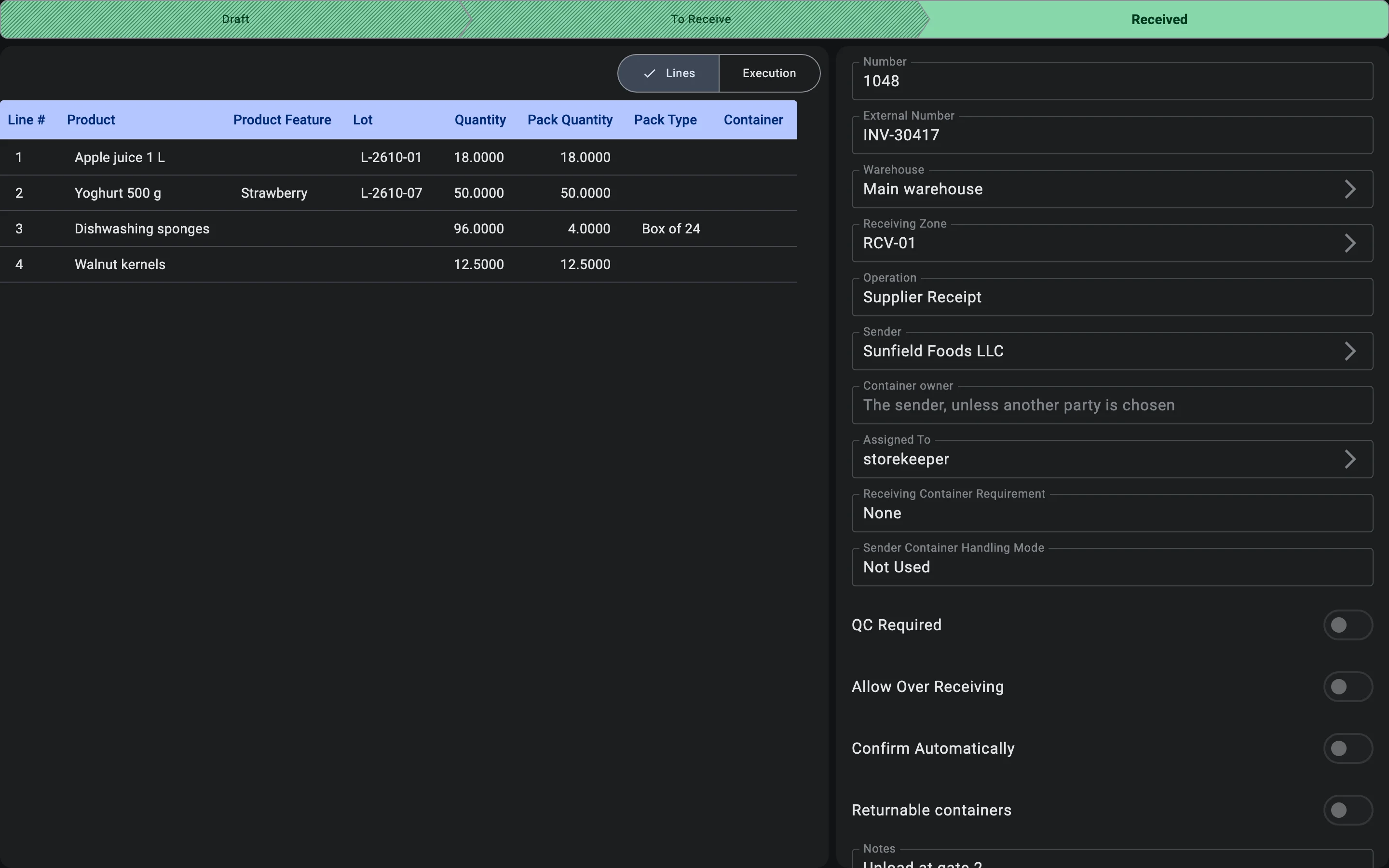
Creation from an inbound order
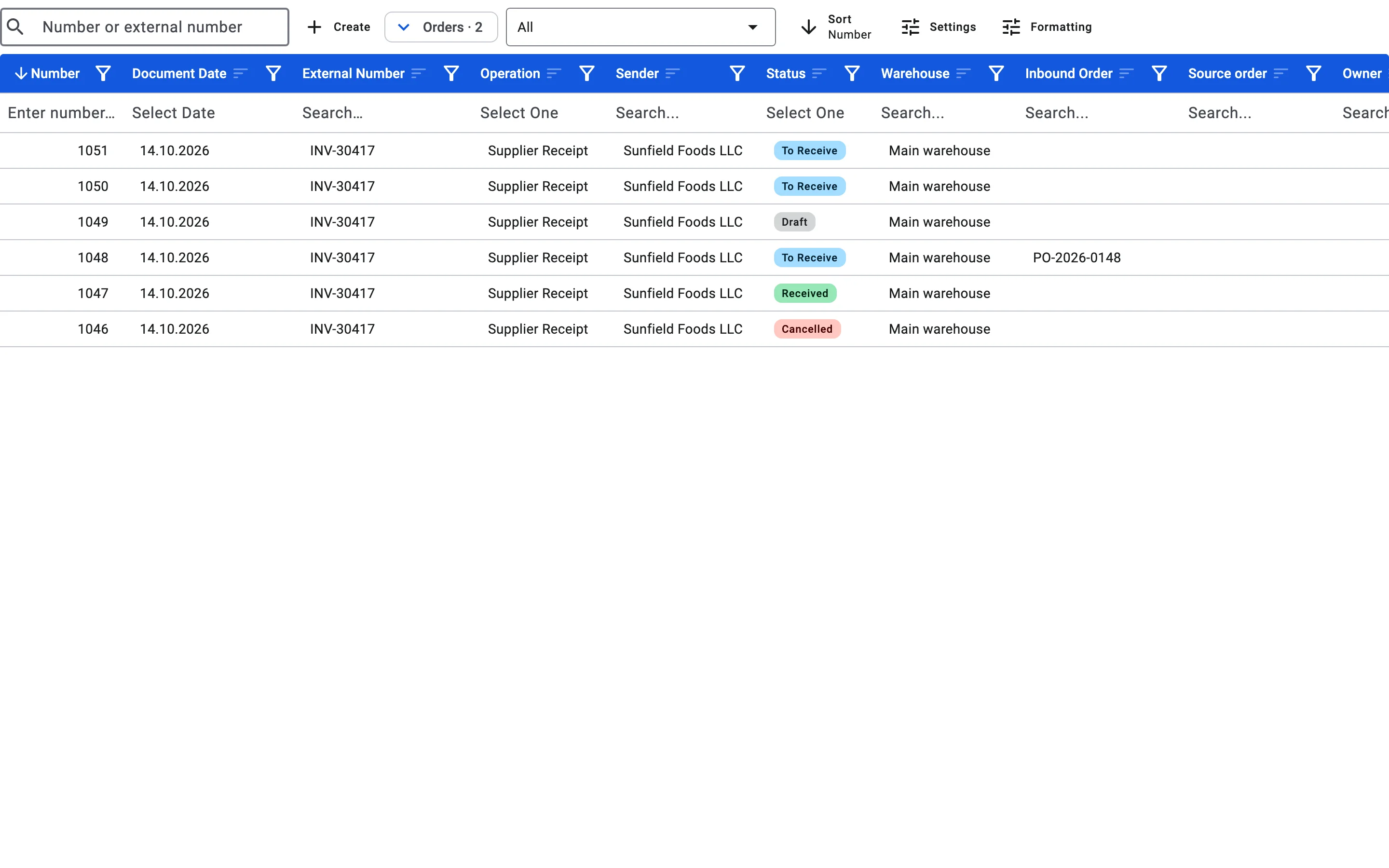
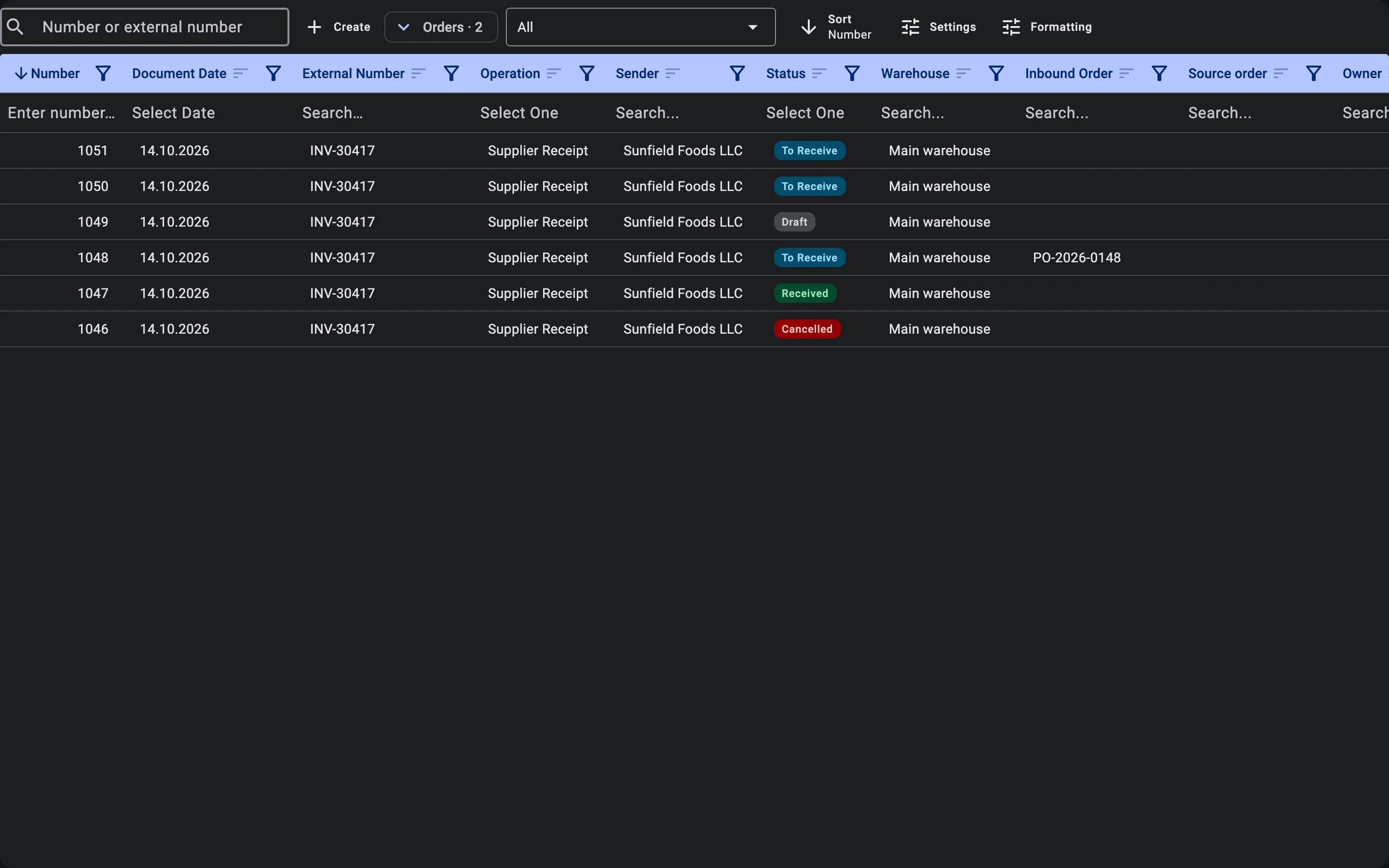
The receipt list opens with the receipts only. Inbound orders stay out of the way until they are needed: next to the Create button there is an Orders chip (when orders are waiting, it also shows how many, for example Orders · 3). The chip is offered only to users who are allowed to read inbound orders. Press it to open the orders section above the receipts, and press it again to close it; the section stays open or closed the way you left it.
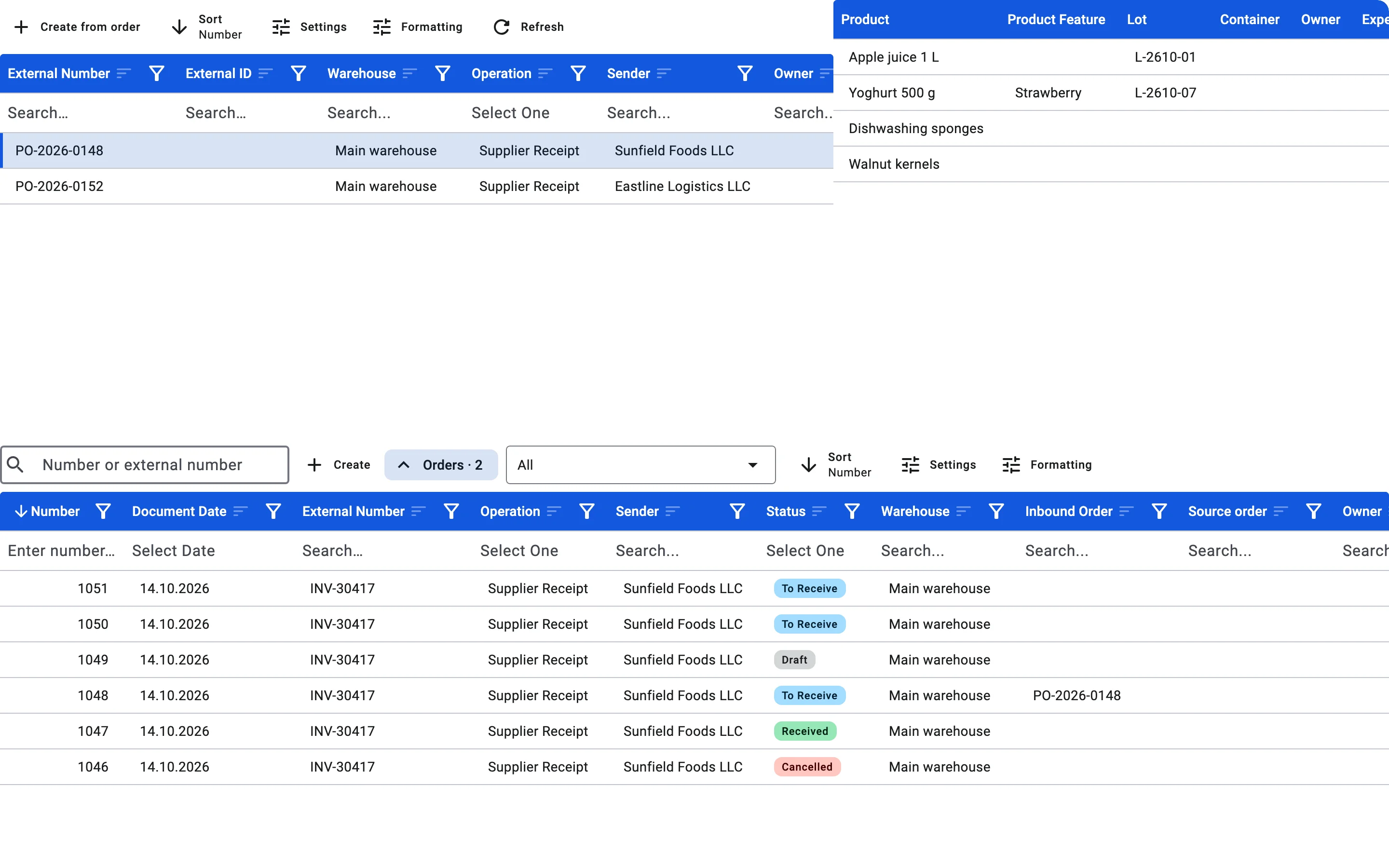
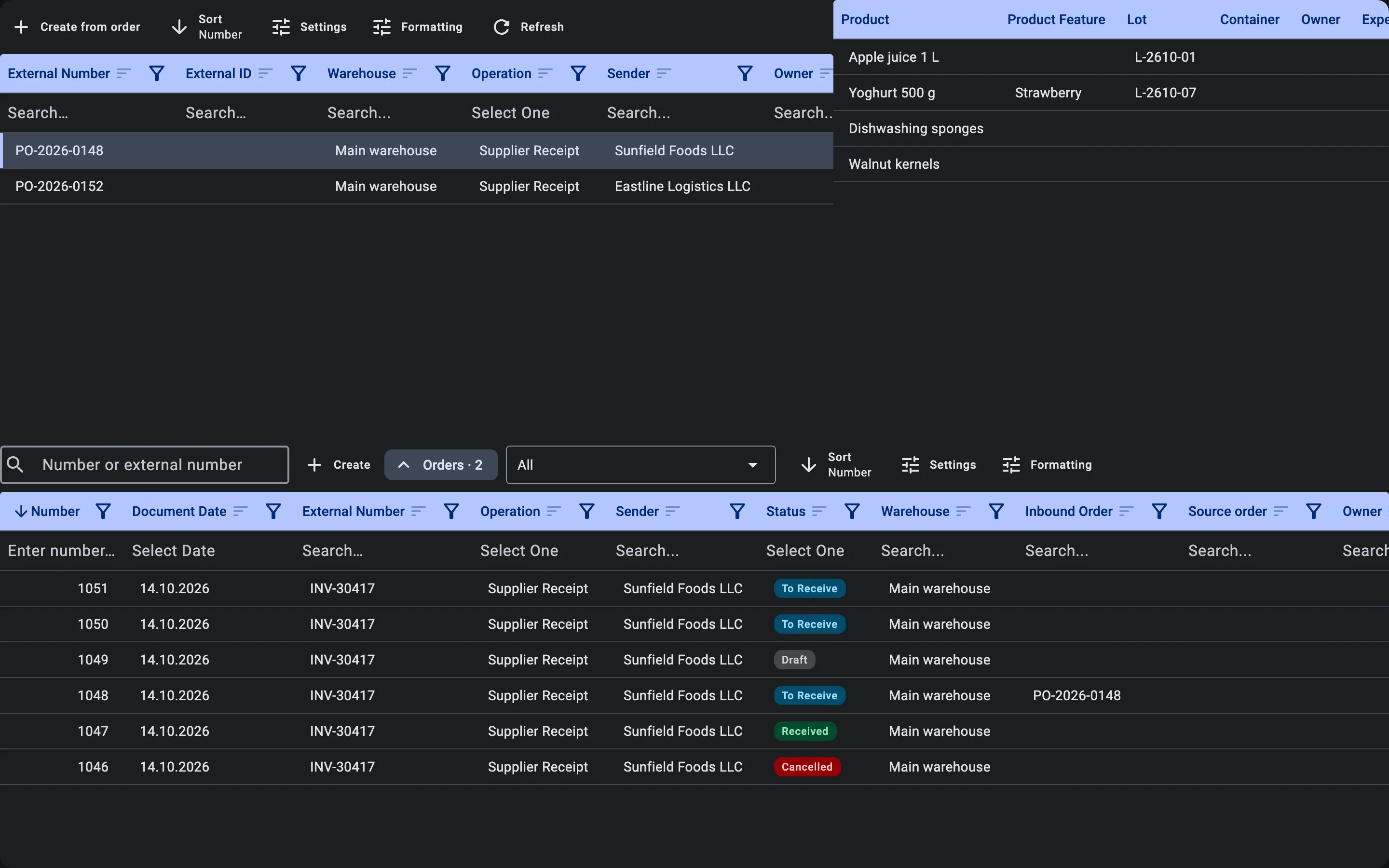
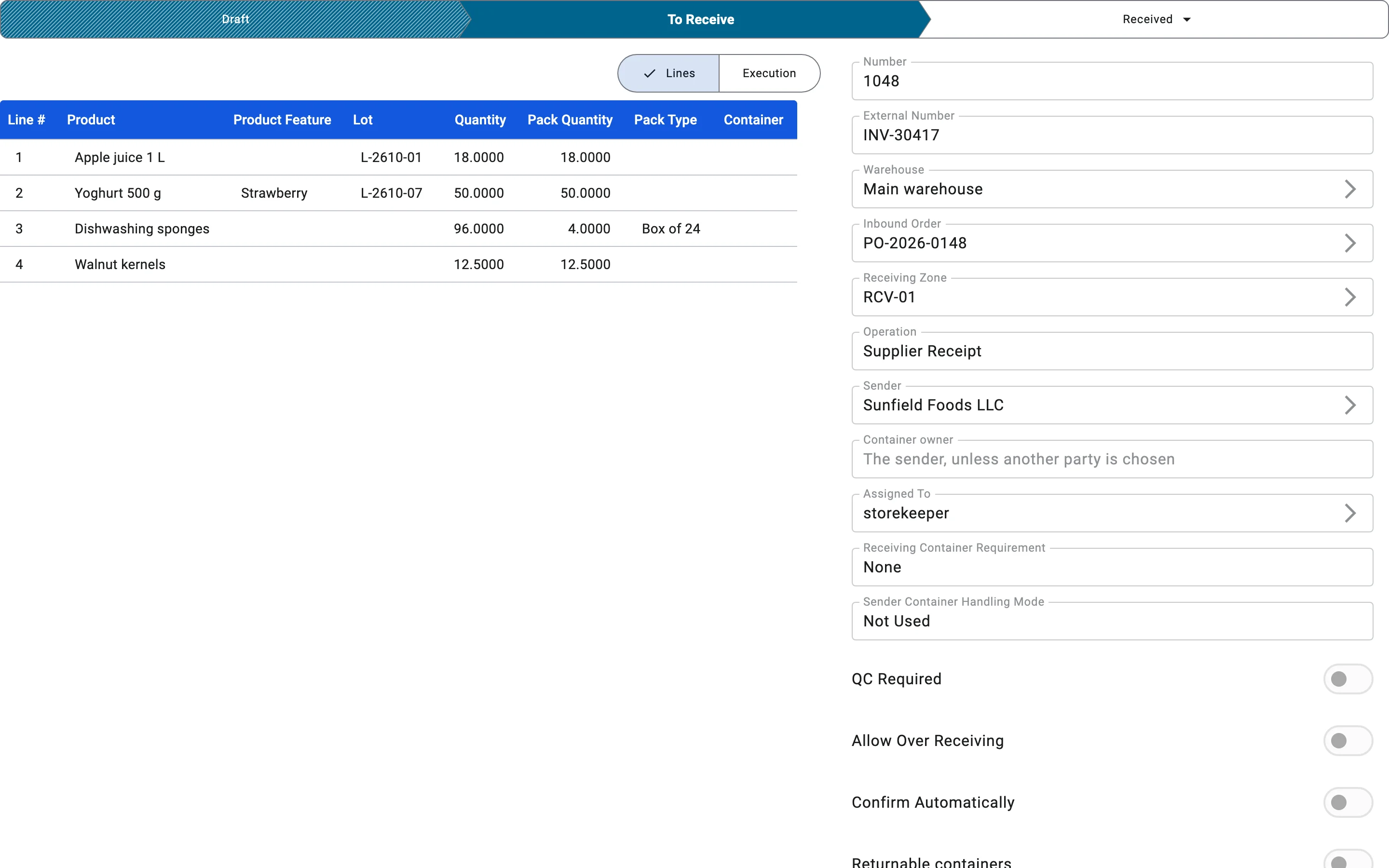
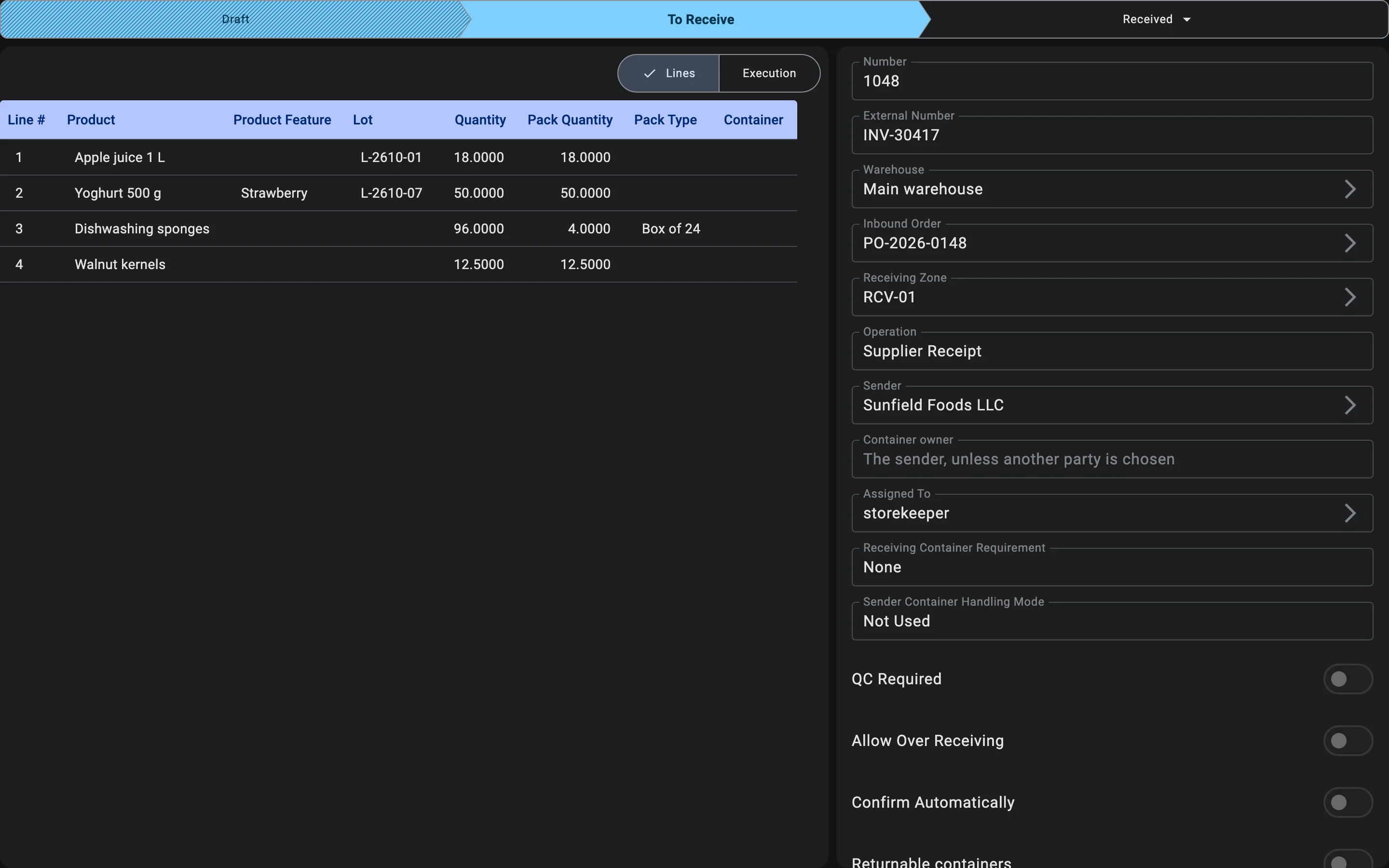
To build a receipt from an order, select the order in that section and press Create from order (the button stays disabled until an order is selected). The receipt form opens already filled in, and nothing is saved until you save it:
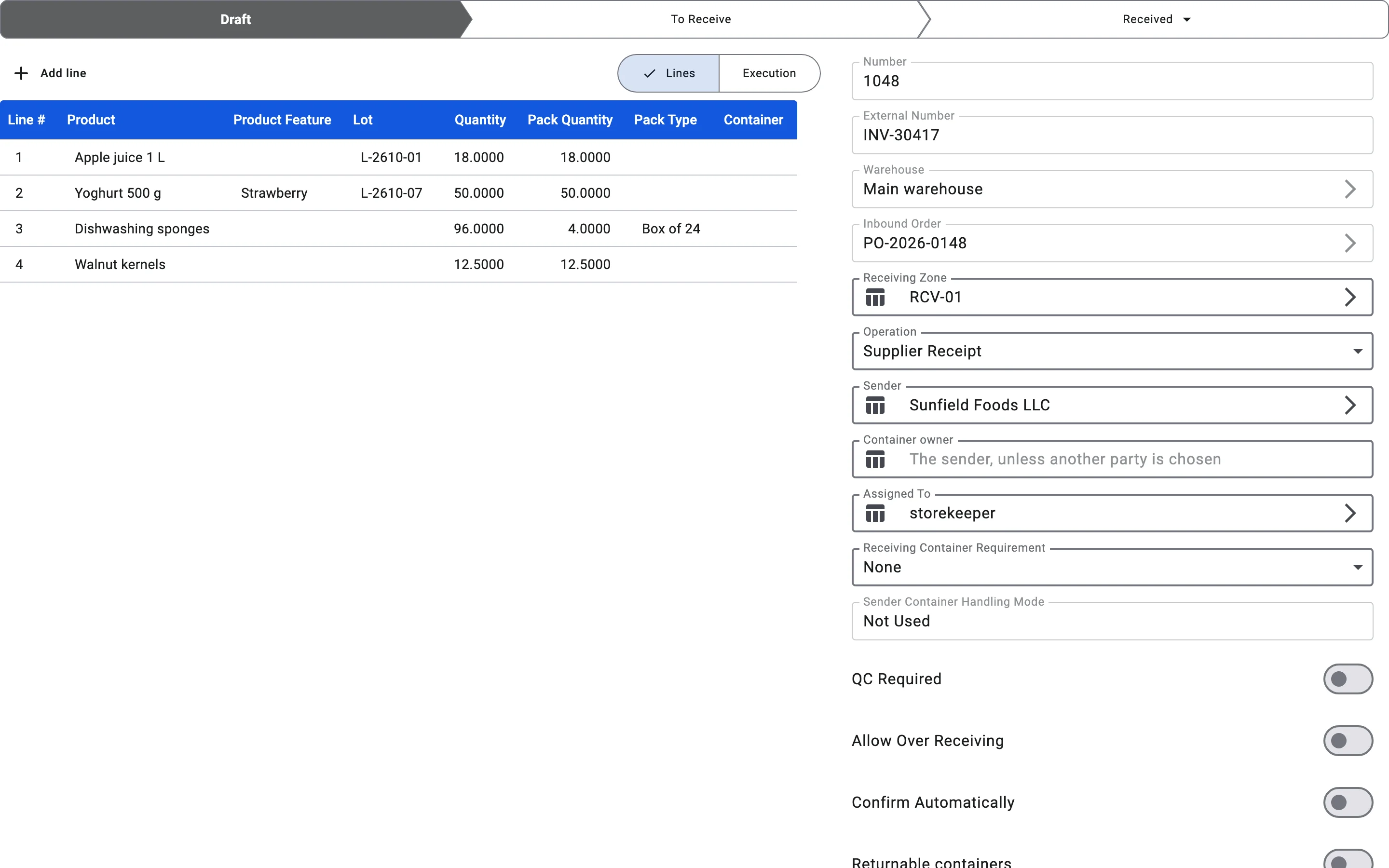
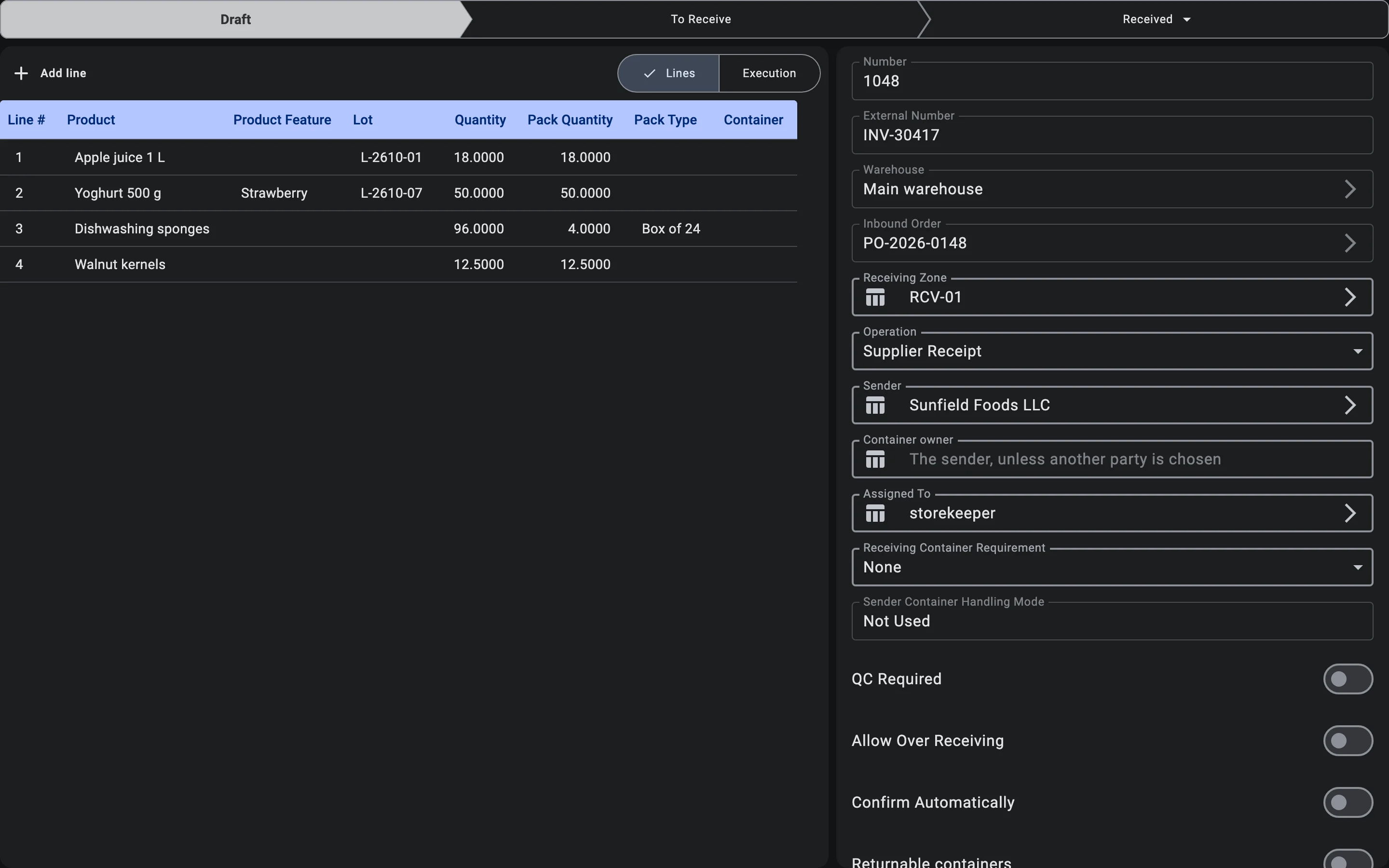
- the system populates the receipt lines from the order lines, taking into account quantities not yet allocated to other receipts;
- if the order specifies containers, they are pulled into the receipt as full branches (nested ones included) — the operator does not need to copy them manually;
- line quantities equal what is still to be received; pack types are carried over from the original unless a partial receipt is already in flight;
- the header comes from the order as well: the operation, sender, owner, warehouse, tolerance, the Allow Over Receiving switch, the container handling mode, and the Confirm Automatically and Returnable containers settings. The receiving zone, the container requirement and the quality-control flag come from the warehouse's own receiving settings;
- the Inbound Order field shows which order the receipt belongs to and cannot be changed;
- the user can narrow the receipt before saving — for example, delete the lines or containers the truck is not bringing if it carries only part of the order.
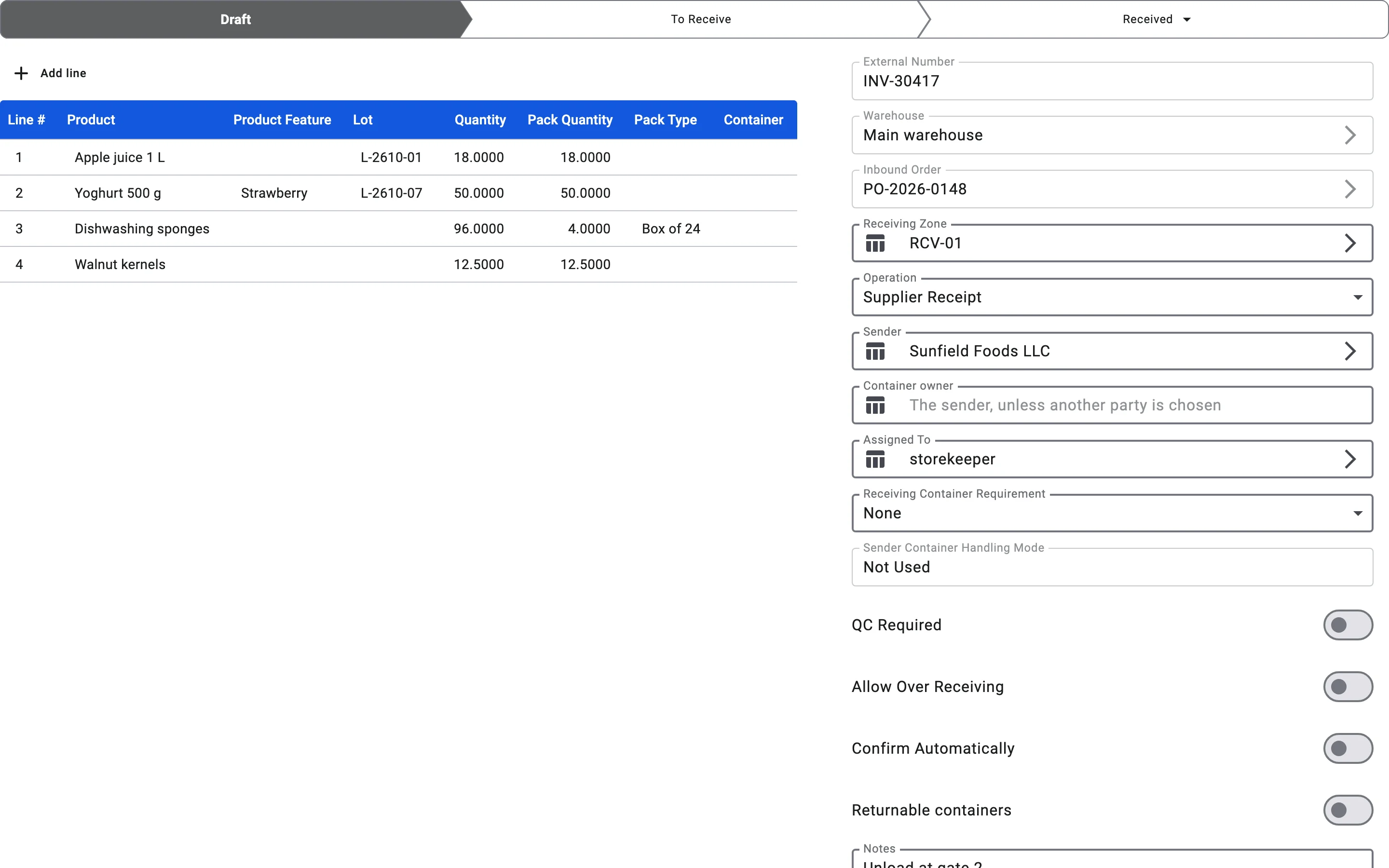
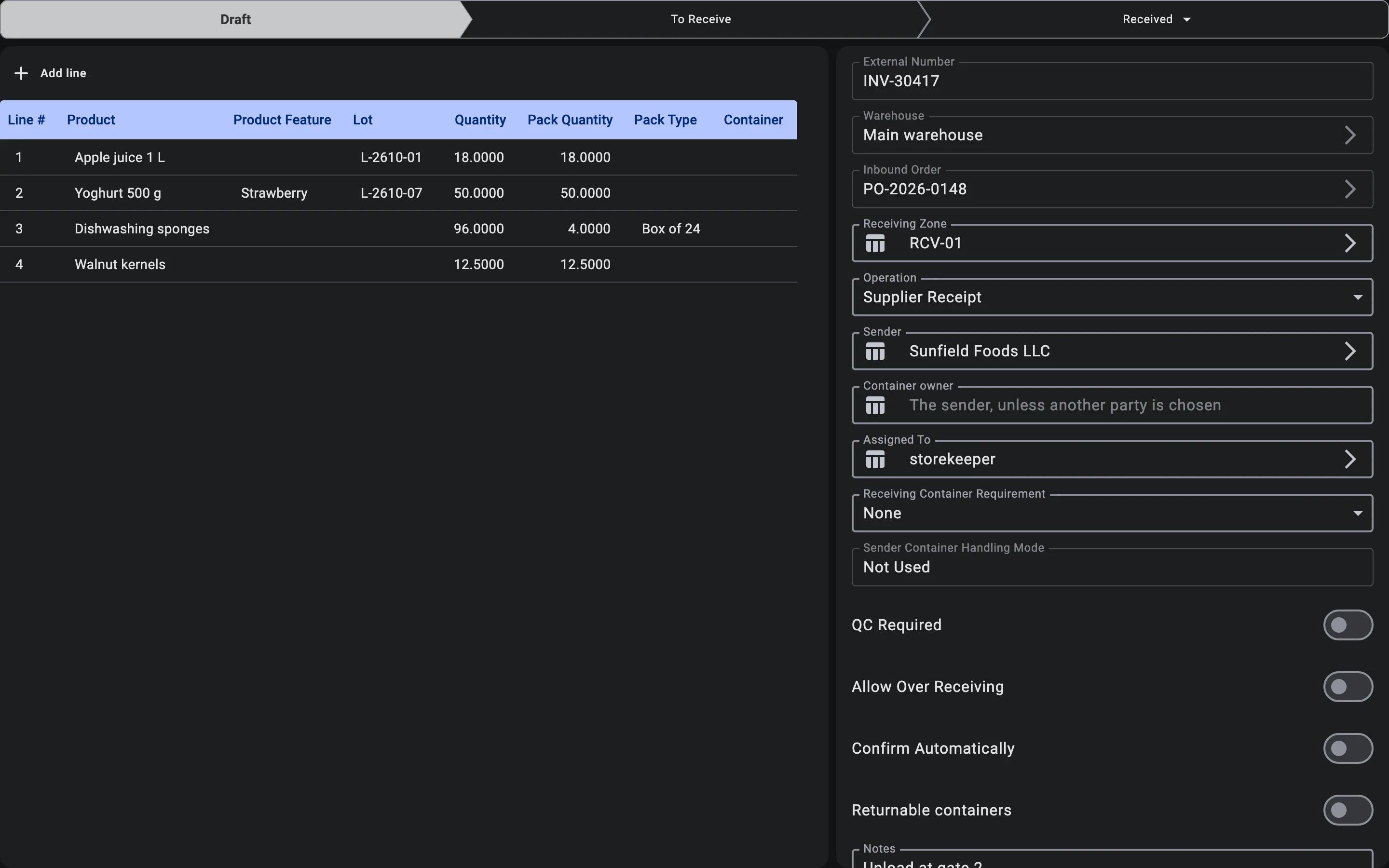
Once saved, the document is in Draft. Lines can still be adjusted while the document is in Draft or To receive; editing closes once it moves to Received or Cancelled.
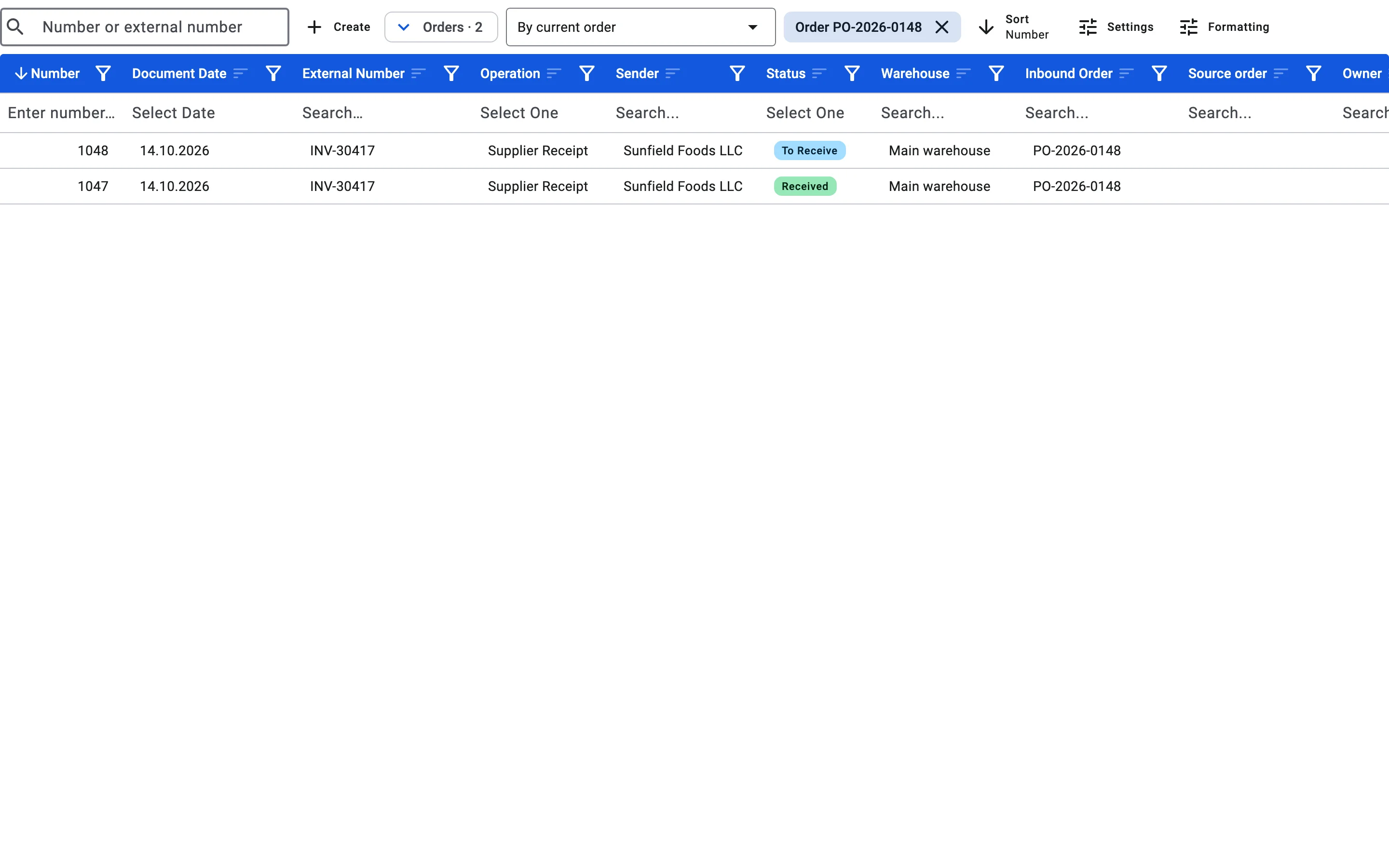
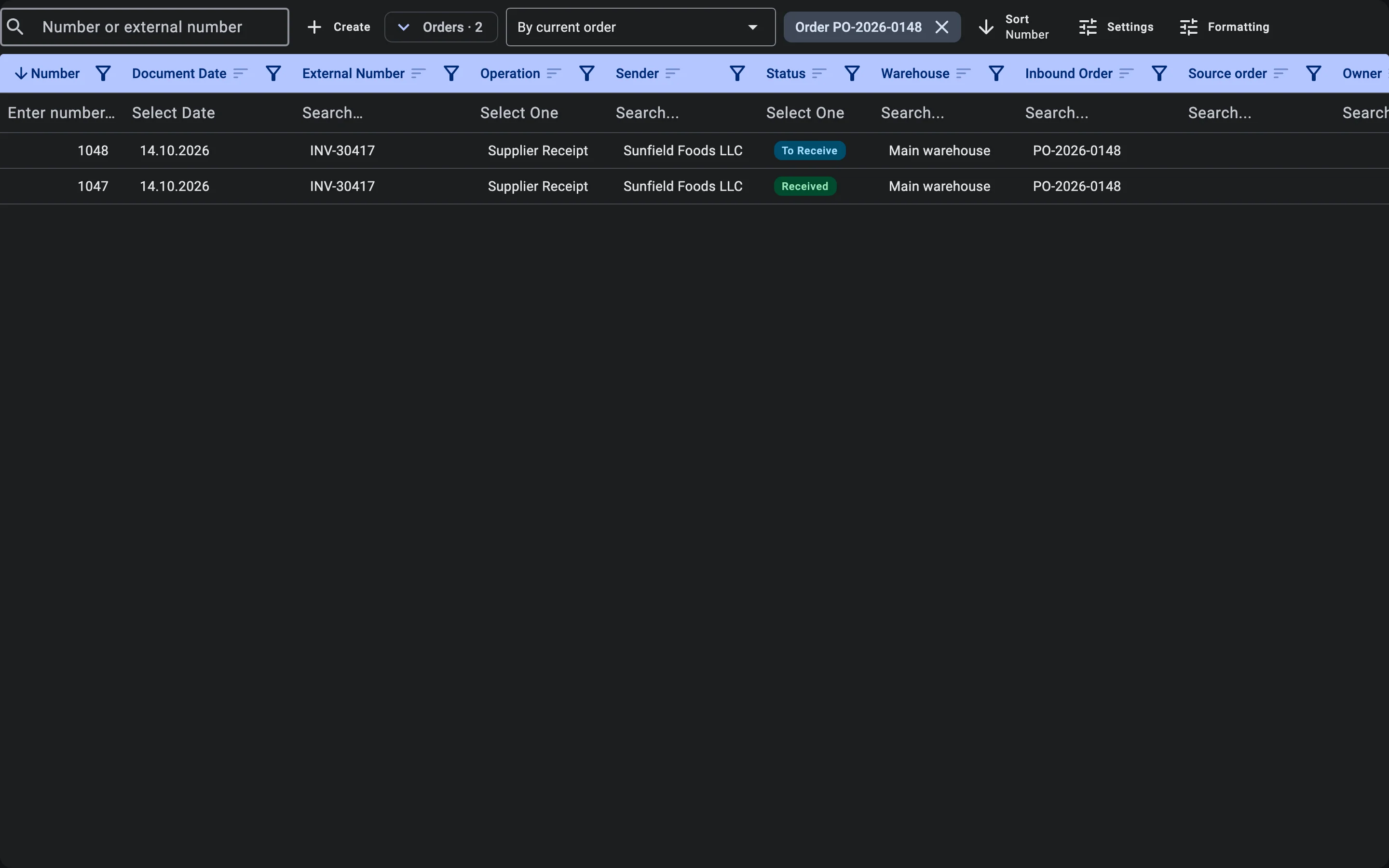
A receipt made from an order stays linked to it. To see only such receipts, choose By current order in the list filter (the other choices are All and All except received): the list narrows to the selected order, and a chip reading Order and the order number appears next to the filter. Pressing the chip removes the narrowing. The Inbound Order column and its filter work for any order.
Standalone creation
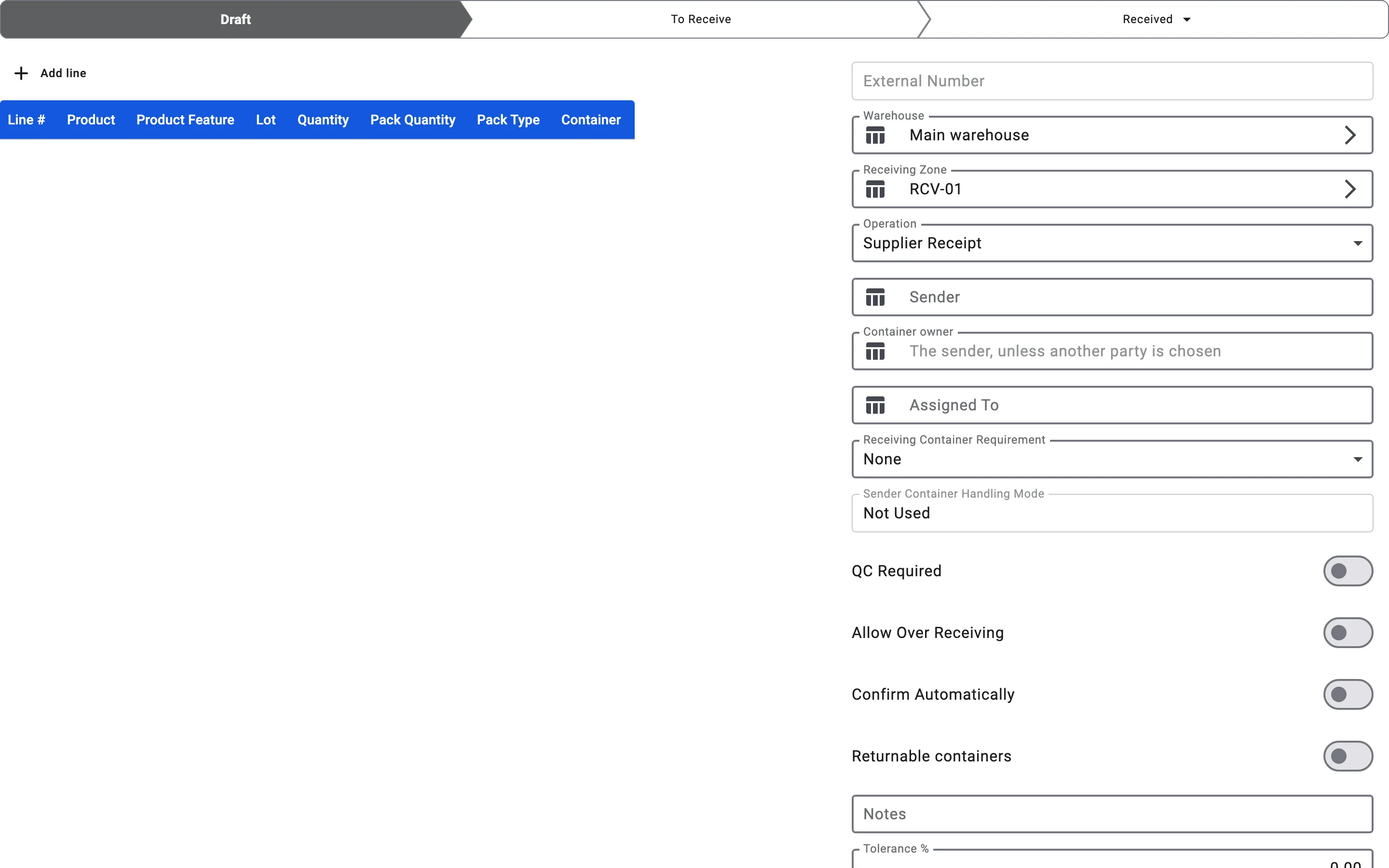
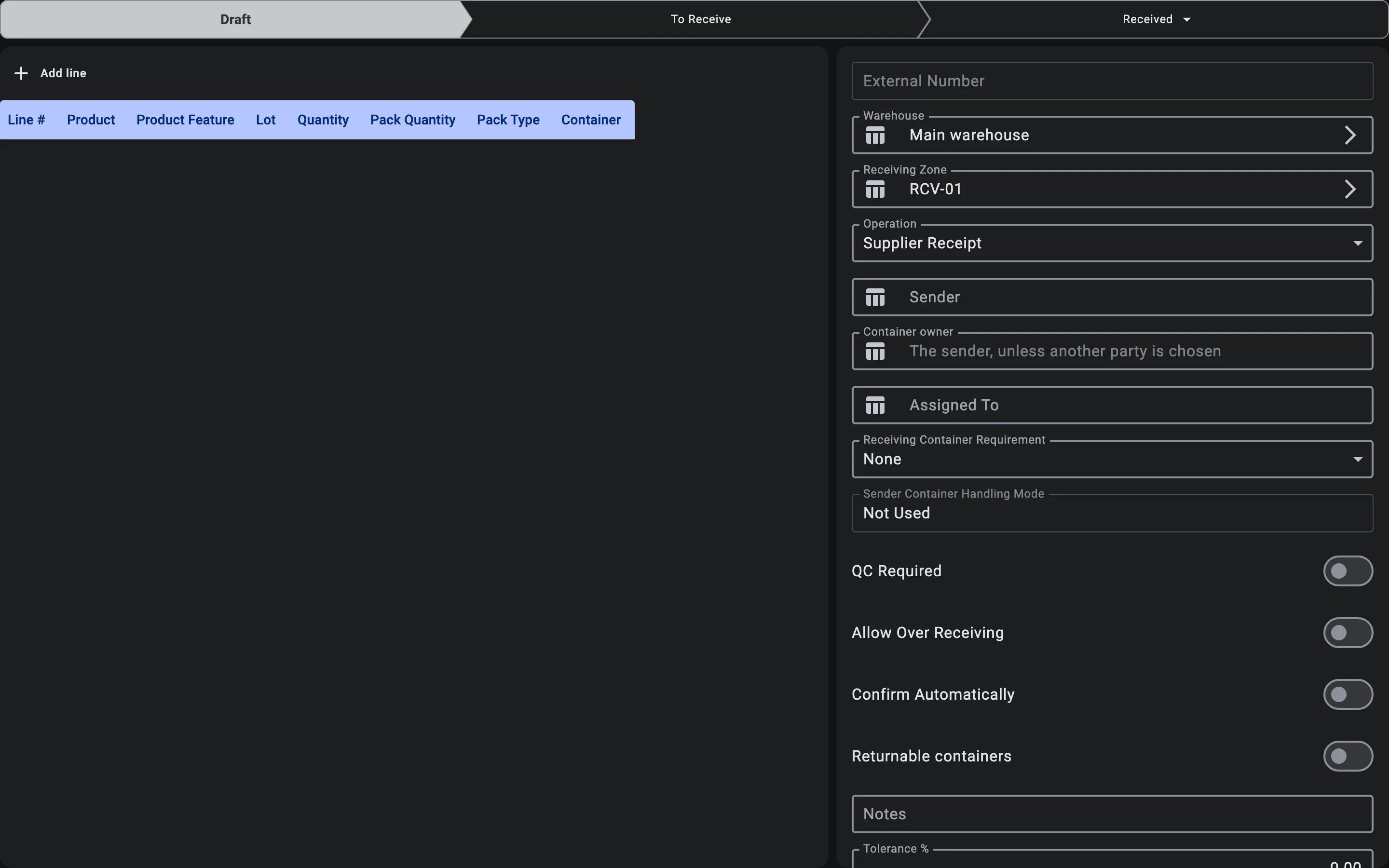
When there is no inbound order, the receipt is created from scratch: press Create in the top bar of the receipt list (the same action is offered when the list is empty). A blank form opens, and nothing is saved until you save it.
- the warehouse is the one you are working in, and the receiving zone is filled in from that warehouse's receiving settings; the user fills in the Owner, the Operation, the Sender (required for operations that have a supplier) and, where needed, the other document attributes such as Assigned To, Notes and Tolerance %;
- the Allow Over Receiving, Confirm Automatically and Returnable containers switches start switched off;
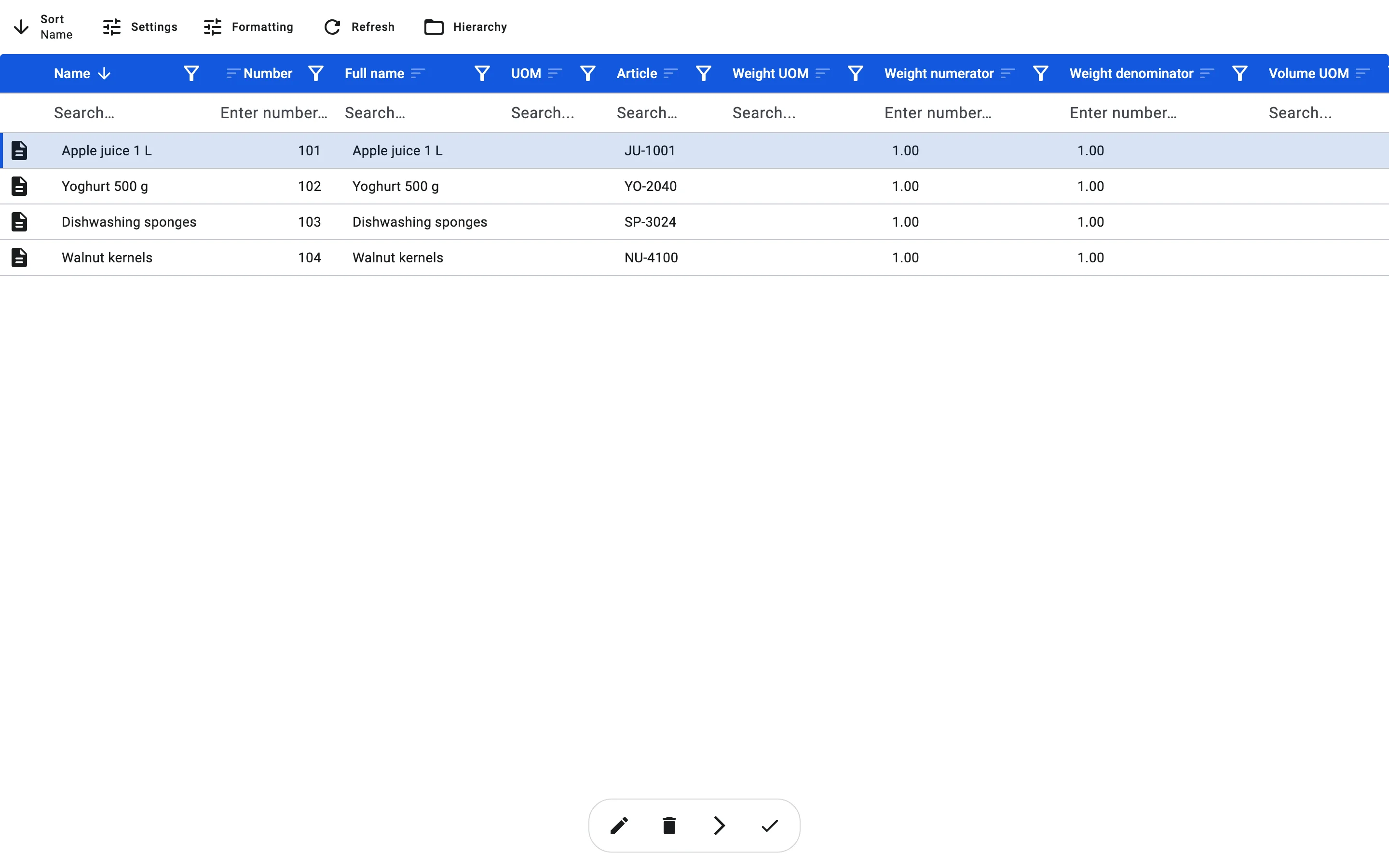
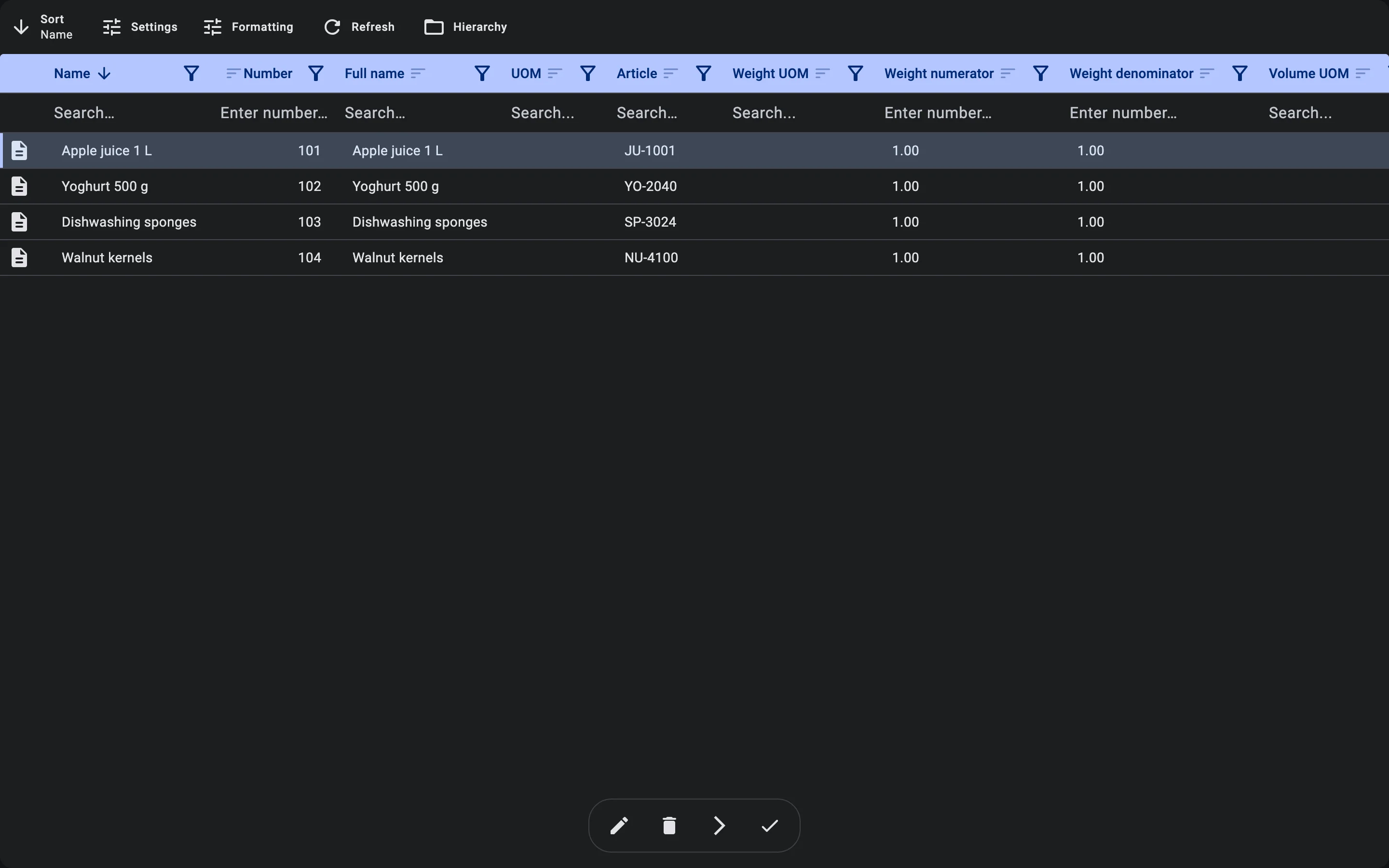
- lines are added by hand from the product catalogue;
- quantities and pack types are entered by the operator;
- containers, where used, are added separately by hand.
Typical cases where this path fits: emergency or unplanned deliveries, customer returns, transfers in from other warehouses without a prior order, and corrections to already-closed documents made by creating a new one.
Looking receipts up in the list
The list has a search field (Number or external number) that searches the receipt number and the external number together; it waits for a short pause in typing before it searches. Other ways to narrow the list:
- the list filter described above, and the per-column filters;
- the Barcode column and filter: a receipt that arrives from an external system may carry its own barcode. The column is shown by default, and you can filter the list by it. The barcode is read-only in the client; on the handheld terminal, scanning it finds the receipt (see Receiving on PDT);
- the Status column and filter. In the card layout used on narrow screens every row also names its status in a chip, not only by colour.
Options set at creation
These apply to either way of creating a receipt. A receipt made from an order starts with the order's values; a blank receipt starts with everything switched off.
Automatic confirmation
The Confirm Automatically switch lets the receipt finish itself when everything matches the plan. What exactly triggers it, and what does not, is described once in Receipt statuses. The switch can be changed on the receipt while the receipt is editable.
Returnable containers
If your company works with returnable containers, the receipt form has two extra fields; without that option they are not shown at all.
- Returnable containers — the switch says that the containers arriving on this receipt are expected to go back to the sender. A receipt made from an order takes the switch from the order.
- Container owner — whose containers they are. Left empty, it is the receipt's sender (the field's hint says so). When the receipt has no sender, choose the owner here.
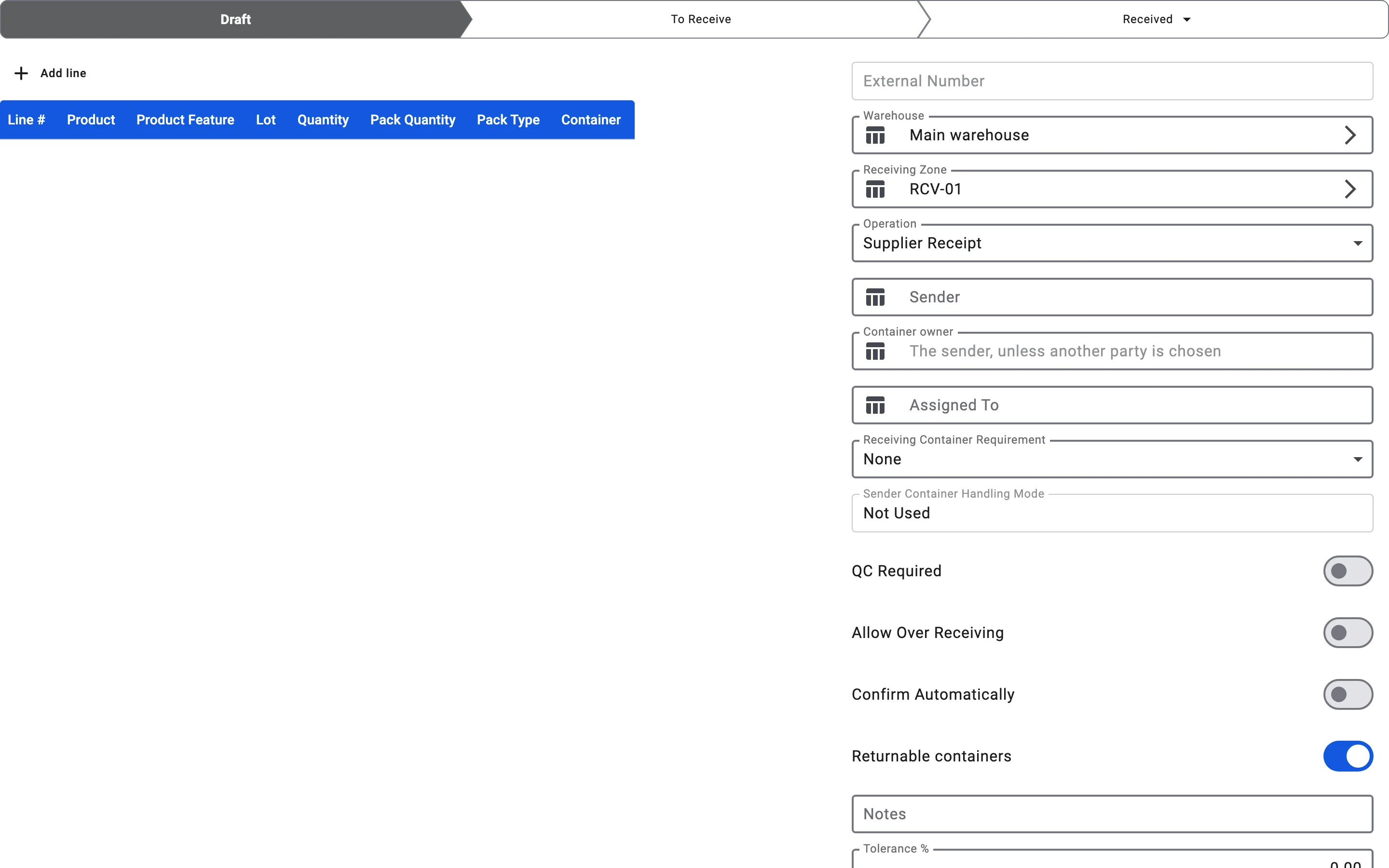
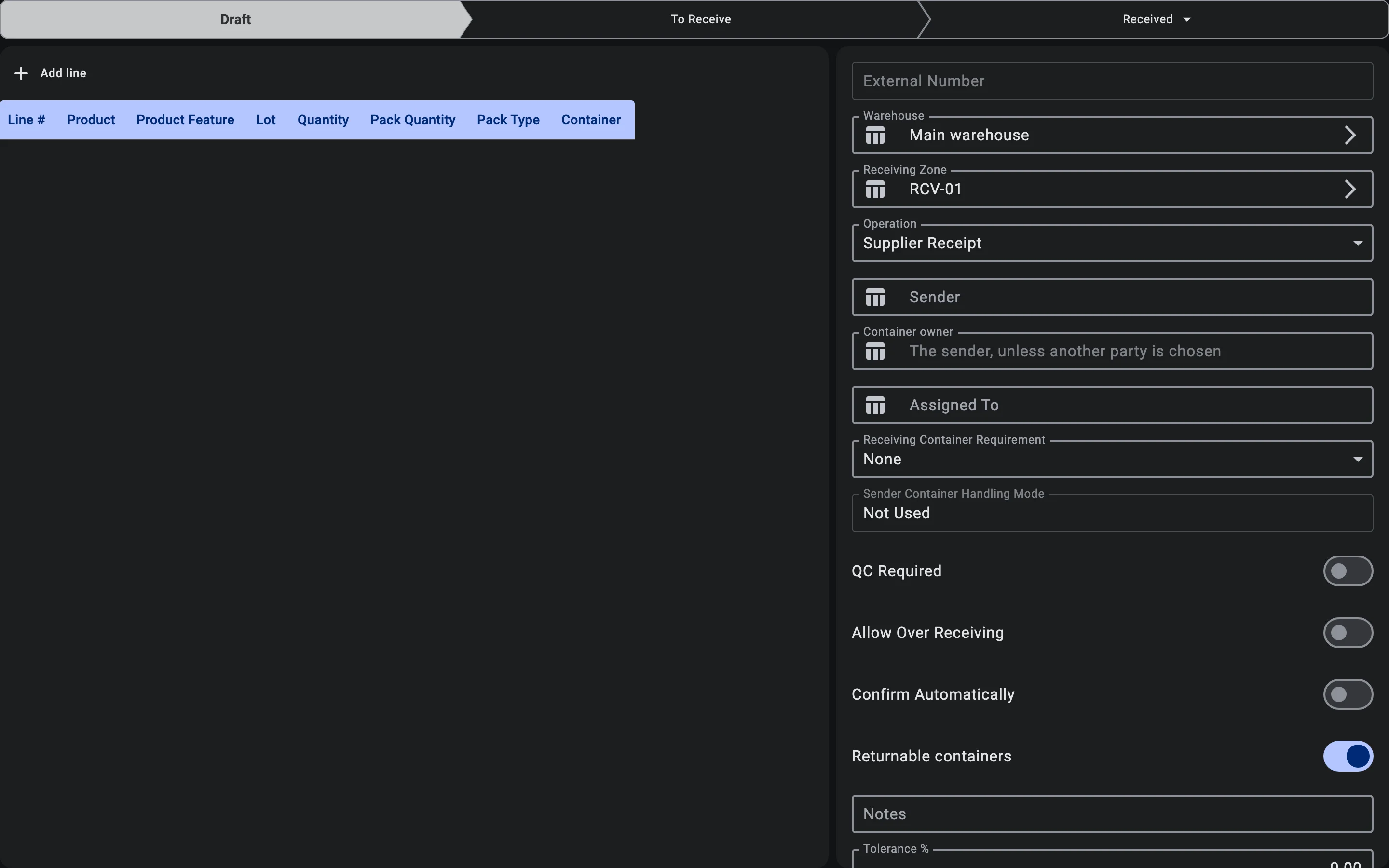
These two fields are only what is recorded when the receipt is created. What happens when a container is accepted or reversed, and how a container debt appears and closes, is described in Returnable containers: acceptance and debt.
Single-line receipts
A single-line receipt is a document about exactly one thing, so the handheld terminal can take the operator straight to registering it. The marker comes from the external system that sends the document: the operator does not set it on the form, and a receipt made from an order in the client is never single-line. A single-line receipt has one of two shapes:
- A product receipt — exactly one line and no containers.
- A container receipt — exactly one container with nothing nested in it, every line sitting in that container, and a container handling mode that accepts the container as it stands (the storage and putaway acceptance modes, see Container settings of the receipt).
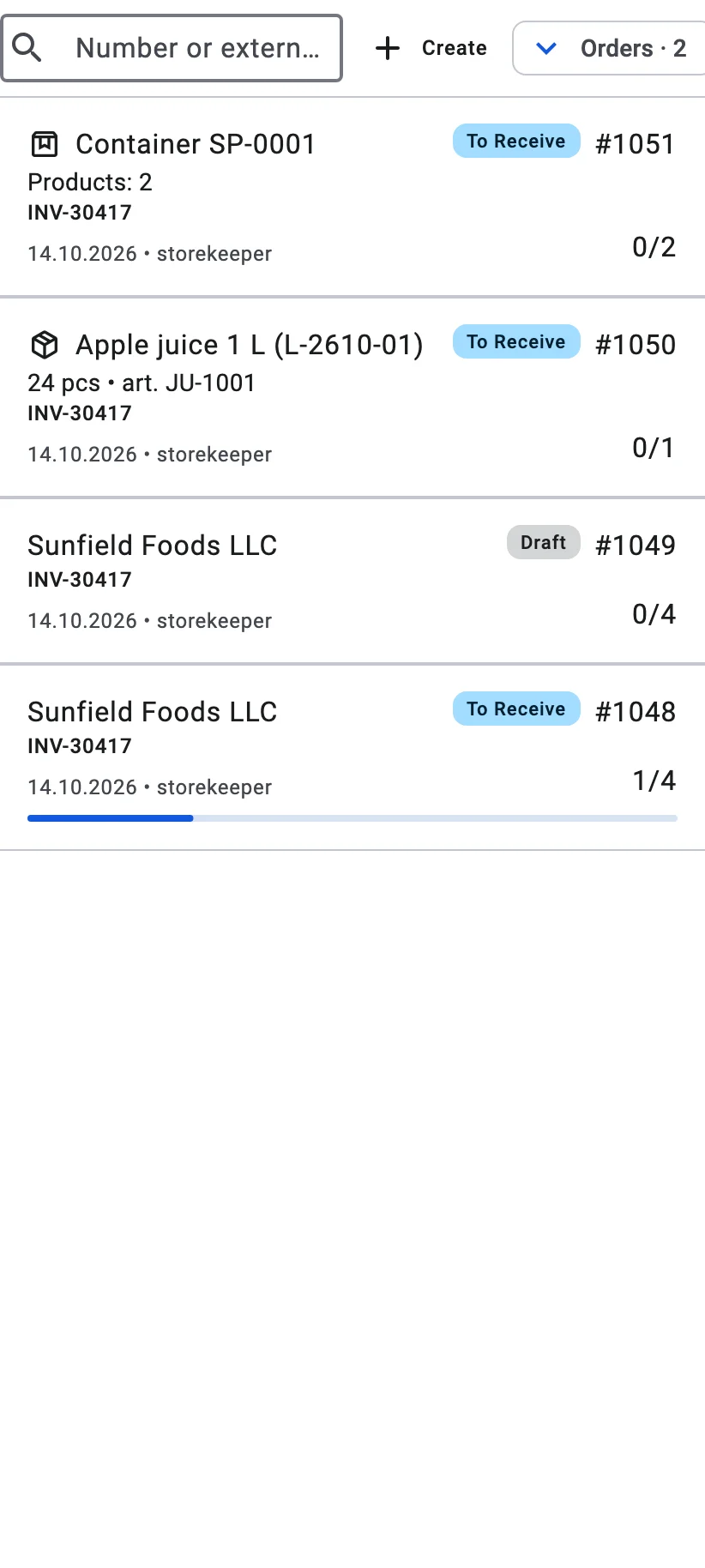
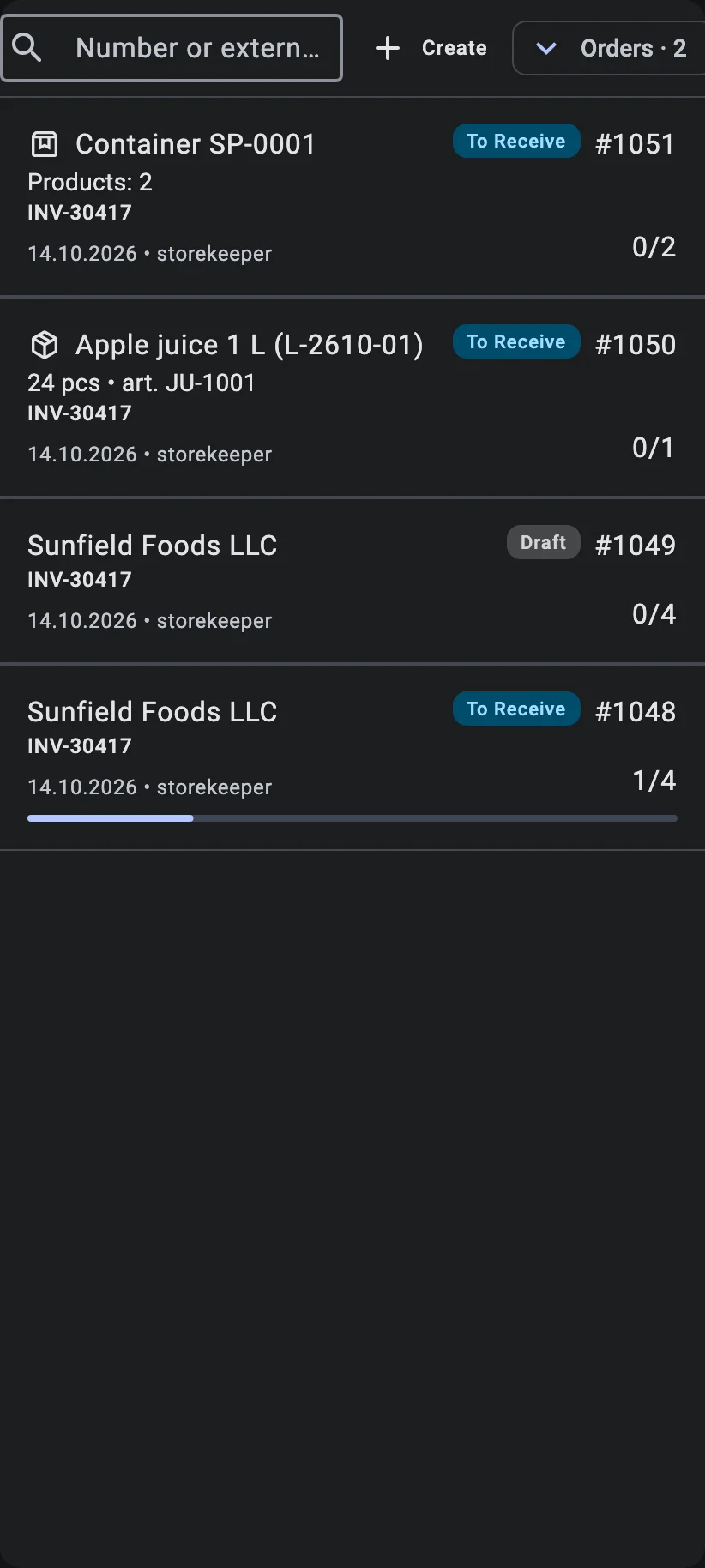
A document that fits neither shape is refused when it is saved, with a message saying which rule it broke. In the card layout used on narrow screens, a single-line receipt shows what it is about in place of the sender: the product name with its quantity and article, or Container with its code and Products: with how many there are.
Plan lines and lots
A line of the receipt plan does not need a lot, even for a product whose lots are tracked: a line without a lot is satisfied by a fact of any lot of that product, and the lot is chosen when the goods are received. The exception is a receipt that accepts sender containers as they stand (the storage and putaway acceptance modes): while it is in Draft or To receive, every line for a product whose lot is mandatory must name its lot, and the save is refused otherwise. A lot that the warehouse's lot policy does not accept is refused on a line in every case.
Phase 2. Awaiting delivery
Once the purchasing team has placed an order with the supplier, the expected delivery information lands in the system — either manually or automatically through an ERP integration. As a result:
- the warehouse knows that cargo is expected from a specific supplier, with a specific list of products and quantities;
- the shift supervisor can plan resources: assign receivers, prepare the receiving zone, check that storage capacity is available;
- if the delivery is late, the system records the lateness — this later feeds into supplier scoring.
Phase 3. Arrival check
When the truck pulls up to the gate, the receiver:
- locates the expected receipt in the system;
- checks that the transport documents match the expected cargo — supplier, carrier, pallet count, seal integrity.
If a mismatch is visible at this stage already (for example, a different supplier or a different carrier), the system lets the receiver log the event and pause receiving until the issue is sorted out.
What else the receiver checks depends on the receipt's Sender Container Handling Mode. That mode only matters when the receipt receives into containers at all: with the receiving container requirement None, it is always Not Used. How the two settings fit together is explained in Container settings of the receipt.
Sender container handling
Sender containers accepted for storage
When the cargo arrives on supplier pallets that will stay on the warehouse as storage units, the receiver additionally checks each pallet for integrity — wrapping, film, labels, seal integrity. Any damage is recorded right away. The pallet count is reconciled against the list of expected pallets that is already in the system.
Sender containers accepted for putaway
When the cargo arrives on supplier pallets that will travel into putaway along with the goods, the receiver checks each pallet for integrity — damaged packaging or broken seals are grounds to halt receiving. The pallet count is reconciled against the list of expected pallets.
Sender containers for tracking only
When supplier containers are used only to find and group lines — for lookup and reconciliation, not for storage — the receiver records the container numbers. The packaging itself is not accepted onto the warehouse balance as the sender's: the goods inside it will be unloaded at the next phase.
Sender containers not used
When the supplier delivers loose goods — bulk or in the carrier's own transport crates — no extra pallet-integrity checks are needed. The receiver focuses on the standard transport documents: supplier, carrier, line count, seals.
Phase 4. Unloading and scanning
Unloading the truck happens in parallel with recording into the system. Scanning — both with the camera and with a hardware scanner — works only in the PDT mode of the app, so this part of the phase runs on the handheld terminal (see Receiving on PDT). On the PDT, the receiver:
- scans the barcodes of pallets or cases being unloaded;
- scans the barcodes of products inside;
- enters quantity when the barcode does not carry it (for weight-priced goods the quantity is read automatically);
- captures lot, expiry date, and other product attributes when policy requires.
In real time the system:
- matches scanned lines against the expected lines;
- highlights overages, shortages, and unexpected products;
- calculates the receiving pace — useful for the shift supervisor to see the load on the shift.
Container settings of the receipt
Two settings on the receipt decide how containers take part in unloading. On the receipt form they sit one above the other, and the order matters: Receiving Container Requirement comes first, because it decides which values of Sender Container Handling Mode below it are possible at all. A receipt made from an inbound order takes the sender mode from the order and the requirement from the warehouse's receiving settings.
- With the requirement None, goods are never received into a container, so the only sender mode that fits is Not Used. Choosing None on the form switches the sender mode to Not Used and locks that field.
- A receipt or an inbound order that pairs None with any other sender mode is refused when it is saved; the message names the sender mode that needs a receiving container. When the warehouse's default requirement is None but the order accepts sender containers, a receipt made from that order starts with Optional (Sender Only) instead.
- Optional (Sender Only) together with Reference Only or Not Used can be saved, but has no sender container to receive into, so such a receipt behaves like receiving without a container.
Receiving container requirement
None — receiving without a container
When receiving happens without containers, every scanned line is attributed to a specific cell of the receiving zone. The operator names the cell where the goods are physically placed; no container is used as the target, and the sender mode is Not Used.
Optional (Sender Only) — into the sender container if present
When picking a container is not required but receiving into a supplier pallet is allowed, the operator has two options: when a supplier pallet is present and the sender mode accepts it (Accept for Storage or Accept for Putaway), lines are stored into it; when there is no pallet, lines go directly into a cell of the receiving zone. Choosing a warehouse or temporary pallet manually is not allowed in this mode.
Required — always into a container
When receiving into a container is mandatory, the operator cannot write a line directly into a cell — they must either pick a supplier pallet the sender mode accepts, or scan a warehouse or temporary container and scan lines into it. Without a target container the scan is not recorded.
Sender container handling
Sender containers accepted for storage
When supplier pallets stay on the warehouse as storage units, the receiver scans the pallet's barcode before the lines inside. Accepting the pallet receives what is left of its lines into it and registers it on the warehouse balance as a storage container.
Sender containers accepted for putaway
When supplier pallets travel into putaway along with the goods, the receiver scans the pallet's barcode before the lines inside. Accepting the pallet receives what is left of its lines into it and registers it on the balance as the carrier that takes the goods to their cells.
Sender containers for tracking only
When supplier containers are used only to find and group lines, the receiver scans the container number to open the lines it holds. The lines land in a cell of the receiving zone or in a warehouse container, depending on the receiving container requirement; the supplier's container itself is not taken onto the balance as the sender's.
Sender containers not used
When the supplier does not use containers, the receiver scans product lines directly. There are no preliminary container scans — each line lands in the system as a separate receipt line.
The operator identifies an SKU — the combination of product, product features (if tracked), lot (if tracked), and pack type — by scanning a barcode or by picking it manually from a list. Required attributes depend on the product configuration. How SKU selection works.
Quantities go in the quantity field — set from the barcode, typed by hand, or worked out in the calculator, with − and + to adjust; the pack type sits beside it. How the quantity field works.
Quantity entry mode
Quantity confirmed in form
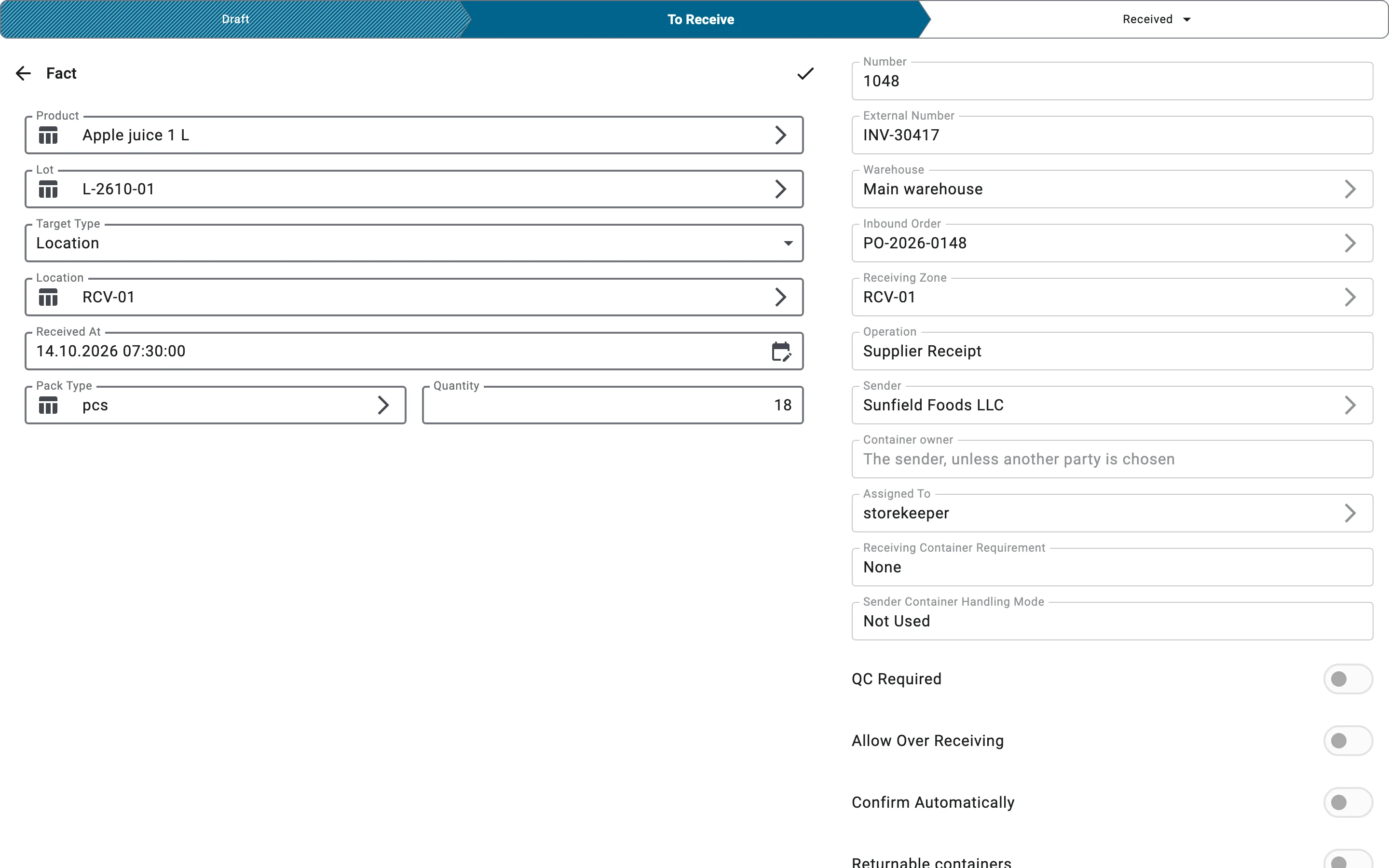
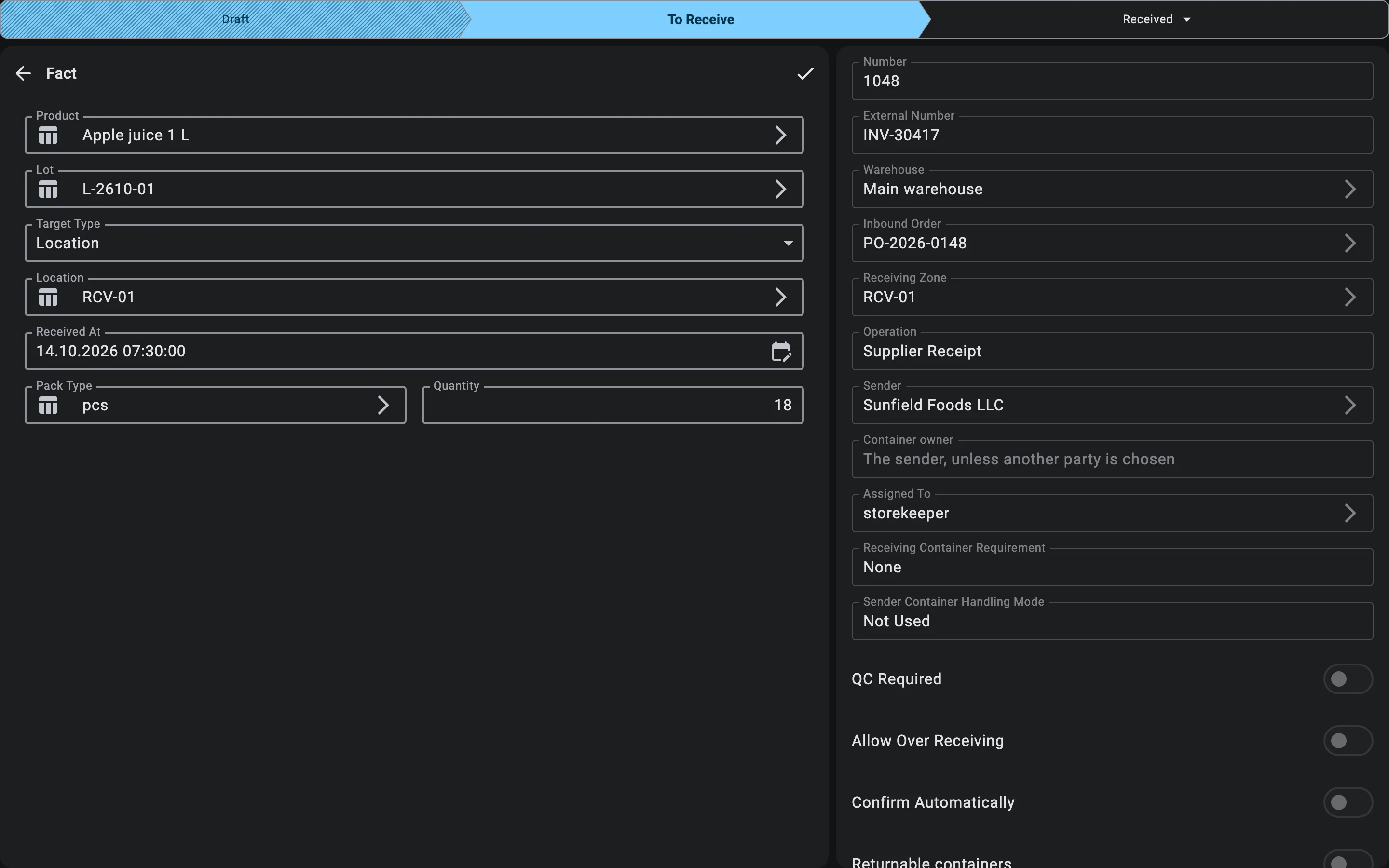
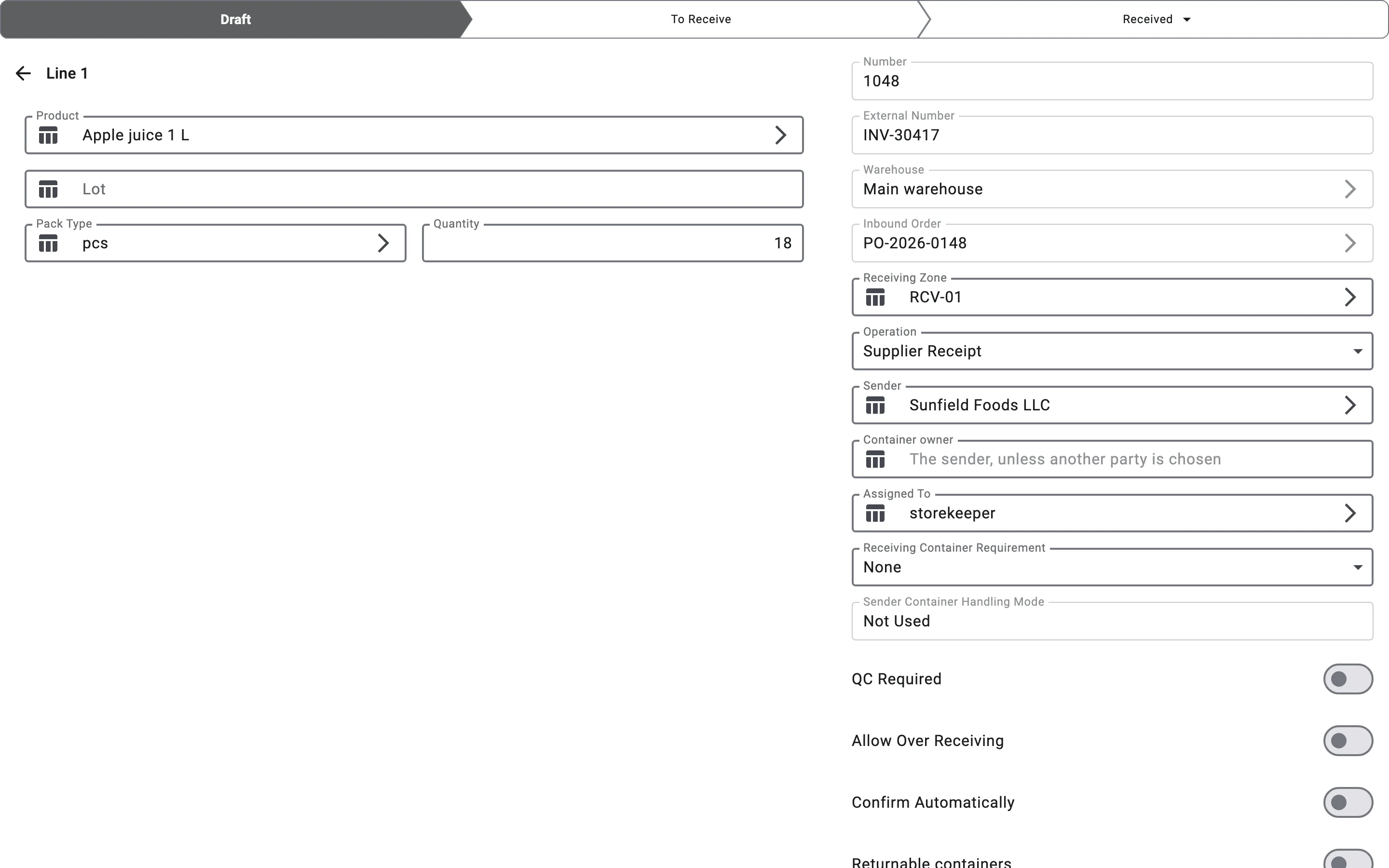
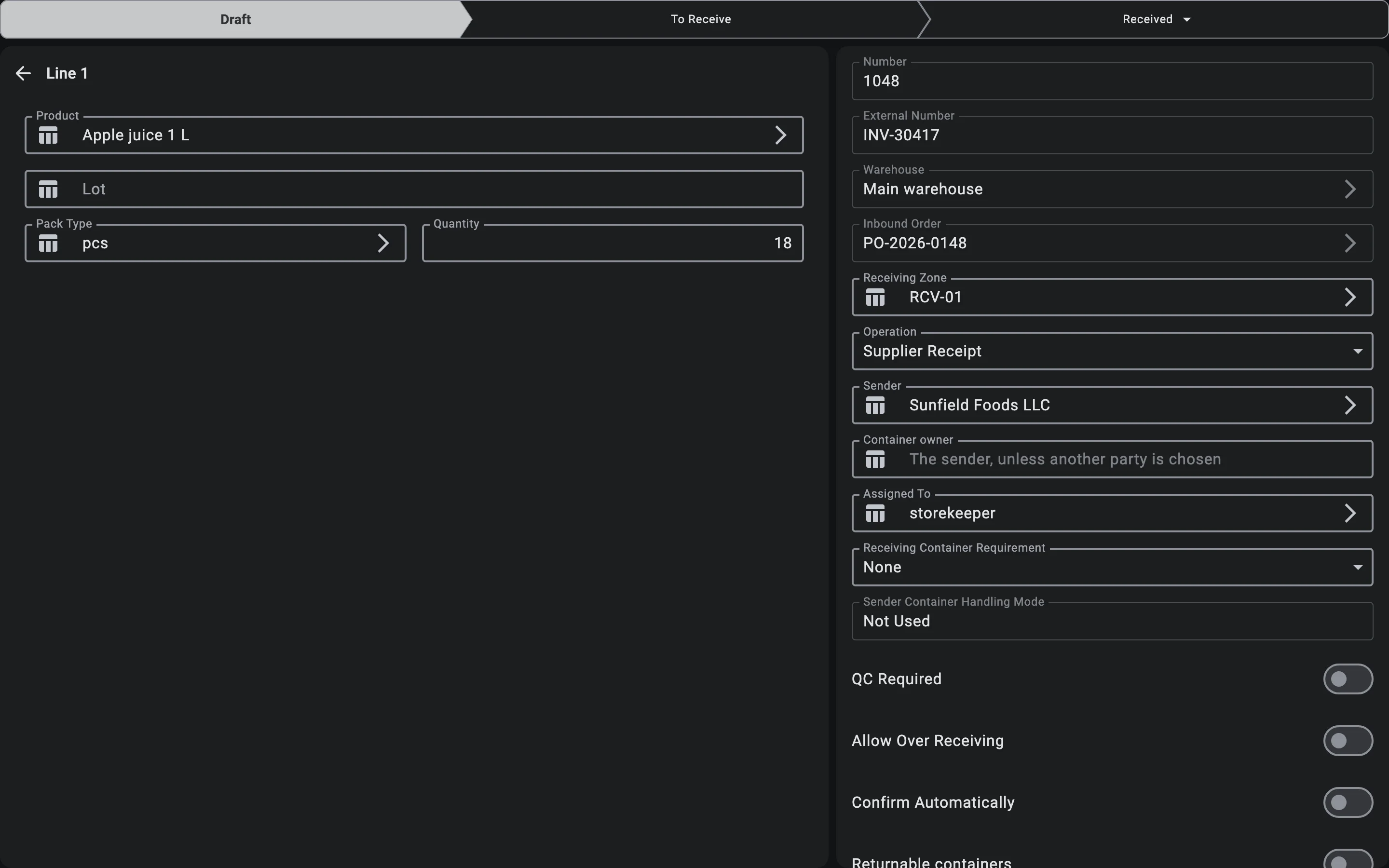
In the client app the receiver most often works with the receipt-line form: opens a line from the plan, picks the SKU (if it was not auto-matched), enters the actual quantity, the pack type and — when needed — the lot and features, then saves the fact. Every saved fact appears immediately on the Receipts tab with per-line progress.
"+1": quick save on scan
The "+1" quick-save mode belongs to the PDT screen, not the client app: it is switched on with the On scan chip (with a +1 icon) above the line list on the PDT receiving screen and is off by default; the chip is not shown when the warehouse puts goods away straight on receiving — there is no warehouse setting and no client-side switch for it. With the mode on, a scan saves the fact straight away without opening the form: the quantity is taken from the barcode, or defaults to one. How the mode behaves — the on-screen animation, errors, when it pays off — is described in the PDT phase Record the fact.
Lots with a short remaining shelf life
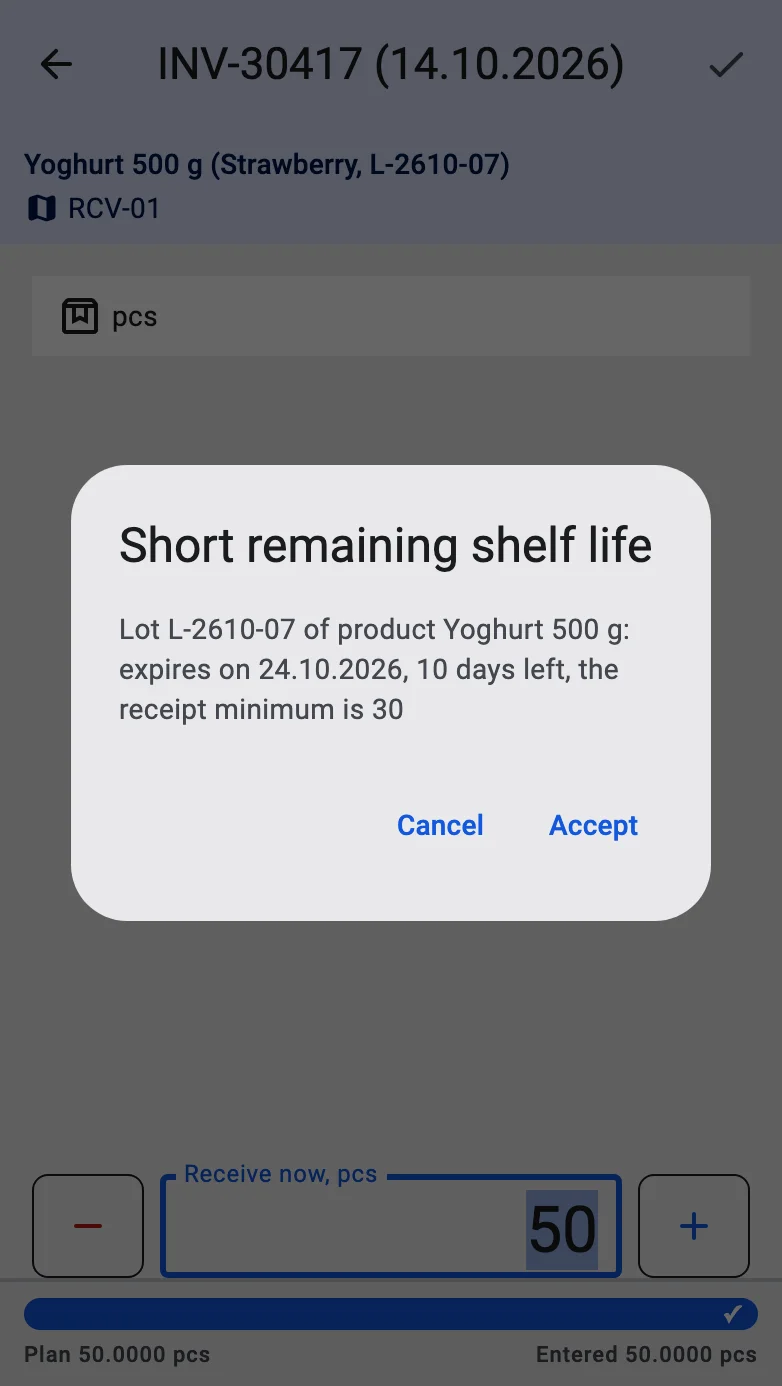
A product's lot tracking policy can set Minimum remaining shelf life on receipt, days. Every fact saved for a lot of such a product is checked against it: the days left from today to the lot's expiry date must be at least that minimum. A lot without an expiry date, or a policy without a minimum, is not checked. The check applies the same way when a whole sender container is accepted — every line it takes in is checked.
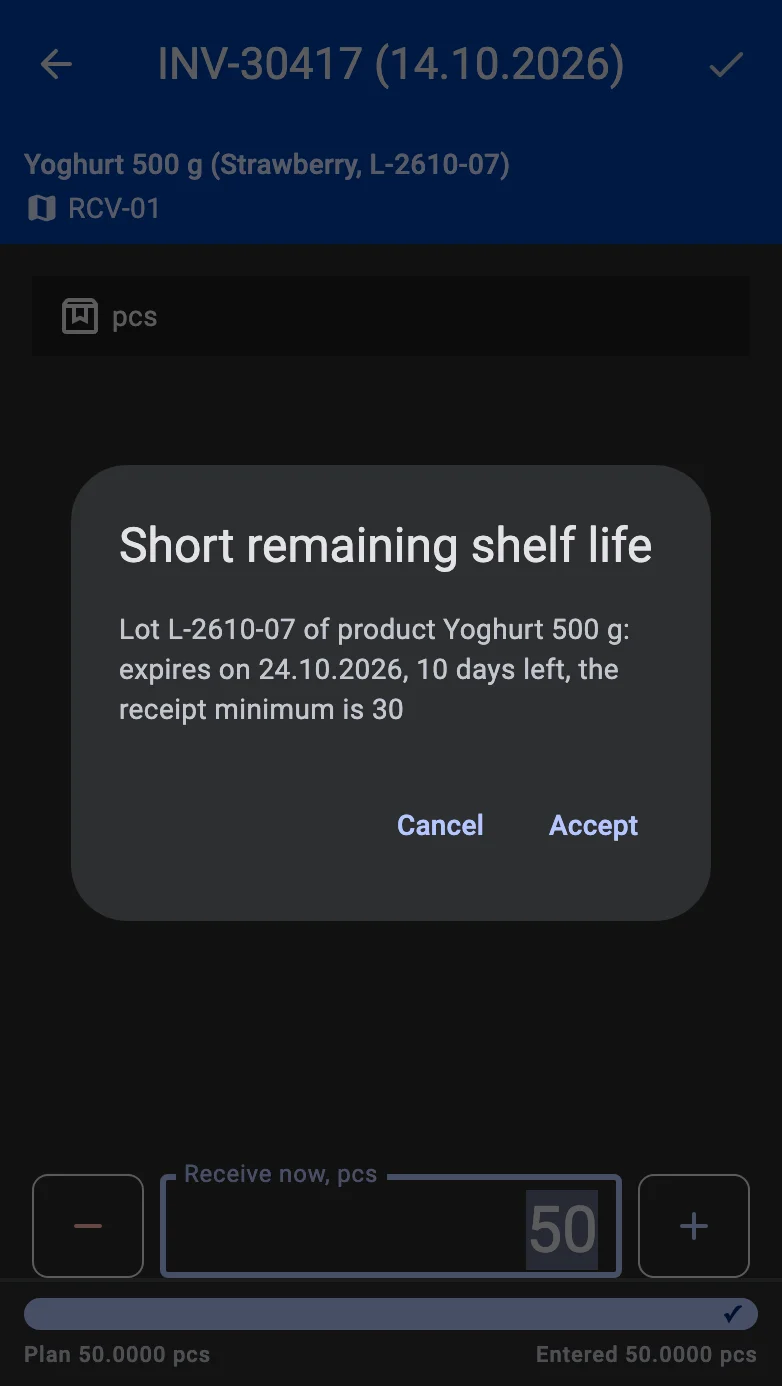
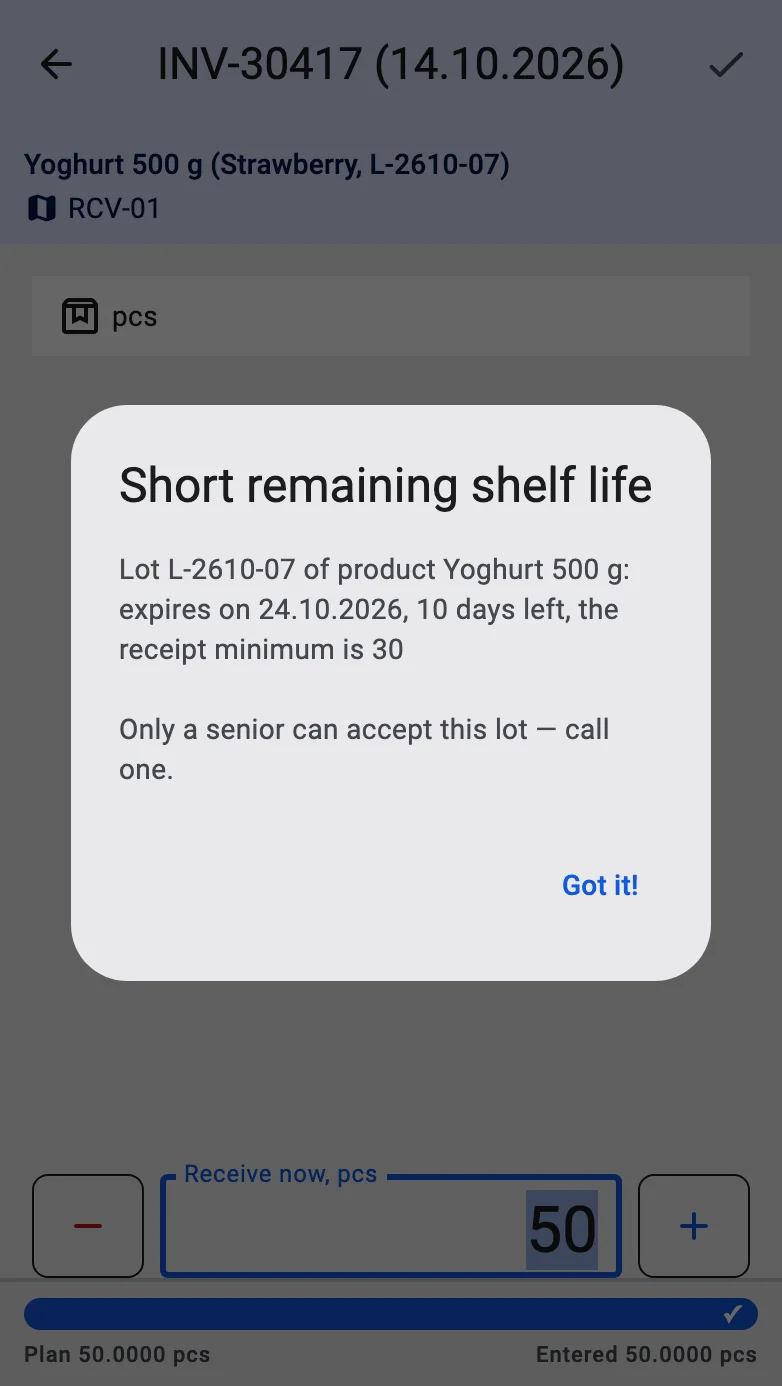
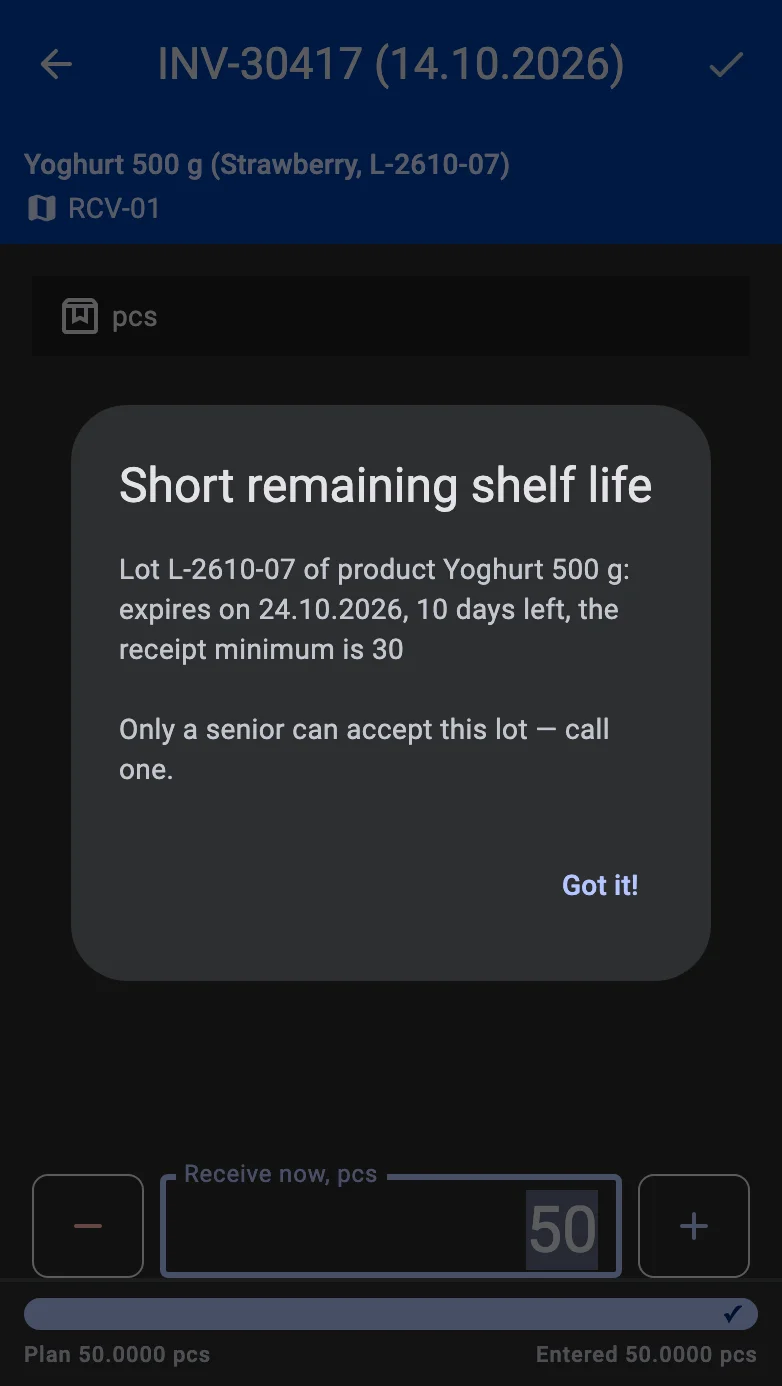
A lot with fewer days left is blocked, and the Short remaining shelf life dialog opens. It lists each such lot with its product, expiry date, the days left and the receipt minimum. What happens next depends on the user's right to accept such lots:
- With the right, the dialog offers Accept and Cancel. Accept saves the fact with that lot; Cancel leaves it unsaved.
- Without the right, the dialog adds Only a senior can accept this lot — call one. Its only button, Got it!, closes it, and the fact is not saved.
A terminal working offline shows the same dialog and applies the same right. A lot accepted offline is posted when the connection is back; if the server still finds it too short, it is recorded as a discrepancy to review (see Discrepancy resolution).
Returnable containers: acceptance and debt
When your company works with returnable containers, every existing container the receipt takes onto the warehouse balance — a sender container accepted as it stands, or an existing container scanned as the receiving target — also records what it means for the container debt. Temporary containers and the Reference Only mode never record anything here.
For each container, the outcome is one of these:
- The container comes back to you. If a counterparty owed this container back to you, accepting it closes that counterparty's debt. Its owner and returnability stay as they were.
- Nothing changes. A container you already owe to someone, or your own container that was already standing in your warehouse, is left as it is — your own pallet used as a carrier never becomes the sender's property.
- You now owe it back. A container that has to go back opens a debt to its owner: the receipt's Container owner, or the sender when that field is empty. A receipt with neither is refused and asks for an owner.
- It becomes yours. A container that does not have to go back becomes your own, free of any debt.
Whether a container has to go back is decided by the container line of the inbound order when there is one — Expected back or Stays with us. Without such a line, only a container whose type is returnable can have to go back, and then the receipt's Returnable containers switch decides.
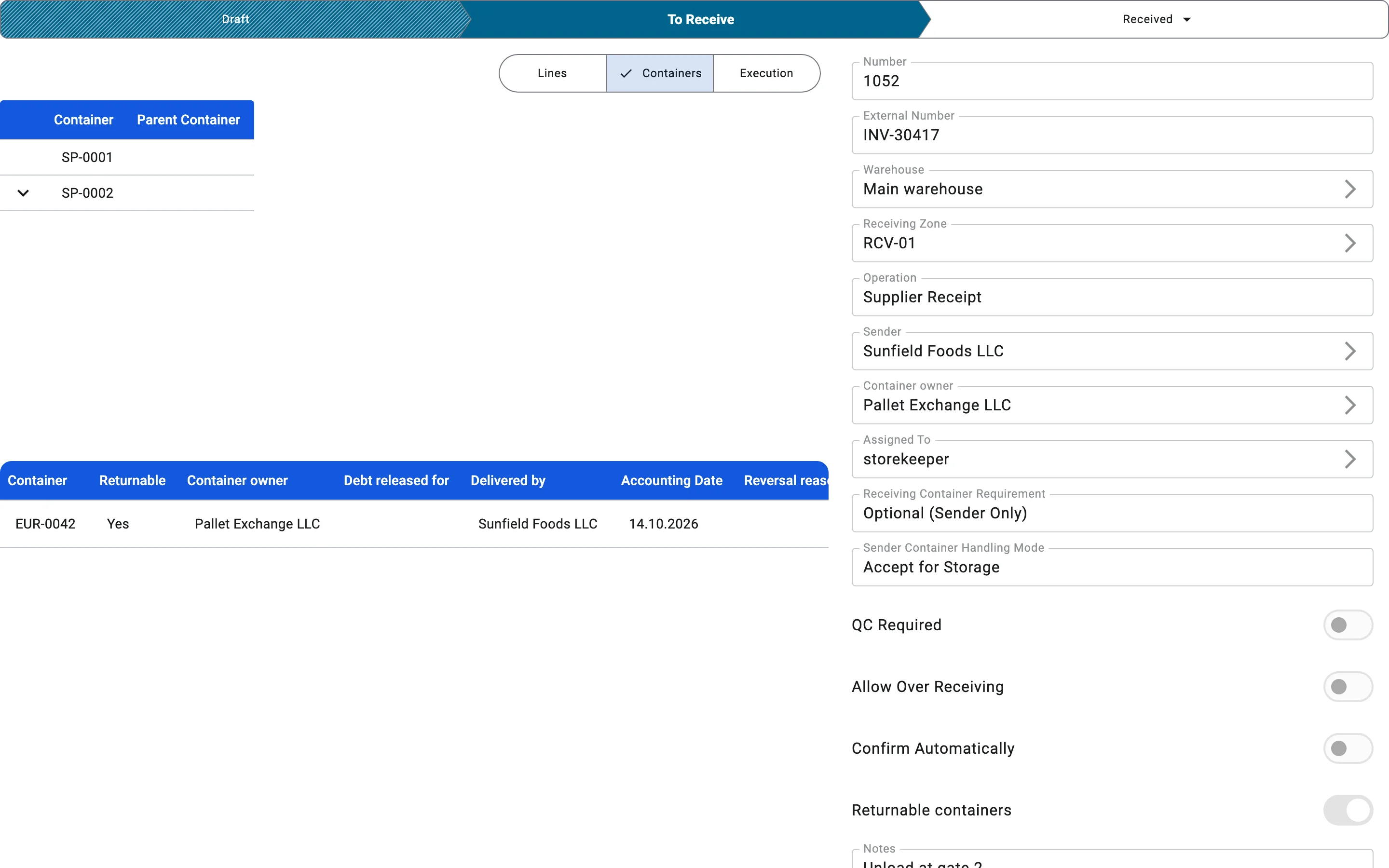
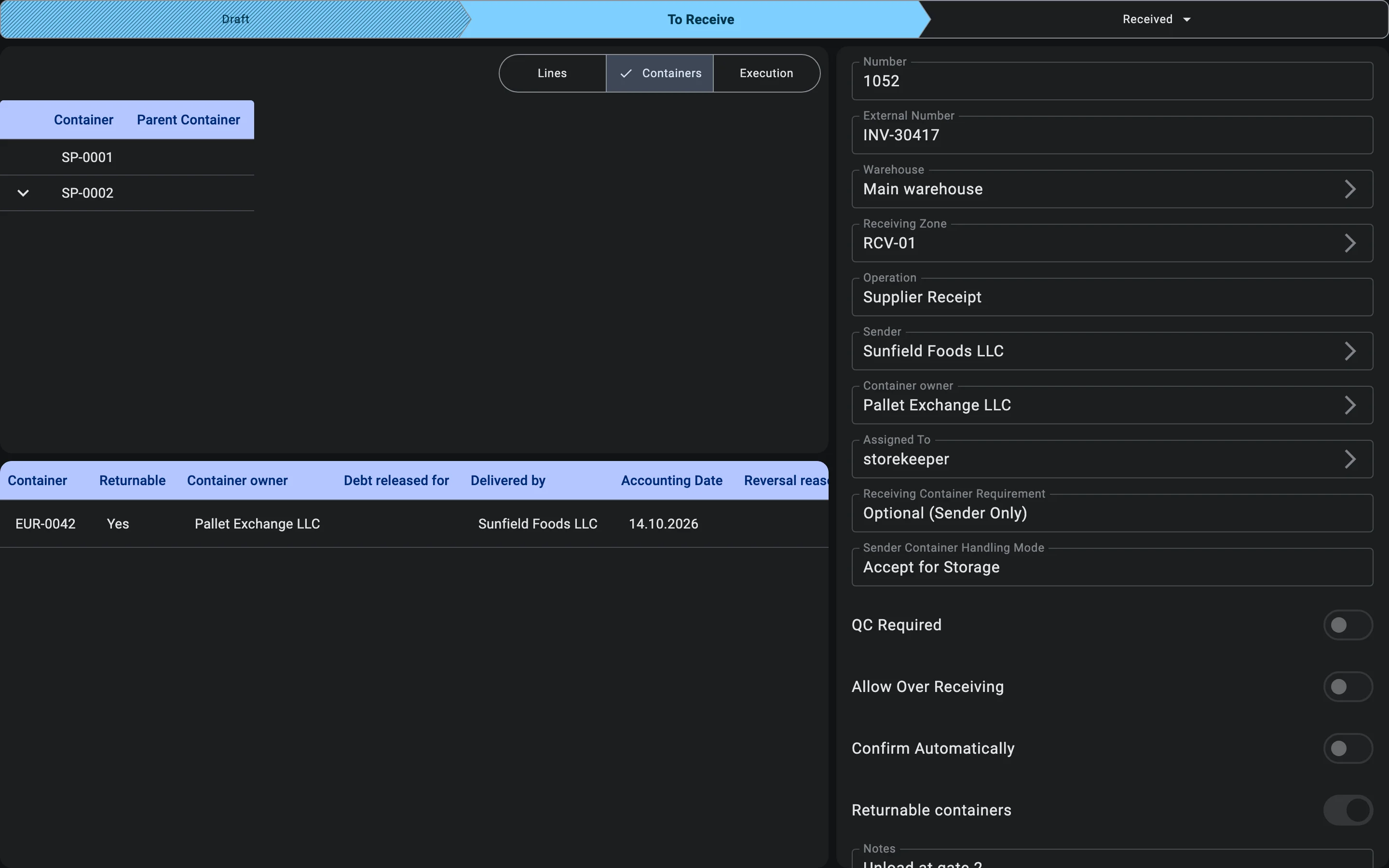
Every acceptance is listed on the receipt's Containers tab, with the columns Container, Returnable, Container owner, Debt released for, Delivered by, Accounting Date and Reversal reason. On the terminal the same result is shown under the container in the list — Returnable · owner … or Closes the debt of … — and in a short message right after the container is accepted.
Reversing an acceptance
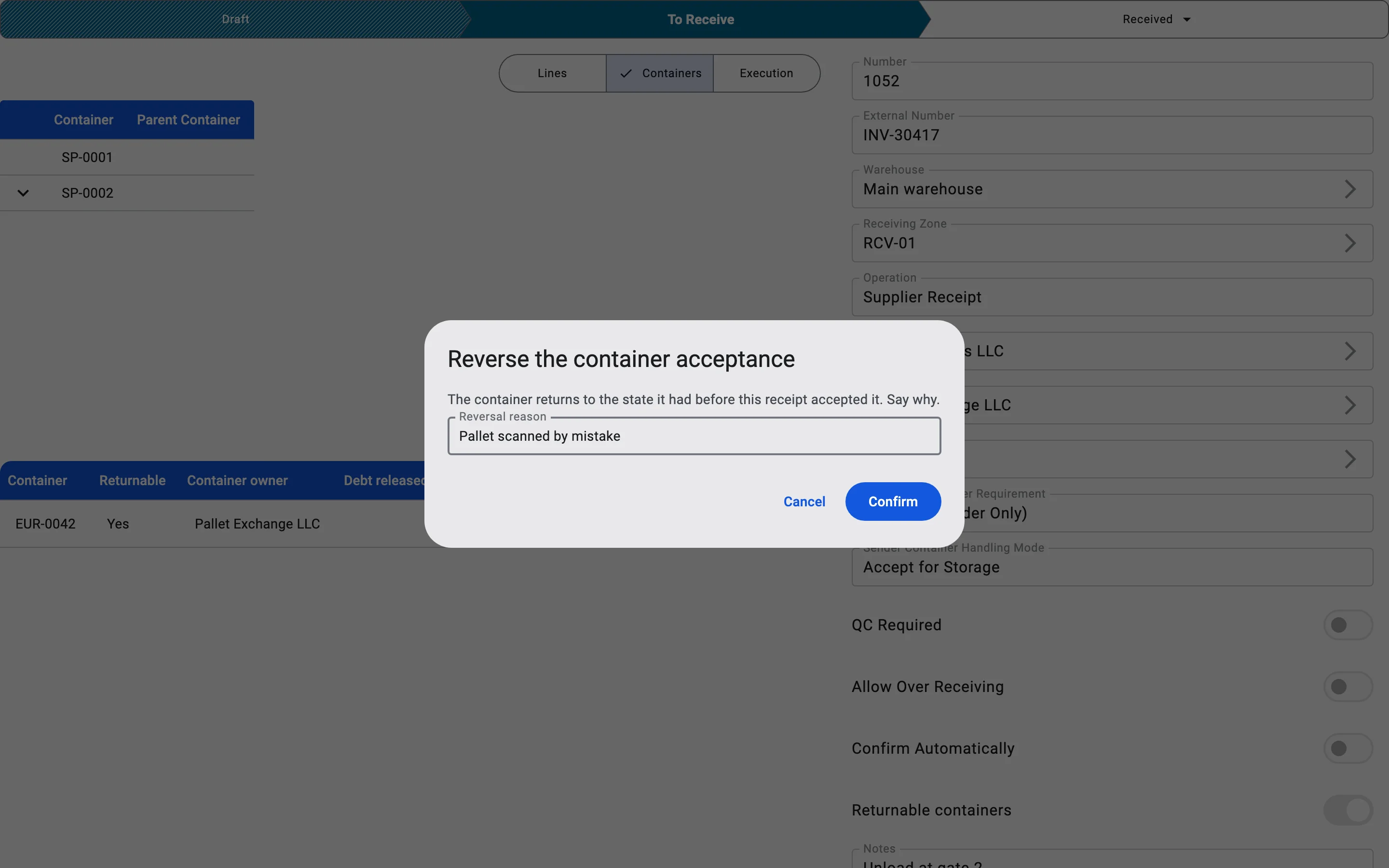
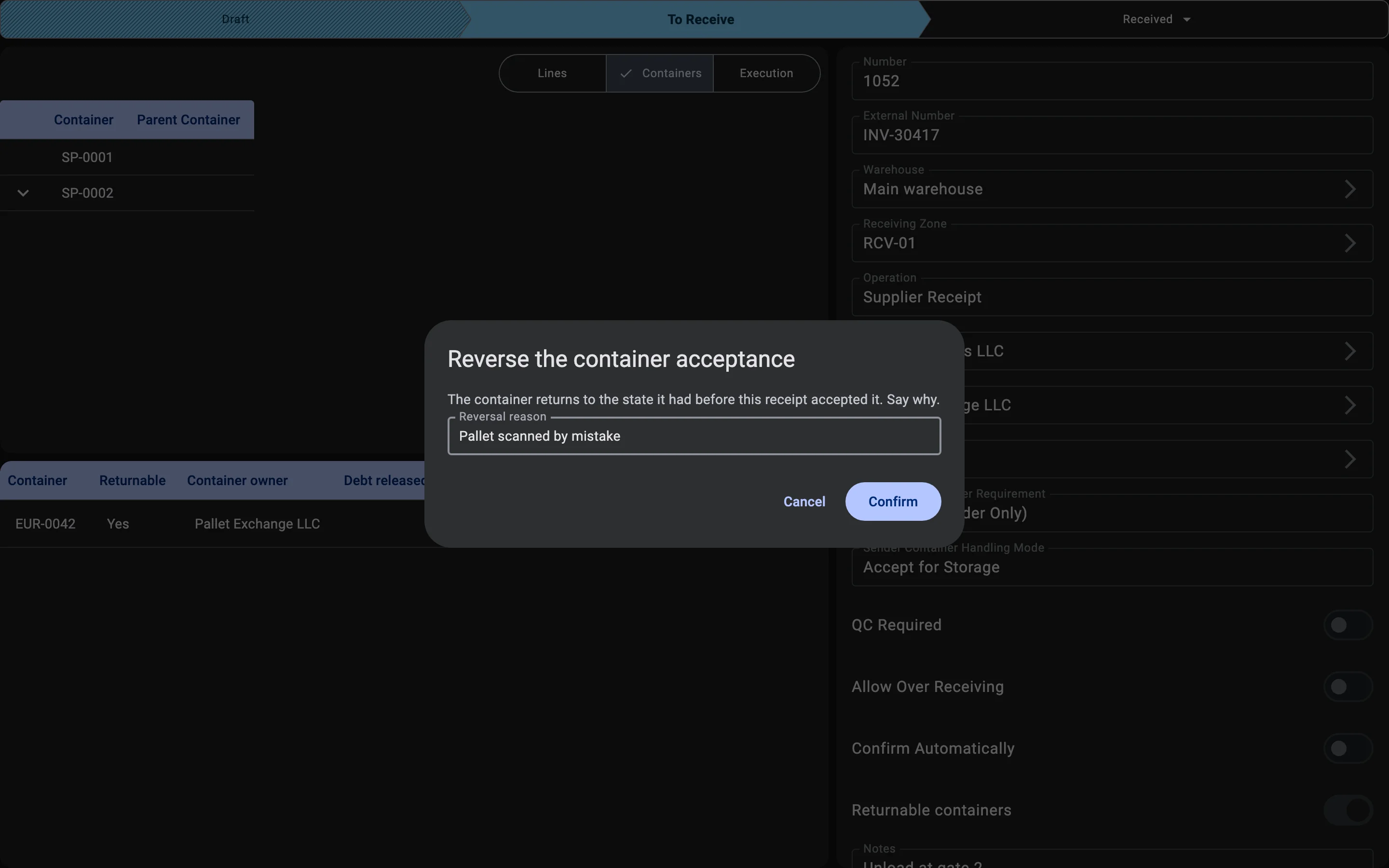
An acceptance recorded by mistake can be reversed: with the Reverse button in its row on the Containers tab, or with Reverse acceptance in the menu of the container's screen on the terminal. The Reverse the container acceptance dialog explains that the container returns to the state it had before this receipt accepted it and asks for a Reversal reason; Confirm stays unavailable until a reason is entered. The reversal is kept in the list with its reason, and the container debt follows it.
Reversing needs the right to post receipts. It is not possible on a Cancelled receipt, or once another document has already acted on that container's debt.
Phase 5. Quality control
For the product categories where quality control is mandatory, the system starts the procedure automatically:
- part of the received goods is isolated in the quarantine zone;
- a quality-control specialist is assigned a check task;
- the check results are captured — the goods can be marked fully fit, partially fit, or fully rejected;
- when goods are defective, a quality incident is created with photos, a description of the cause, and recommended actions (return to supplier, disposal, sell at a discount).
The full description of quality control lives in the corresponding module (not yet documented here).
Phase 6. Discrepancy resolution
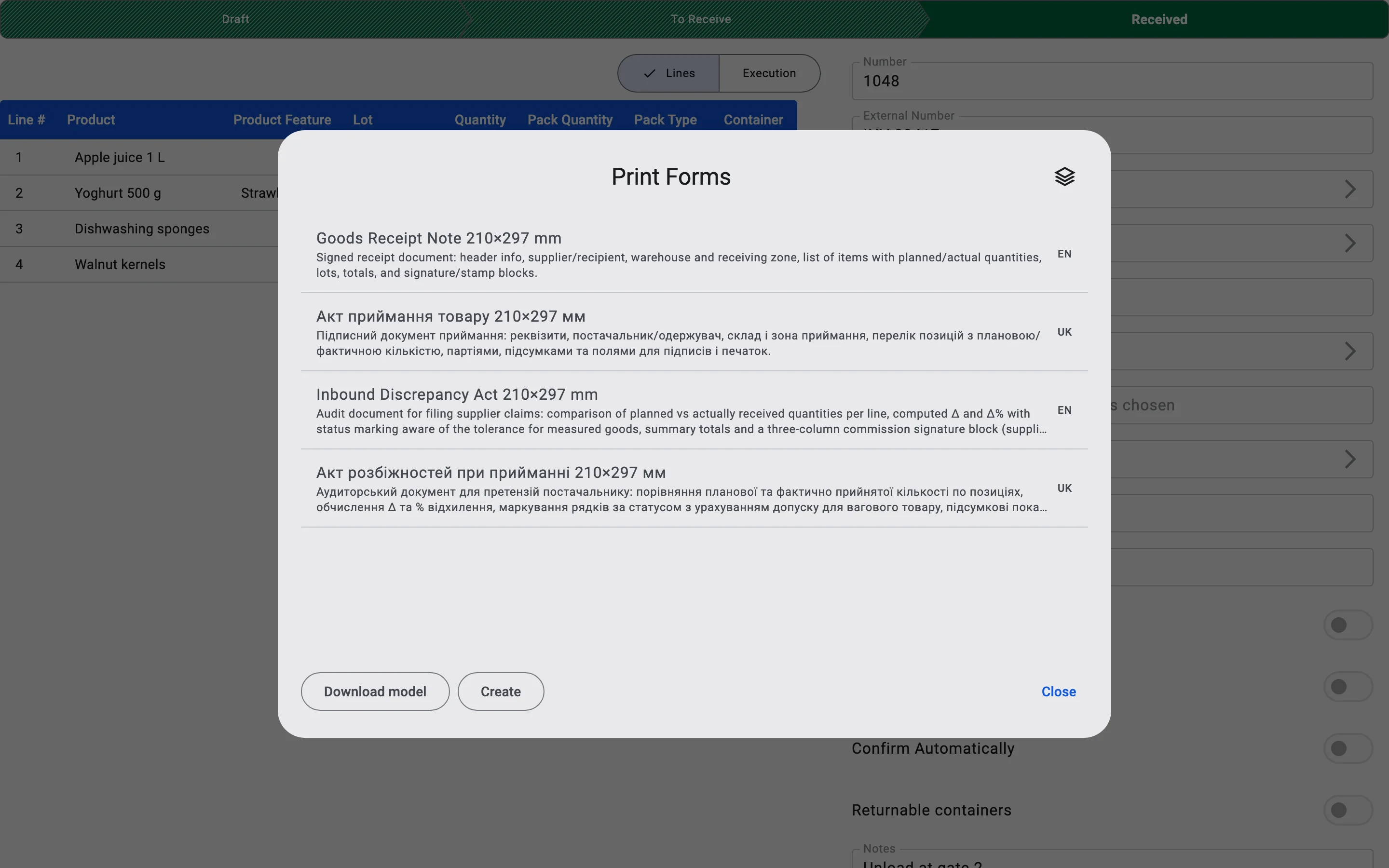
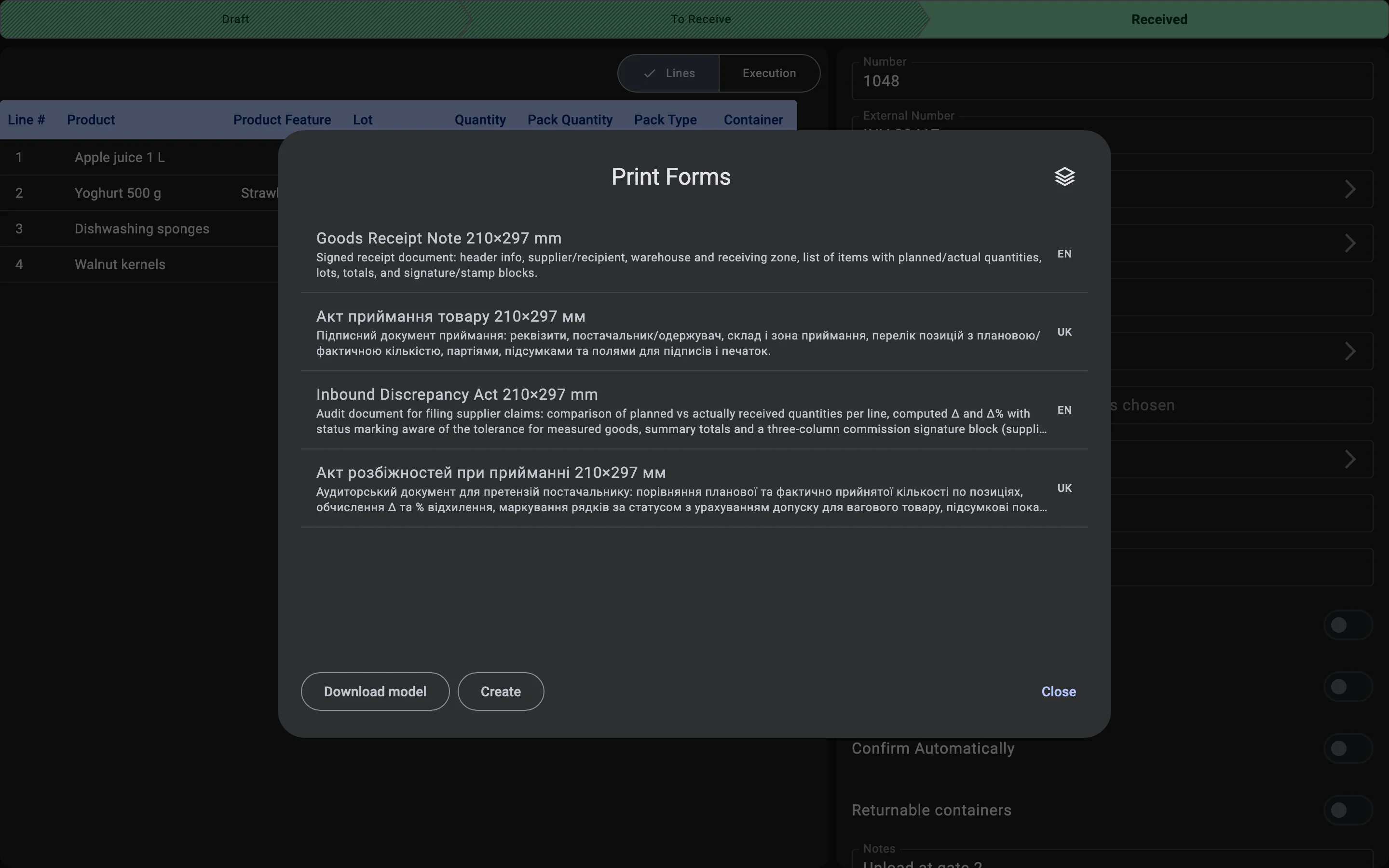
Discrepancies between expected and actual cargo are a routine part of the job. Every receipt line shows the planned and the received quantity side by side, so a shortage or a surplus is visible as soon as it is recorded, and the receipt can be printed as an Inbound Discrepancy Act to back a claim to the supplier.
When a decision cannot be made on the spot (for example, the supplier still needs to be contacted), the receipt stays in progress: the disputed goods are neither added to the free stock nor written off until the receipt is finished.
Over-receiving
An over-receiving discrepancy — more arrived than the plan expected — is handled inline when the receipt allows it (the Allow Over Receiving switch on the receipt):
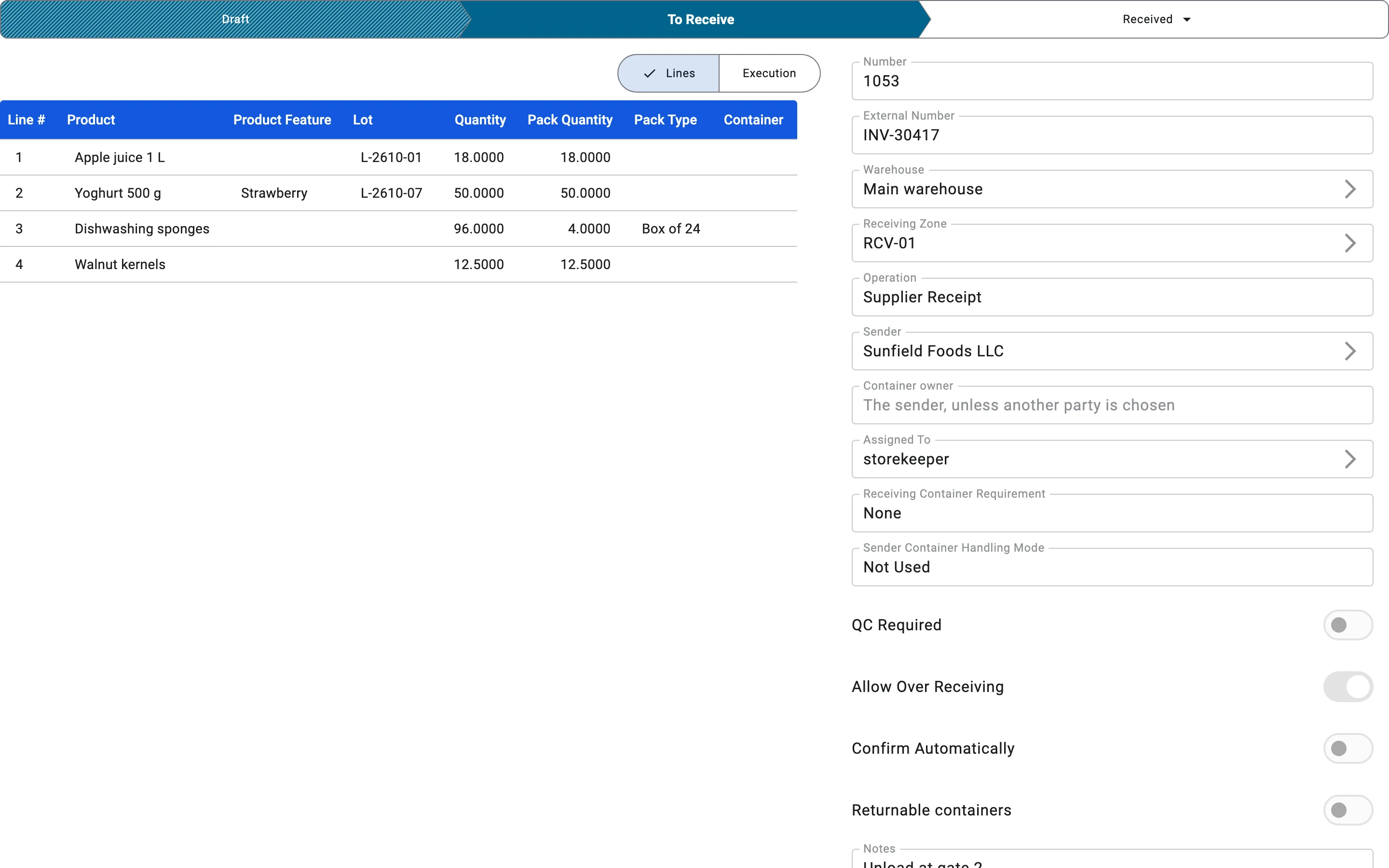
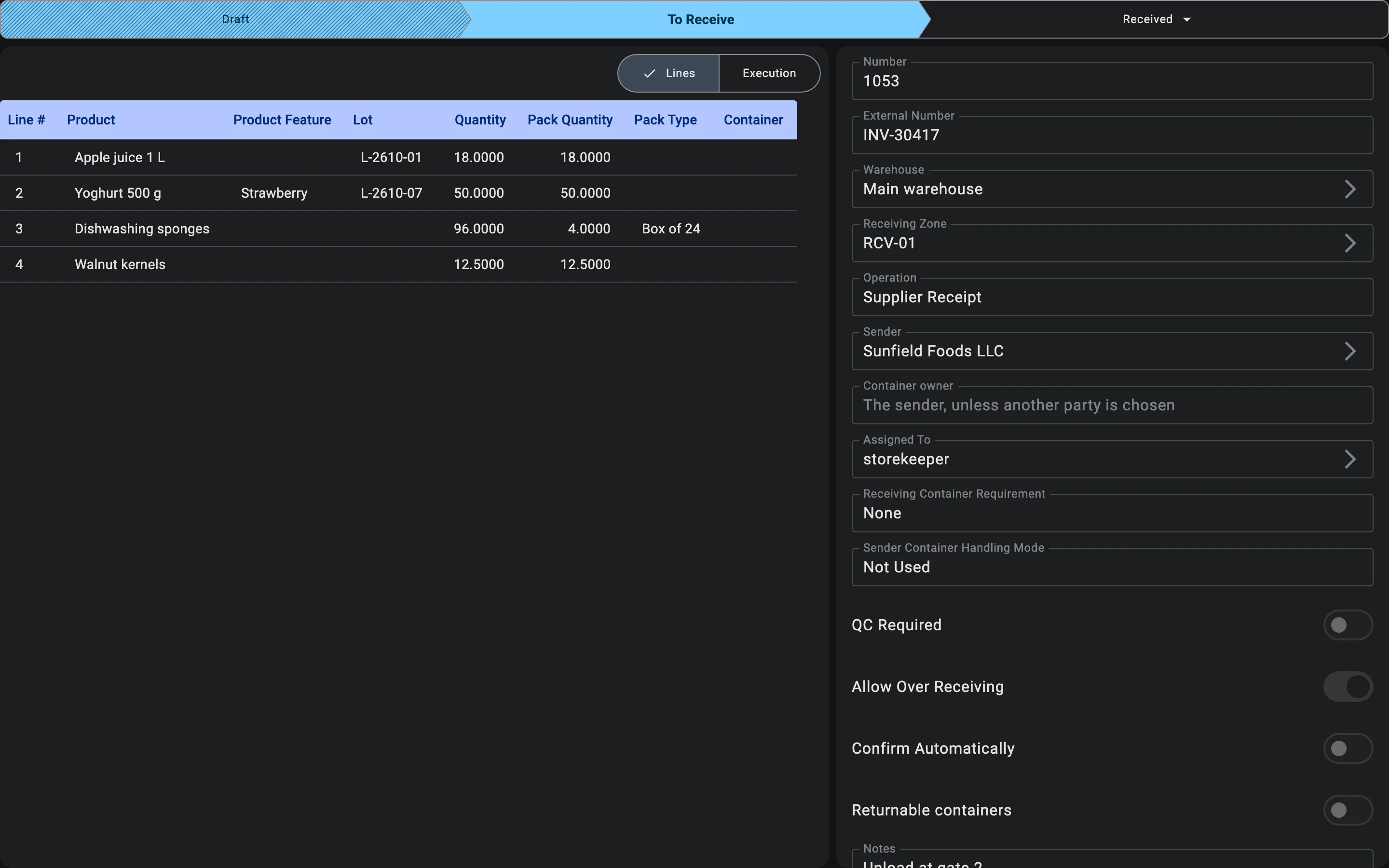
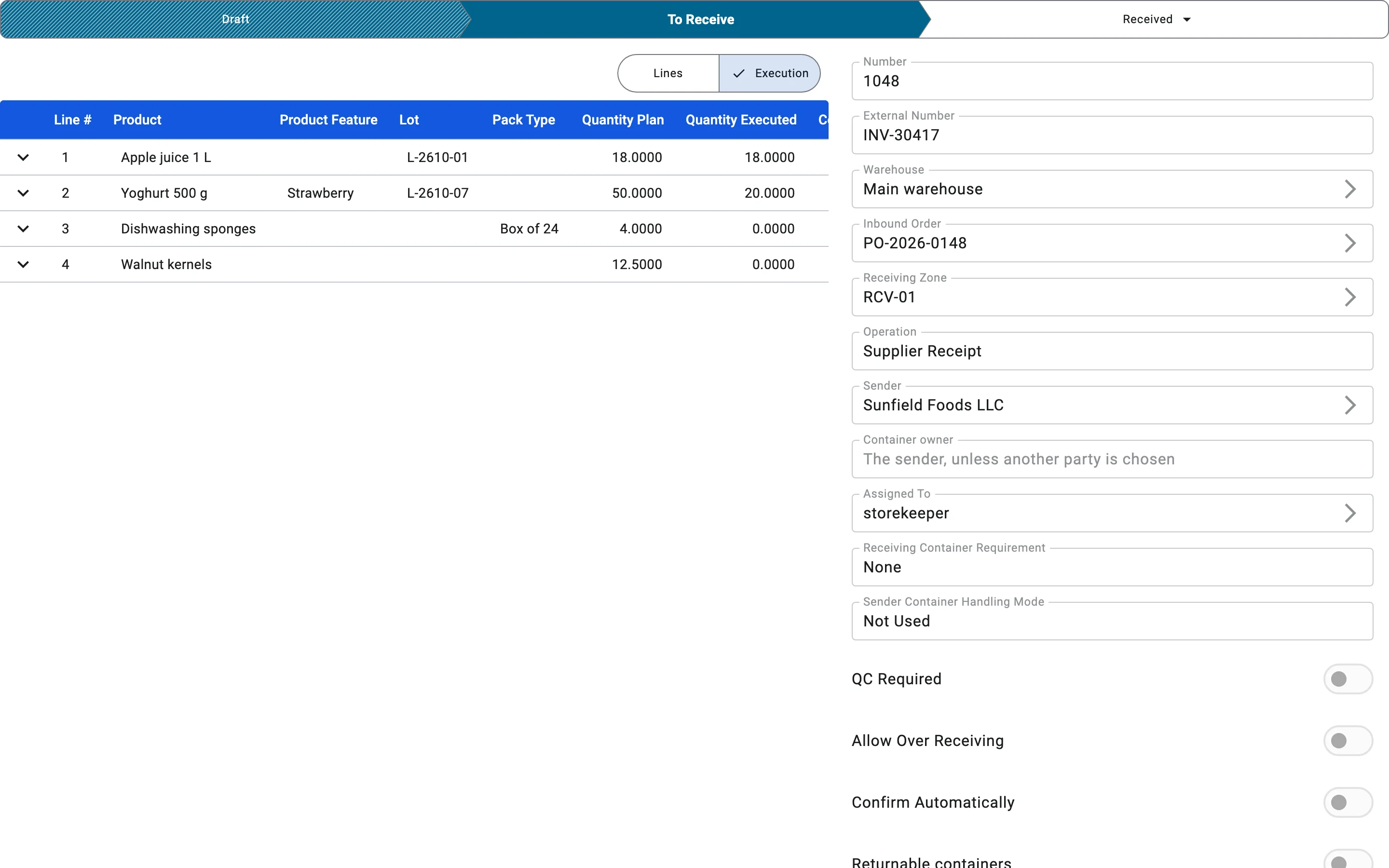
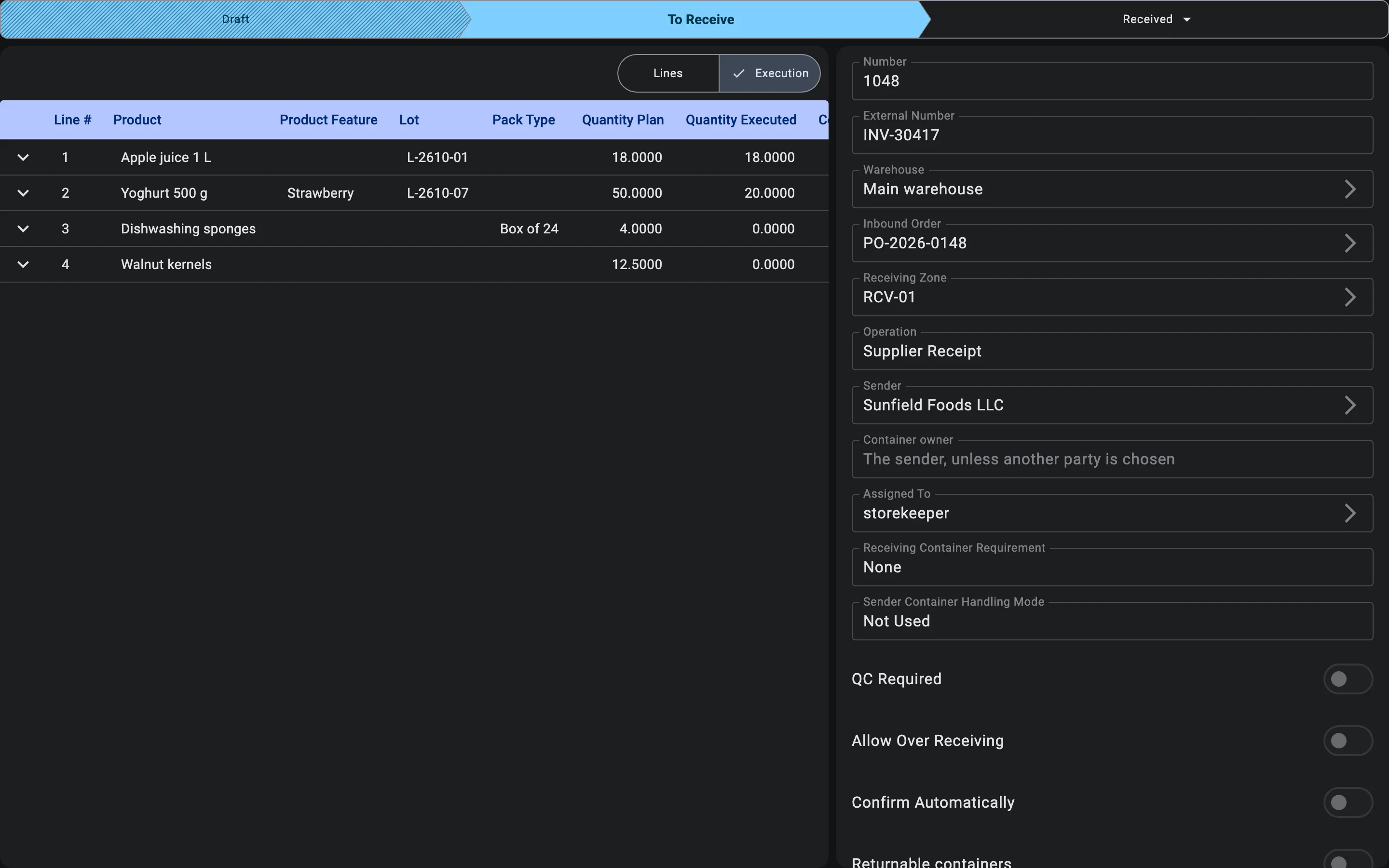
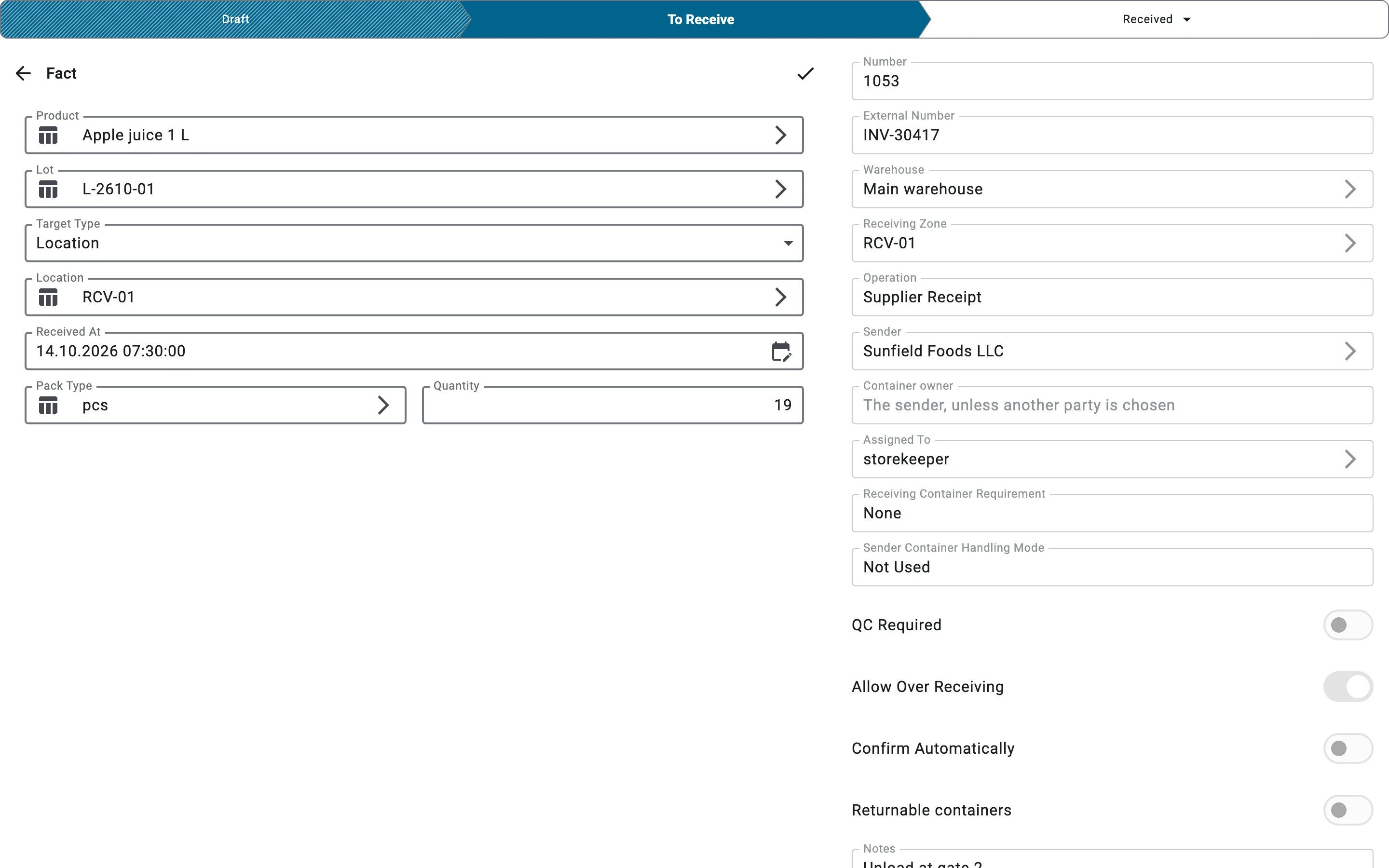
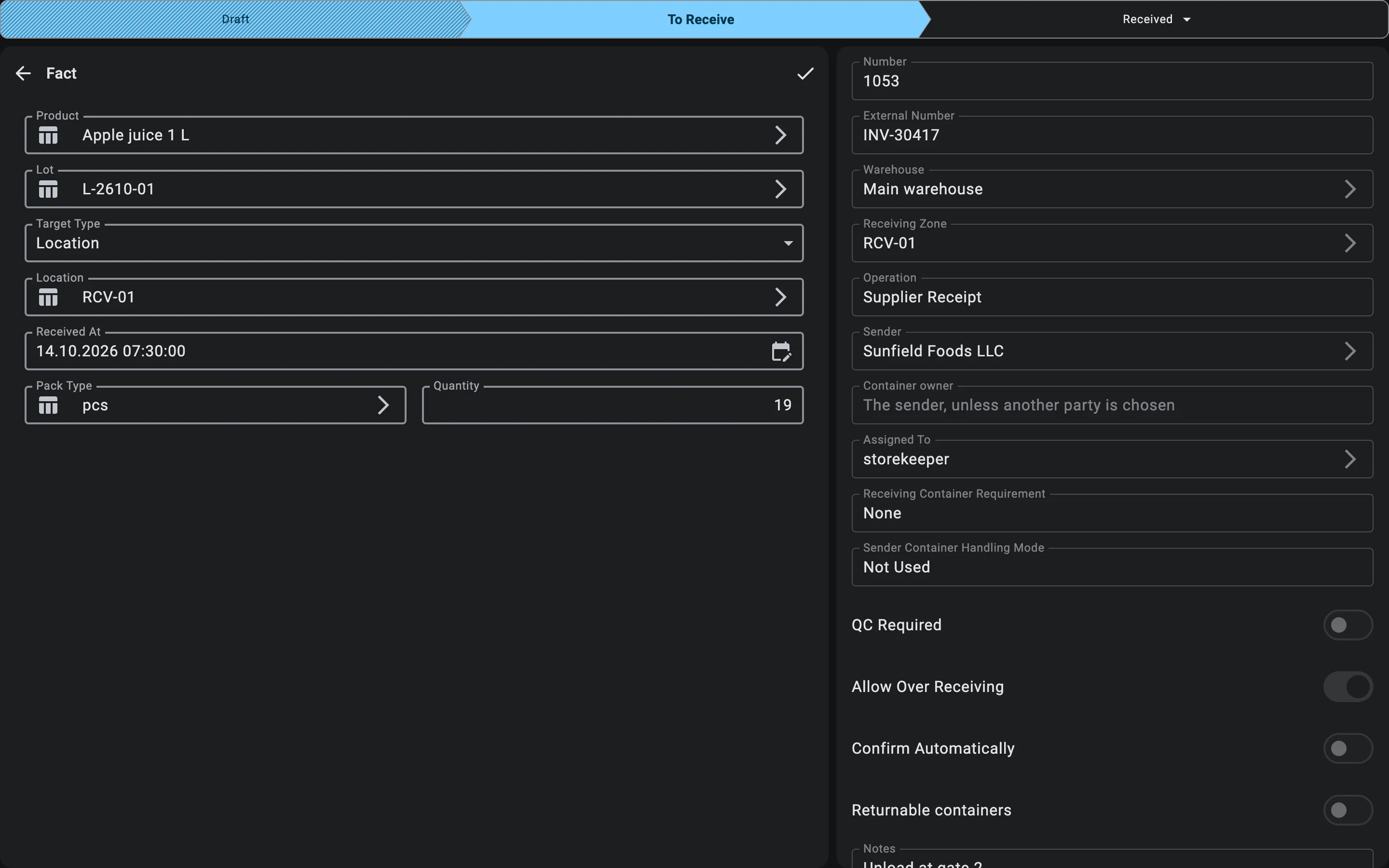
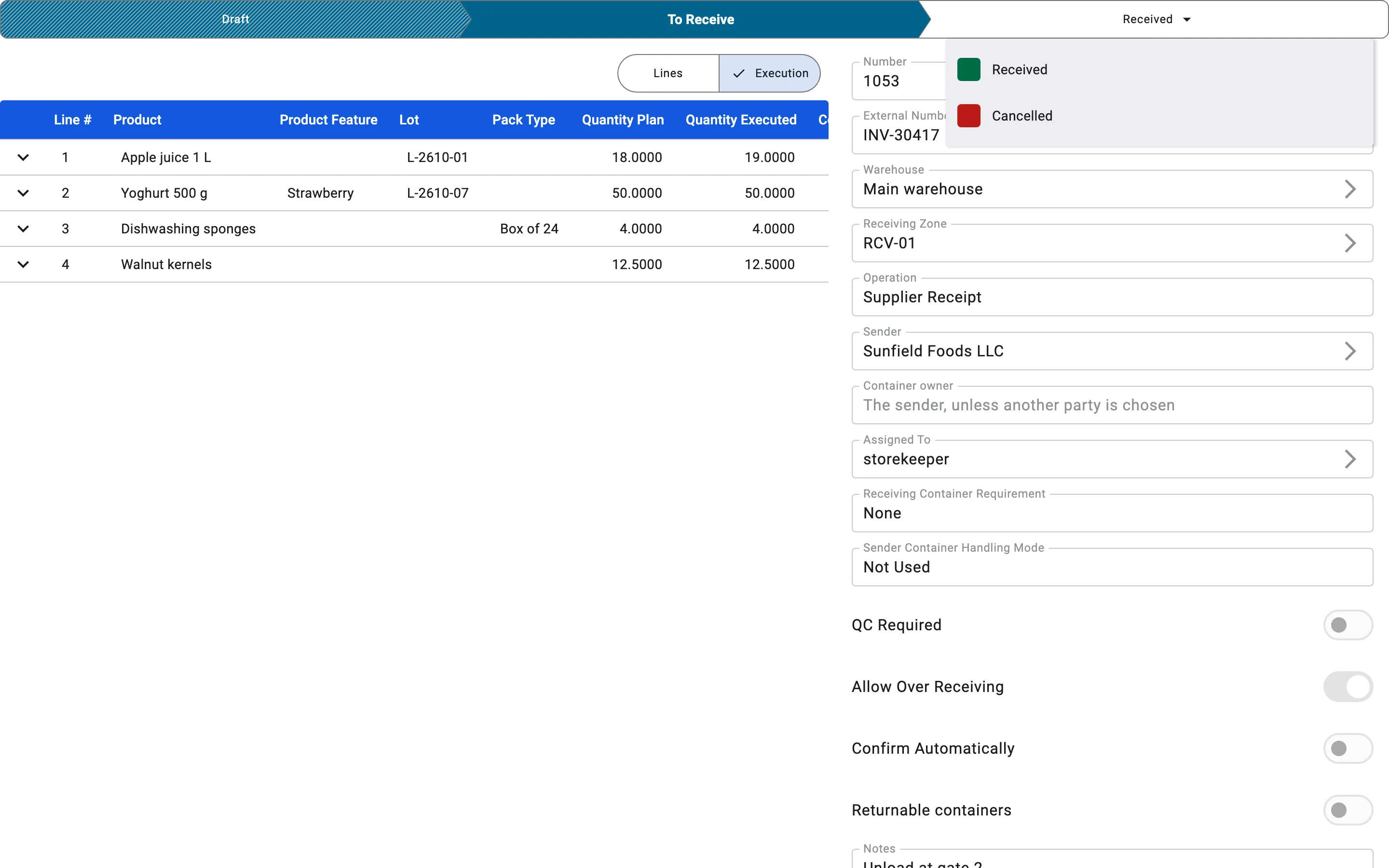
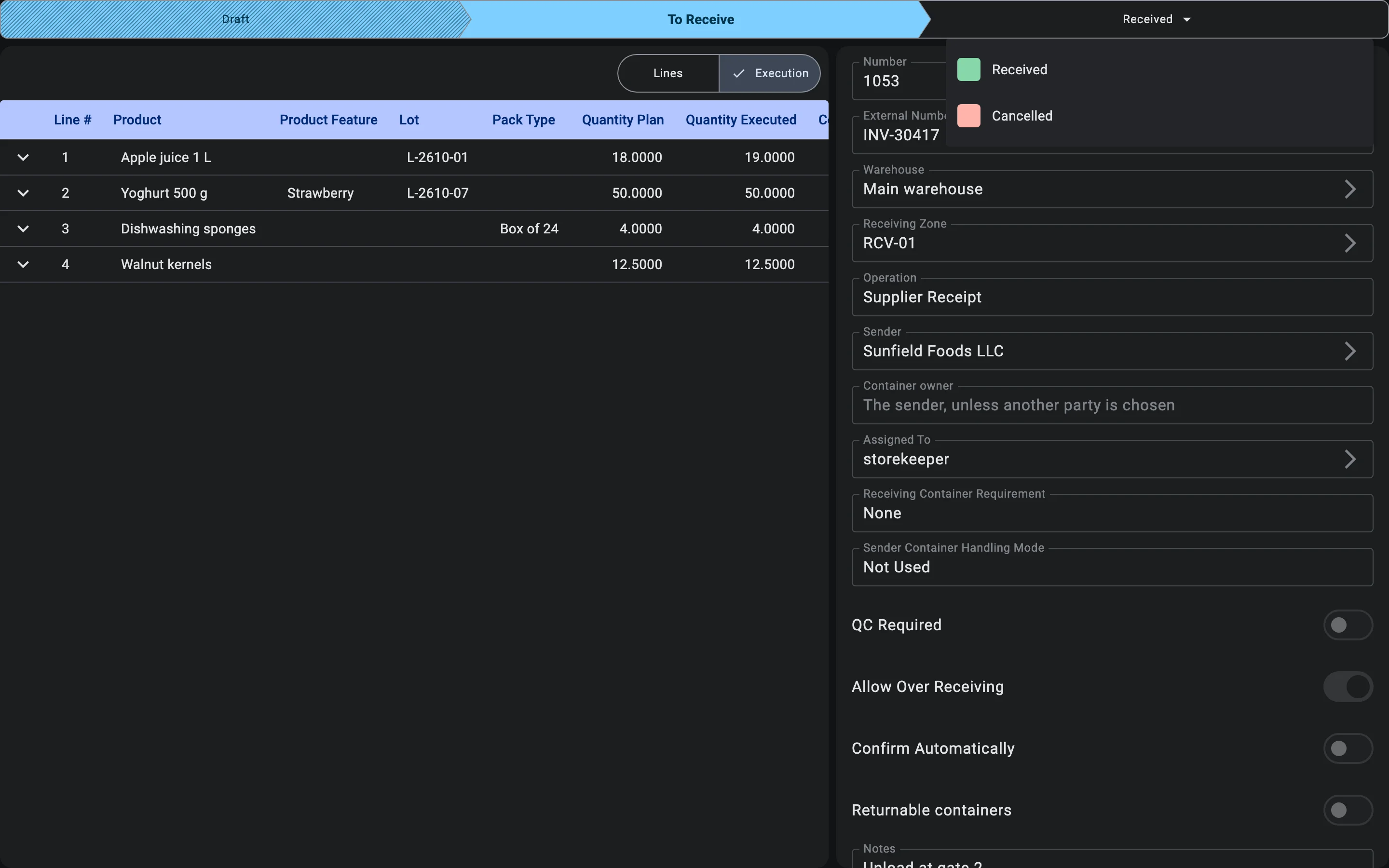
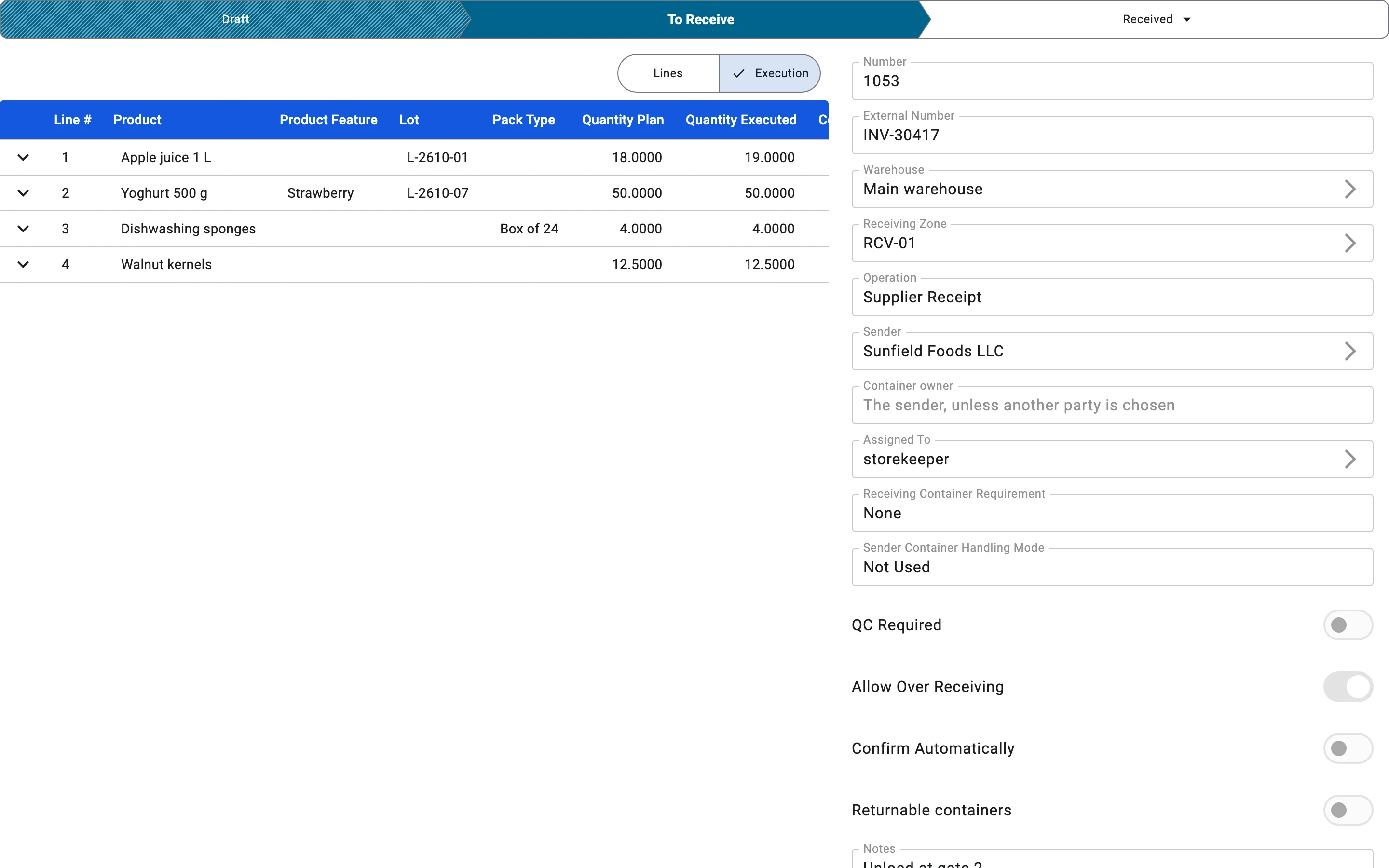
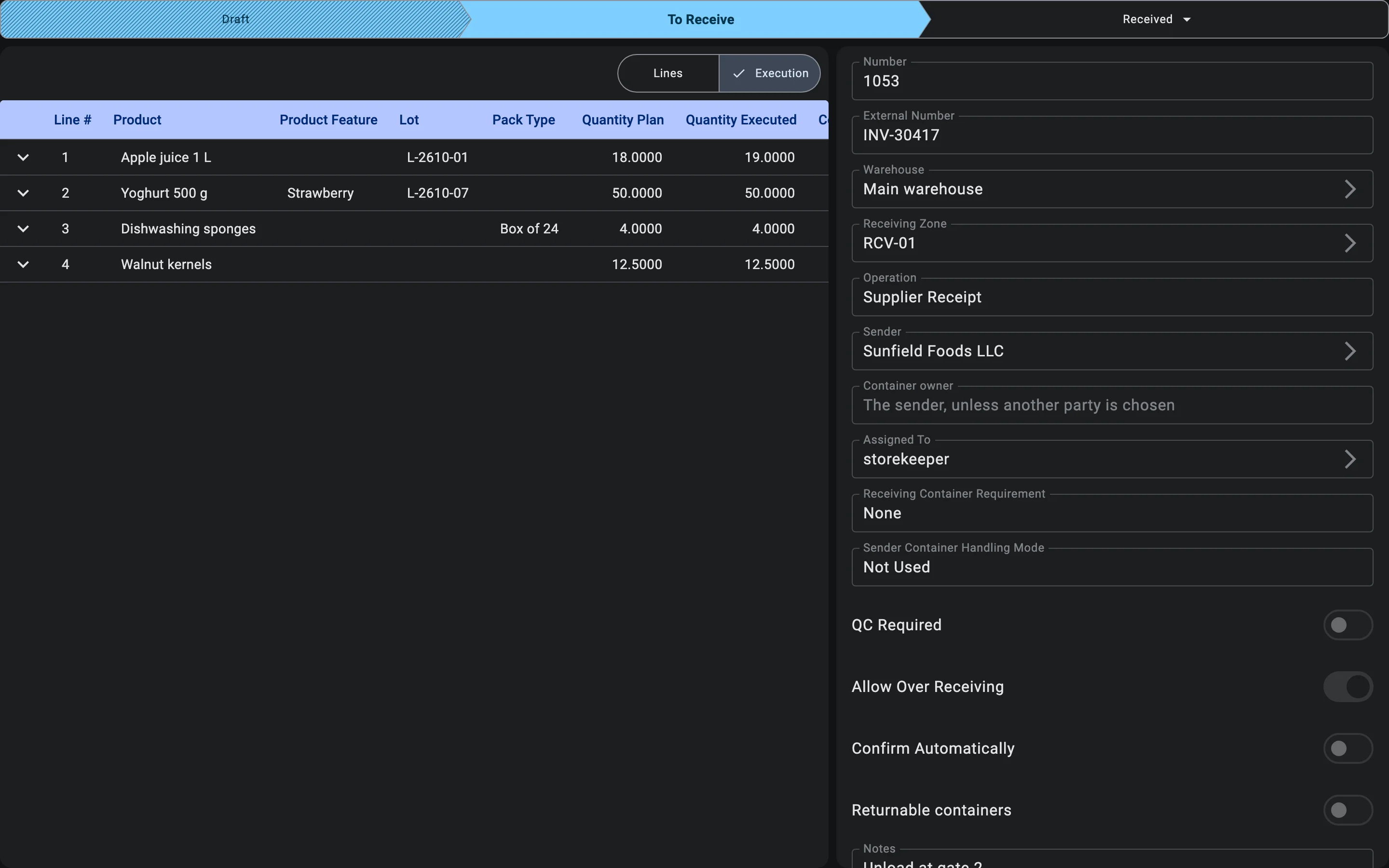
When the switch is off, the system refuses a fact that would take a line above its plan. The one exception is the receipt's Tolerance %: for goods that are weighed or measured, a surplus of up to that percentage of the planned quantity is accepted even with the switch off. Goods counted in pieces get no tolerance.
The discrepancy act
The Inbound Discrepancy Act is a print form of the receipt. It is built from what has been recorded at the moment of printing.
The header repeats the receipt's Discrepancy tolerance and whether over-receiving is ALLOWED or FORBIDDEN. The table lists every line with the planned quantity, the actual quantity, the difference (Δ, also as a percentage of the plan) and a status:
| Status on the act | When it is shown | Counted as a discrepancy |
|---|---|---|
| OK | The received quantity equals the plan. | No |
| Shortage | Less was received than planned. | Yes |
| Within tolerance | More was received than planned, but only by up to the tolerance, and the product is weighed or measured. | No |
| Surplus (allowed) | More was received than planned, beyond any tolerance, and the receipt allows over-receiving. | Yes |
| Surplus | More was received than planned, beyond any tolerance, and the receipt does not allow over-receiving. | Yes |
Below the table the act sums up the lines — how many are short, how many have a surplus, how many are within tolerance — and ends with a conclusion banner: No discrepancies detected when every line is OK or Within tolerance, otherwise DISCREPANCIES DETECTED with the number of lines concerned. The last block has places for the supplier, the recipient and a commission member to sign, so the act can serve as the basis for a claim.
Discrepancies recorded on terminals working offline
A PDT can keep receiving when the connection is lost; its work is sent to the server later. If something recorded offline no longer fits the situation on the server, the system does not stop the operator and does not lose the work — it posts what it can and records an offline discrepancy for a manager to review.
This includes a lot accepted offline with too little remaining shelf life (see Lots with a short remaining shelf life); the discrepancy's description reads Lot tracking rules were broken.
Such discrepancies are not shown on the receipt. They collect in the Offline discrepancies registry in Administration, where each row opens the receipt it concerns. The screen, its columns and the types of discrepancy are described in Offline discrepancies.
Phase 7. Putaway handoff
Once the main receiving is complete and quality control has passed, the received goods are ready to be moved into the storage zones. At this point:
- the system flags received lines as awaiting putaway;
- the cell-selection process kicks in, driven by the product's placement rules;
- the goods stay physically in the receiving zone until a putaway operator collects them.
Every movement during putaway is scanned, so the system always knows where each unit of received goods is.
The full rules and execution of putaway live in the Putaway module (not yet documented here).
Sender container handling
Sender containers accepted for storage
When supplier pallets were accepted as storage units, full pallets are handed off to putaway. The system suggests a cell for the whole pallet rather than for individual lines inside it; the pallet is not broken down at this phase.
Sender containers accepted for putaway
When supplier pallets were accepted with the "to putaway" flag, the same pallets are handed off to putaway. The system takes the pallet's attributes — pallet type, weight class — into account when looking for an optimal cell.
Sender containers for tracking only
When supplier containers were used only as a lot identifier, putaway receives either individual lines from the receiving zone or warehouse containers that the goods were received into — depending on the receiving container requirement. The supplier container no longer appears at this stage.
Sender containers not used
When supplier containers are not in play, putaway receives either lines directly from the receiving zone or warehouse containers — depending on the receiving container requirement. The handoff is formalised at the line level, not the pallet level.
Phase 8. Receipt closure
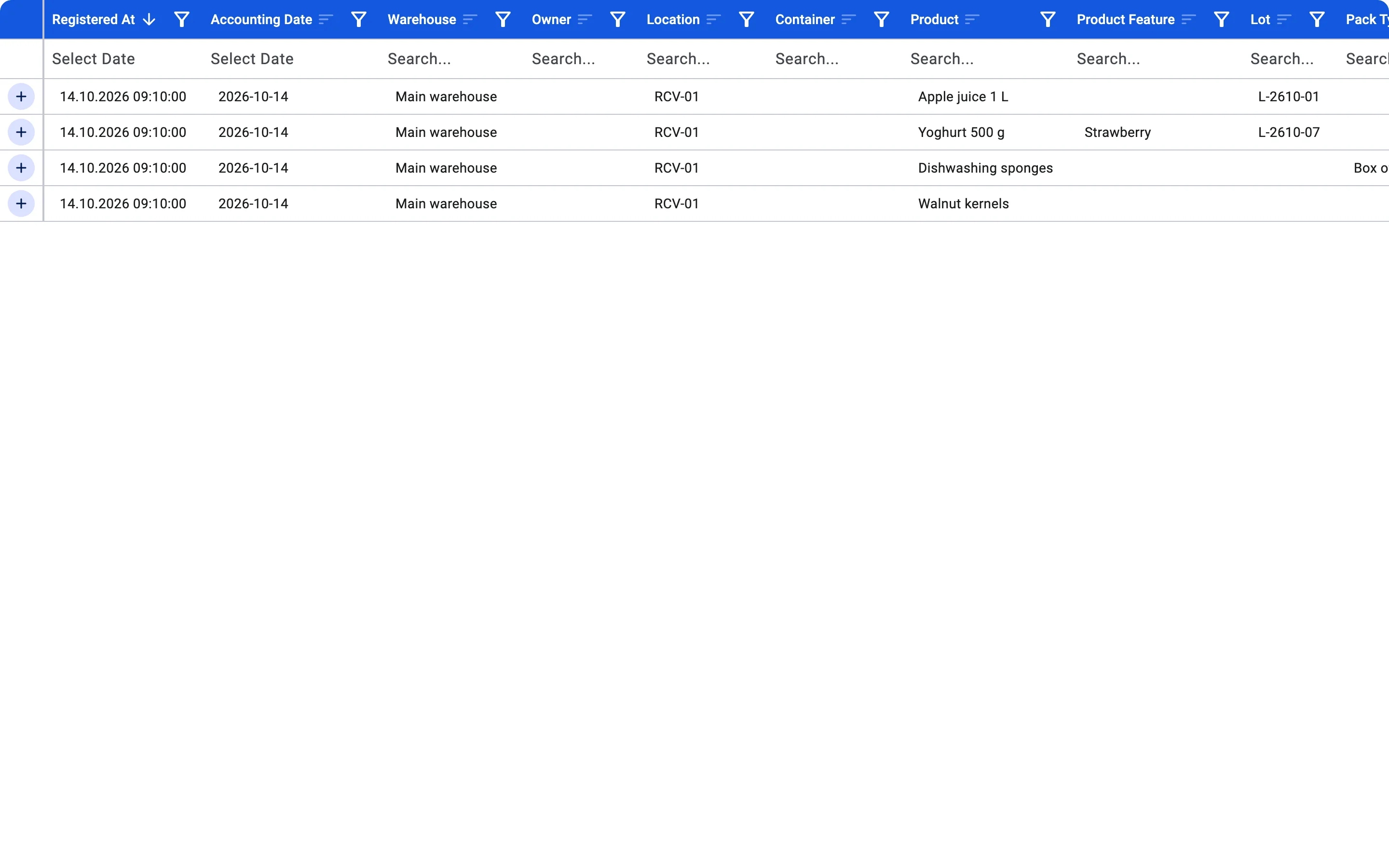
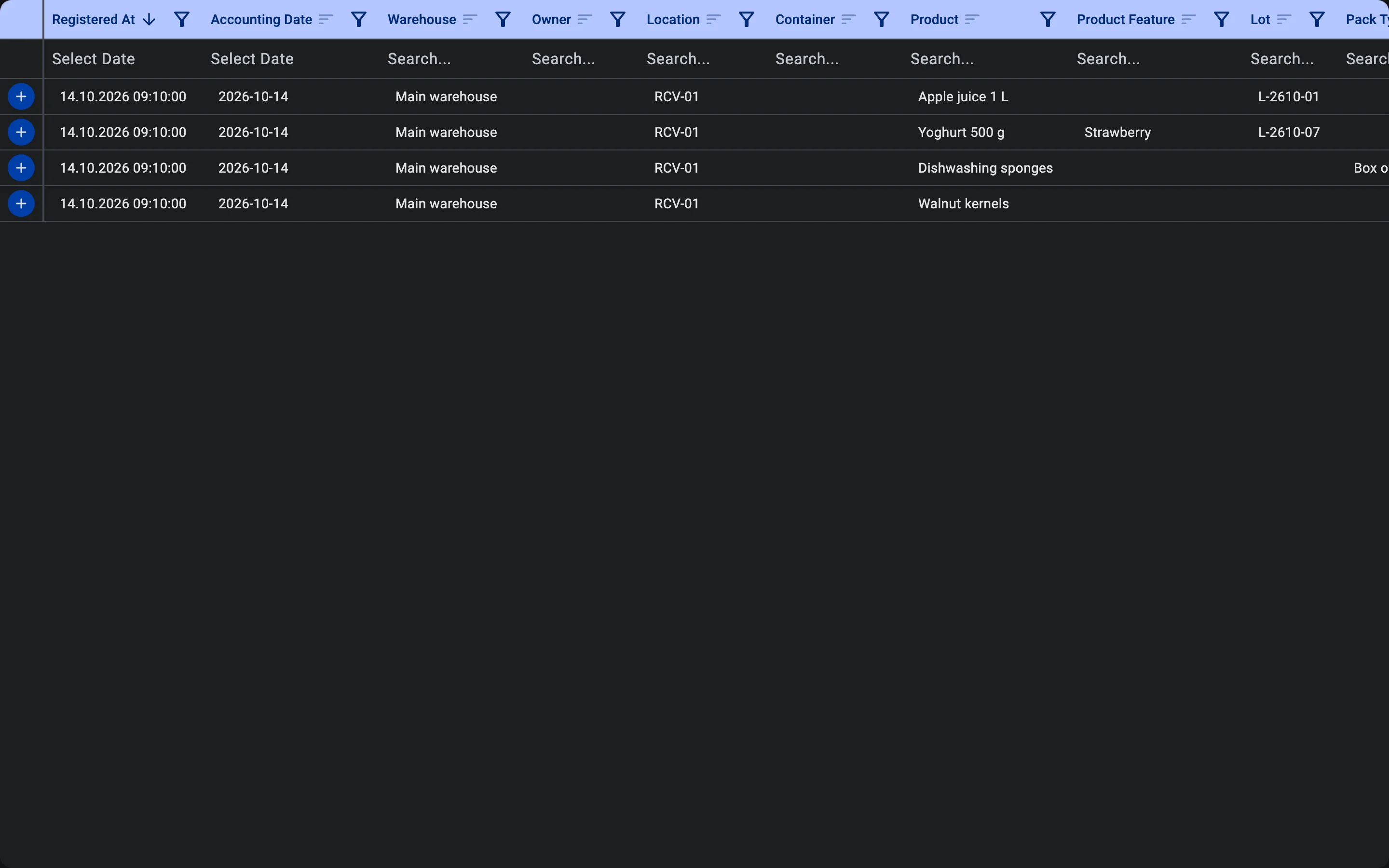
When every line has been processed, the receipt is finished and moves to Received. Finishing by hand needs the Post receipts right and something actually received — a receipt with no accepted goods and no accepted containers cannot be finished. At that moment:
- the warehouse stock is officially increased by the received quantity;
- the goods become available for sale and order picking;
- the receipt report and the discrepancy act (if there are discrepancies) can be printed from the receipt;
- the ERP system gets the updated data through the integration;
- the receiving containers are settled — see Containers on closing.
What the closed state means, and what can no longer be done to the receipt, is in Receipt statuses.
Containers on closing
A container that was registered on the receipt and is still open when the receipt closes does not block closing. Each one is settled by what is in it: a container holding goods is closed, so nothing more is added to it, and an empty one is released, so it is free for other work. This happens in the same step that posts the stock, and it is the same whether the receipt is finished by hand or confirms itself.
When the receipt confirms itself
The receipt is finished by hand unless it has the Confirm Automatically switch on (see Automatic confirmation).
- Switch off (the default). The receiver or the shift supervisor finishes the receipt when the last line is processed.
- Switch on. There is no finishing step. The receipt closes itself at the moment a recorded fact, or an accepted container, makes every line match the plan exactly. If the plan is not matched the receipt waits and is finished by hand as usual. The exact conditions are in Automatic confirmation.
The outcome is the same either way. Pressing finish on a receipt that has already confirmed itself changes nothing.
What the business gets from this process
- Speed and transparency. All eight phases are pulled together into one interface; the shift supervisor sees progress in real time.
- Quality control from the start. Defective goods do not enter stock, and the problems that are found are recorded on paper.
- Objective supplier picture. Data on supplier punctuality, completeness, and quality accumulates per supplier.
- Scenario flexibility. The same process serves both planned orders and unplanned deliveries — no mode switching required.